


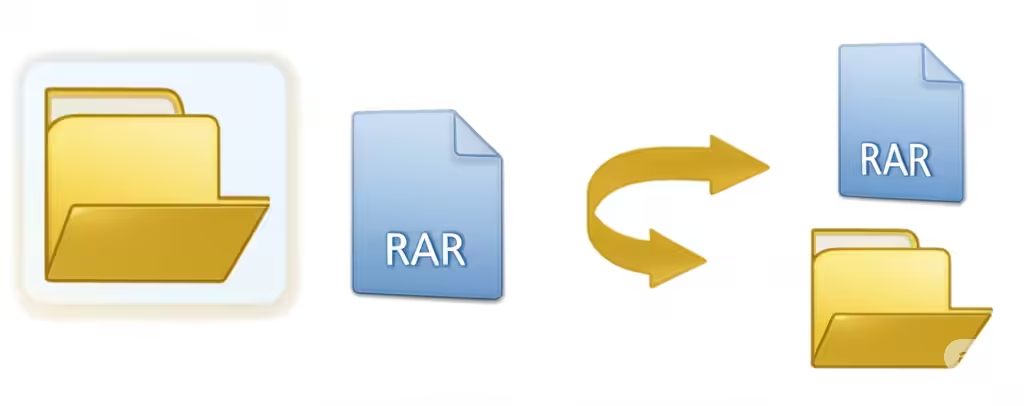
Guide to Extracting RAR Archives in Windows 10/11.
RAR files are compressed archive files that allow you to store multiple files and folders in a single, smaller package. They’re widely used for distributing large files or collections of documents, software, and media because they reduce file size and make sharing more convenient.
However, unlike ZIP files, Windows 10 and Windows 11 do not include built-in support for RAR files. This means you’ll need a third-party tool to open, extract, or even create them. In this guide, you’ll learn various methods to open RAR files easily on Windows 11 and Windows 10.
Understanding RAR Files
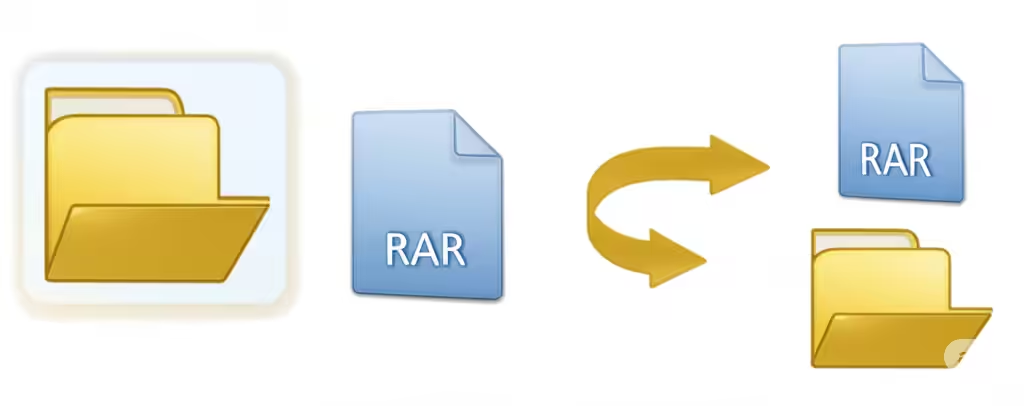
Before learning how to open them, it’s worth knowing what RAR files are and why they’re used.
-
RAR stands for Roshal Archive – named after its developer, Eugene Roshal.
-
It supports better compression ratios than ZIP files, meaning they often take up less space.
-
RAR files can be split into multiple volumes, making them ideal for very large file sets.
-
They can be password-protected and encrypted for security.
Opening RAR Files with WinRAR
WinRAR is the most well-known tool for working with RAR files because it’s the software originally designed for them.
Steps to Open RAR Files Using WinRAR
-
Download WinRAR from the official website (rarlab.com).
-
Install the program following the on-screen instructions.
-
Right-click the RAR file you want to open.
-
Select Extract Here to unpack the contents in the same folder or choose Extract to [Folder Name] to create a dedicated folder.
-
If the file is password-protected, enter the password when prompted.
Note: WinRAR is paid software, but it offers a 40-day free trial, after which it still functions with occasional reminders.
Opening RAR Files with 7-Zip
If you prefer a free and open-source option, 7-Zip is a great choice. It supports RAR extraction (but not RAR creation).
Steps to Open RAR Files Using 7-Zip
-
Download 7-Zip from the official website (7-zip.org).
-
Install the program on your PC.
-
Right-click your RAR file.
-
Hover over the 7-Zip menu option.
-
Choose Extract Here or Extract to [Folder Name].
7-Zip is lightweight, fast, and completely free, making it one of the most popular choices for handling RAR files.
Opening RAR Files with WinZip
WinZip is another well-known compression tool that supports RAR files, along with many other formats.
Steps to Open RAR Files Using WinZip
-
Download WinZip from the official site (winzip.com).
-
Install the software and open it.
-
Navigate to your RAR file location from within WinZip.
-
Click Unzip and select a destination folder.
WinZip offers a clean interface and additional features like cloud integration, but it’s also paid software with a trial version available.
Using Online Tools to Open RAR Files
If you don’t want to install software, online extraction tools can help. Websites like Extract.me or Unzip-Online.com allow you to upload a RAR file and download its contents.
Steps to Open RAR Files Online
-
Visit a trusted online extraction site (e.g., extract.me).
-
Upload your RAR file.
-
Wait for the file to be processed.
-
Download the extracted contents.
Caution: Avoid uploading sensitive or private files to online tools, as you cannot always guarantee full privacy.
Opening Multi-Part RAR Files
Some RAR archives are split into multiple parts (e.g., file.part1.rar, file.part2.rar). To open these, you need all parts stored in the same folder.
Steps to Open Multi-Part RAR Files
-
Ensure you have downloaded all parts of the RAR file.
-
Keep them in the same folder.
-
Open the first file (usually
part1.rar) with your extraction tool. -
The tool will automatically combine and extract all parts.
Repairing Corrupted RAR Files
If a RAR file is damaged, it might not open properly. Some tools like WinRAR include repair features.
Repairing with WinRAR
-
Open WinRAR.
-
Navigate to the corrupted RAR file.
-
Click the Repair button on the toolbar.
-
Save the repaired file and try extracting it again.
While not all corrupt files can be fixed, this method can recover partially damaged archives.
Tips for Working with RAR Files
-
Always download from trusted sources to avoid malware.
-
Keep your extraction software updated for compatibility and security.
-
For large archives, ensure you have enough free disk space before extracting.
-
Use strong passwords when creating RAR files to protect sensitive data.
Conclusion
Opening RAR files in Windows 11 or 10 is simple once you have the right tools. Whether you choose WinRAR, 7-Zip, WinZip, or an online extractor, you can easily access the contents of any RAR file. For most users, 7-Zip is the best free option, while WinRAR remains the most feature-rich choice.
By following the steps outlined above, you’ll be able to handle RAR files without any trouble, whether they’re single archives, multi-part files, or even password-protected.