


Fixing High CPU Usage Caused by Audio Device Graph Isolation in Windows
Windows Audio Device Graph Isolation is an important system process responsible for audio enhancements and managing sound-related functions in Windows. Normally, it runs quietly in the background with minimal resource usage. However, in some cases, users notice unusually high CPU, memory, or even disk usage caused by this process. When this happens, your computer may feel slow, programs may lag, and fans may run loudly.
Understanding what triggers the issue and knowing how to troubleshoot it can help restore your system’s performance. This guide covers everything you need to know—from what the process does to how you can fix high CPU usage on Windows 10 and Windows 11.
What Is Windows Audio Device Graph Isolation?
Windows Audio Device Graph Isolation appears in Task Manager as Audiodg.exe. It acts as the audio engine for Windows and is responsible for:
-
Managing digital signal processing
-
Handling audio enhancements
-
Running third-party audio plugins
-
Controlling audio effects
-
Supporting audio device drivers
By separating this process from the main audio service, Windows prevents system-wide crashes if audio processing fails. This makes audio handling more stable and secure.
However, problems occur when the process becomes overloaded by plugins, drivers, or faulty enhancements, causing high CPU usage.
Common Causes of High CPU Usage
There is no single cause, but several common factors may trigger unusually high resource consumption:
1. Audio Enhancements or Effects
Many sound drivers come with built-in enhancements like bass boost, loudness equalization, virtualization, or surround sound. These effects may consume excessive CPU power.
2. Outdated or Corrupted Audio Drivers
If your audio drivers are old, damaged, or incompatible, the audio engine may work harder than expected.
3. Misconfigured Audio Settings
Incorrect audio formats, sample rates, or device configurations can cause the audio system to use extra processing power.
4. Third-Party Audio Software
Programs such as:
-
VoIP apps
-
Equalizers
-
Recording tools
-
Audio editors
may overload the audio graph process.
5. Malware Disguised as Audiodg.exe
Though rare, some malware mimics system processes, causing high CPU usage.
Understanding the cause helps you choose the right solution.
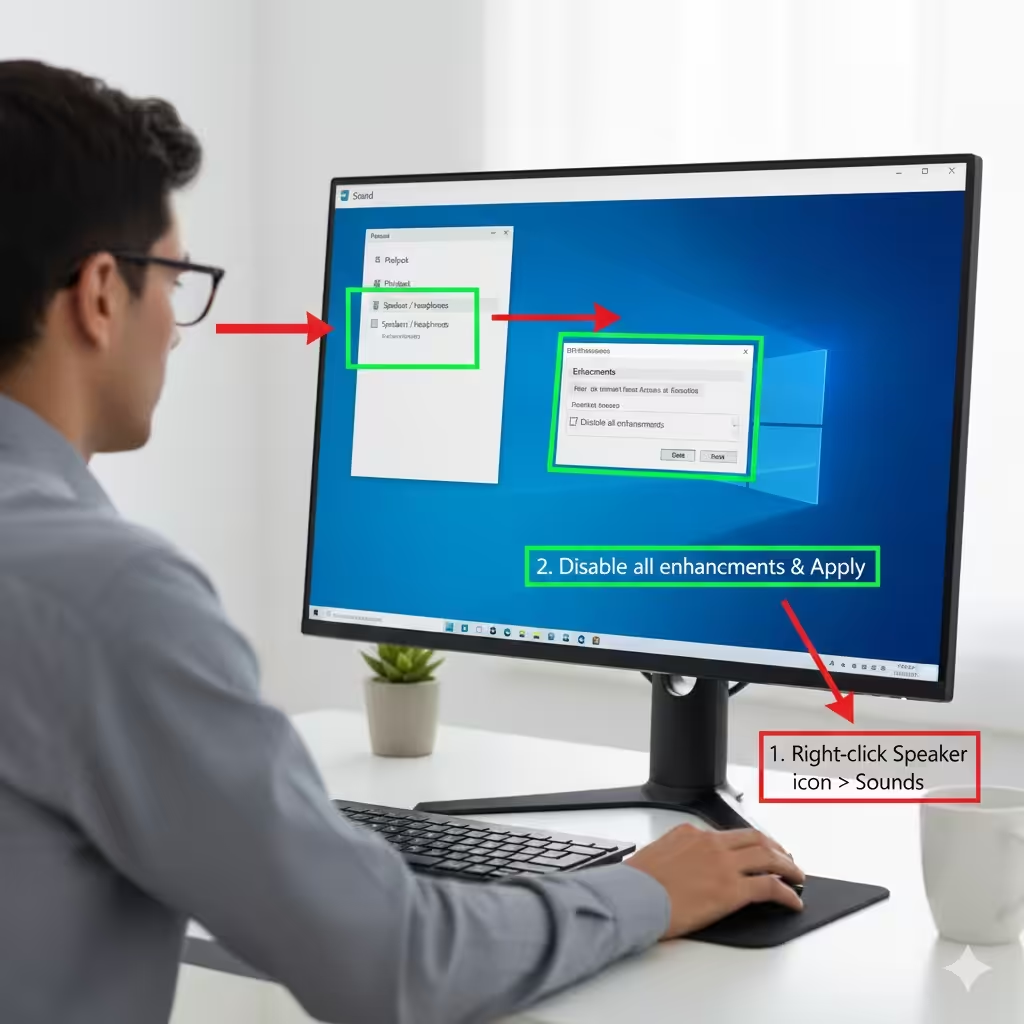
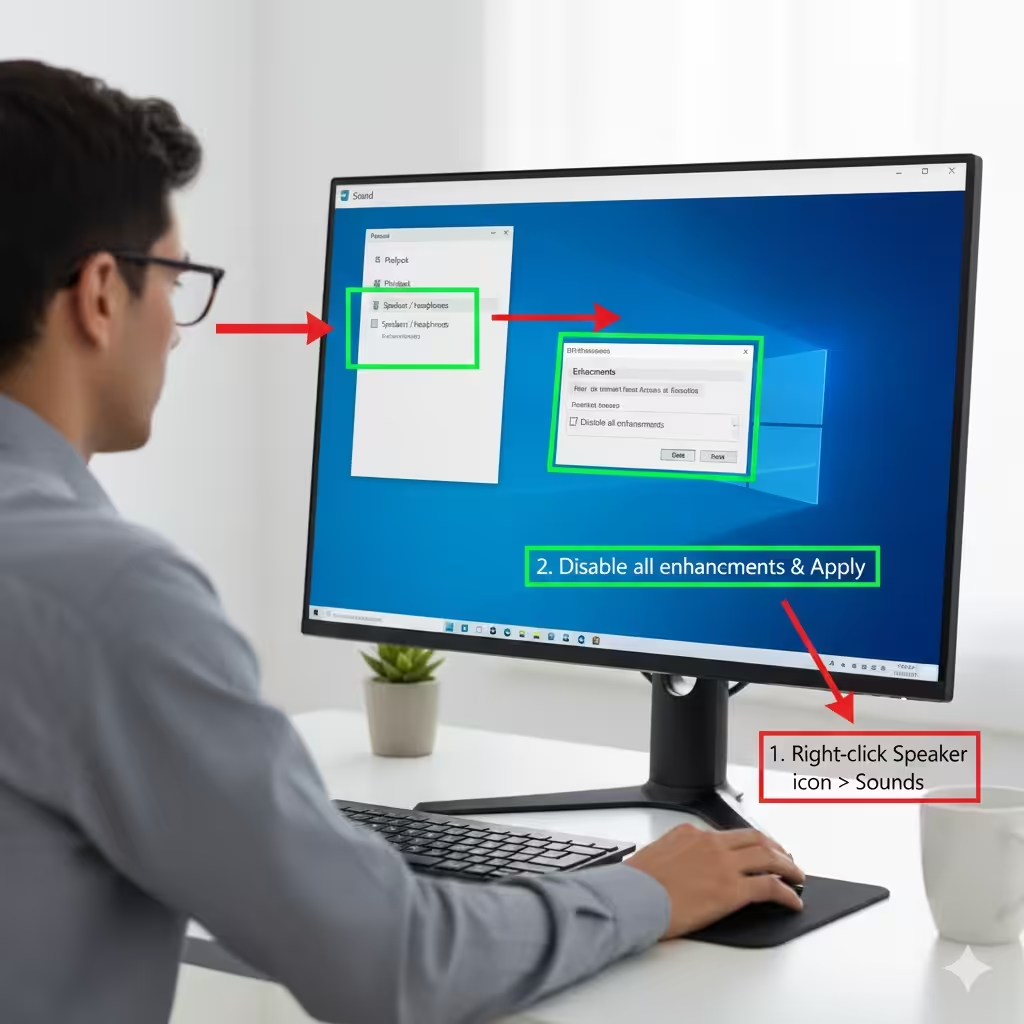
Fix 1: Disable Audio Enhancements
This is the most common fix because enhancements often cause Audiodg.exe to spike in CPU usage.
Steps to Disable Enhancements
-
Right-click the Speaker icon in your taskbar.
-
Select Sounds.
-
Go to the Playback tab.
-
Select your active audio device and click Properties.
-
Navigate to the Enhancements tab.
-
Check Disable all enhancements or uncheck individual effects.
-
Click Apply and OK.
You should also repeat these steps for Recording devices, as microphone enhancements can produce similar issues.
Fix 2: Update Your Audio Drivers
Outdated or corrupted drivers often cause system instability, including high CPU usage.
How to Update Drivers Manually
-
Press Windows + X and open Device Manager.
-
Expand Sound, video and game controllers.
-
Right-click your audio device (e.g., Realtek, Intel, or NVIDIA High Definition Audio).
-
Choose Update driver.
-
Select Search automatically for drivers.
If Windows doesn’t find updates, consider downloading the latest driver from your PC manufacturer’s website.
Optional: Reinstall Drivers
-
Right-click the audio device.
-
Choose Uninstall device.
-
Restart your PC—Windows will reinstall the driver automatically.
Fix 3: Change the Default Audio Format
Incorrect audio formats or sampling rates can overload the audio engine.
To Change the Format
-
Right-click the Speaker icon.
-
Select Sounds → Playback tab.
-
Choose your device → Properties.
-
Go to the Advanced tab.
-
Change the Default Format to a lower quality setting (e.g., 16-bit, 44100 Hz).
-
Click Apply.
Experiment with different formats to see which one reduces the CPU load.
Fix 4: Stop Audio Effects from Third-Party Software
Applications like:
-
Virtual audio cables
-
Audio mixing tools
-
Equalizers
-
Gaming audio software (Dolby, DTS, Nahimic)
may cause high CPU usage.
Try closing or uninstalling these tools temporarily to check if the problem disappears.
Fix 5: Scan for Malware
Although Audiodg.exe is a legitimate Windows file, malware may disguise itself using a similar name.
How to Perform a Full Scan
-
Open Windows Security.
-
Select Virus & threat protection.
-
Click Scan options.
-
Choose Full scan.
-
Click Scan now.
If suspicious files are found, follow the cleanup instructions.
Fix 6: Adjust Your Microphone Settings
Sometimes high CPU usage occurs due to active microphone effects.
To Disable Microphone Enhancements
-
Open Control Panel → Sound.
-
Go to the Recording tab.
-
Select your microphone → Properties.
-
If available, disable enhancements under the Enhancements tab.
-
Click Apply.
Fix 7: Restart the Windows Audio Service
Restarting audio services can refresh system processes and eliminate temporary glitches.
Steps
-
Press Windows + R and type services.msc.
-
Locate Windows Audio.
-
Right-click → Restart.
-
Also restart Windows Audio Endpoint Builder.
This will reset audio functions and may stop CPU spikes.
Fix 8: Lower CPU Usage in Third-Party Apps
Apps like Discord, Skype, Zoom, and OBS can use audio resources extensively.
Try These Steps
-
Change their audio input/output devices.
-
Turn off built-in echo cancellation.
-
Disable noise suppression.
-
Reduce sample rates.
Adjusting these settings can lower the load on Audiodg.exe.
Fix 9: Update Windows
Microsoft frequently patches performance issues through Windows Updates.
To Update Windows
-
Open Settings.
-
Choose Update & Security.
-
Click Check for updates.
-
Install all available updates.
Keeping your system updated helps maintain audio stability and compatibility.
Fix 10: Consider Resetting Windows (Last Resort)
If nothing else resolves the problem, there may be deeper system corruption.
Reset Windows While Keeping Your Files
-
Go to Settings.
-
Select Update & Security → Recovery.
-
Under Reset this PC, click Get started.
-
Choose Keep my files.
This will reinstall Windows and often fixes persistent system issues.
Preventing Windows Audio Device Graph Isolation Problems
To reduce the chances of encountering the issue again:
-
Keep your audio drivers updated
-
Avoid installing unnecessary third-party audio tools
-
Use default audio formats
-
Regularly scan for malware
-
Update Windows frequently
Good maintenance helps ensure smooth and stable audio performance.
Conclusion
High CPU usage from Windows Audio Device Graph Isolation can be frustrating, but the issue is usually easy to fix once you identify the cause. By disabling enhancements, updating drivers, adjusting audio settings, and checking for software conflicts, you can restore normal performance and prevent future problems. Follow the solutions in this guide, and your system should run smoothly again without audio-related slowdowns.