


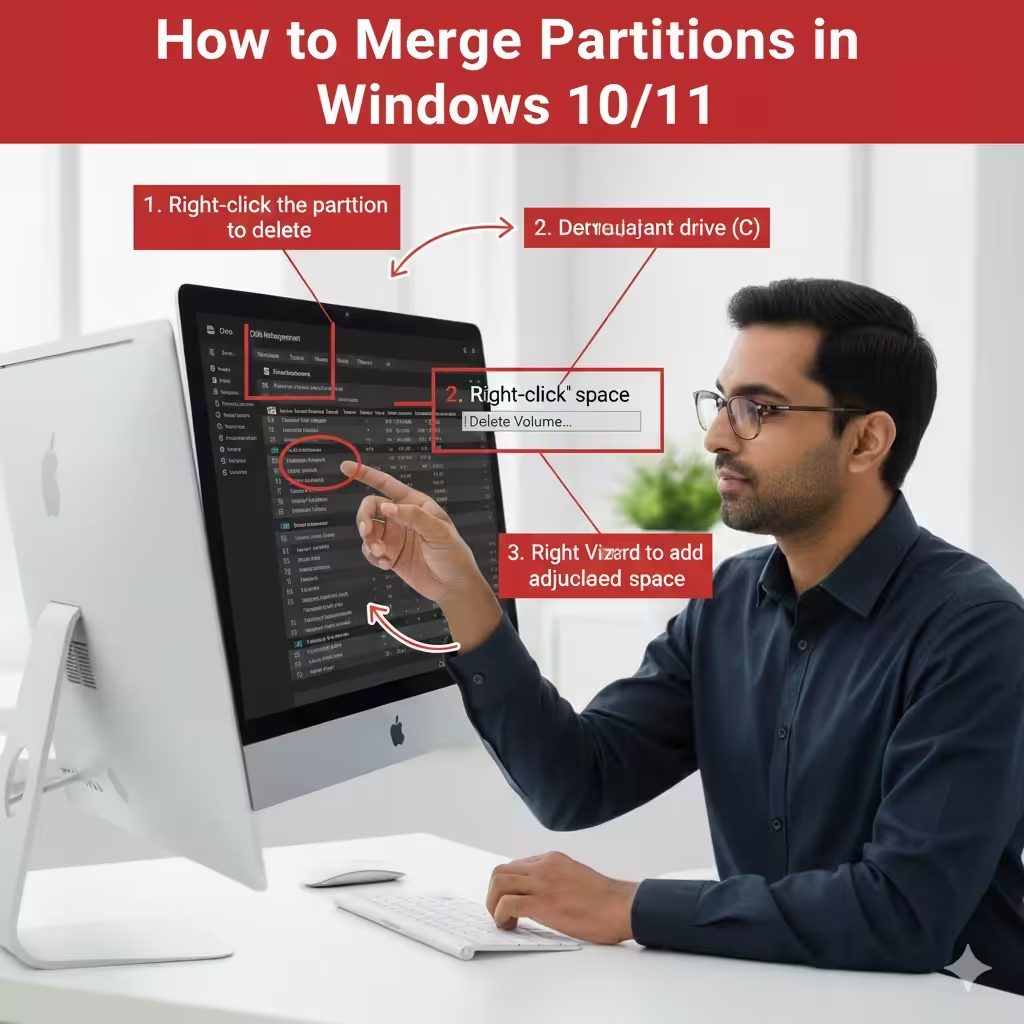
How to Join Hard Drive Partitions in Windows 10 & 11
Merging disk partitions is a practical solution when you want to reorganize your storage, extend a system drive, or reduce wasted free space on your hard drive or SSD. In Windows 10 and Windows 11, users can merge partitions using built-in tools or third-party software, depending on their needs and technical confidence. This guide provides a complete, step-by-step explanation of how partition merging works, what you should prepare beforehand, and which methods are safest and most effective.
Understanding Disk Partitions in Windows
A disk partition is a logically separated section of a physical storage device. Windows treats each partition as an independent unit and assigns it a drive letter, such as C:, D:, or E:. Partitions help organize data, separate the operating system from personal files, and improve system management.
Over time, however, partition layouts can become inefficient. For example, your C: drive may run out of space while another partition has plenty of unused storage. In such cases, merging partitions allows you to consolidate space and improve usability without replacing hardware.
Important Things to Do Before Merging Partitions
Before merging any partitions, preparation is critical. Disk operations always carry some risk, especially when data is involved.
Back Up Your Data
Always back up important files to an external drive, cloud storage, or another safe location. Merging partitions often requires deleting one partition, which will erase its data completely.
Check Partition Layout
In Windows Disk Management, partitions must usually be adjacent (next to each other) to be merged using built-in tools. If the partitions are not contiguous, third-party software may be required.
Understand File System Compatibility
Most Windows partitions use NTFS. If partitions use different file systems, merging may not be possible without formatting.
Method 1: Merge Partitions Using Disk Management
Disk Management is the built-in Windows utility that allows basic disk operations without installing additional software. This method is reliable but has limitations.
Step-by-Step Instructions
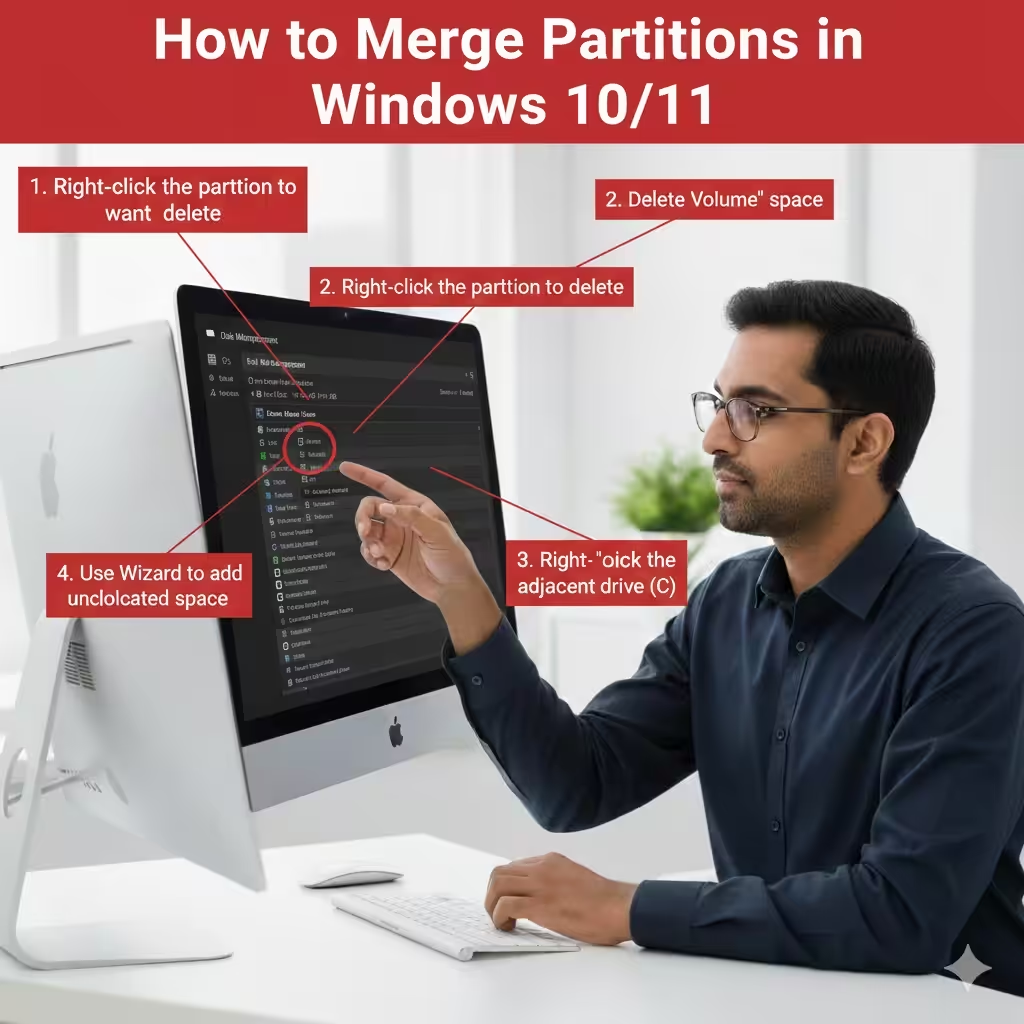
- Press Windows + X and select Disk Management.
- Locate the partition you want to remove and merge into another partition.
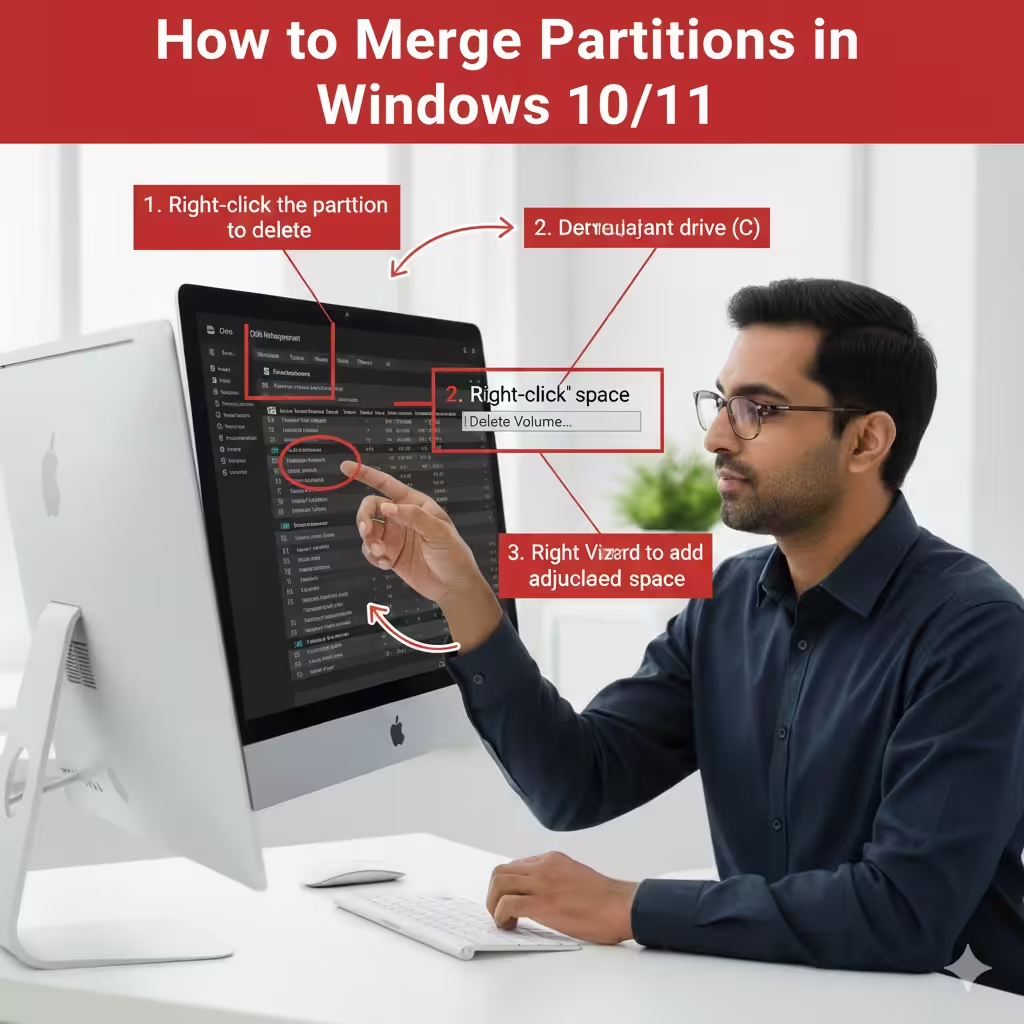
- Right-click the partition to be removed and choose Delete Volume.
- Confirm the warning. The partition will become Unallocated Space.
- Right-click the adjacent partition you want to expand.
- Select Extend Volume.
- Follow the Extend Volume Wizard to add the unallocated space.
- Click Finish to complete the process.
Limitations of Disk Management
- Partitions must be adjacent
- You must delete one partition entirely
- Cannot merge system-reserved or protected partitions easily
Despite these limitations, Disk Management is sufficient for most basic scenarios.
Method 2: Merge Partitions Using Third-Party Software
When Disk Management cannot perform the merge, third-party partition managers provide more flexibility and advanced features.
Advantages of Third-Party Tools
- Merge non-adjacent partitions
- Preserve data during merging (in many cases)
- Support resizing, moving, and converting partitions
- User-friendly graphical interfaces
General Steps Using Third-Party Software
- Install and open the partition management tool.
- Select the partitions you want to merge.
- Choose the Merge or Resize/Move option.
- Preview the changes before applying them.
- Confirm and allow the software to complete the operation.
- Restart the computer if prompted.
Always choose reputable software and carefully read on-screen instructions to avoid mistakes.
Merging the System Partition (C: Drive)
Merging partitions involving the system drive requires extra caution because Windows relies on the C: partition to boot.
Key Considerations
- The system partition can only be extended, not directly merged
- Adjacent unallocated space is required
- Some operations may require a reboot
In most cases, users delete a neighboring data partition and then extend the C: drive into the unallocated space.
Common Problems and How to Fix Them
Extend Volume Option Is Greyed Out
This usually happens when unallocated space is not adjacent to the target partition. Rearranging partitions using third-party software can solve this issue.
Data Loss After Merging
Data loss often occurs when a partition is deleted without backup. Restoring from backups is the safest recovery option.
System Fails to Boot
Boot issues may result from changes to system partitions. Using Windows recovery tools or startup repair can often resolve the problem.
Best Practices for Managing Partitions
- Keep sufficient free space on the system drive
- Avoid creating too many small partitions
- Perform regular backups before disk operations
- Use trusted tools only
Good partition management improves system stability and long-term usability.
Conclusion
Merging partitions in Windows 10 and Windows 11 is a powerful way to reorganize your storage and make better use of available disk space. Whether you rely on Disk Management or third-party tools, understanding the process and preparing properly are essential. By following the steps and best practices outlined in this guide, you can safely merge partitions and maintain a clean, efficient disk layout that supports your daily computing needs.