


How to Detect and Manage Duplicate Data in Excel Efficiently
Duplicate data in Excel can cause serious issues — from inaccurate reports to flawed analyses and unnecessary confusion. Whether you’re managing customer lists, product inventories, or large datasets, knowing how to find and handle duplicates in Excel is an essential skill for any professional.
In this comprehensive guide, we’ll explore various methods to identify, highlight, and remove duplicates in Excel using both built-in tools and formulas. By the end, you’ll have complete control over your data accuracy and integrity.
Understanding Duplicates in Excel
Before learning how to find duplicates, it’s important to understand what they are.
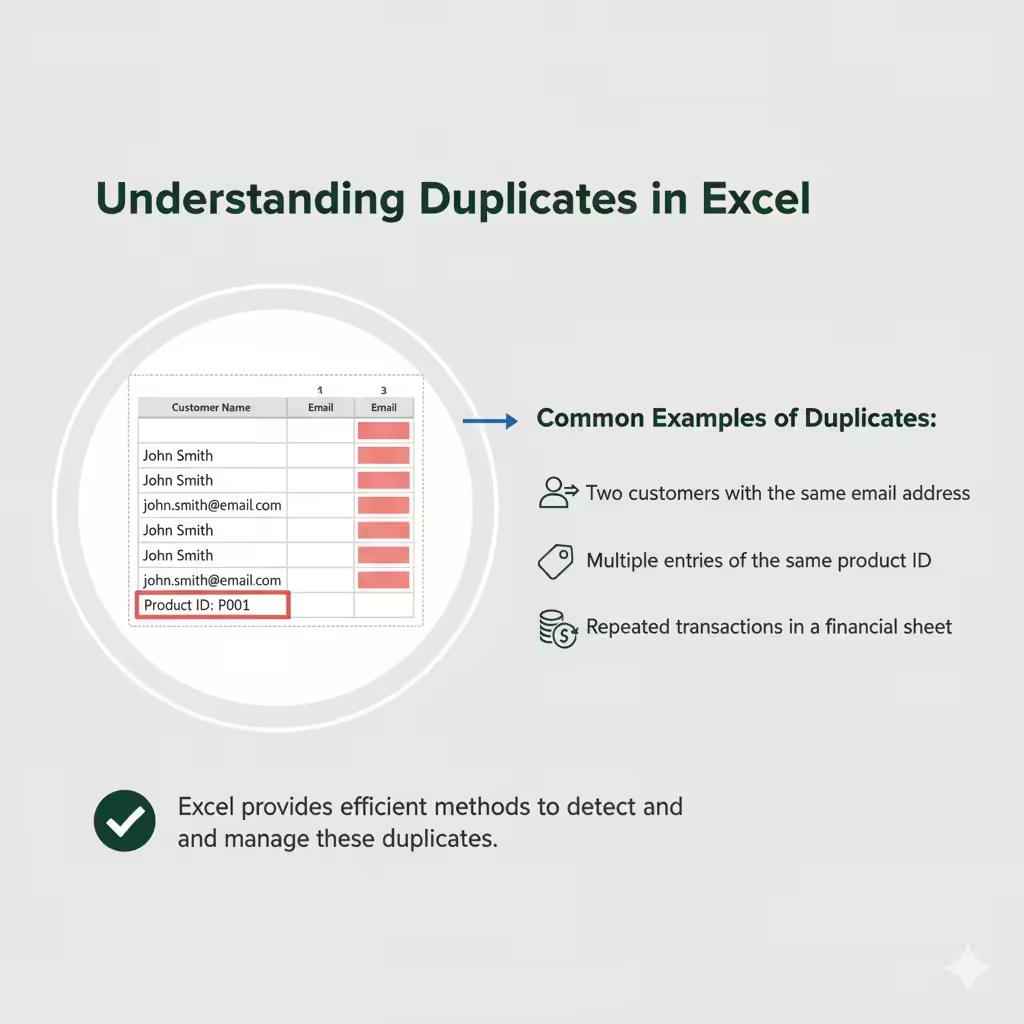
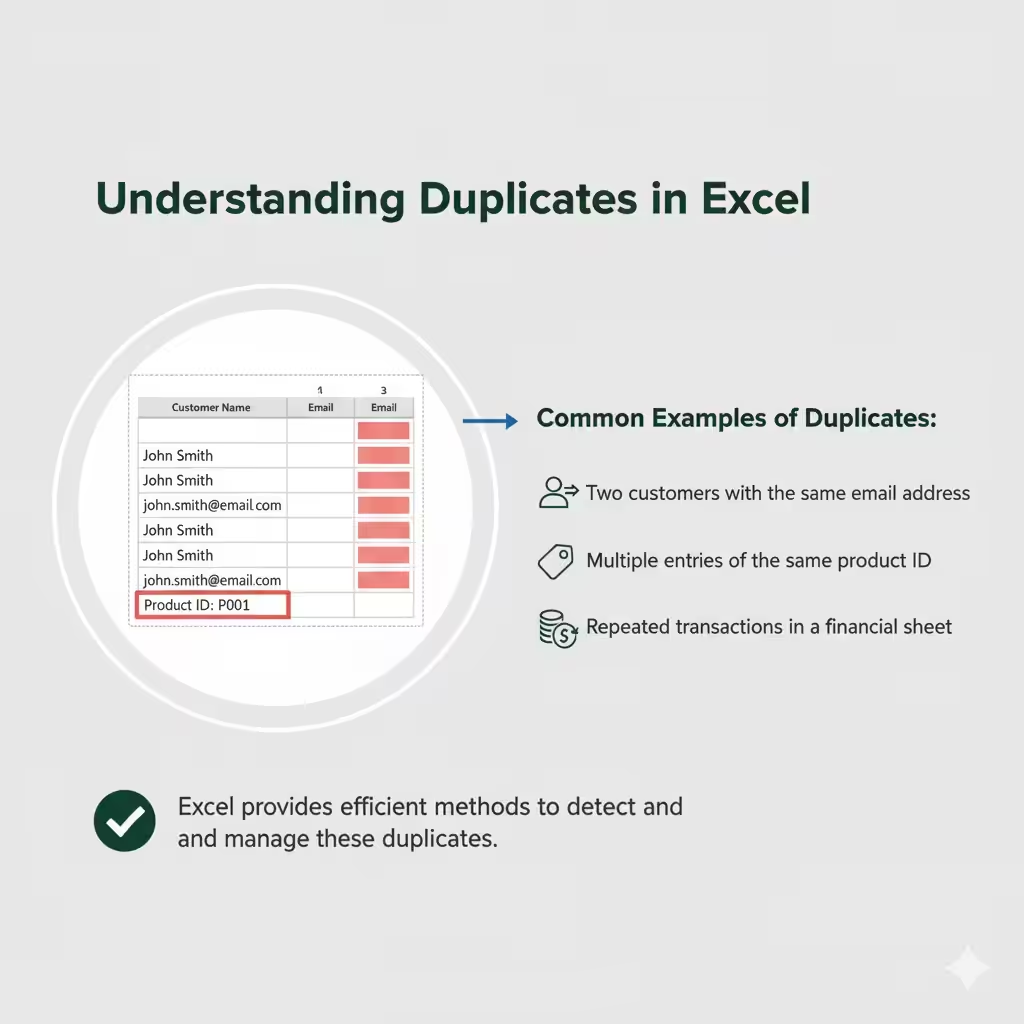
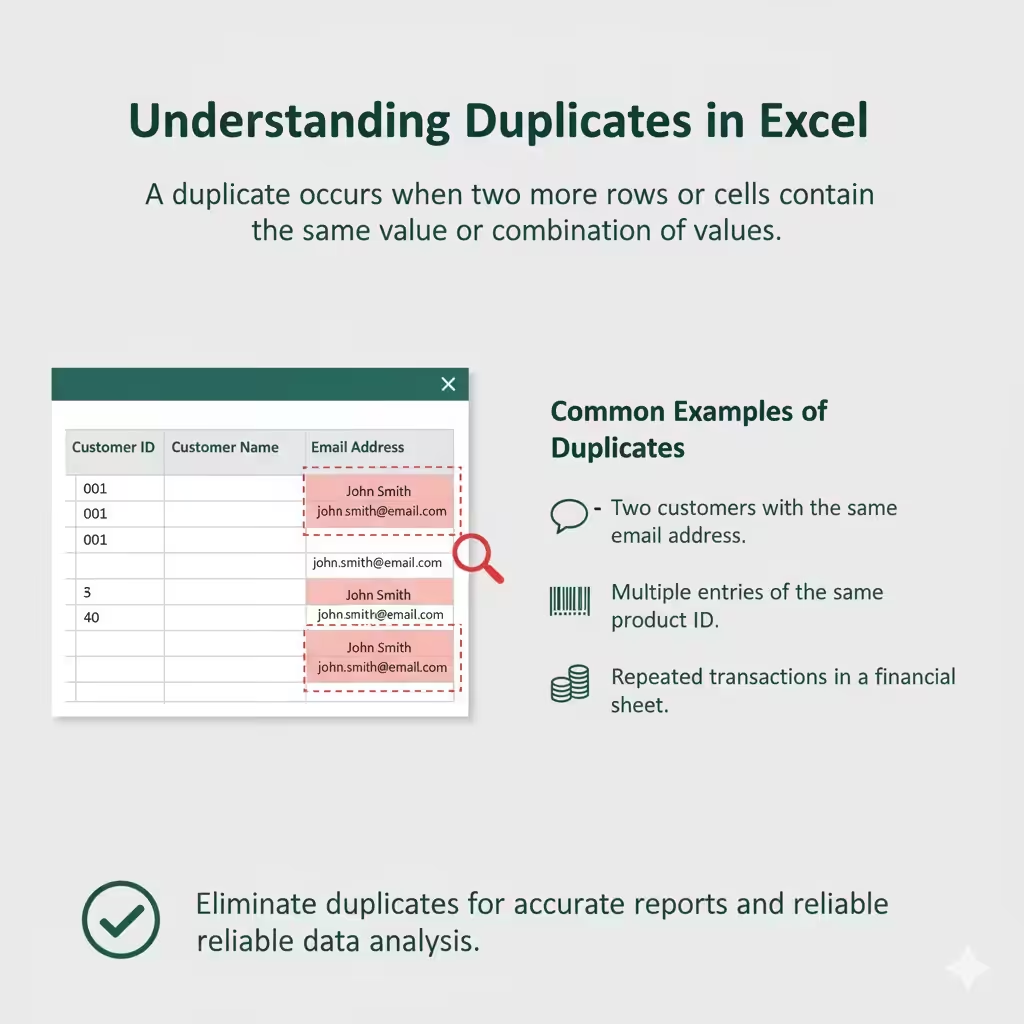
A duplicate occurs when two or more rows or cells contain the same value or combination of values. This can happen unintentionally when copying, importing, or merging data from different sources.
Common Examples of Duplicates:
-
Two customers with the same email address.
-
Multiple entries of the same product ID.
-
Repeated transactions in a financial sheet.
Excel provides several efficient methods to detect and manage these duplicates, whether you want to highlight them visually, delete them, or count how many exist.
Method 1: Using Conditional Formatting to Highlight Duplicates
One of the simplest ways to find duplicates in Excel is by using Conditional Formatting. This feature automatically highlights duplicate values, making them easy to spot.
Steps:
-
Select the range of cells where you want to check for duplicates.
-
Example: Select column A if you want to check for duplicate names.
-
-
Go to the Home tab in the ribbon.
-
Click on Conditional Formatting → Highlight Cells Rules → Duplicate Values.
-
A dialog box will appear. Choose your preferred formatting style (for example, “Light Red Fill with Dark Red Text”).
-
Click OK.
Now, all duplicate cells in the selected range will be automatically highlighted.
Why Use This Method
-
Quick and visual.
-
Doesn’t change or delete any data.
-
Ideal for spotting duplicates before deciding what to do with them.
Method 2: Using Excel’s Remove Duplicates Feature
If your goal is not just to find duplicates but to eliminate them entirely, Excel’s built-in Remove Duplicates tool is your best choice.
Steps:
-
Select the range of data or table where duplicates may exist.
-
Go to the Data tab on the ribbon.
-
Click Remove Duplicates in the “Data Tools” group.
-
In the dialog box that appears, you can choose which columns Excel should check.
-
For example, if you’re checking duplicate rows by email address, select only the “Email” column.
-
-
Click OK.
Excel will show a summary message telling you how many duplicate values were removed and how many unique values remain.
Example
If your dataset contains 500 rows and 40 duplicates, Excel might show:
40 duplicate values found and removed; 460 unique values remain.
Caution
Before using this method, create a backup copy of your data. Once removed, duplicates can’t be automatically restored unless you undo the action immediately.
Method 3: Find Duplicates Using Formulas
For more flexibility, Excel formulas allow you to identify duplicates without altering your data. You can use functions like COUNTIF or COUNTIFS.
Using COUNTIF
If you want to find duplicates in one column:
-
Suppose you have names in column A starting from cell A2.
-
In cell B2, type the formula:
-
Drag the formula down the column.
This formula checks how many times each value appears in the range. If it appears more than once, it marks it as “Duplicate.”
Using COUNTIFS for Multiple Columns
If your duplicates depend on more than one field (for example, same name and email), use:
This approach helps you catch more complex duplicates that span multiple data fields.
Method 4: Using Advanced Filters
Excel’s Advanced Filter feature allows you to filter and display only unique records or duplicates based on specific criteria.
Steps to Show Unique Records Only:
-
Select your data range.
-
Go to the Data tab → Advanced under “Sort & Filter.”
-
Choose Copy to another location.
-
Check the box labeled Unique records only.
-
Select where you want to copy the filtered data.
-
Click OK.
This method gives you a clean list of unique values while keeping your original data intact.
To display duplicates only, you can combine this with the COUNTIF formula or sort your data first.
Method 5: Using Pivot Tables to Identify Duplicates
Pivot Tables are another professional method to find duplicates — especially when analyzing large datasets.
Steps:
-
Select your data and go to Insert > PivotTable.
-
In the PivotTable Fields pane, drag the column you want to check into both the Rows and Values areas.
-
In the Values area, change the value setting to Count of [Field Name].
Now, you’ll see how many times each item appears. Any value with a count greater than 1 is a duplicate.
Benefits of This Method
-
Great for summarizing large datasets.
-
Allows you to visualize duplicates in groups.
-
Ideal for business or analytical reporting.
Method 6: Power Query for Advanced Duplicate Management
If you work with large or complex datasets, Power Query (available in Excel 2016 and later) provides a more advanced and automated way to handle duplicates.
Steps:
-
Select your table or range.
-
Go to Data > Get & Transform > From Table/Range.
-
In the Power Query Editor, select the column(s) you want to check.
-
Go to Home > Remove Rows > Remove Duplicates.
-
Click Close & Load to load the cleaned data back into Excel.
Why Use Power Query
-
It allows dynamic data cleaning.
-
Ideal for repetitive tasks or automated workflows.
-
Can detect and remove duplicates across multiple tables or sources.
Pro Tips to Manage Duplicates Effectively
-
Sort your data before running duplicate checks — this helps visually identify errors.
-
Use color coding or filters instead of immediate deletion when auditing sensitive data.
-
Document your cleaning process to maintain data integrity and transparency.
-
For large datasets, always use a copy or backup of your data before removing duplicates.
Common Mistakes When Finding Duplicates
-
Forgetting to select all relevant columns (resulting in partial checks).
-
Removing duplicates before confirming they are truly unwanted.
-
Not refreshing formulas or PivotTables after new data is added.
Avoiding these mistakes ensures your data remains accurate and trustworthy.
Conclusion
Finding duplicates in Excel doesn’t have to be intimidating. From Conditional Formatting for quick visual checks to Power Query for advanced automation, Excel offers multiple tools to identify and manage duplicate data efficiently.
Mastering these methods not only improves your data accuracy but also saves hours of manual cleanup time. Whether you’re a business analyst, accountant, or student, understanding how to find duplicates in Excel like a pro is a crucial step toward maintaining cleaner, more reliable spreadsheets.