


How to Activate Macros in Excel for Better Automation and Performance
Microsoft Excel is one of the most powerful tools for managing and analyzing data, and macros make it even more powerful. Macros are small programs that automate repetitive tasks, saving you time and effort while ensuring accuracy. However, macros are often disabled by default in Excel due to security reasons. To take full advantage of Excel’s automation capabilities, it’s essential to understand how to enable macros safely and effectively.
In this detailed guide, you’ll learn everything about macros in Excel — what they are, why they’re useful, how to enable them, and how to manage them securely for maximum productivity.
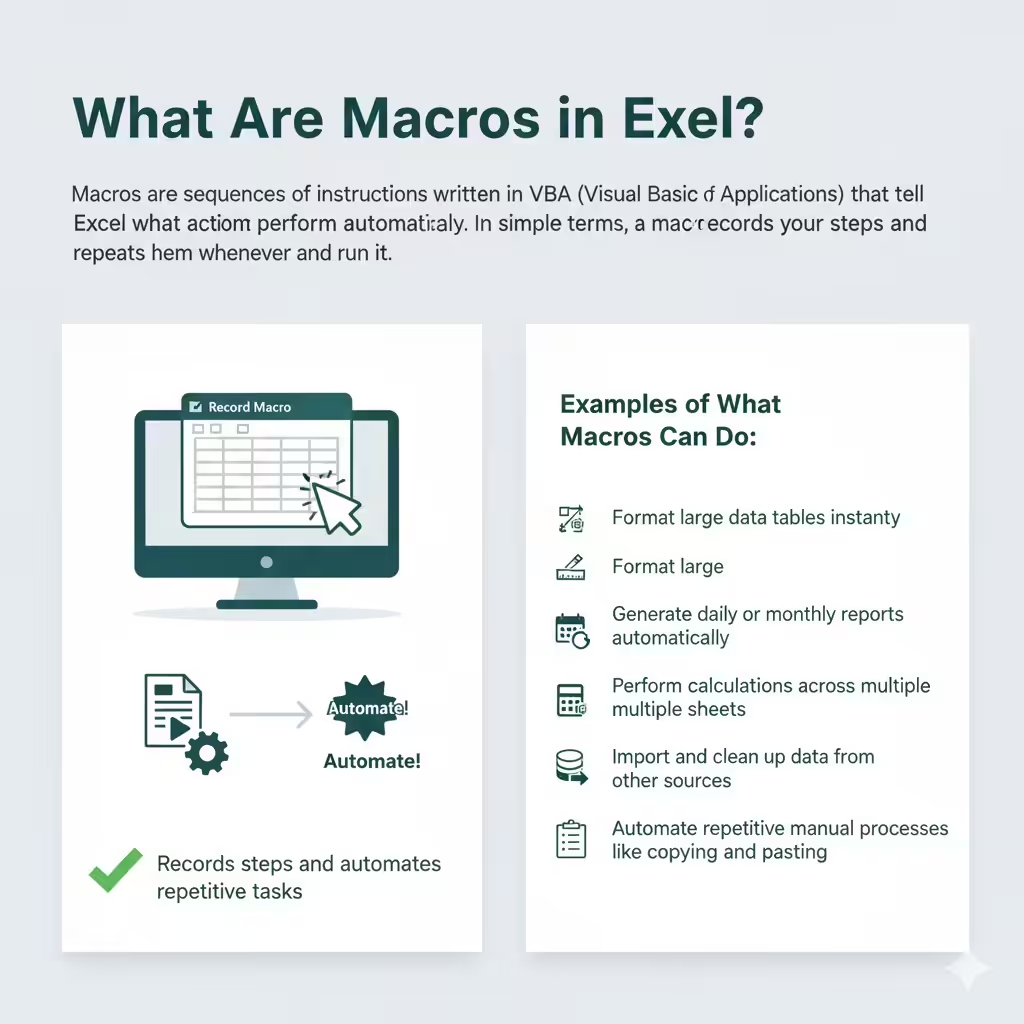
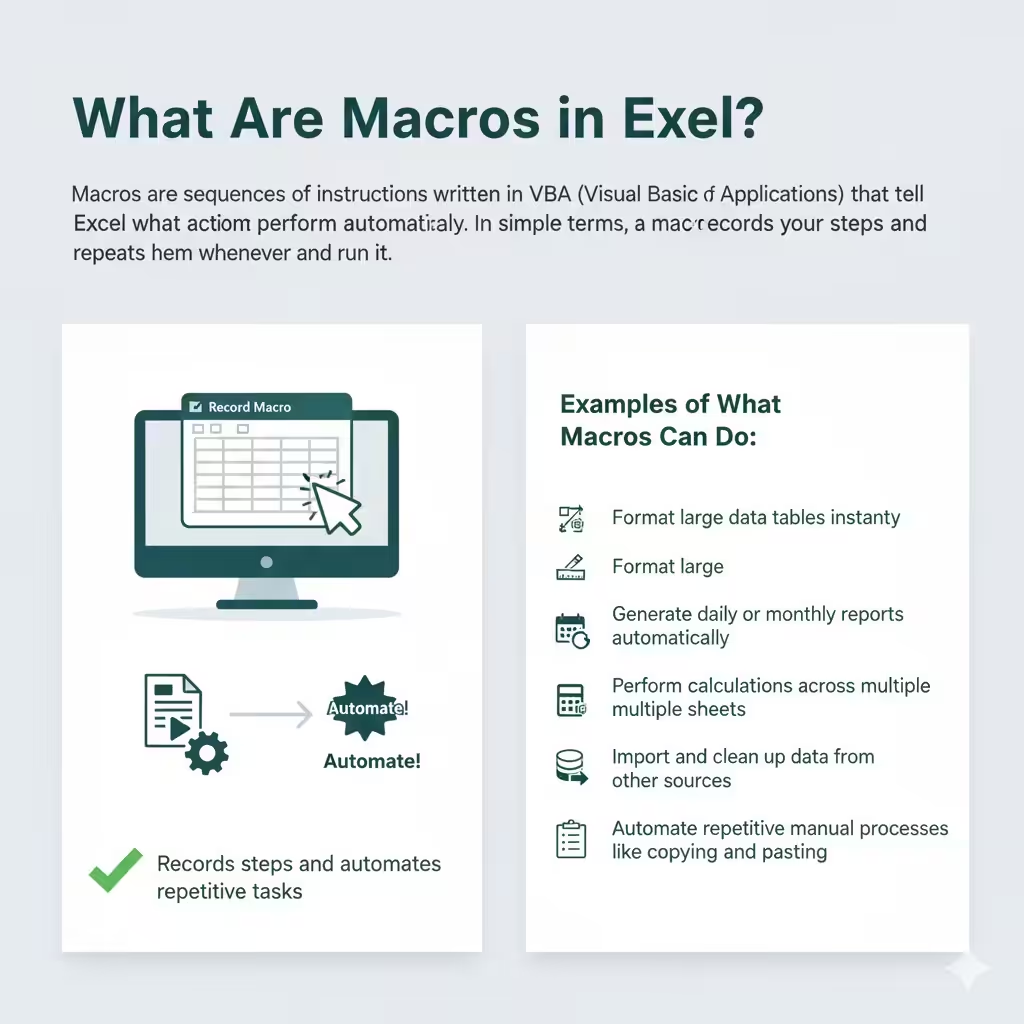
What Are Macros in Excel?
Macros are sequences of instructions written in VBA (Visual Basic for Applications) that tell Excel what actions to perform automatically. In simple terms, a macro records your steps and repeats them whenever you run it.
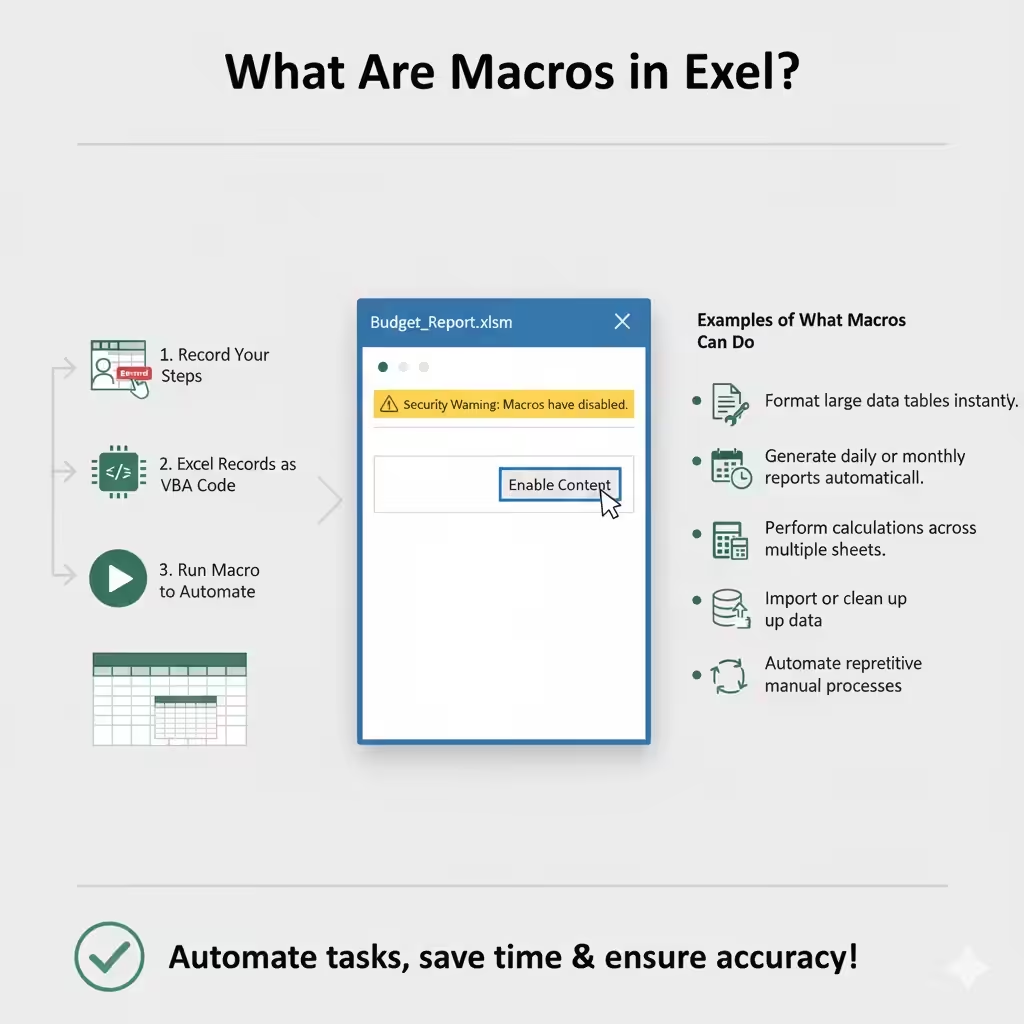
Examples of What Macros Can Do:
-
Format large data tables instantly.
-
Generate daily or monthly reports automatically.
-
Perform calculations across multiple sheets.
-
Import and clean up data from other sources.
-
Automate repetitive manual processes like copying and pasting.
For instance, if you regularly need to apply the same formatting to multiple Excel sheets, instead of doing it manually each time, you can record a macro once and run it with a single click.
Why You Need to Enable Macros in Excel
By default, Excel disables macros to protect your computer from potentially harmful code, especially from external files. However, if you trust the source of your file or have created your own macros, enabling them can drastically enhance productivity.
Benefits of Enabling Macros
-
Automation: Save hours by automating recurring tasks.
-
Accuracy: Eliminate human error in repetitive processes.
-
Efficiency: Increase workflow speed across projects.
-
Consistency: Ensure standardized data formatting and reports.
-
Customization: Create personalized solutions that fit your workflow.
Macros are particularly valuable for accountants, analysts, and project managers who deal with repetitive operations daily.
How to Enable Macros in Excel
Excel provides several methods to enable macros depending on your version and security preferences. Below are step-by-step instructions for each approach.
Method 1: Enable Macros When Opening a Workbook
When you open a workbook containing macros, Excel displays a Security Warning message below the ribbon.
-
Open the Excel file that contains macros.
-
You’ll see a yellow bar at the top that says “Security Warning: Macros have been disabled.”
-
Click Enable Content.
This will immediately activate macros for the current session.
Note:
This method only enables macros for that specific file while it’s open. If you close and reopen the file, you’ll need to enable macros again.
Method 2: Enable Macros Through the Trust Center
For more control, you can adjust Excel’s settings in the Trust Center, where macro security options are managed.
-
Open Excel.
-
Click on File in the upper-left corner.
-
Select Options from the menu.
-
In the Excel Options window, click Trust Center on the left panel.
-
Click Trust Center Settings.
-
Select Macro Settings from the left sidebar.
-
Choose one of the following options:
-
Disable all macros without notification (default for maximum security)
-
Disable all macros with notification (prompts you when macros are found)
-
Disable all macros except digitally signed macros (allows trusted, signed macros only)
-
Enable all macros (not recommended) (enables all macros in all workbooks)
-
-
Click OK to save changes.
If you frequently use macros from trusted sources, select Disable all macros with notification. This option balances security and convenience.
Method 3: Enable Macros for a Trusted File or Folder
If you often work with macros from a specific location, you can add that folder to Excel’s Trusted Locations. Any file in that folder will automatically have macros enabled.
-
Go to File > Options > Trust Center > Trust Center Settings.
-
Click Trusted Locations.
-
Click Add new location.
-
Browse to the folder you want to trust.
-
Check Subfolders of this location are also trusted if applicable.
-
Click OK.
Now, any Excel file you save in that folder will open with macros enabled automatically.
Method 4: Enable Macros in a Single Workbook Permanently
If you always use macros in a particular workbook (for example, a report template), you can save it as a macro-enabled workbook.
-
Open the workbook containing macros.
-
Click File > Save As.
-
In the Save as type dropdown menu, select Excel Macro-Enabled Workbook (*.xlsm).
-
Click Save.
From now on, macros in that workbook will remain functional whenever you open it.
Recording and Running Macros
After enabling macros, you can start creating your own.
How to Record a Macro
-
Go to the View tab on the ribbon.
-
Click Macros > Record Macro.
-
Enter a name for your macro.
-
(Optional) Assign a shortcut key.
-
Choose where to store it:
-
This Workbook (only available here)
-
Personal Macro Workbook (available for all Excel files)
-
-
Click OK and start performing the actions you want to record.
-
When finished, click View > Macros > Stop Recording.
How to Run a Macro
-
Go to View > Macros > View Macros.
-
Select the macro name.
-
Click Run.
You can also run macros using the assigned shortcut key or add a button to the ribbon for easy access.
Managing Macro Security
While macros are useful, they can also pose security risks if the file comes from an untrusted source. Malicious macros can perform harmful actions like deleting data or accessing files.
Best Practices for Macro Security
-
Enable macros only from trusted sources.
-
Use antivirus software to scan Excel files before opening.
-
Digitally sign your macros if you create them for others.
-
Avoid enabling all macros by default.
-
Back up your data before running macros that modify large datasets.
If you’re working in a corporate environment, follow your organization’s IT policy regarding macro usage.
Troubleshooting Common Macro Issues
Sometimes, macros might not work properly even after enabling them. Here’s how to handle common problems.
Macros Disabled Despite Enabling
-
Recheck your Trust Center settings.
-
Ensure the workbook is .xlsm, not .xlsx, since standard Excel files don’t support macros.
Shortcut Key Not Working
-
Verify that your shortcut key doesn’t conflict with an existing Excel shortcut.
Error Messages While Running Macros
-
Check for missing references in the VBA editor (Alt + F11 → Tools → References).
-
Ensure all dependencies, such as linked files or data sources, are available.
Tips for Using Macros Efficiently
-
Organize your macros in modules to keep code clean and reusable.
-
Test macros on sample data before applying them to critical files.
-
Document your macros using comments for future reference.
-
Use descriptive names for easy identification.
-
Combine macros with Excel functions for advanced automation.
Conclusion
Macros are a game-changer for anyone who works with Excel regularly. By automating repetitive tasks, they boost speed, consistency, and accuracy — allowing you to focus on analysis instead of manual data entry.
Now that you know how to enable macros in Excel, you can confidently unlock their potential to streamline your workflow. Whether you’re building automated reports, managing data across sheets, or customizing Excel to fit your unique needs, macros empower you to work smarter — not harder.