


Excel Guide: How to Create and Add Drop Down Lists Easily
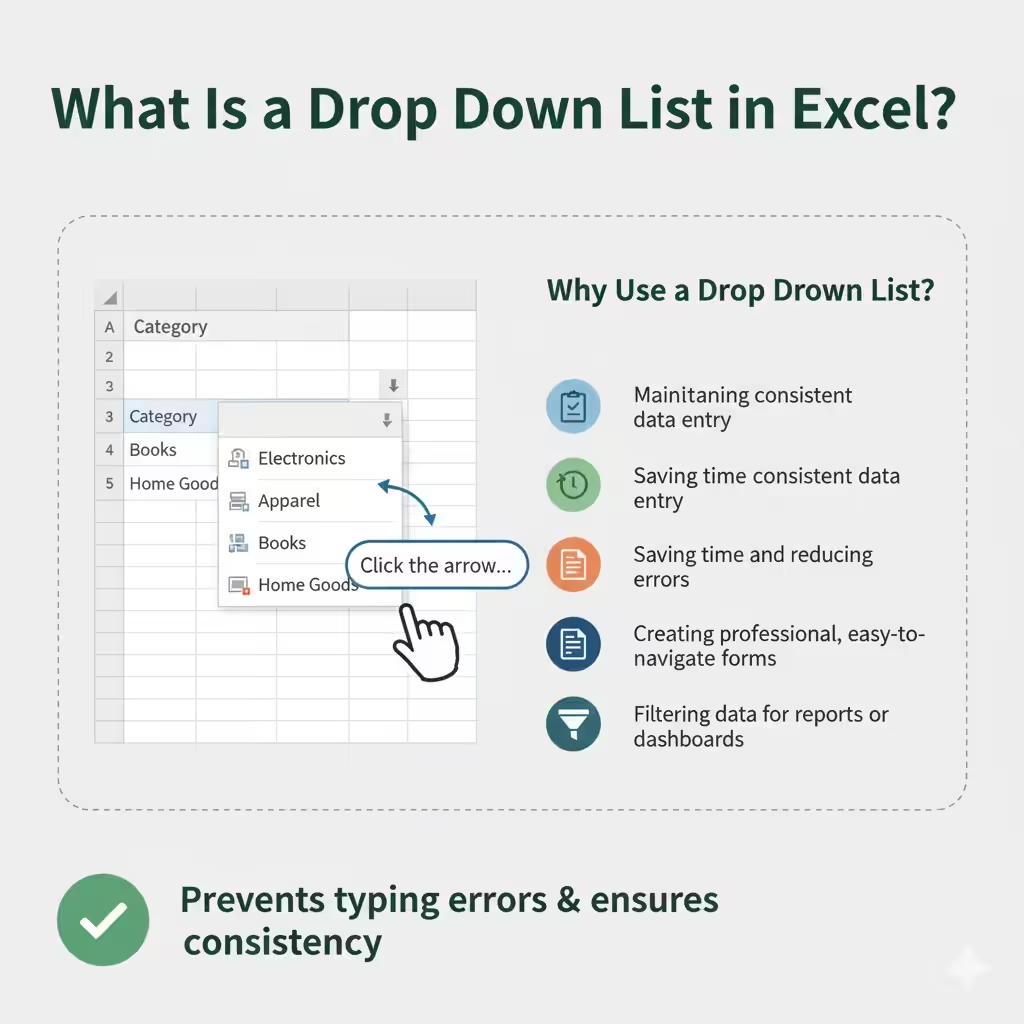
Microsoft Excel is one of the most powerful tools for organizing, analyzing, and managing data. Among its many useful features, the drop-down list stands out as a great way to ensure data consistency and accuracy. Whether you’re creating a form, tracking inventory, or managing employee data, adding a drop-down list helps users select from predefined options instead of typing manually. This guide will show you step by step how to add a drop-down list in Excel, along with useful tips to make the most of this feature.
What Is a Drop Down List in Excel?
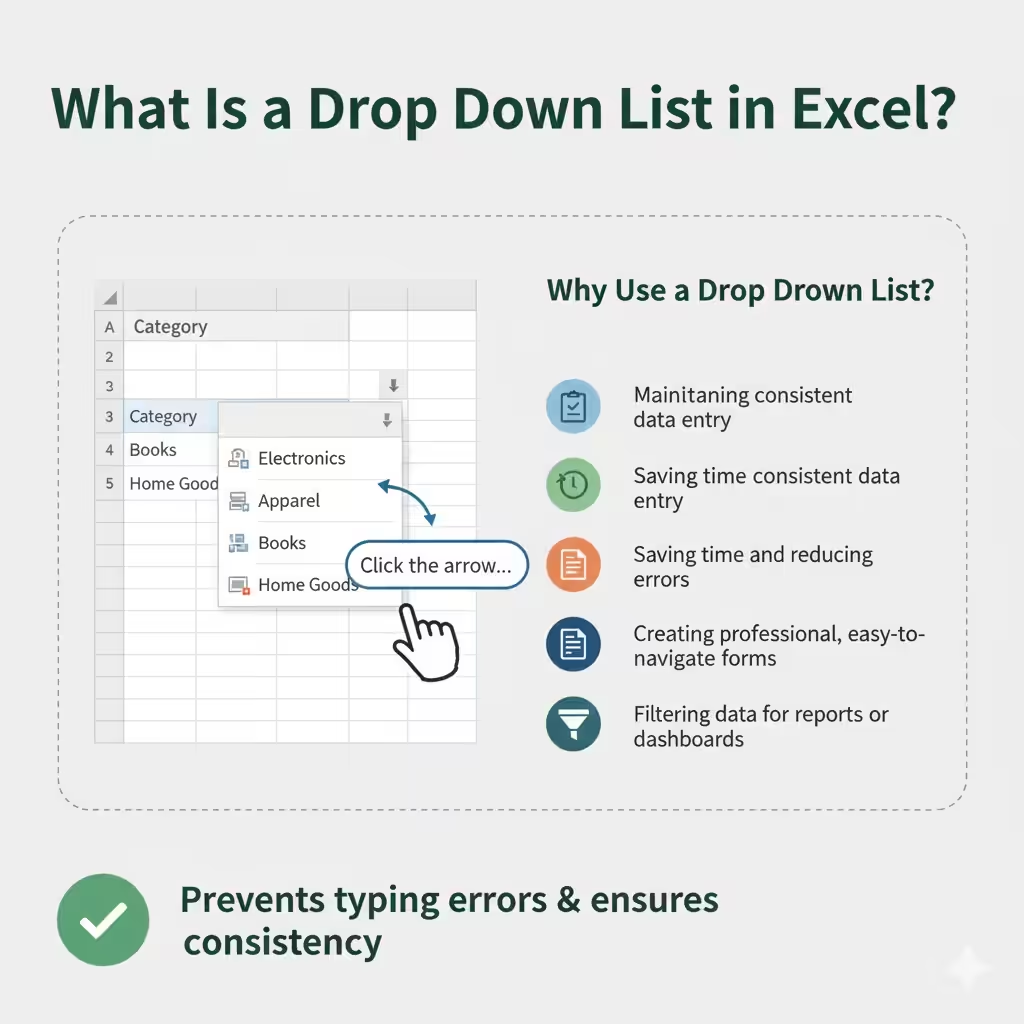
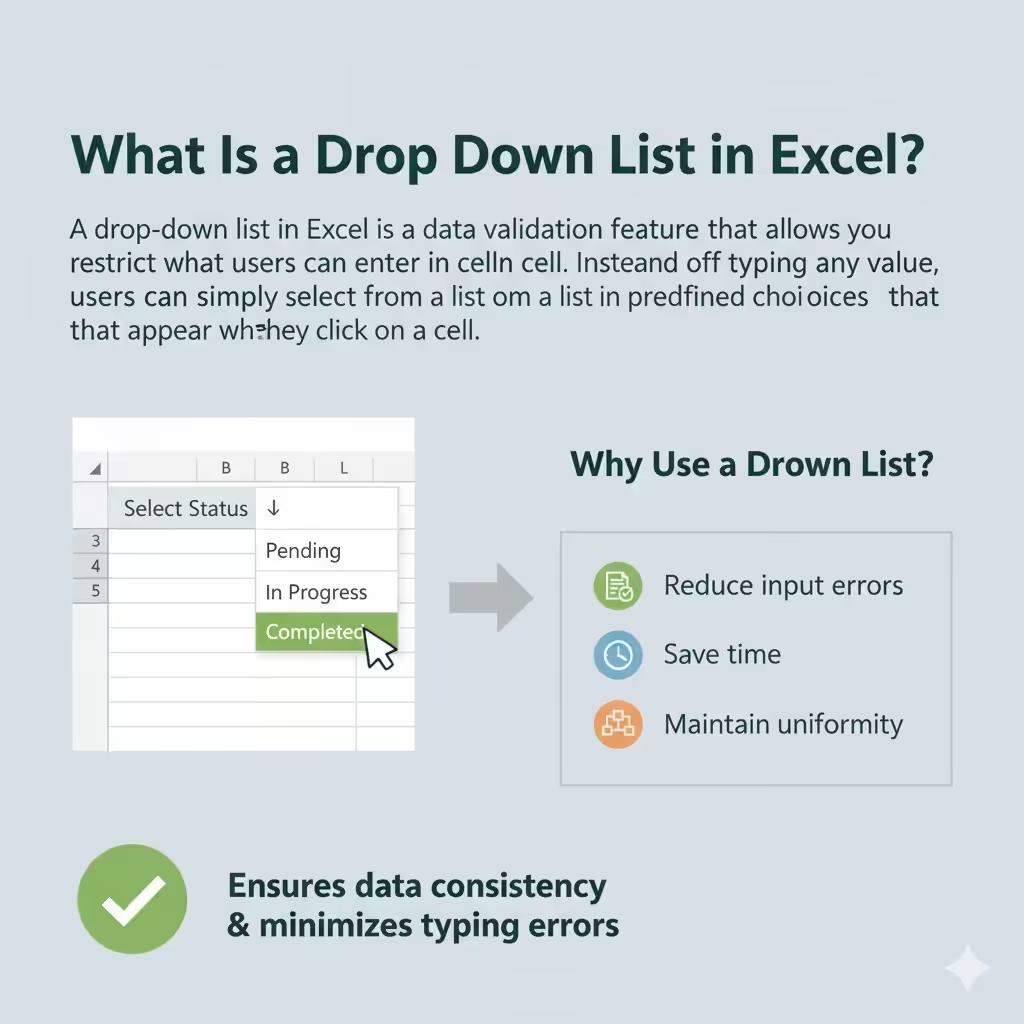
A drop-down list in Excel is a data validation feature that allows you to restrict what users can enter in a cell. Instead of typing any value, users can simply select from a list of predefined choices that appear when they click on the cell.
For example, if you have a “Status” column in your spreadsheet, you can create a drop-down list containing options like Pending, In Progress, and Completed. This ensures that everyone using the sheet selects only valid options, keeping your data clean and organized.
Why Use a Drop Down List?
Drop-down lists bring several advantages to your Excel worksheets:
-
Reduce input errors – By limiting choices, you avoid typos or inconsistent entries.
-
Save time – Users can pick from the list instead of typing manually.
-
Maintain uniformity – Keeps data formats and terms consistent.
-
Enhance usability – Makes Excel sheets easier for others to use and understand.
Step 1: Prepare Your List of Options
Before creating the drop-down list, you need to decide what options will appear in it. You can either enter the list directly into the Data Validation box or type them into a range of cells.
For better management, it’s recommended to create the list in a separate area of your worksheet. For example:
| A |
|---|
| Apple |
| Banana |
| Orange |
| Mango |
You can even place this list on another sheet (e.g., “ListSheet”) to keep your main data sheet clean.
Step 2: Select the Cells for the Drop Down List
Once your list is ready, choose where you want to apply the drop-down menu.
-
Click and drag to select the cells or column where you want the list to appear.
-
Make sure you highlight all the cells that should share the same drop-down options.
Step 3: Open the Data Validation Tool
Next, you’ll use Excel’s Data Validation feature to create the list.
-
Go to the Data tab on the Excel ribbon.
-
Click Data Validation (usually located in the “Data Tools” group).
-
In the Data Validation dialog box, under the Settings tab, find the Allow drop-down menu.
-
Choose List from the options.
Step 4: Enter or Reference the List Items
After selecting “List” as the validation type, you’ll need to specify where the list values come from.
Option 1: Type the List Manually
If your list is short, you can type the items directly into the Source box, separated by commas.
Example:
Option 2: Reference a Cell Range
If you created your list in cells (like A1:A4), reference them instead.
Example:
This way, if you update the source list later, the drop-down menu will automatically update too.
Step 5: Customize Your Drop Down List (Optional)
You can fine-tune the drop-down list by adjusting a few additional settings in the Data Validation dialog box:
-
Ignore blank: Allows users to leave the cell empty if needed.
-
In-cell dropdown: Make sure this box is checked; otherwise, the arrow won’t appear.
-
Input Message: Display a helpful message when users select the cell.
-
Error Alert: Show a warning if someone tries to enter a value not in the list.
These options help guide users and prevent invalid data entry.
Step 6: Test Your Drop Down List
Now, click any cell where you applied the validation. You should see a small arrow on the right side of the cell.
Click the arrow, and your list of predefined options will appear. Select one to insert it into the cell.
If it works correctly, your drop-down list is successfully created!
How to Edit or Delete a Drop Down List
At some point, you may want to modify the list options or remove the drop-down feature entirely.
To Edit
-
Select the cells containing the drop-down list.
-
Go to Data > Data Validation.
-
In the Source box, update the list items or range as needed.
-
Click OK to apply changes.
To Remove
-
Select the cells with the drop-down list.
-
Go to Data > Data Validation.
-
Click Clear All and then OK.
Tips for Managing Drop Down Lists in Excel
Here are some extra tips to make your lists more powerful:
-
Use Named Ranges: Assign a name (e.g., “FruitList”) to your source range. Then, in the Data Validation box, type
=FruitListinstead of a cell reference. -
Allow Dynamic Lists: Convert your list range into an Excel Table (using Ctrl + T). When you add new items to the table, the drop-down list will automatically include them.
-
Copy Validation: Use the Format Painter or Copy > Paste Special > Validation to apply the same drop-down list to other cells.
-
Conditional Drop Down Lists: Create dependent lists (e.g., choosing “Fruit” shows a related list of “Apple,” “Banana,” etc.) for more complex data entry.
Common Issues and Troubleshooting
If your drop-down list isn’t working as expected, check these common problems:
-
No arrow appears: Ensure “In-cell dropdown” is checked in the validation settings.
-
Error when referencing another sheet: Named ranges are required if your source list is on a different sheet.
-
Invalid entries: Confirm that “Error Alert” is turned on to prevent manual typing outside the list.
Final Thoughts
Creating a drop-down list in Excel is a simple but powerful way to control data input, improve accuracy, and make your spreadsheets more user-friendly. Whether you’re managing a small database or building an advanced form, this feature ensures consistency and efficiency throughout your data.
Now that you know how to add, customize, and manage drop-down lists, try applying them to your next Excel project—you’ll be amazed at how much smoother your data entry process becomes.