


How to Restore a Lost or Unsaved Word Document
Losing an important Word document can be stressful, especially if you’ve spent hours creating it. Whether it’s due to an unexpected computer crash, power failure, or accidentally closing the file without saving, Microsoft Word provides several built-in ways to help you recover your work. In this complete guide, you’ll learn how to recover a Word document using different methods, from AutoRecover to temporary file recovery and cloud backups.
Understanding How Word Saves Your Work
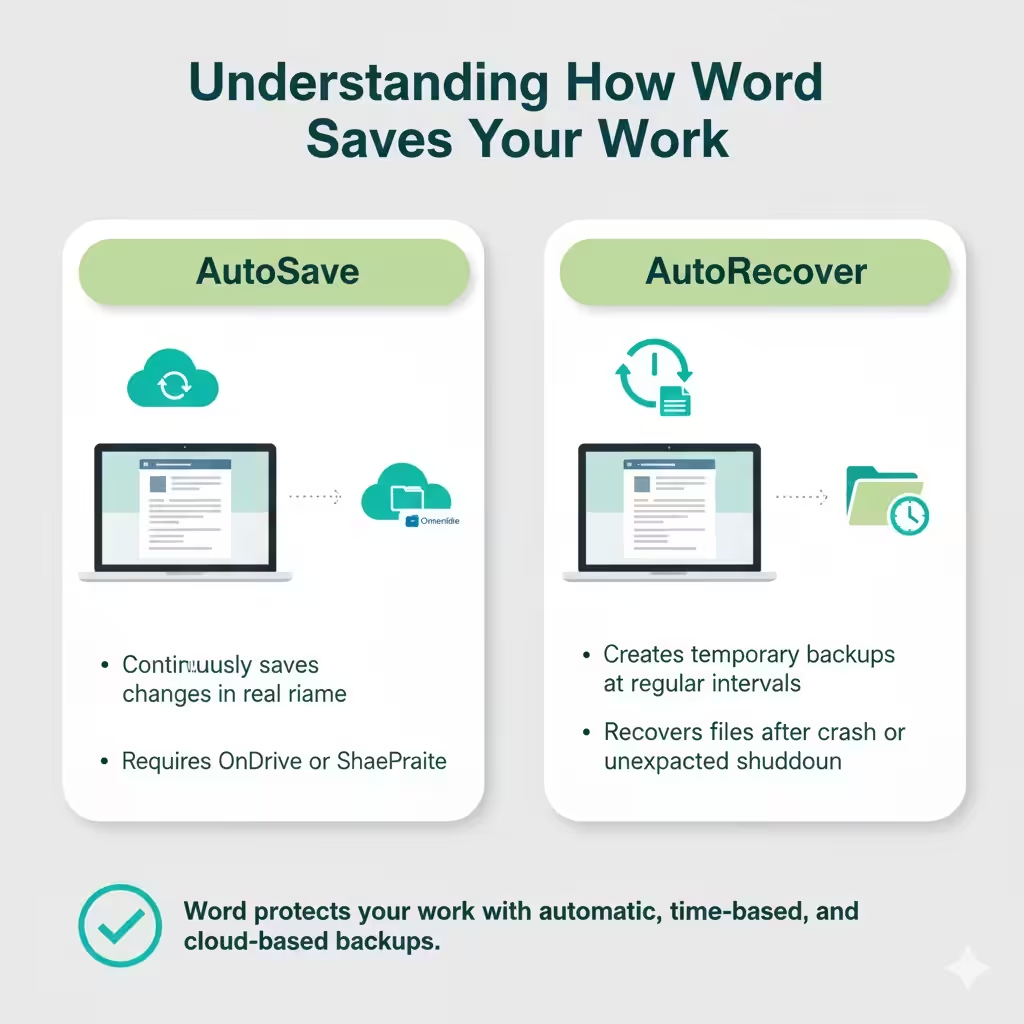
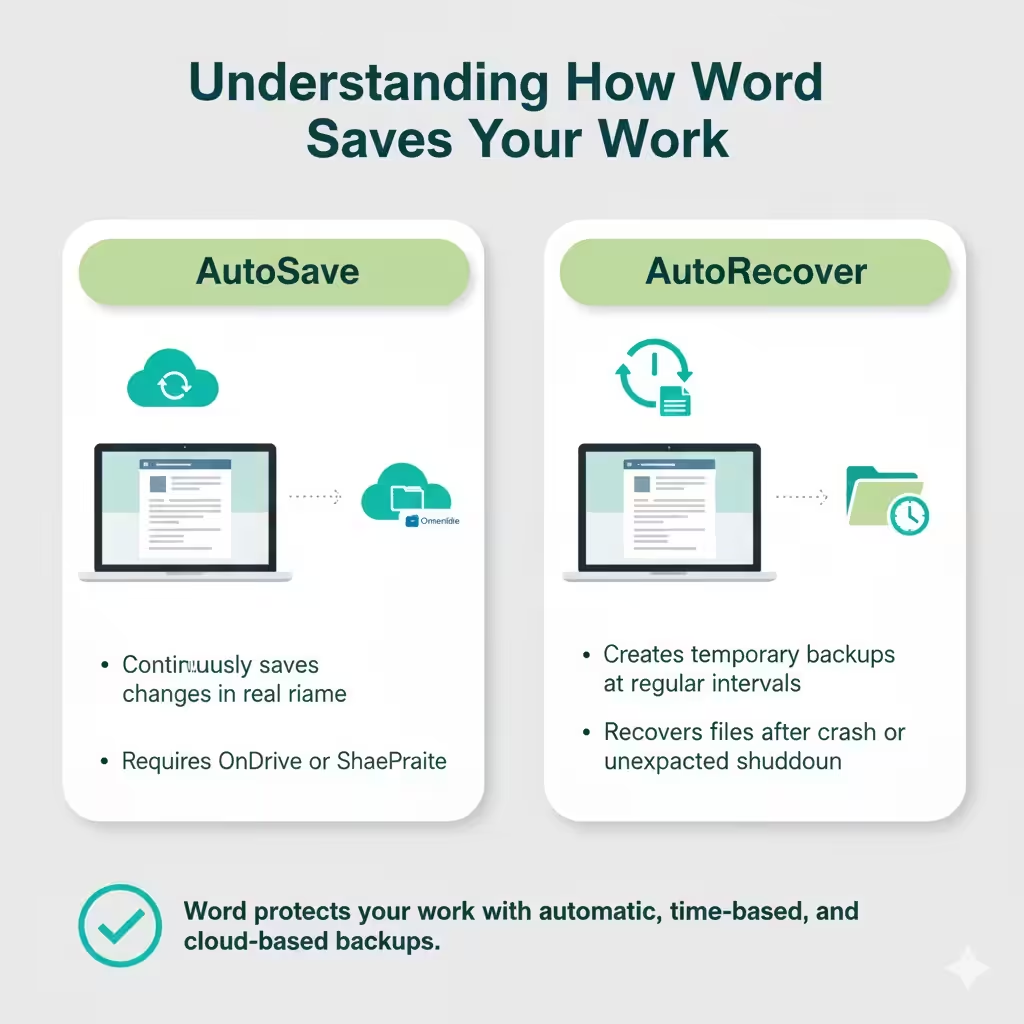
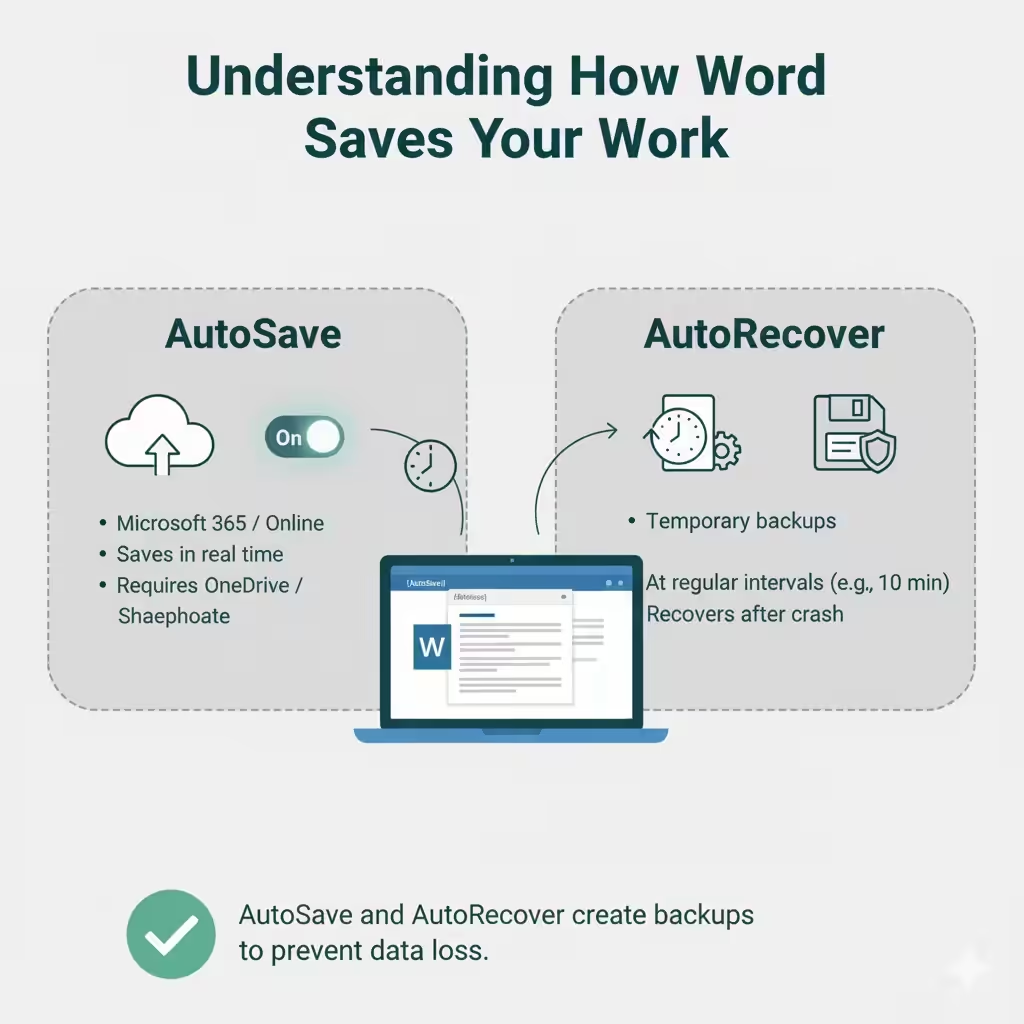
Before diving into recovery methods, it helps to understand how Word handles unsaved data. Microsoft Word uses AutoSave and AutoRecover features to automatically create copies of your document as you work.
-
AutoSave: This feature is available in Microsoft 365 or Word Online and continuously saves changes in real time to OneDrive or SharePoint.
-
AutoRecover: This feature creates temporary backups of your document at regular intervals. If Word or your computer crashes, you can use these files to restore lost work.
Knowing this difference will help you determine which recovery method is most effective in your situation.
Method 1: Recover Unsaved Word Documents
If you accidentally closed a document without saving, Word may still have a recent copy available.
Step 1: Reopen Microsoft Word
Start by reopening Microsoft Word. If Word detects any unsaved documents, you might see a Document Recovery pane on the left side of the screen. It lists files that were automatically recovered after a crash or unexpected shutdown.
-
Click on a document from the list.
-
Review the contents.
-
Save it immediately with a new name.
If you don’t see the Document Recovery pane, move to the next step.
Step 2: Use the “Recover Unsaved Documents” Option
-
Open Microsoft Word.
-
Go to File → Info → Manage Document → Recover Unsaved Documents.
-
A folder will appear showing any unsaved drafts.
-
Select the most recent file and click Open.
-
Review and save it to your preferred location.
This is often the quickest and easiest way to recover a recently unsaved file.
Method 2: Recover a Word Document from AutoRecover Files
If your computer crashed or Word closed unexpectedly, you can often restore your document using AutoRecover files.
Step 1: Locate AutoRecover Files
-
Open Word and go to File > Options > Save.
-
Look for the AutoRecover file location path.
-
Copy the path and paste it into File Explorer.
The path usually looks like this:
Step 2: Restore the File
Once you open this folder, you may find files with the extension .asd. These are your AutoRecover files.
-
Right-click the file you want to recover.
-
Choose Open with Microsoft Word.
-
Once it opens successfully, immediately save it as a normal
.docxfile.
If no .asd file exists, continue with the next recovery method.
Method 3: Check the Temporary Files Folder
When you work on a Word document, the program sometimes creates temporary files that can be used to recover your data.
Step 1: Search for Temporary Files
-
Open File Explorer and type this into the address bar:
Press Enter to open the temporary folder.
-
In the search bar, type:
This will show all temporary files. Look for files that match the time and date you were working on your lost document.
Step 2: Open and Save the File
Try opening suspicious files in Word. Some temporary files may open as plain text, but if the content looks familiar, save it as a .docx document for safety.
Method 4: Recover Deleted Word Files from the Recycle Bin
If you deleted the file manually, check your Recycle Bin before doing anything else.
-
Open the Recycle Bin on your desktop.
-
Locate your deleted Word file (you can sort by “Date Deleted” to make it easier).
-
Right-click and select Restore.
The file will be restored to its original folder. From there, you can open it in Word and save a backup copy.
Method 5: Recover Word Files from OneDrive
If you’re using Microsoft 365 or have your Word documents synced with OneDrive, recovering an old or deleted version is often simple.
Step 1: Go to OneDrive Online
-
Visit OneDrive.com and log in with your Microsoft account.
-
Navigate to the folder where your document was saved.
Step 2: Restore a Previous Version
-
Right-click the file and select Version History.
-
You’ll see a list of older versions of your document.
-
Choose the one you want and click Restore.
You can also recover deleted files from OneDrive’s Recycle Bin, which stores them for up to 30 days.
Method 6: Use File History or Backup
If you’ve enabled Windows File History or use another backup service, you can restore a lost Word document from there.
Step 1: Check File History
-
Go to the folder where your document was saved.
-
Right-click and choose Properties.
-
Go to the Previous Versions tab.
-
Select an earlier version and click Restore.
Step 2: Check Backup Tools
If you regularly back up your system using an external drive or cloud software, look for the file in your backup storage. Many tools, such as Google Drive, Dropbox, or third-party backup programs, also keep earlier versions of files.
Method 7: Use Word’s Backup Copy Feature
Word can be set up to automatically create a backup copy every time you save a document. If this option was enabled, you might still have a backup available.
How to Check for Backup Copies
-
Open Word and go to File > Options > Advanced.
-
Scroll down to the Save section.
-
Make sure “Always create backup copy” is checked.
Word saves these files with a .wbk extension in the same folder as your original document. Search for .wbk files on your computer, open them in Word, and save the recovered file as .docx.
Prevent Future Data Loss
To avoid losing Word documents again, consider following these tips:
-
Enable AutoSave: If you use Microsoft 365, keep AutoSave turned on so your work is continuously saved to the cloud.
-
Adjust AutoRecover Frequency: Go to File > Options > Save and reduce the AutoRecover interval to every 1 or 2 minutes.
-
Backup Regularly: Use OneDrive, Google Drive, or an external hard drive to automatically back up important files.
-
Save Frequently: Get into the habit of pressing Ctrl + S regularly as you work.
-
Keep Windows Updated: Regular system updates can prevent crashes and file corruption.
Final Thoughts
Losing a Word document doesn’t always mean your work is gone forever. Microsoft Word provides several built-in recovery tools and backup systems designed to protect your data. Whether you rely on AutoRecover, search for temporary files, or restore from OneDrive, there’s a good chance you can get your file back.
The key is to act quickly and check every possible recovery location. Once you’ve successfully restored your document, take a few minutes to enable AutoSave, adjust recovery settings, and back up your work—so next time, you’ll be fully protected.