


Excel Formatting Explained: Using Functions, Conditions, and Styling Tools Effectively
Microsoft Excel is far more than a spreadsheet tool — it’s a powerful platform for organizing data, performing calculations, and presenting information in a clear and professional way. One of Excel’s most essential features is formatting. Proper formatting not only makes your data look better but also makes it easier to understand and analyze.
In this complete guide, we’ll explore Excel formatting in detail: from using built-in styles to applying conditional formatting, using custom number formats, and even leveraging formulas to dynamically change cell appearances.
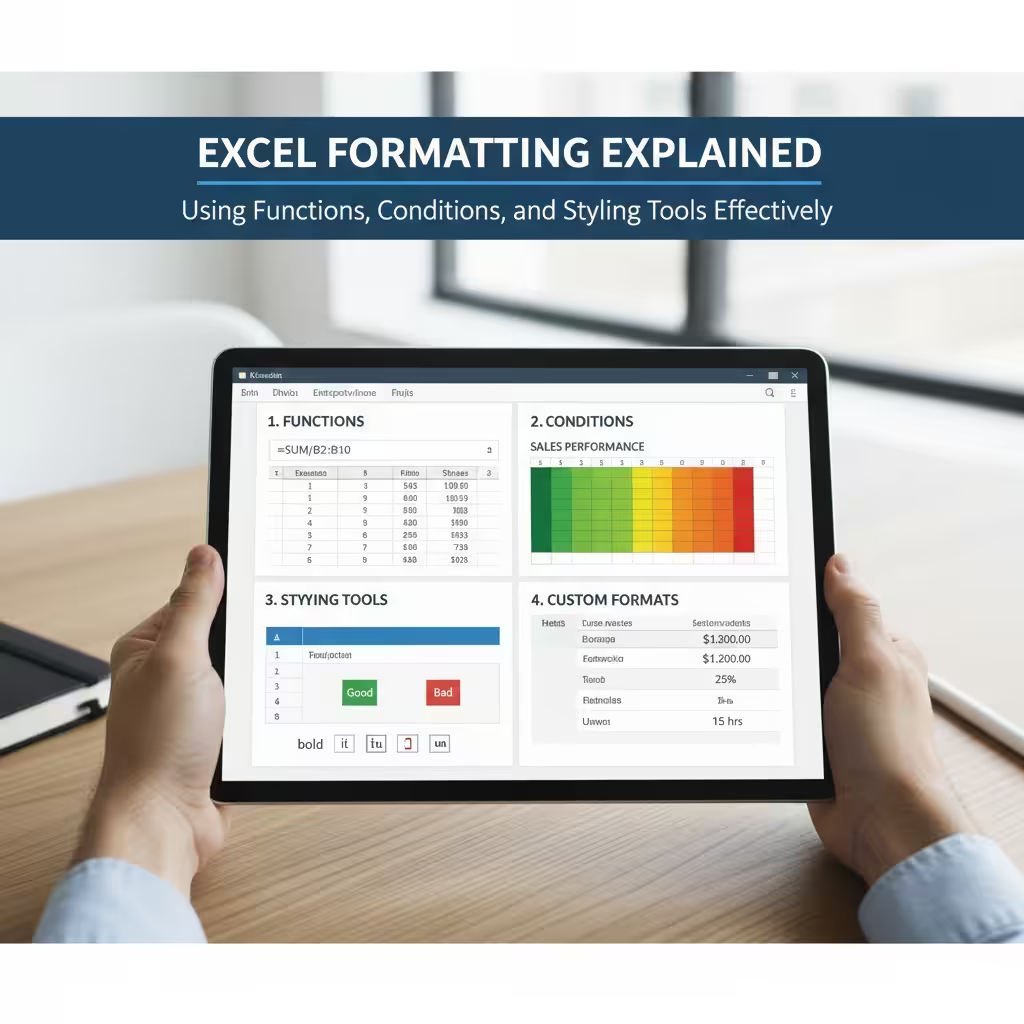
Why Excel Formatting Matters
Formatting in Excel isn’t just about aesthetics — it’s about functionality. When you apply the right styles, colors, and structures, you make your data more meaningful and easier to read.
Here’s why formatting is important:
-
Improves readability: Well-formatted spreadsheets help users interpret data quickly.
-
Highlights key insights: Conditional formatting can automatically draw attention to trends or anomalies.
-
Reduces errors: Consistent formatting helps you identify mistakes or inconsistencies.
-
Professional presentation: Whether you’re sharing reports or dashboards, good formatting gives your work a polished, professional look.
Basic Formatting in Excel
Before diving into advanced tools, it’s essential to master the basic formatting options that control how text and numbers appear in your worksheet.
Text Formatting
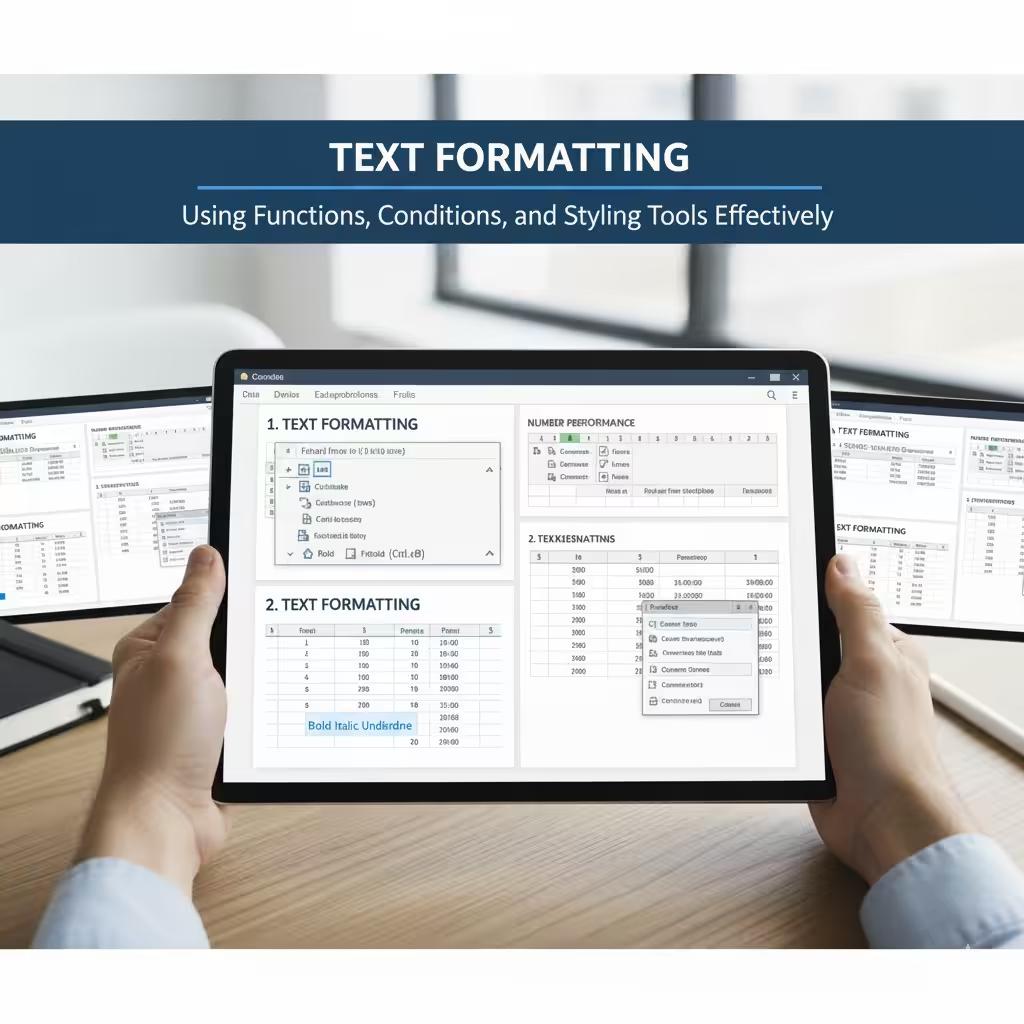
Excel provides standard text formatting features similar to those in Word:
-
Bold, Italic, and Underline: Use these to emphasize key points.
-
Font type and size: Change the style and readability of your data.
-
Text alignment: Align content to the left, center, or right, or even rotate text vertically for labels.
-
Text color and background color: Add contrast or highlight important information.
You can find all these options under the Home tab in the Font and Alignment groups.
Number Formatting
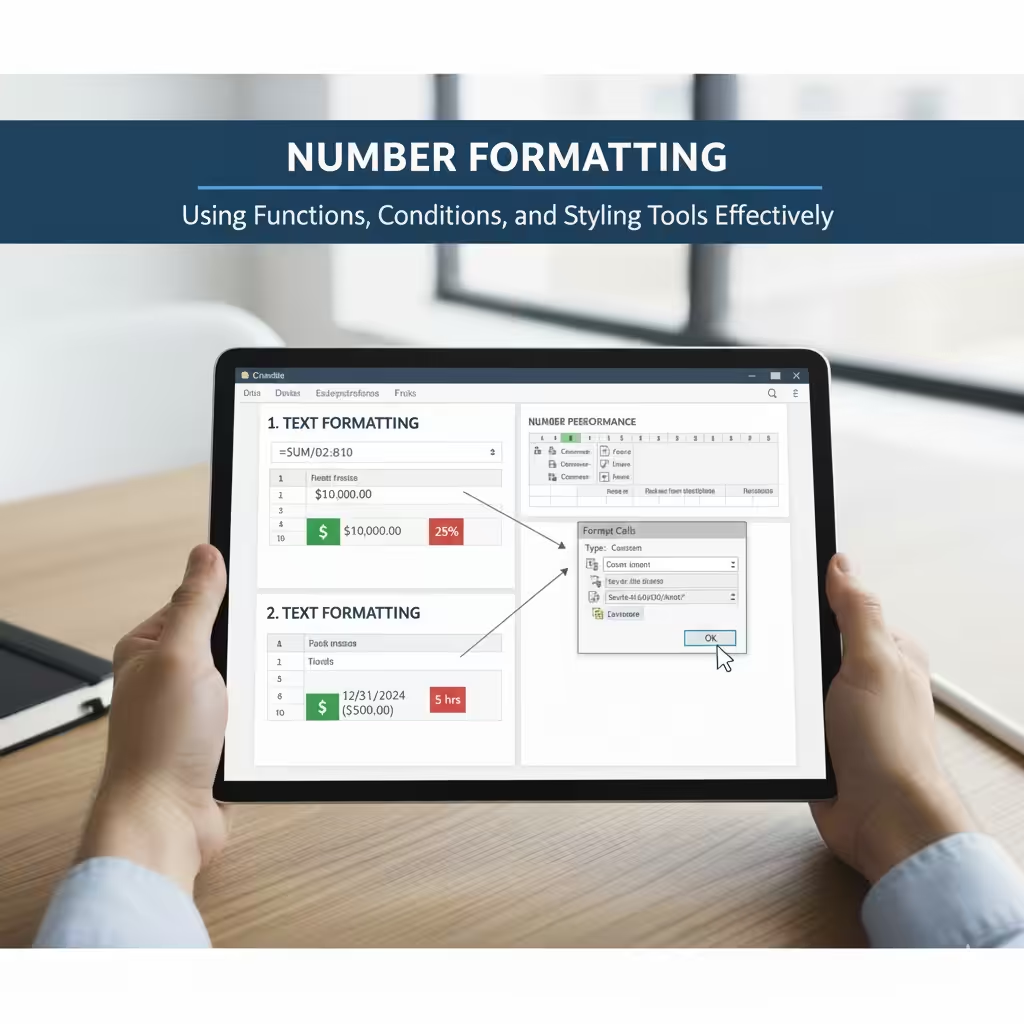
Excel recognizes many data types — currency, percentages, dates, times, and more. Proper number formatting ensures your data is displayed correctly.
Common examples include:
-
Currency: Displays values with a currency symbol, like
$1,000.00. -
Percentage: Converts values to percentages, e.g.,
0.25becomes25%. -
Date/Time: Automatically adjusts formatting for regional date/time settings.
-
Custom Format: Lets you define how numbers appear, such as showing negative values in red or adding units like “kg” or “hrs.”
To apply number formatting, go to Home > Number Format or press Ctrl + 1 to open the Format Cells dialog.
Applying Cell Styles and Themes
Excel includes predefined styles and themes that can make your worksheets look clean and consistent.
Using Cell Styles
Cell Styles combine font color, size, borders, and fills into a single format. You can apply them quickly across a sheet.
To use them:
-
Select the cells you want to format.
-
Go to Home > Cell Styles.
-
Choose from options such as Good, Bad, Neutral, Input, Calculation, or Title.
You can also create your own Custom Cell Style for repeated use.
Applying Workbook Themes
Excel themes control the overall look of your workbook — fonts, colors, and effects. Changing the theme instantly updates your entire document’s style.
To apply a theme:
-
Go to Page Layout > Themes.
-
Choose from built-in themes or customize your own.
Using consistent themes is especially helpful for business reports or presentations.
Conditional Formatting: Highlight Data Automatically
Conditional formatting is one of Excel’s most powerful tools. It allows you to automatically apply formatting — such as color changes or icons — based on the value of a cell.
How to Apply Conditional Formatting
-
Select the range of cells.
-
Go to Home > Conditional Formatting.
-
Choose a rule type, such as Highlight Cells Rules, Top/Bottom Rules, or Data Bars.
For example:
-
Highlight cells greater than a certain value.
-
Color-code data above or below average.
-
Use icon sets (arrows, flags, circles) to indicate performance levels.
Example: Highlighting High Sales
Suppose you have a list of monthly sales. You can use conditional formatting to highlight all values greater than $10,000 in green.
-
Select your sales column.
-
Click Home > Conditional Formatting > Highlight Cells Rules > Greater Than.
-
Enter
10000and choose a green fill color. -
Click OK.
Now, every cell meeting that condition will stand out automatically.
Using Formulas with Conditional Formatting
Conditional formatting isn’t limited to simple value comparisons. You can also use formulas for more complex logic.
Example: Highlight Duplicate Entries
-
Select the data range.
-
Go to Conditional Formatting > New Rule > Use a formula to determine which cells to format.
-
Enter the formula:
-
Set a highlight color and click OK.
This will highlight duplicate entries automatically.
Formulas can also be used for tasks such as:
-
Highlighting weekends in a date list.
-
Coloring rows based on category names.
-
Marking overdue deadlines automatically.
Borders and Cell Design
Borders and gridlines help organize your worksheet and make data easier to follow.
-
Add borders: Go to Home > Font > Borders to apply outlines around cells or tables.
-
Merge cells: Combine multiple cells to create section headers or labels.
-
Wrap text: Allows content to appear on multiple lines within one cell.
-
Adjust column width and row height: Double-click edges to auto-fit the content.
Design consistency helps readers focus on what matters most.
Custom Number Formatting
Custom number formatting allows you to display numbers in creative ways without changing their actual value.
For instance:
-
Display thousands as “K”:
-
Show negative numbers in red:
-
Add text next to values, such as “hours”:
To apply a custom format, select your cells, press Ctrl + 1, go to the Number tab, and choose Custom.
Using Format Painter
The Format Painter is a handy shortcut for copying formatting from one cell or area to another.
-
Select the formatted cell.
-
Click Format Painter in the Home tab.
-
Highlight the area you want to apply the same formatting to.
Double-click the Format Painter to apply the format to multiple areas without re-clicking each time.
Tips for Professional Excel Formatting
-
Keep it simple: Avoid using too many colors or fonts. Clarity is key.
-
Use consistent styles: Stick to one color scheme throughout the workbook.
-
Freeze panes: Keep headers visible as you scroll through long datasets.
-
Use table formatting: Convert your data range into an Excel Table (Ctrl + T) for automatic styling and easier sorting/filtering.
-
Align data properly: Numbers should be right-aligned, text left-aligned, and headers centered for readability.
Final Thoughts
Formatting in Excel is more than just decoration — it’s a communication tool. It allows you to highlight insights, simplify interpretation, and make your spreadsheets look professional and polished.
By mastering basic styles, conditional formatting, and custom number formats, you can turn plain data into dynamic, visually clear, and useful information. Whether you’re preparing a financial report, tracking performance metrics, or designing a dashboard, proper formatting will help your Excel files stand out and make your data truly work for you.