


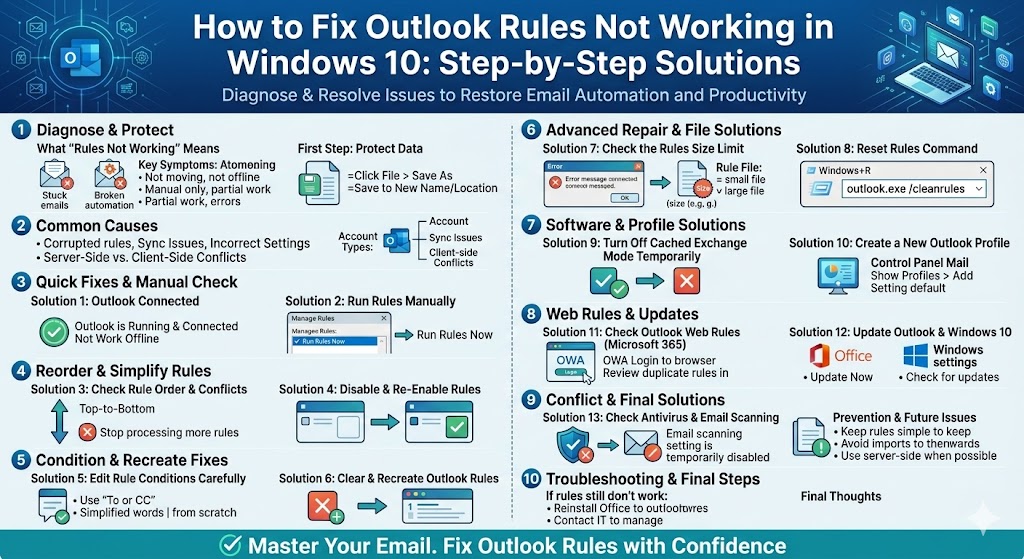
Outlook Rules Not Working in Windows 10? Here’s How to Fix It
Microsoft Outlook rules are designed to automate email management by moving, flagging, forwarding, or deleting messages based on conditions you set. When rules stop working, your inbox can quickly become cluttered, important messages may be missed, and productivity suffers.
If Outlook rules are not working properly on Windows 10, you’re not alone. This is a common issue caused by syncing problems, corrupted rules, incorrect settings, or profile-related errors. The good news is that most rule issues can be fixed without reinstalling Outlook or Windows.
This complete guide explains why Outlook rules fail and provides step-by-step solutions to get them working again.
What Does “Outlook Rules Not Working” Mean?
Outlook rules may be considered “not working” when:
-
Emails are not moved to the correct folders
-
Rules run manually but not automatically
-
Rules only work sometimes
-
Rules stop working after an Outlook update
-
Server-side rules do not apply
-
Error messages appear when creating or editing rules
These problems can affect Outlook with Exchange, Microsoft 365, IMAP, or POP accounts.
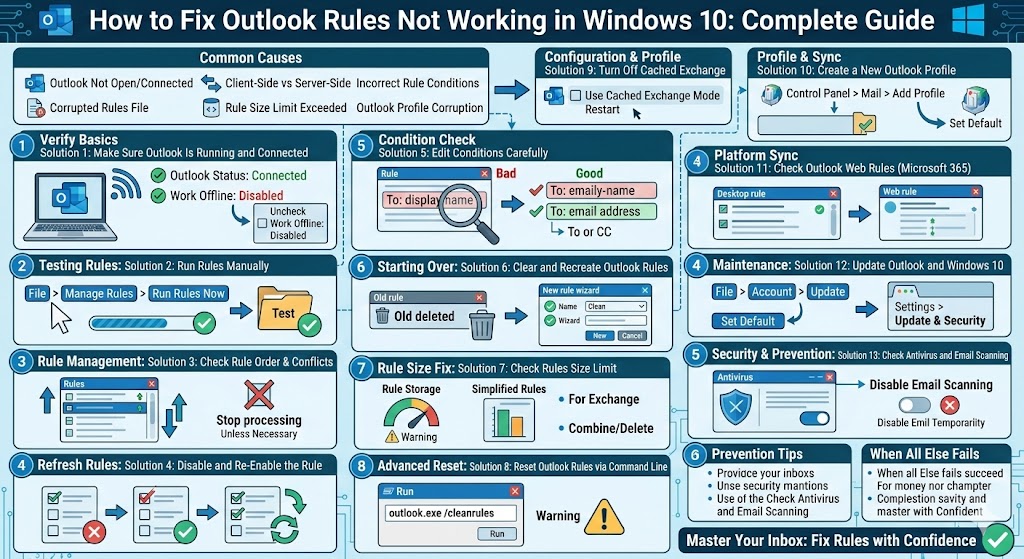
Common Reasons Outlook Rules Stop Working
Understanding the cause helps you choose the correct fix.
Common causes include:
-
Outlook not running or not connected to the server
-
Rules created in the wrong Outlook version (desktop vs web)
-
Corrupted rules file
-
Rules exceeding size limits
-
Incorrect rule order
-
Client-only rules not running
-
Outlook profile corruption
-
Cached Exchange Mode issues
-
Outdated Outlook version
Different accounts behave differently, so some solutions apply only to certain setups.
Check Rule Type: Client-Side vs Server-Side Rules
Outlook rules fall into two categories.
Server-Side Rules
-
Run on the mail server
-
Work even when Outlook is closed
-
Common with Exchange and Microsoft 365 accounts
Client-Side Rules
-
Run only when Outlook is open
-
Depend on Outlook being active
-
Common with POP and IMAP accounts
If Outlook is closed, client-side rules will not run.
Solution 1: Make Sure Outlook Is Running and Connected
This may seem obvious, but it’s often overlooked.
What to Check
-
Outlook is open
-
Outlook status shows “Connected”
-
No “Working Offline” mode enabled
To disable offline mode:
-
Open Outlook
-
Go to Send/Receive
-
Make sure Work Offline is not selected
If Outlook is offline, rules will not apply.
Solution 2: Run Rules Manually to Test Them
Running rules manually helps confirm whether they are still functional.
How to Run Rules Manually
-
Open Outlook
-
Go to File
-
Click Manage Rules & Alerts
-
Select a rule
-
Click Run Rules Now
If the rule works manually but not automatically, the issue is often related to rule conditions or rule type.
Solution 3: Check Rule Order and Conflicts
Rules are applied in order from top to bottom.
What to Look For
-
Conflicting rules
-
A rule stopping further processing
-
Rules applying to the same messages
Reorder rules so the most important ones appear at the top.
Uncheck “Stop processing more rules” unless absolutely necessary.
Solution 4: Disable and Re-Enable the Rule
Sometimes a rule simply needs to be refreshed.
Steps
-
Go to Manage Rules & Alerts
-
Uncheck the problematic rule
-
Click OK
-
Reopen the Rules window
-
Re-check the rule
This resets the rule and often restores functionality.
Solution 5: Edit the Rule Conditions Carefully
Incorrect conditions can cause rules to fail silently.
Common Condition Issues
-
Using “To” instead of “To or CC”
-
Using sender display names instead of email addresses
-
Matching words that don’t exist in the email body
-
Applying rules to encrypted or protected messages
Edit the rule and simplify conditions to test whether it works.
Solution 6: Clear and Recreate Outlook Rules
Corrupted rules are a common cause of failures.
Delete and Recreate Rules
-
Go to Manage Rules & Alerts
-
Delete the problematic rule
-
Create a new rule from scratch
-
Test the new rule
Avoid importing old rules if corruption is suspected.
Solution 7: Check the Rules Size Limit
Outlook has a rules size limit, especially for Exchange accounts.
When the limit is exceeded:
-
New rules may not save
-
Existing rules may stop working
Signs of Rule Size Issues
-
Error messages when saving rules
-
Rules randomly stopping
-
Outlook freezing during rule edits
Reducing the number of rules or simplifying them often resolves this issue.
Solution 8: Reset Outlook Rules Using Command Line
Resetting all rules can fix deep corruption issues.
Reset Rules Command
-
Close Outlook
-
Press Windows + R
-
Type:
outlook.exe /cleanrules -
Press Enter
This deletes all existing rules, so use this only if necessary.
Solution 9: Turn Off Cached Exchange Mode Temporarily
Cached Exchange Mode can cause syncing issues.
How to Disable It
-
Open Outlook
-
Go to File > Account Settings > Account Settings
-
Select your email account
-
Click Change
-
Uncheck Use Cached Exchange Mode
-
Restart Outlook
Test whether rules work correctly afterward.
Solution 10: Create a New Outlook Profile
A corrupted Outlook profile can break rules functionality.
Create a New Profile
-
Open Control Panel
-
Select Mail
-
Click Show Profiles
-
Click Add
-
Set up your email account
-
Set the new profile as default
Launch Outlook and recreate your rules.
Solution 11: Check Outlook Web Rules (Microsoft 365)
Rules created in Outlook Web may conflict with desktop rules.
What to Do
-
Sign in to Outlook Web
-
Review existing rules
-
Delete duplicate or conflicting rules
-
Create rules in one place only
Consistency between platforms helps prevent issues.
Solution 12: Update Outlook and Windows 10
Outdated software can cause rule processing bugs.
Update Outlook
-
Open Outlook
-
Go to File > Account
-
Click Update Options
-
Select Update Now
Update Windows
-
Open Settings
-
Go to Update & Security
-
Install available updates
Restart your PC afterward.
Solution 13: Check Antivirus and Email Scanning
Some antivirus programs interfere with Outlook rules.
What to Try
-
Temporarily disable email scanning
-
Test rule behavior
-
Add Outlook to antivirus exclusions
Re-enable protection after testing.
Preventing Outlook Rules Issues in the Future
To avoid rule problems going forward:
-
Keep rules simple
-
Avoid unnecessary conditions
-
Regularly review and clean unused rules
-
Keep Outlook updated
-
Use server-side rules when possible
-
Avoid importing old rules
Good rule management improves reliability.
When Rules Still Don’t Work
If none of the solutions work:
-
Reinstall Microsoft Office
-
Contact your email provider or IT administrator
-
Check server-side restrictions
Persistent issues may require server-level troubleshooting.
Final Thoughts
Outlook rules are powerful tools for keeping your inbox organized, but when they stop working in Windows 10, it can disrupt your workflow. Most issues are caused by incorrect rule settings, profile corruption, syncing problems, or software updates.