


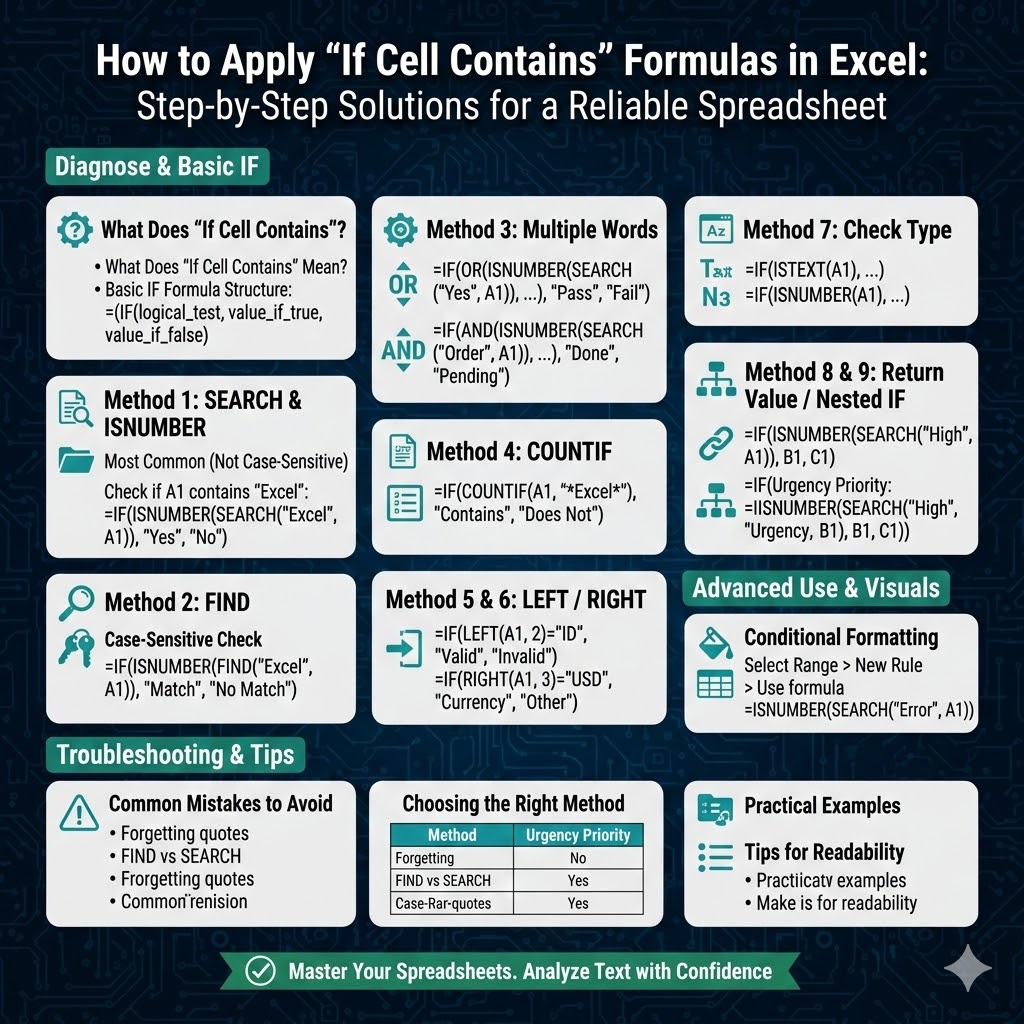
How to Apply “If Cell Contains” Formulas in Excel
Microsoft Excel is extremely powerful when it comes to analyzing and processing data. One of the most common needs when working with text-based data is checking whether a cell contains specific text and then performing an action based on that result. This is where “If cell contains” formulas become essential.
Although Excel does not have a single built-in function called IF CONTAINS, you can easily achieve this behavior by combining the IF function with other text-related functions such as SEARCH, FIND, ISNUMBER, COUNTIF, and LEFT/RIGHT/MID.
In this comprehensive guide, you’ll learn how to use “If cell contains” formulas in Excel, from basic examples to advanced use cases, along with common mistakes and practical tips.
What Does “If Cell Contains” Mean in Excel?
“If cell contains” generally refers to a logical test where Excel checks whether a cell includes a specific word, phrase, number, or character.
For example:
-
If a cell contains the word “Yes”, return “Approved”
-
If a cell contains “Error”, return a warning
-
If a cell contains a specific code, apply a category
-
If a cell contains partial text, perform calculations
Excel handles these checks using formulas rather than a single dedicated function.
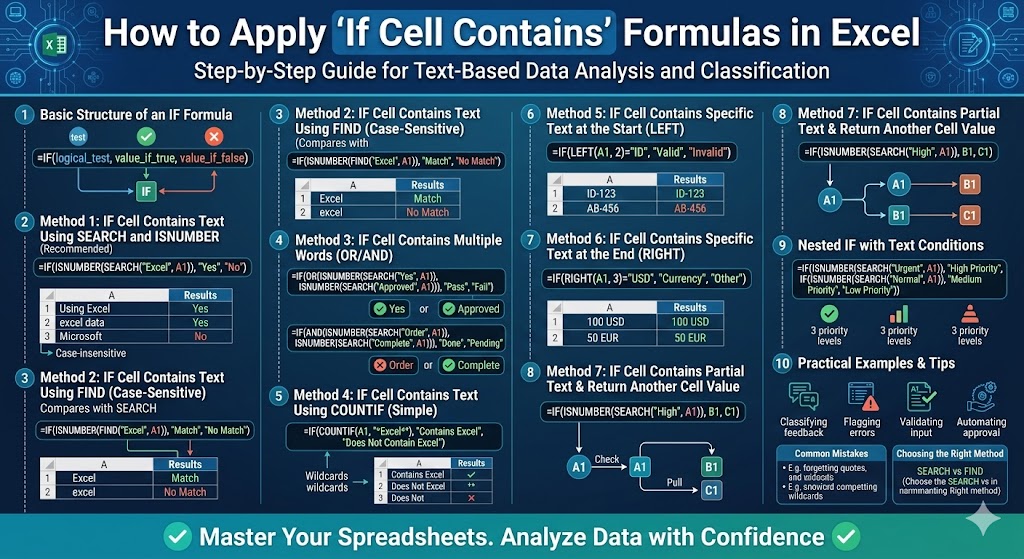
The Basic Structure of an IF Formula
Before diving into text checks, it’s important to understand the IF function.
The basic syntax is:
To check if a cell contains text, the logical_test part is combined with other functions.
Method 1: IF Cell Contains Text Using SEARCH and ISNUMBER
This is the most common and recommended method because it is not case-sensitive.
Example: Check If a Cell Contains a Word
If cell A1 contains text and you want to check whether it includes the word “Excel”:
How it works:
-
SEARCH looks for the word “Excel” inside the cell
-
ISNUMBER checks if SEARCH returns a number
-
IF returns the result based on true or false
This formula will return “Yes” even if the cell contains “excel”, “EXCEL”, or “Using Excel”.
Method 2: IF Cell Contains Text Using FIND (Case-Sensitive)
If you need a case-sensitive check, use FIND instead of SEARCH.
Important:
-
FIND is case-sensitive
-
FIND will not match “excel” or “EXCEL”
This is useful when case matters, such as product codes or passwords.
Method 3: IF Cell Contains Multiple Words
You can check for multiple text conditions using OR or AND.
Check If Cell Contains One of Multiple Words
This formula returns “Pass” if the cell contains either “Yes” or “Approved”.
Check If Cell Contains All Words
This returns “Done” only if both words are present.
Method 4: IF Cell Contains Text Using COUNTIF
COUNTIF is another simple and readable approach, especially for beginners.
Example
Explanation:
-
The asterisks (*) act as wildcards
-
COUNTIF returns 1 if text is found
-
IF interprets that result as TRUE
This method is easy to understand and works well for basic checks.
Method 5: IF Cell Contains Specific Text at the Start
If you want to check whether a cell starts with certain text, use LEFT.
Example
This checks if the first two characters of the cell are “ID”.
Method 6: IF Cell Contains Text at the End
To check if a cell ends with certain text, use RIGHT.
Example
This is useful for checking file extensions, currency labels, or codes.
Method 7: IF Cell Contains a Number or Text
Sometimes you need to check whether a cell contains any text at all.
Check If Cell Contains Text
Check If Cell Contains a Number
These functions help validate imported or user-entered data.
Method 8: IF Cell Contains Partial Text and Return Another Cell Value
You can use “If cell contains” formulas to return values from other cells.
Example
This formula returns:
-
Value from B1 if A1 contains “High”
-
Value from C1 if it does not
This is common in scoring systems and status-based calculations.
Method 9: Nested IF with Text Conditions
For more complex logic, you can nest IF formulas.
Example
IF(ISNUMBER(SEARCH(“Normal”, A1)), “Medium Priority”,
“Low Priority”))
This evaluates multiple conditions in order.
For very complex logic, consider using IFS instead of nested IFs.
Using “If Cell Contains” with Conditional Formatting
You can also use these formulas visually through Conditional Formatting.
Steps
-
Select the range
-
Go to Conditional Formatting
-
Choose New Rule
-
Select Use a formula
-
Enter a formula such as:
-
Apply formatting
This highlights cells that contain specific text.
Common Mistakes to Avoid
When using “If cell contains” formulas, avoid these common errors:
-
Forgetting quotation marks around text
-
Using FIND when case-insensitivity is needed
-
Not handling blank cells
-
Forgetting wildcards in COUNTIF
-
Nesting too many IF statements unnecessarily
Testing formulas on sample data helps avoid mistakes.
Choosing the Right Method
Use this quick guide:
-
SEARCH + ISNUMBER → Best overall solution
-
FIND → Case-sensitive checks
-
COUNTIF → Simple text detection
-
LEFT/RIGHT → Position-based text checks
-
Nested IF / IFS → Multiple conditions
Choosing the right approach makes formulas easier to read and maintain.
Practical Real-World Examples
“If cell contains” formulas are commonly used for:
-
Classifying customer feedback
-
Flagging errors in reports
-
Validating input data
-
Automating approval statuses
-
Sorting and filtering text-based records
They are essential for turning raw text into meaningful insights.
Tips for Better Performance and Readability
-
Keep formulas simple where possible
-
Use helper columns for complex logic
-
Avoid unnecessary nesting
-
Use named ranges for clarity
-
Document complex formulas with comments
Clean formulas are easier to update and troubleshoot.
Final Thoughts
Using “If cell contains” formulas in Excel is a fundamental skill that greatly enhances your ability to analyze and organize data. While Excel doesn’t offer a single IF CONTAINS function, combining IF with SEARCH, FIND, COUNTIF, and other text functions gives you powerful flexibility.