


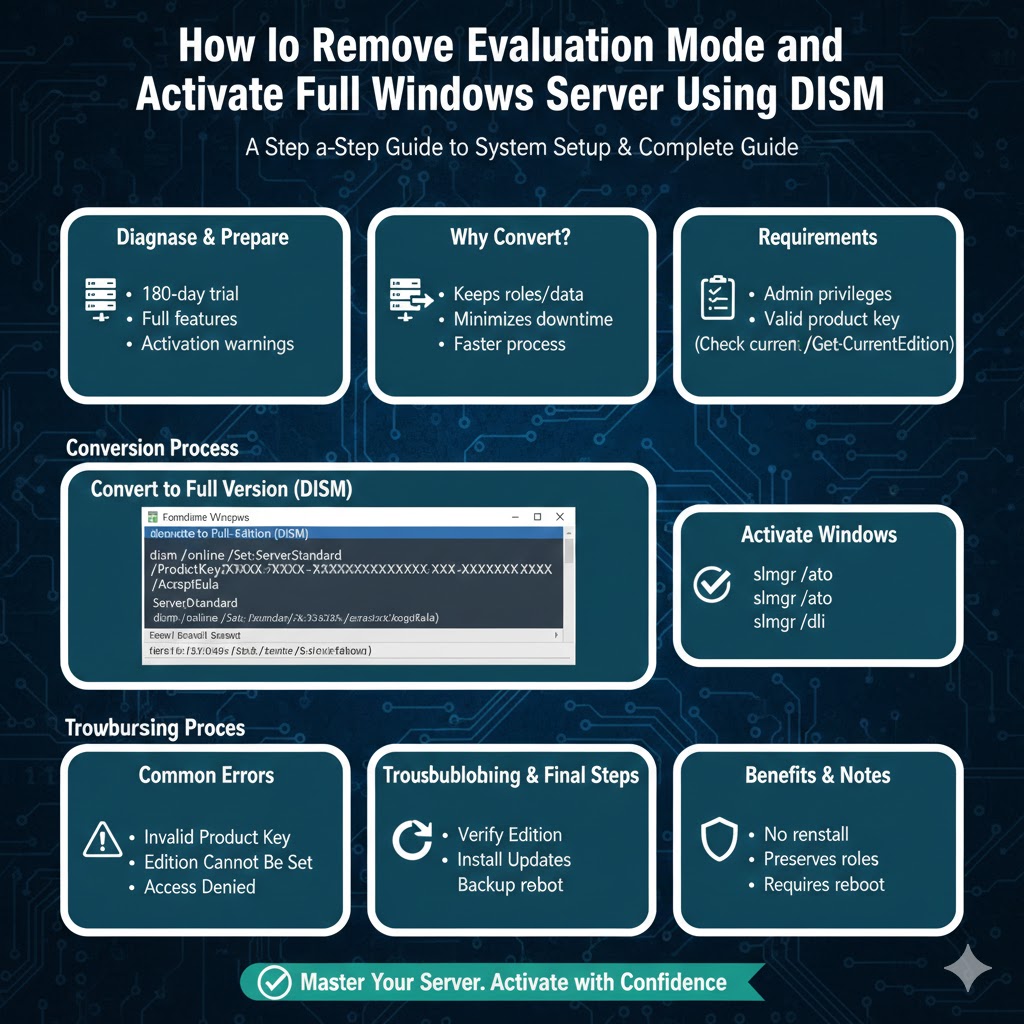
How to Remove Evaluation Mode and Activate Full Windows Server Using DISM
Windows Server Evaluation editions are commonly used for testing, lab environments, and short-term deployments. Microsoft typically provides a 180-day trial period for evaluation versions of Windows Server. After the trial expires, the system begins to display activation warnings and may eventually shut down automatically.
If you decide to continue using Windows Server in production, you do not need to reinstall the operating system. Instead, you can convert the Evaluation version to a fully licensed retail version using the Deployment Image Servicing and Management (DISM) tool. This method preserves your settings, roles, applications, and data.
In this detailed guide, you will learn how to convert Windows Server Evaluation to Full Version using DISM, including preparation steps, command syntax, activation, and troubleshooting tips.
What Is Windows Server Evaluation Edition?
The Evaluation edition of Windows Server is a trial version designed for testing purposes. It includes all features of the full edition but operates under a limited license period.
Key Characteristics
-
Valid for 180 days
-
Fully functional during the trial period
-
Displays activation warnings when expired
-
Automatically shuts down after expiration
Evaluation versions are available for Windows Server 2012, 2016, 2019, and 2022.
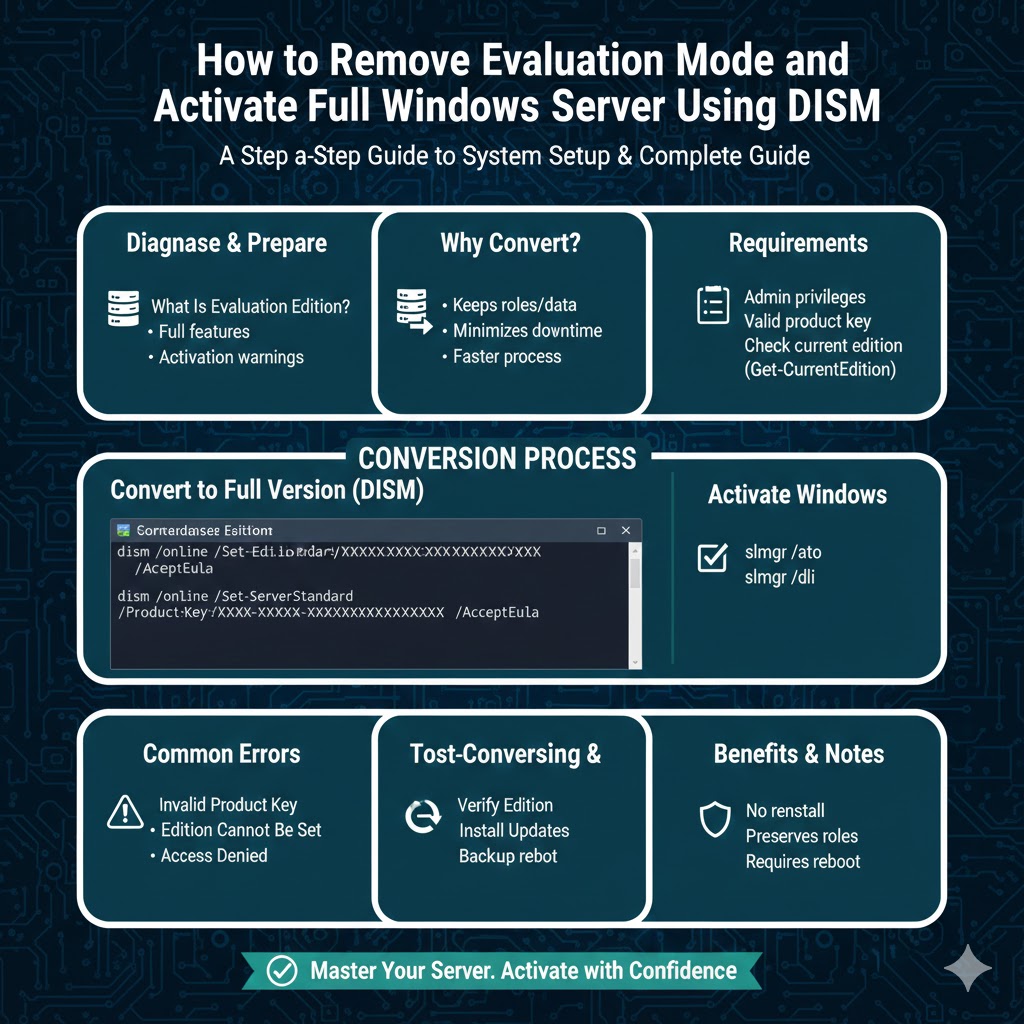
Why Convert Instead of Reinstalling?
Reinstalling Windows Server can be time-consuming and risky, especially in production environments.
Converting with DISM offers several advantages:
-
No need to reinstall the operating system
-
Keeps installed roles and features
-
Preserves data and configurations
-
Minimizes downtime
-
Faster and safer process
For most administrators, conversion is the preferred method.
Important Requirements Before Converting
Before proceeding, ensure the following conditions are met.
1. Administrator Privileges
You must run DISM commands in an elevated Command Prompt with administrative rights.
2. Valid Product Key
You need a valid retail or volume license product key for the target edition.
3. Check Current Edition
You must confirm that your system is currently running an Evaluation version.
To check:
-
Open Command Prompt as administrator
-
Run:
The output should show something like:
-
ServerStandardEval
-
ServerDatacenterEval
Determine Available Target Editions
Before conversion, verify which full editions are available.
Run the following command:
The output will list editions you can upgrade to, such as:
-
ServerStandard
-
ServerDatacenter
This step ensures compatibility between your evaluation edition and the target version.
Convert Windows Server Evaluation to Full Version Using DISM
Once you confirm your current edition and target edition, you can proceed with conversion.
Step-by-Step Conversion Process
-
Open Command Prompt as Administrator
-
Run the following command:
Replace:
-
ServerStandardwith your desired edition (ServerStandard or ServerDatacenter) -
The product key with your valid license key
-
Press Enter
-
Wait for the conversion process to complete
-
Restart the server when prompted
The process may take several minutes. After rebooting, your server will run the full licensed edition.
Example Conversion Scenarios
Convert ServerStandardEval to ServerStandard
Convert ServerDatacenterEval to ServerDatacenter
Make sure you use the correct edition name exactly as displayed by the Get-TargetEditions command.
Activating Windows Server After Conversion
After conversion, activation may occur automatically. If not, activate manually.
Manual Activation
Run:
To check activation status:
Ensure the server reports as activated.
What Happens During the Conversion?
During the DISM process:
-
The system verifies the product key
-
The edition is upgraded
-
Features and roles remain intact
-
No data is deleted
-
A reboot finalizes changes
This process is officially supported by Microsoft and safe for production environments.
Common Errors and How to Fix Them
Error: Invalid Product Key
Cause:
-
Incorrect or mismatched key
Fix:
-
Verify the key matches the target edition
-
Check for typing errors
Error: Edition Cannot Be Set
Cause:
-
Wrong target edition
-
Already running a full version
Fix:
-
Run Get-TargetEditions again
-
Confirm current edition
Error: Access Denied
Cause:
-
Command Prompt not running as administrator
Fix:
-
Right-click Command Prompt
-
Select “Run as Administrator”
Converting from Standard to Datacenter (Optional Upgrade)
If you already converted to Standard but later need Datacenter features, you can upgrade without reinstalling.
Run:
This is useful when advanced virtualization features are required.
Supported Windows Server Versions
The DISM conversion method works for:
-
Windows Server 2012 R2
-
Windows Server 2016
-
Windows Server 2019
-
Windows Server 2022
Always verify compatibility before proceeding.
Important Considerations
Before converting, keep the following in mind:
-
Backup critical data as a precaution
-
Ensure stable power during conversion
-
Confirm license compliance
-
Do not interrupt the process
While the process is safe, proper preparation is always recommended.
Checking License Expiration Status
To check remaining evaluation time before conversion:
This command displays detailed licensing information, including remaining days.
If the evaluation period has expired, conversion is still possible in most cases.
Benefits of Using DISM for Conversion
Using DISM provides several operational advantages:
-
Command-line efficiency
-
No media required
-
Minimal downtime
-
Fully supported method
-
Preserves server roles and domain settings
For IT administrators, this method is reliable and practical.
When Reinstallation Is Necessary
In rare cases, reinstallation may be required if:
-
The system is severely corrupted
-
DISM fails repeatedly
-
License compatibility issues exist
However, these cases are uncommon.
Final Thoughts
Converting Windows Server from Evaluation to Full Version using DISM is a straightforward and efficient process. Instead of reinstalling the operating system and reconfiguring roles, you can upgrade your edition in place with a simple command.