


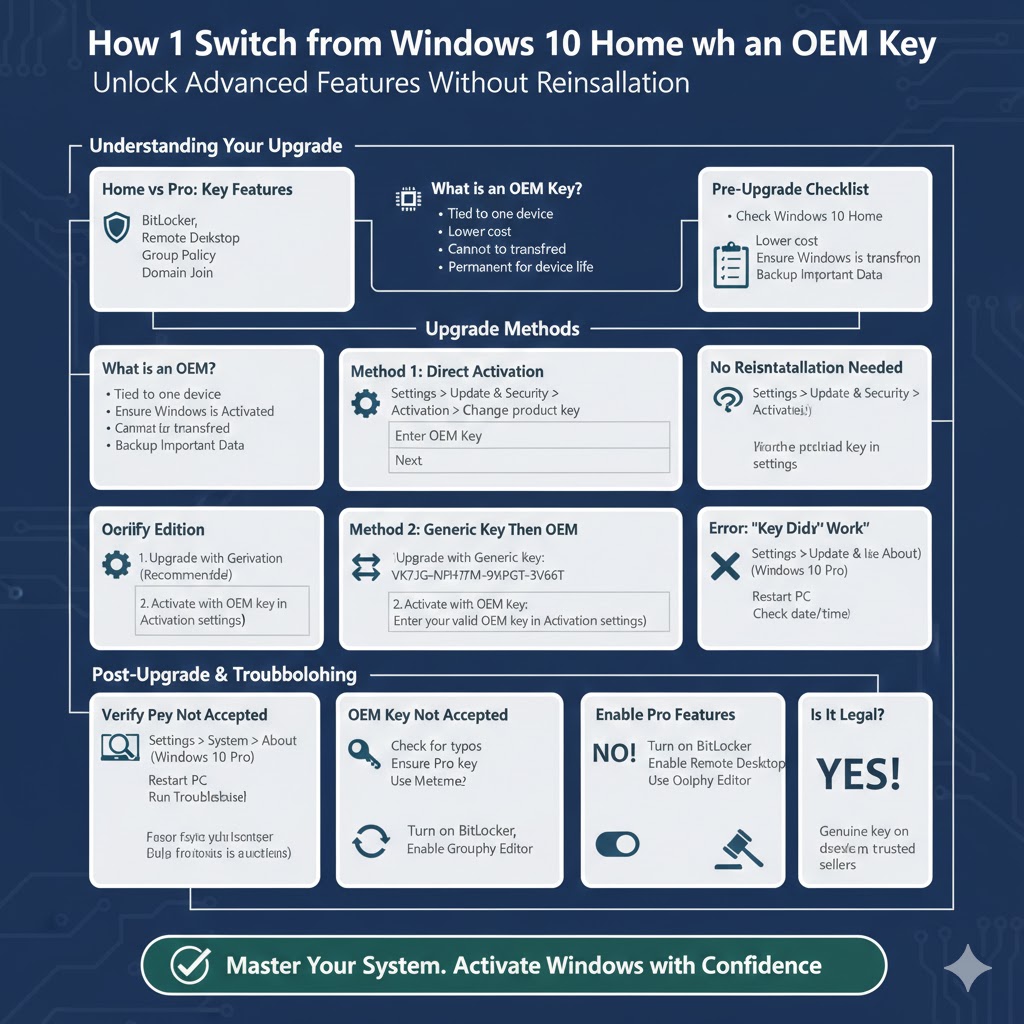
How to Switch from Windows 10 Home to Pro with an OEM Key
Upgrading from Windows 10 Home to Windows 10 Pro can unlock advanced features that are especially useful for professionals, businesses, and power users. Features such as BitLocker encryption, Remote Desktop hosting, Group Policy Editor, and Hyper-V virtualization are only available in the Pro edition.
If you already have a valid Windows 10 Pro OEM key, the upgrade process is straightforward and does not require reinstalling Windows or losing your files. In this detailed guide, you’ll learn exactly how to upgrade Windows 10 Home to Pro using an OEM key, along with important checks, common issues, and best practices to ensure a smooth upgrade.
Understanding Windows 10 Home vs Windows 10 Pro
Before upgrading, it’s important to understand what changes when you move from Home to Pro.
Key Features in Windows 10 Pro
Windows 10 Pro includes everything in Home, plus additional capabilities such as:
-
BitLocker drive encryption
-
Remote Desktop (host mode)
-
Group Policy Editor
-
Hyper-V virtualization
-
Windows Sandbox
-
Domain Join and Azure AD Join
-
Advanced security and management tools
If you need these features, upgrading to Pro is often worth it.
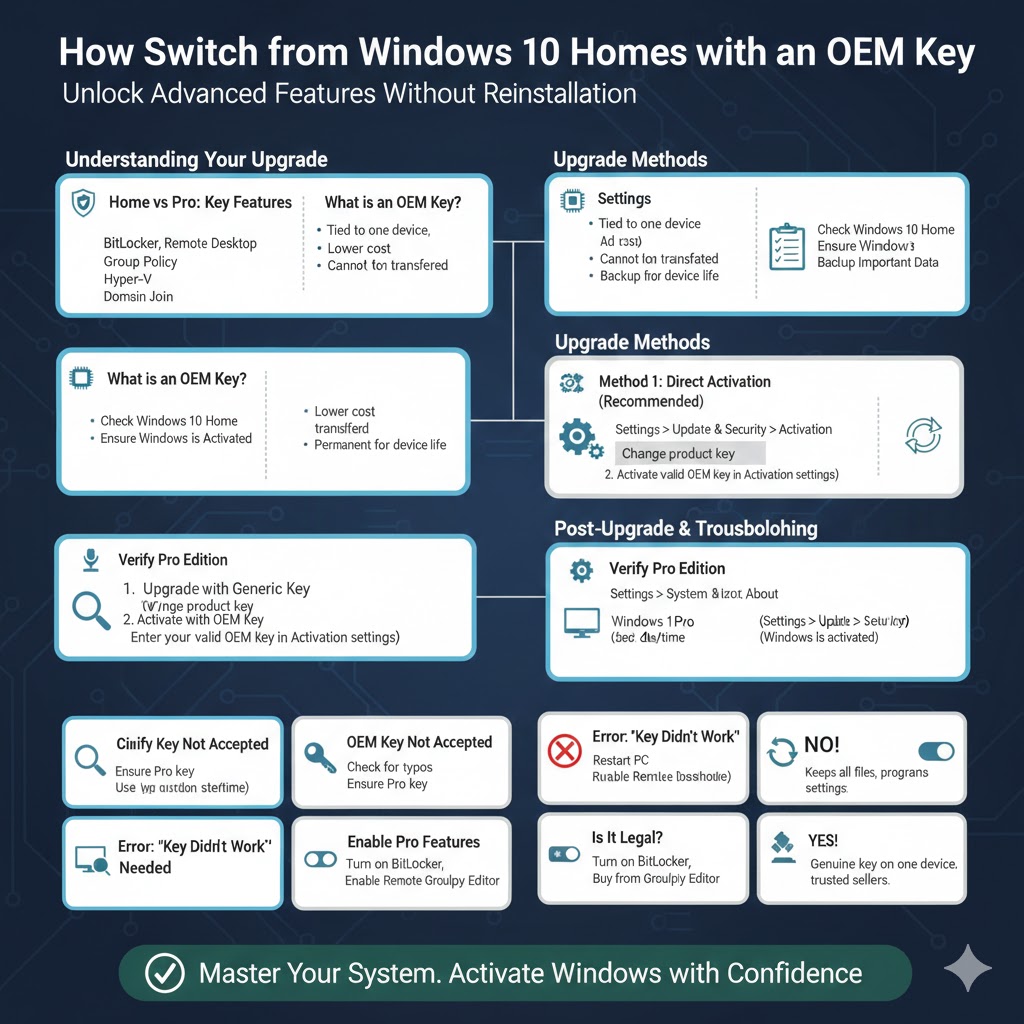
What Is an OEM Key?
An OEM (Original Equipment Manufacturer) key is a Windows license typically sold at a lower price and intended to be used on a single device. OEM keys are commonly preinstalled on PCs or purchased separately for system builders.
Important characteristics of OEM keys:
-
Tied to the first device they are activated on
-
Cannot be transferred to another PC
-
Fully legitimate if purchased from a trusted source
-
Works permanently once activated
As long as the OEM key is valid and unused, it can be used to upgrade Windows 10 Home to Pro.
Things to Check Before Upgrading
Before starting the upgrade process, make sure the following conditions are met.
Check Your Current Windows Edition
You must already be running Windows 10 Home.
To check:
-
Open Settings
-
Go to System
-
Click About
-
Look under Windows specifications
Confirm that the edition says Windows 10 Home.
Ensure Windows Is Activated
Your current Windows 10 Home installation should be activated before upgrading.
To verify:
-
Open Settings
-
Go to Update & Security
-
Click Activation
You should see “Windows is activated.” If not, activate Home first before upgrading.
Backup Important Data
Although the upgrade does not normally delete files, it’s always best practice to back up important documents, especially on work or personal systems.
Method 1: Upgrade Using the OEM Pro Key Directly (Recommended)
This is the simplest and most common method.
Step-by-Step Instructions
-
Open Settings
-
Go to Update & Security
-
Select Activation
-
Click Change product key
-
Enter your Windows 10 Pro OEM key
-
Click Next
-
Follow the on-screen instructions
Windows will verify the key and begin the upgrade process.
Your PC may restart once or twice during the upgrade. This is normal.
After completion, your system will automatically switch from Windows 10 Home to Windows 10 Pro.
Verify That the Upgrade Was Successful
After the upgrade finishes:
-
Open Settings
-
Go to System > About
Under Windows specifications, you should now see Windows 10 Pro.
Also check activation status:
-
Go to Settings > Update & Security > Activation
-
Confirm that Windows is activated with a digital license or product key
Once activated, all Pro features are immediately available.
Method 2: Upgrade Using the Generic Pro Key, Then Activate with OEM Key
In some cases, Windows may reject an OEM key directly during the edition upgrade. If that happens, this two-step method often works.
Step 1: Switch to Windows 10 Pro Using a Generic Key
-
Open Settings
-
Go to Update & Security > Activation
-
Click Change product key
-
Enter the Windows 10 Pro generic key:
VK7JG-NPHTM-C97JM-9MPGT-3V66T
This key upgrades the edition but does not activate Windows.
Allow Windows to restart and complete the edition upgrade.
Step 2: Activate Windows 10 Pro Using Your OEM Key
After the system shows Windows 10 Pro:
-
Go back to Settings > Update & Security > Activation
-
Click Change product key
-
Enter your OEM Windows 10 Pro key
-
Complete activation
This method is safe, legitimate, and commonly used when direct OEM activation fails.
Common Issues and How to Fix Them
OEM Key Is Not Accepted
Possible reasons include:
-
The key has already been used
-
The key is invalid or mistyped
-
The key is for a different edition
-
Internet connection issues
Double-check the key and ensure it is specifically for Windows 10 Pro, not Home or Enterprise.
Error: “The Product Key Didn’t Work”
Try the following:
-
Restart your PC and try again
-
Run the Activation Troubleshooter
-
Use the generic Pro key method first
-
Make sure date and time are correct
-
Ensure Windows Update services are running
Activation Fails After Hardware Change
OEM keys are tied to hardware, especially the motherboard. If you recently changed major hardware, activation may fail.
In this case:
-
Use the Activation Troubleshooter
-
Contact Microsoft support if the license is legitimate
Do You Need to Reinstall Windows?
No. Upgrading from Windows 10 Home to Pro does not require reinstalling Windows.
The upgrade:
-
Keeps all files
-
Keeps installed programs
-
Preserves settings
This makes it far more convenient than a clean installation.
After the Upgrade: Enable Pro Features
Once upgraded, you may want to configure Pro-only features.
Examples include:
-
Turning on BitLocker for drive encryption
-
Enabling Remote Desktop
-
Using Group Policy Editor
-
Setting up Hyper-V for virtual machines
These features are disabled by default and must be manually enabled.
Is Upgrading with an OEM Key Legal?
Yes, upgrading with an OEM key is legal as long as the key is genuine and used on one device only.
To stay compliant:
-
Purchase OEM keys from reputable sellers
-
Avoid extremely cheap or suspicious offers
-
Do not reuse the key on another PC
A properly activated OEM license is permanent for that device.
When Should You Upgrade to Windows 10 Pro?
Upgrading makes sense if you:
-
Work in an office or business environment
-
Need encryption and advanced security
-
Use Remote Desktop regularly
-
Manage multiple PCs
-
Run virtual machines
If you only use your PC for basic tasks, Windows 10 Home may already be sufficient.
Differences Between OEM and Retail Licenses
Understanding the difference helps manage expectations.
OEM license:
-
Lower cost
-
Tied to one PC
-
Cannot be transferred
Retail license:
-
Higher cost
-
Can be moved to another PC
-
More flexible
Both offer the same Windows features once activated.
Final Thoughts
Upgrading Windows 10 Home to Pro using an OEM key is a simple and effective way to unlock powerful features without reinstalling your operating system. As long as your OEM key is valid, the upgrade process takes only a few minutes and preserves all your files and applications.