


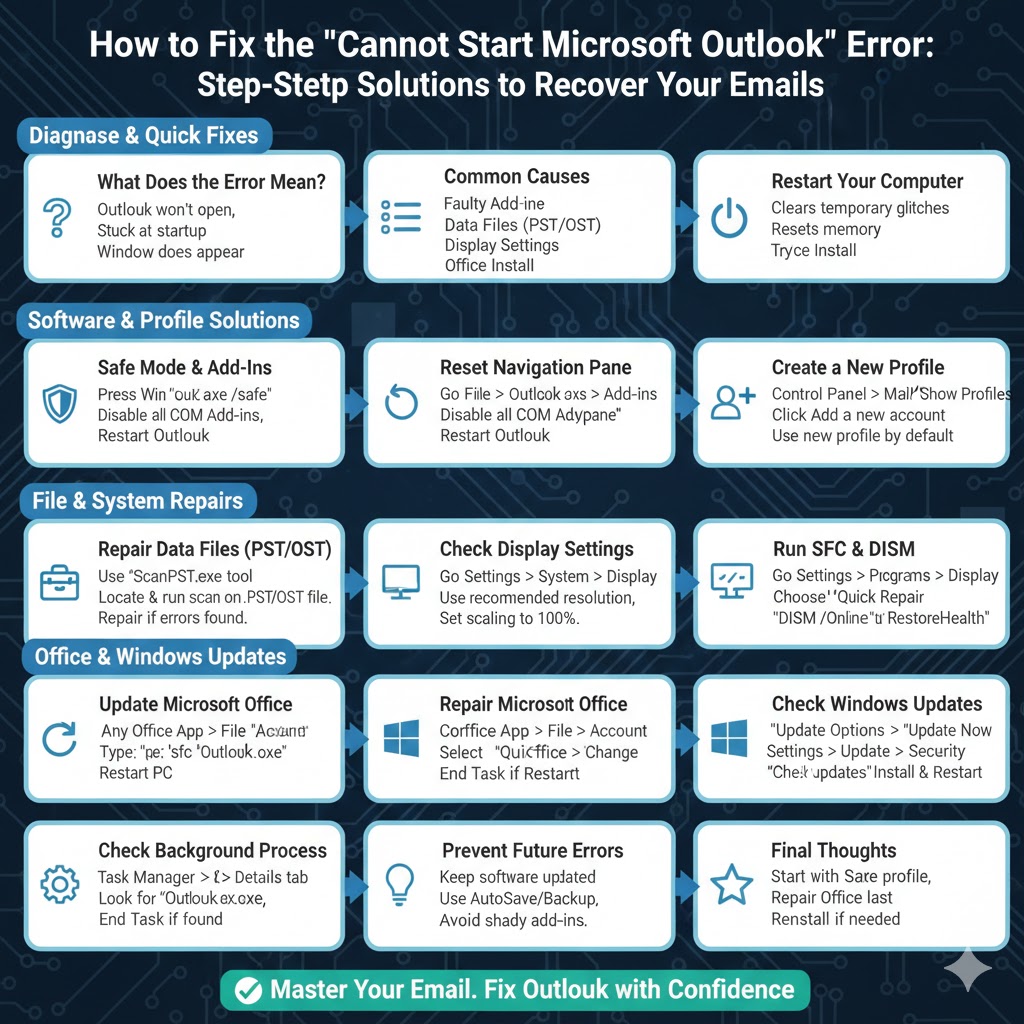
Troubleshooting the “Cannot Start Microsoft Outlook” Error
Microsoft Outlook is one of the most widely used email and productivity tools for both personal and professional use. It manages emails, calendars, contacts, and tasks in one place. However, many users encounter a frustrating issue where Outlook refuses to open and displays the message “Cannot start Microsoft Office Outlook. Cannot open the Outlook window.”
This error can appear suddenly and may prevent you from accessing important emails or schedules. Fortunately, in most cases, the problem can be fixed without reinstalling Windows or losing data. This guide explains why the error occurs and provides clear, step-by-step solutions to get Outlook working again.
What Does the “Cannot Start Microsoft Office Outlook” Error Mean?
This error usually means Outlook is unable to load its main window or required configuration files. Outlook may crash immediately after launching or fail to open entirely.
Common symptoms include:
-
Outlook does not open at all
-
Error message appears on startup
-
Outlook opens briefly, then closes
-
Outlook icon shows loading but nothing happens
The issue can occur on different versions of Outlook and Windows, including Windows 10 and Windows 11.
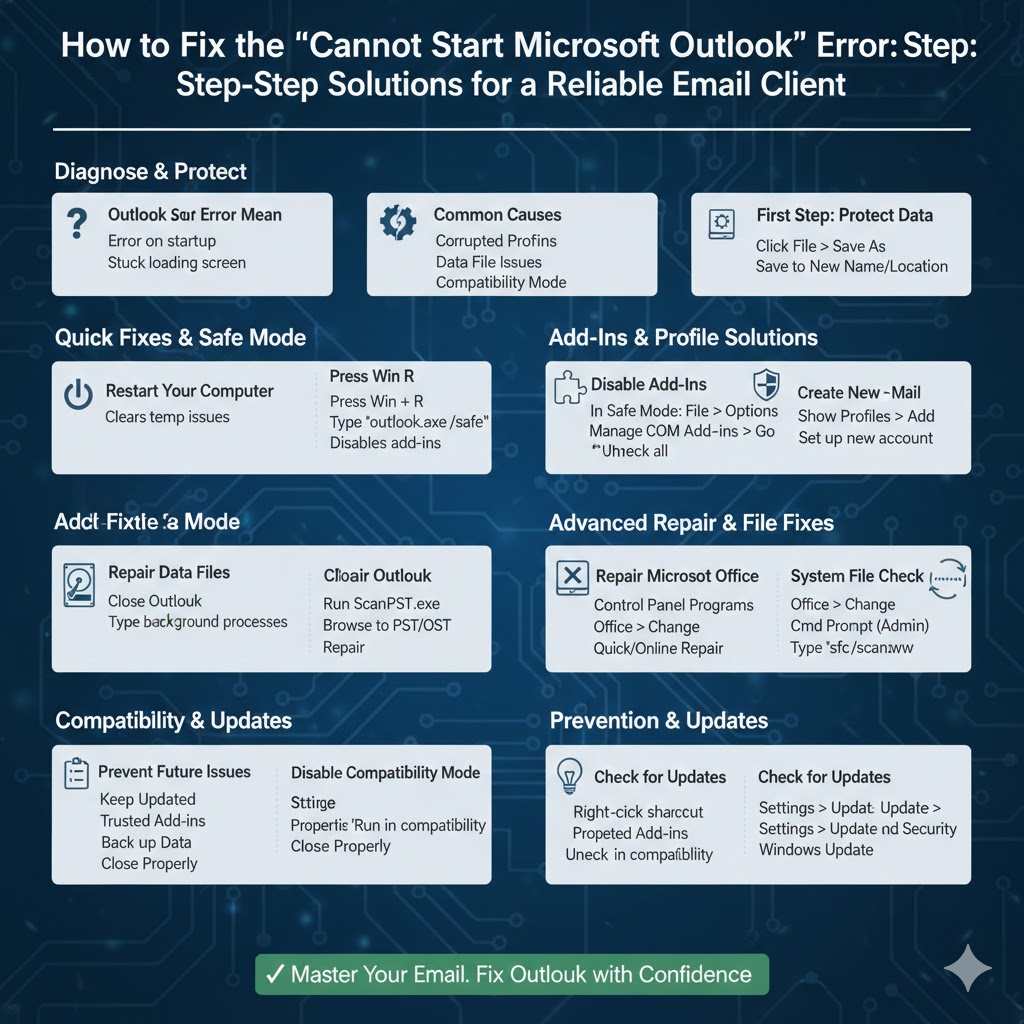
Common Causes of the Outlook Startup Error
Understanding the cause helps you choose the most effective fix.
Typical reasons include:
-
Corrupted Outlook profile
-
Faulty Outlook add-ins
-
Navigation Pane configuration errors
-
Corrupted PST or OST data files
-
Outlook running in compatibility mode
-
Incorrect display or resolution settings
-
Outdated or damaged Microsoft Office installation
-
Windows updates or system file issues
Most of these problems are software-related and fixable.
Solution 1: Restart Your Computer First
Before applying advanced fixes, restart your computer.
A restart clears temporary system issues, closes background Outlook processes, and resets memory usage. In some cases, this alone resolves the problem.
After restarting, try opening Outlook again.
Solution 2: Start Outlook in Safe Mode
Safe Mode launches Outlook without add-ins or custom settings. This helps identify whether add-ins are causing the issue.
How to Open Outlook in Safe Mode
-
Press Windows + R
-
Type
outlook.exe /safe -
Press Enter
If Outlook opens successfully in Safe Mode, the problem is likely caused by a faulty add-in.
Solution 3: Disable Outlook Add-Ins
Add-ins often cause Outlook startup errors.
Disable Add-Ins Step by Step
-
Open Outlook in Safe Mode
-
Go to File
-
Click Options
-
Select Add-ins
-
At the bottom, choose COM Add-ins and click Go
-
Uncheck all add-ins
-
Restart Outlook normally
If Outlook opens, re-enable add-ins one at a time to identify the problematic one.
Solution 4: Reset the Outlook Navigation Pane
Corrupted Navigation Pane settings are a common cause of this error.
Reset Navigation Pane
-
Close Outlook
-
Press Windows + R
-
Type:
outlook.exe /resetnavpane -
Press Enter
This resets the Navigation Pane to default settings without affecting emails or data.
Solution 5: Check Display and Resolution Settings
Outlook may fail to open if display settings are incompatible.
What to Try
-
Set display scaling to 100% or 125%
-
Avoid extremely high custom scaling
-
Use the recommended screen resolution
After adjusting display settings, restart Outlook.
Solution 6: Create a New Outlook Profile
A corrupted Outlook profile is one of the most common causes of startup errors.
Create a New Profile
-
Open Control Panel
-
Select Mail
-
Click Show Profiles
-
Click Add
-
Enter a new profile name
-
Set up your email account
-
Choose Always use this profile and select the new one
Launch Outlook using the new profile. If it opens normally, the old profile was likely corrupted.
Solution 7: Repair Outlook Data Files (PST or OST)
Corrupted data files can prevent Outlook from starting.
Use the Inbox Repair Tool
Microsoft provides a built-in tool called ScanPST.exe.
Steps include:
-
Close Outlook
-
Locate ScanPST.exe on your system
-
Open the tool
-
Browse to your PST or OST file
-
Run the scan and repair
After repairing the file, reopen Outlook.
Solution 8: Disable Compatibility Mode
Running Outlook in compatibility mode can cause startup issues.
Turn Off Compatibility Mode
-
Right-click the Outlook shortcut
-
Select Properties
-
Go to the Compatibility tab
-
Uncheck Run this program in compatibility mode
-
Click Apply and OK
Restart Outlook and check if it opens normally.
Solution 9: Check for Windows and Office Updates
Outdated software can cause conflicts and bugs.
Update Microsoft Office
-
Open any Office app
-
Go to File > Account
-
Click Update Options
-
Select Update Now
Update Windows
-
Open Settings
-
Go to Update & Security
-
Click Windows Update
-
Install available updates
Restart your computer after updating.
Solution 10: Repair Microsoft Office Installation
If Outlook files are damaged, repairing Office can fix the issue.
Repair Office
-
Open Control Panel
-
Go to Programs and Features
-
Select Microsoft Office
-
Click Change
-
Choose Quick Repair
If the problem continues, use Online Repair for a deeper fix.
Solution 11: Check for Outlook Running in the Background
Sometimes Outlook is already running but not visible.
End Background Outlook Process
-
Open Task Manager
-
Look for Outlook.exe
-
Select it and click End Task
-
Try opening Outlook again
This resolves cases where Outlook is stuck in the background.
Solution 12: Run System File Checker
Corrupted Windows system files can interfere with Outlook.
Run SFC Scan
-
Open Command Prompt as administrator
-
Type:
sfc /scannow -
Press Enter
After the scan completes, restart your computer.
When the Error Appears After a Windows Update
If the error started after a recent update:
-
Install the latest updates or patches
-
Repair Office
-
Use System Restore to roll back changes if necessary
Microsoft often fixes Outlook-related issues in follow-up updates.
How to Prevent Outlook Startup Errors in the Future
To reduce the risk of encountering this error again:
-
Keep Outlook and Windows updated
-
Avoid installing unnecessary add-ins
-
Close Outlook properly before shutting down
-
Back up PST files regularly
-
Use reliable antivirus software
Regular maintenance improves Outlook stability.
When to Reinstall Outlook or Office
If none of the solutions work, reinstalling Microsoft Office may be necessary. This should be considered a last resort but often resolves persistent or unexplained issues.
Final Thoughts
The “Cannot Start Microsoft Office Outlook” error can be alarming, especially when you rely on Outlook for daily communication. However, in most cases, the issue is caused by corrupted profiles, add-ins, or configuration problems that are relatively easy to fix.