


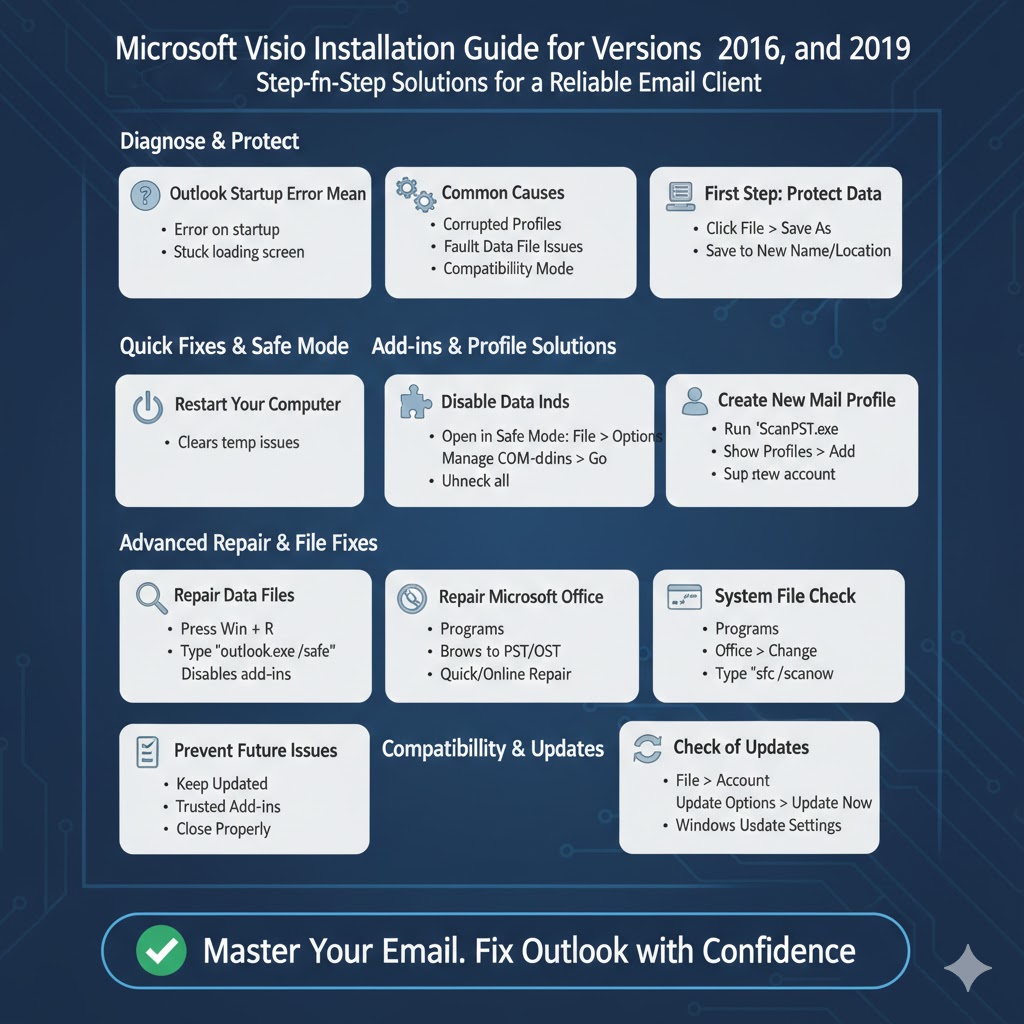
Microsoft Visio Installation Guide for Versions 2013, 2016, and 2019
Microsoft Visio is a powerful diagramming and vector graphics application widely used for creating flowcharts, network diagrams, organizational charts, floor plans, and technical visuals. Although Visio is part of the Microsoft ecosystem, it is not included in most Office suites and must be installed separately.
This guide explains how to install Microsoft Visio 2019, 2016, and 2013 step by step. It covers system requirements, preparation, installation methods, common issues, and post-installation tips so you can get Visio running smoothly on your Windows PC.
Understanding Microsoft Visio Versions
Before installing Visio, it’s important to understand the differences between the versions.
Microsoft Visio 2019
-
Designed for Windows 10 and Windows 11
-
Available in Standard and Professional editions
-
Requires a one-time license
-
Works with Office 2019
Microsoft Visio 2016
-
Compatible with Windows 7, 8.1, and 10
-
One-time purchase license
-
Works well with Office 2016
Microsoft Visio 2013
-
Older but still used in legacy environments
-
Compatible with Windows 7 and later
-
Best paired with Office 2013
Each version installs similarly, but system compatibility and update support vary.
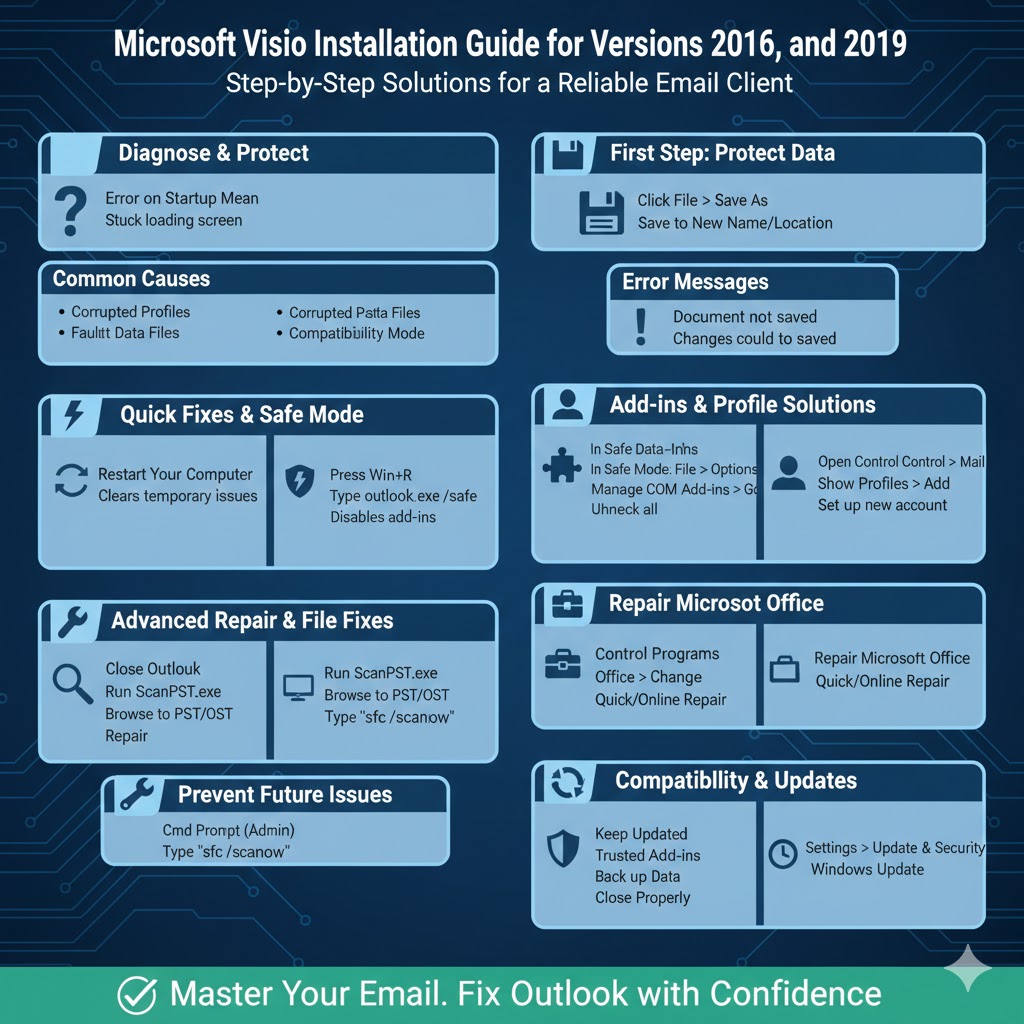
System Requirements for Microsoft Visio
Before installing, make sure your system meets the minimum requirements.
General Requirements
-
Windows 7 SP1 or later (Windows 10/11 recommended for Visio 2019)
-
At least 2 GB RAM (4 GB recommended)
-
3 GB of available disk space
-
Screen resolution of 1280 × 800 or higher
-
Internet connection for activation and updates
Using a system that meets or exceeds these requirements ensures smoother performance.
Things to Check Before Installation
Preparing your system properly helps avoid installation errors.
Check Your Windows Architecture
Visio is available in 32-bit and 64-bit versions. You should match the Visio version with your installed Microsoft Office version.
To check:
-
Open any Office app
-
Go to File > Account > About
-
Look for 32-bit or 64-bit information
Mixing architectures (for example, Office 64-bit and Visio 32-bit) can cause installation failures.
Uninstall Conflicting Versions
If you already have an incompatible Visio version installed, uninstall it before proceeding.
Go to:
-
Control Panel
-
Programs and Features
-
Uninstall old or conflicting Visio installations
Restart your computer afterward.
Method 1: Install Microsoft Visio Using an ISO or Setup File
This is the most common installation method for Visio 2019, 2016, and 2013.
Step-by-Step Installation
-
Download the Visio ISO or setup file
-
Right-click the ISO file and choose Mount
-
Or extract the files using a zip tool
-
-
Open the mounted drive or extracted folder
-
Double-click setup.exe
-
Choose installation options if prompted
-
Wait for the installation to complete
The process may take several minutes depending on system speed.
Method 2: Install Visio Using Microsoft Office Deployment Tool
This method is commonly used in business or IT environments.
When to Use This Method
-
Installing Visio alongside Office
-
Managing multiple installations
-
Using volume licenses
Basic Steps
-
Download the Office Deployment Tool
-
Configure the XML file to include Visio
-
Run the setup command
-
Wait for installation to complete
This method provides greater control but is more advanced.
Activating Microsoft Visio After Installation
Once Visio is installed, activation is required.
Activate Using a Product Key
-
Open Microsoft Visio
-
Click File
-
Select Account
-
Click Change Product Key
-
Enter your Visio license key
-
Complete activation
An internet connection is usually required.
Activation Tips
-
Ensure the license matches the Visio version
-
Use a valid and unused product key
-
Restart Visio after activation
Installing Visio Alongside Microsoft Office
Visio can be installed with Office, but compatibility matters.
Important Rules
-
Both must be the same bit version (32-bit or 64-bit)
-
Volume and retail licenses should not conflict
-
Click-to-Run and MSI installers may cause issues
If installation fails, uninstall both Office and Visio, then reinstall them in the correct order.
Common Installation Errors and How to Fix Them
Error: “This Product Cannot Be Installed with the Current Office Version”
Cause:
-
Bit-version mismatch
Fix:
-
Match Visio and Office architecture
-
Reinstall one of the programs if necessary
Error: Setup Stops or Freezes
Fix:
-
Restart your computer
-
Disable antivirus temporarily
-
Run setup as administrator
Error: Installation Takes Too Long
Fix:
-
Close background applications
-
Ensure enough disk space
-
Check system performance
Updating Microsoft Visio After Installation
Keeping Visio updated improves stability and security.
How to Update Visio
-
Open Visio
-
Go to File > Account
-
Click Update Options
-
Select Update Now
Updates are usually installed automatically, but manual checks help ensure you’re up to date.
Verifying a Successful Installation
After installation, confirm that Visio is working correctly.
Quick Checks
-
Visio opens without errors
-
Templates load properly
-
Diagrams can be created and saved
-
License status shows as activated
If any issues appear, restarting Windows often resolves minor problems.
Using Visio for the First Time
When you launch Visio for the first time, you’ll see a template selection screen.
Common templates include:
-
Flowcharts
-
Organizational charts
-
Network diagrams
-
Floor plans
Choose a template to start designing immediately.
Differences Between Standard and Professional Editions
Understanding edition differences helps you choose the right version.
Standard Edition
-
Basic diagrams and templates
-
Suitable for general users
Professional Edition
-
Advanced templates
-
Data linking features
-
Database and network diagrams
Both editions install the same way, but features vary.
When to Consider Reinstalling Visio
If Visio crashes, fails to start, or behaves unpredictably:
-
Repair Office installation
-
Reset Visio settings
-
Reinstall Visio as a last resort
Reinstallation often resolves deep configuration issues.
Tips for a Smooth Visio Experience
To ensure long-term stability:
-
Keep Windows updated
-
Avoid installing unnecessary add-ins
-
Save diagrams regularly
-
Back up important files
-
Use supported templates
Good maintenance habits reduce errors and improve performance.
Final Thoughts
Installing Microsoft Visio 2019, 2016, or 2013 is a straightforward process when your system is properly prepared. By checking system compatibility, matching Office architecture, and following the correct installation steps, you can avoid most common issues.