


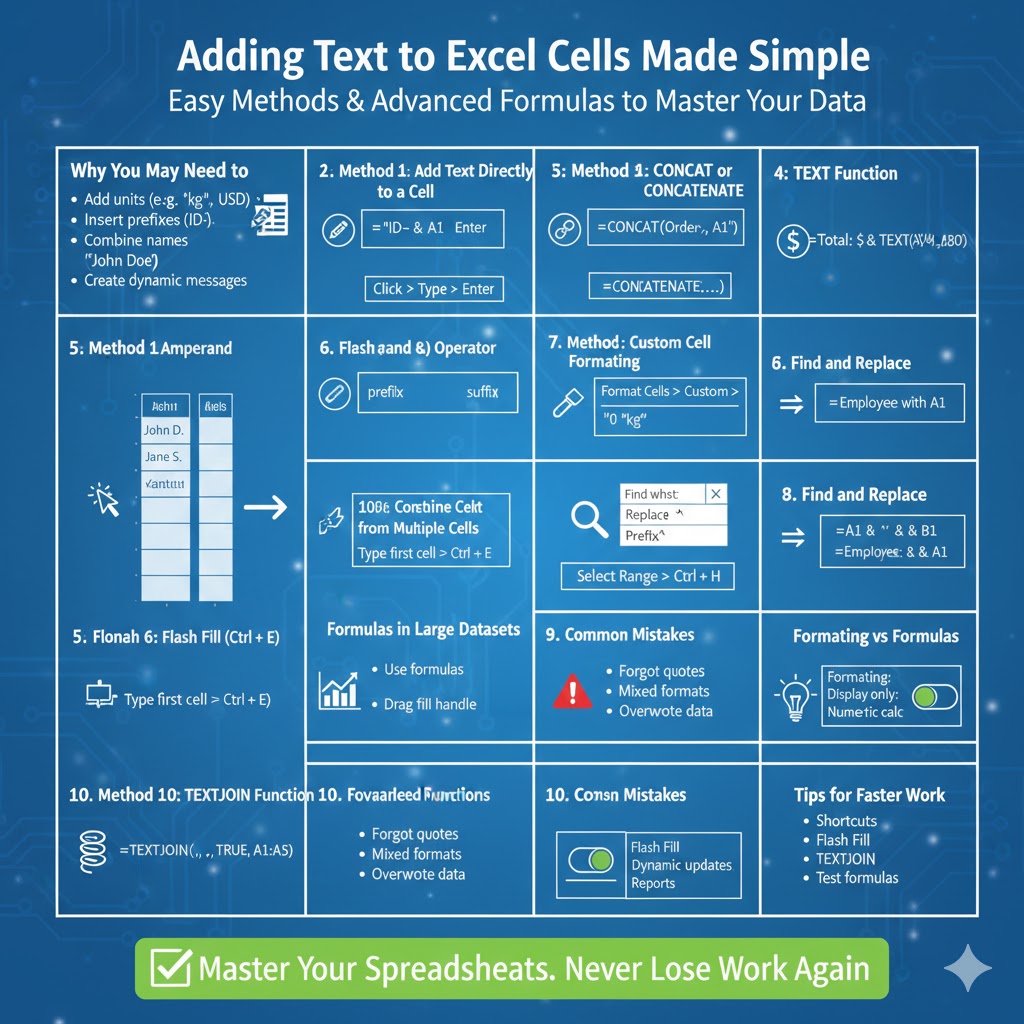
Adding Text to Excel Cells Made Simple
Microsoft Excel is widely known for numbers, formulas, and data analysis. However, working with text inside cells is just as important. Whether you are preparing reports, organizing lists, formatting labels, or combining values, knowing how to add text to a cell in Excel can significantly improve your productivity.
Adding text in Excel is more than simply typing into a cell. You can combine text with numbers, insert text before or after existing content, use formulas to automate text addition, and even format text dynamically. This comprehensive guide will walk you through easy methods, advanced tricks, and time-saving techniques to add text to cells efficiently.
Why You May Need to Add Text in Excel
There are many situations where adding text to Excel cells is necessary:
-
Adding units such as “kg”, “USD”, or “%”
-
Inserting prefixes like “ID-” before numbers
-
Appending labels such as “Approved” or “Completed”
-
Combining first and last names
-
Adding text before or after imported data
-
Creating dynamic messages using formulas
Understanding different methods allows you to choose the fastest and most efficient approach for your task.
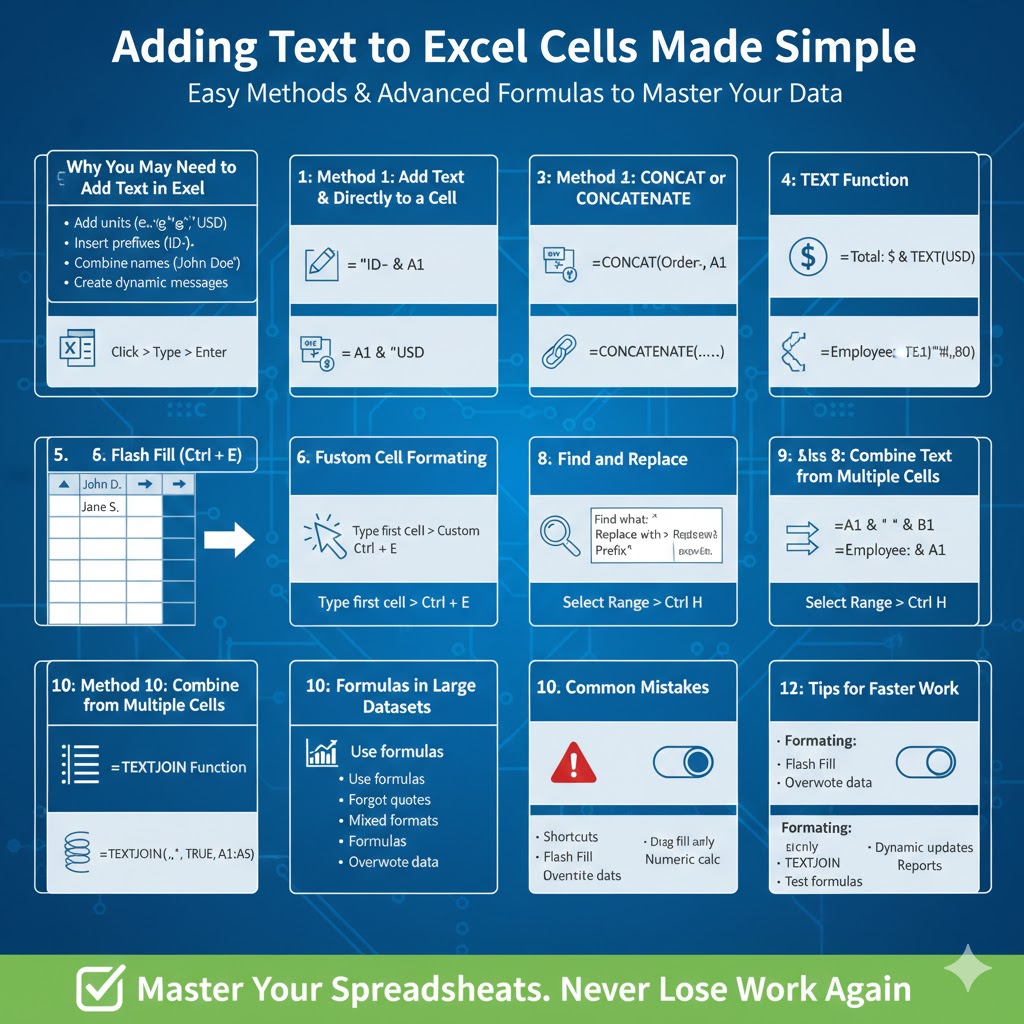
Method 1: Add Text Directly to a Cell
The simplest way to add text in Excel is manual entry.
Steps
-
Click the cell you want to edit
-
Type the text
-
Press Enter
If you want to edit existing content:
-
Double-click the cell
-
Place the cursor where you want to insert text
-
Type the additional text
This method works well for small datasets but becomes inefficient for large spreadsheets.
Method 2: Add Text Before or After Existing Content Using the Ampersand (&) Operator
The ampersand symbol is one of the easiest ways to combine text in Excel.
Add Text Before Existing Content
If cell A1 contains “12345” and you want to add “ID-” before it:
The result will be:
ID-12345
Add Text After Existing Content
If you want to add “ USD” after a number in A1:
This formula keeps the original value intact while adding text dynamically.
Method 3: Use the CONCAT or CONCATENATE Function
Excel provides built-in functions to join text strings.
Using CONCAT (Recommended for Newer Versions)
Using CONCATENATE (Older Versions)
Both functions combine text strings. However, CONCAT is more modern and flexible.
Method 4: Use TEXT Function to Format Numbers with Text
If you need to add formatted numbers with text, the TEXT function is extremely useful.
Example
If A1 contains 1000 and you want to display:
Total: $1,000
Use:
This ensures proper number formatting while adding text.
Method 5: Add Text to Multiple Cells at Once Using Flash Fill
Flash Fill is a powerful Excel feature that automatically detects patterns.
Steps
-
Type the desired result in the first cell
-
Press Enter
-
Start typing the same pattern in the next row
-
Press Ctrl + E
Excel automatically fills the remaining cells based on the detected pattern.
Flash Fill is perfect for large datasets.
Method 6: Add Text Using Custom Cell Formatting
Sometimes you want to add text without changing the actual cell value.
For example, you want to display “kg” after numbers, but keep the number unchanged.
Steps
-
Select the cells
-
Right-click and choose Format Cells
-
Go to the Number tab
-
Choose Custom
-
Enter:
Now Excel displays:
50 kg
But the cell value remains 50.
This method is ideal when calculations must remain unaffected.
Method 7: Add Text Using Find and Replace
If you need to quickly add text to many cells:
Steps
-
Select your range
-
Press Ctrl + H
-
In “Find what,” enter:
^ -
In “Replace with,” enter your prefix followed by
^ -
Click Replace All
This advanced trick adds text at the beginning of each selected cell.
Method 8: Add Line Breaks Within a Cell
You can insert multiple lines of text inside one cell.
Steps
-
Double-click the cell
-
Place the cursor where you want the line break
-
Press Alt + Enter
This is useful for formatting addresses, notes, or detailed descriptions.
Method 9: Combine Text from Multiple Cells
If A1 contains a first name and B1 contains a last name:
This creates a full name with a space in between.
You can combine more complex strings:
Excel allows unlimited combinations.
Method 10: Use TEXTJOIN for Advanced Text Combination
TEXTJOIN is powerful when combining multiple cells with a delimiter.
Example
This joins values from A1 to A5 separated by commas.
It is ideal for lists, summaries, and dynamic text generation.
Automatically Adding Text with Formulas in Large Datasets
When working with hundreds or thousands of rows:
-
Use formulas instead of manual typing
-
Drag the fill handle to copy formulas
-
Convert formulas to values if needed
To convert formulas to values:
-
Copy the cells
-
Right-click
-
Choose Paste Values
This removes the formula while keeping the final text.
Common Mistakes When Adding Text in Excel
Avoid these common issues:
-
Forgetting quotation marks around text
-
Mixing number formatting incorrectly
-
Overwriting original data accidentally
-
Using CONCATENATE instead of newer functions
-
Forgetting to lock cell references when copying formulas
Double-check your formulas to prevent errors.
When to Use Formatting vs Formulas
Understanding when to use each method saves time.
Use Custom Formatting when:
-
You only need to change display
-
Calculations must remain numeric
Use Formulas when:
-
You need dynamic updates
-
Combining multiple fields
-
Creating automated reports
Choose the method that best suits your workflow.
Tips for Working Faster with Text in Excel
-
Learn keyboard shortcuts
-
Use Flash Fill whenever possible
-
Use TEXTJOIN for large lists
-
Format cells carefully
-
Always test formulas on a small sample first
Mastering these techniques can significantly speed up data preparation.
Final Thoughts
Adding text to cells in Excel is a simple yet powerful skill that enhances clarity and presentation. Whether you are inserting prefixes, appending units, combining names, or formatting reports, Excel provides multiple flexible methods to accomplish the task efficiently.