


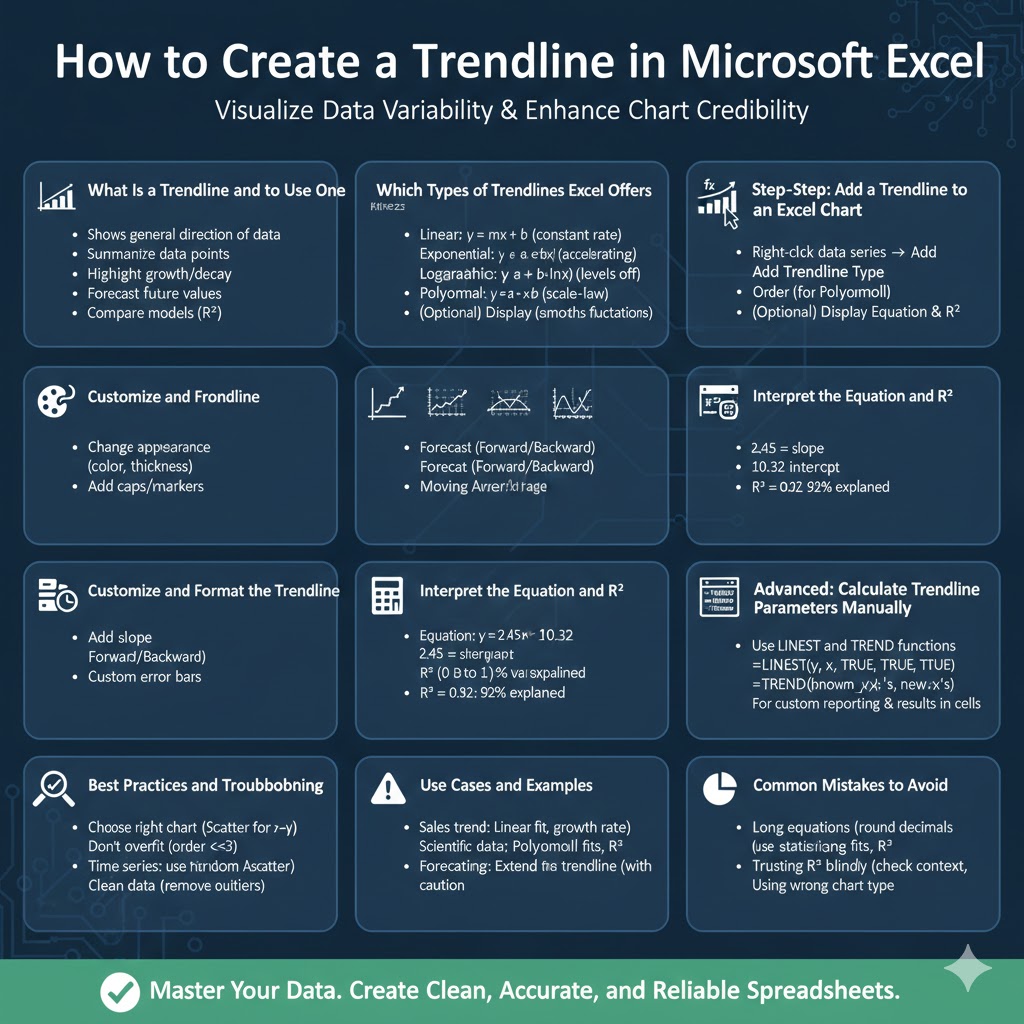
How to Create a Trendline in Microsoft Excel
A trendline is a simple yet powerful tool for visualizing the relationship between variables and spotting patterns in data. Whether you’re analyzing sales over time, evaluating experimental results, or forecasting future values, trendlines help summarize data behavior and communicate insights quickly. This guide covers everything you need to know to add, customize, interpret, and use trendlines in Excel — step-by-step — plus tips to avoid common mistakes.
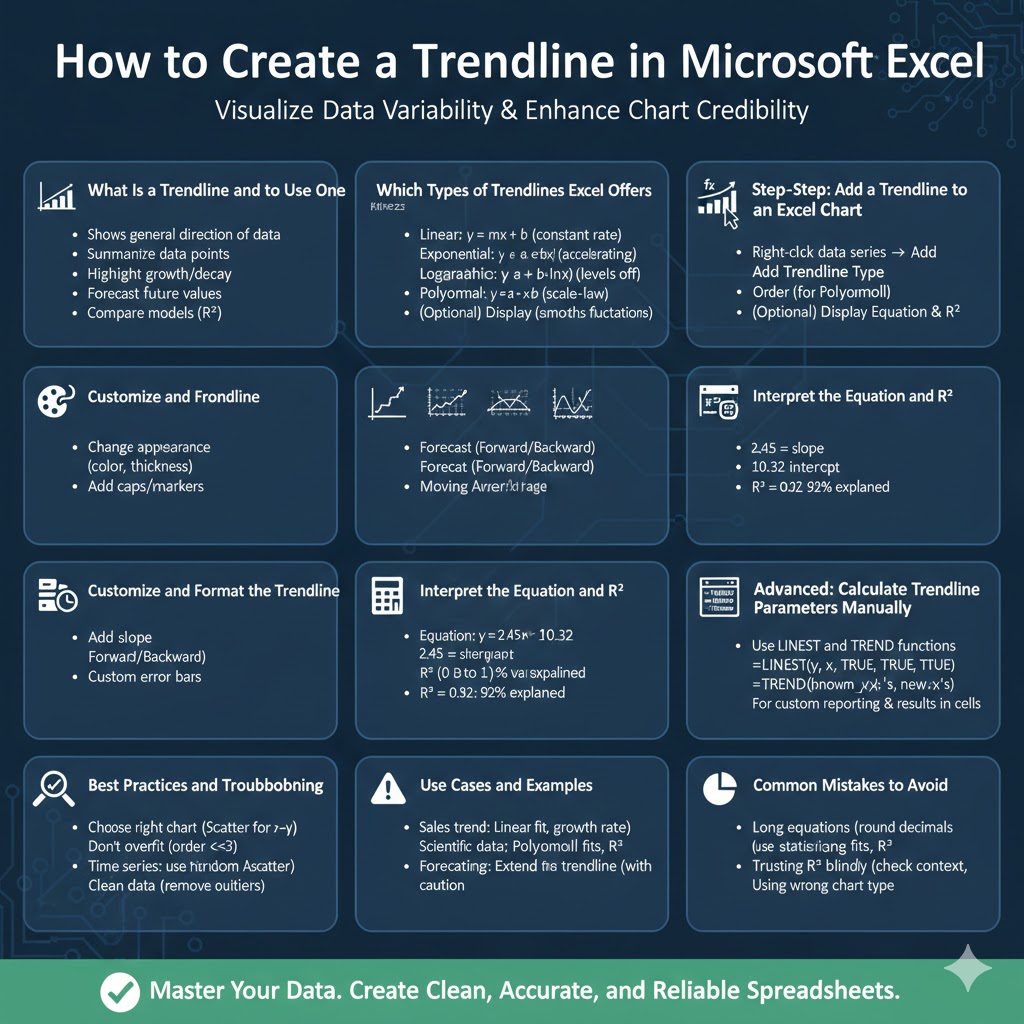
What Is a Trendline and When to Use One
What a Trendline Shows
A trendline (also called a line of best fit) is a line drawn through data points on a chart that best represents the general direction of the data. It can show an upward or downward trend, curvature, or periodic behavior depending on the model selected.
When to Use a Trendline
Use a trendline when you want to:
-
Summarize many data points with a simple relationship.
-
Highlight a long-term increase or decrease (e.g., sales over months).
-
Fit a mathematical model to the data for forecasting.
-
Compare how well different models explain your data (via R²).
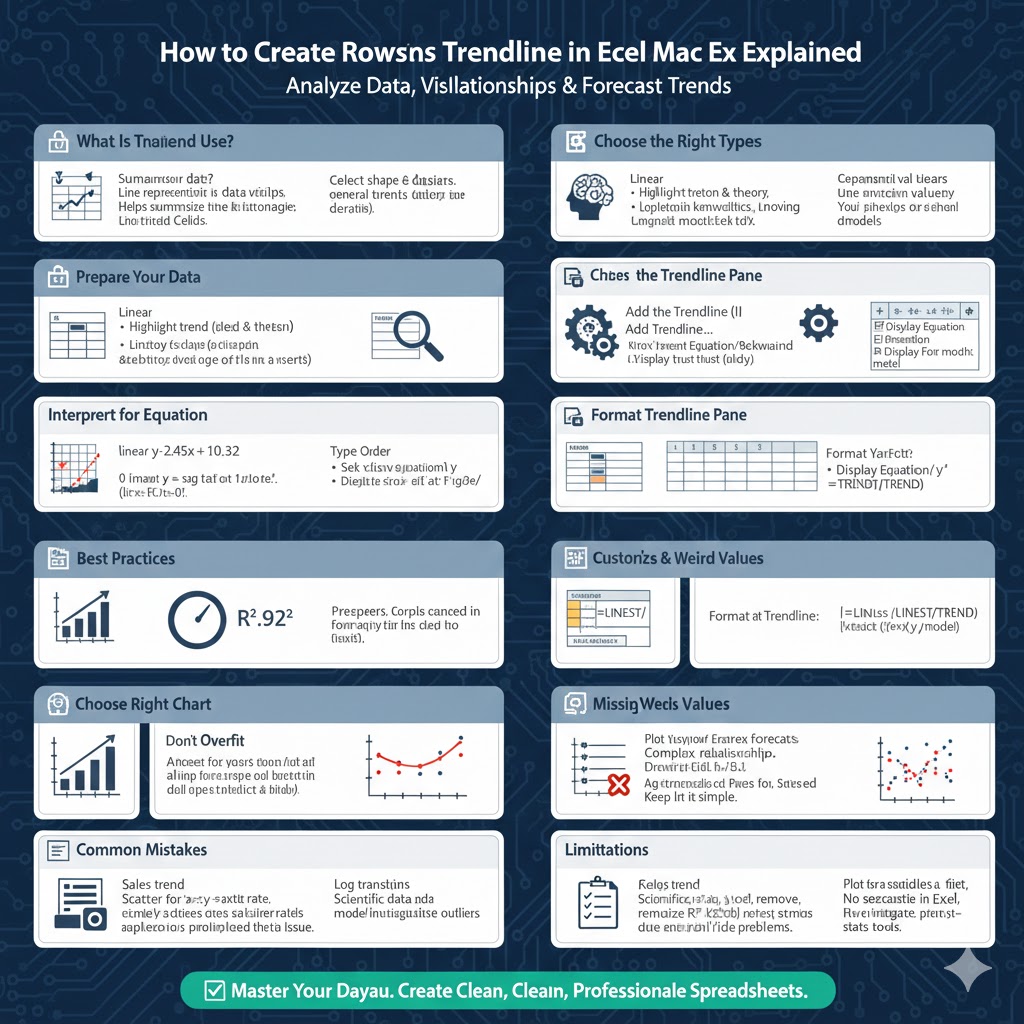
Which Types of Trendlines Excel Offers
Common Trendline Types
-
Linear — straight-line fit (y = mx + b). Good for constant-rate trends.
-
Exponential — for growth or decay that accelerates (y = a·e^{bx}).
-
Logarithmic — for rapid change that levels off (y = a + b·ln(x)).
-
Polynomial — curved fit of order n (useful for data with peaks/valleys).
-
Power — fits relationships like y = a·x^b (scale-law behavior).
-
Moving Average — smooths short-term fluctuations to show the underlying pattern.
Choose the type based on the shape of your data and the theory behind it. Don’t pick complex models just because they fit slightly better — watch out for overfitting.
Step-by-Step: Add a Trendline to an Excel Chart
Prepare your data
-
Arrange your data in two columns (x-values and y-values). If plotting a time series, x can be dates or sequential numbers.
-
Create a chart: for scatter relationships use an XY (Scatter) chart; for time series a Line chart often works best.
Add the trendline
-
Click the chart to select it.
-
Right-click the data series (the markers or line) you want to fit and choose Add Trendline….
-
Or go to Chart Design → Add Chart Element → Trendline and pick a default option.
-
-
In the Format Trendline pane that appears, choose the Trendline Type (Linear, Exponential, Polynomial, etc.).
-
For polynomial fits, choose the Order (2 for quadratic, 3 for cubic, etc.). Higher orders can overfit.
-
(Optional) Check Display Equation on chart to show the formula, and Display R-squared value on chart to see the goodness-of-fit.
-
Close the pane. The trendline now appears on the chart.
Alternate route (Excel for Mac)
-
Right-click the series → Add Trendline…, or use the Chart sidebar and choose Trendline options; the steps and options are the same.
Customize and Format the Trendline
Change appearance
-
Select the trendline and use the Format Trendline pane to change line color, thickness, and dash style for visibility.
-
Add caps or markers if you want to emphasize endpoints.
Limit trendline display
-
Under Forecast, you can extend the trendline Forward or Backward (e.g., forecast 3 periods ahead). Use this with caution — forecasts are only as good as the model and data.
Use custom error bars for diagnostics
-
Compare residuals or add error bars to data points to visualize variance around the trendline.
Interpret the Equation and R²
Equation
-
For a linear fit Excel will display something like
y = 2.45x + 10.32. Here2.45is the slope (change in y per x) and10.32is the intercept (y when x=0).
R² (R-squared)
-
R² ranges from 0 to 1 and indicates how much of the variability in y is explained by x. R² = 0.92 means 92% of variability is explained by the model. High R² alone doesn’t prove causation or that the model is appropriate — check residuals and context.
Advanced: Calculate Trendline Parameters Manually
Use LINEST and TREND
-
=LINEST(y_range, x_range, TRUE, TRUE)returns slope, intercept, and regression stats. -
=TREND(known_y's, known_x's, new_x's)predicts y for new x values using the linear model.
These formulas are handy if you need regression results in cells or for custom reporting.
Best Practices and Troubleshooting
Choose the right chart type
-
Use Scatter charts for x–y relationship modeling. Excel uses x-category order for line charts, which can mislead if x is numeric but not sorted.
Don’t overfit
-
Polynomial orders >3 often model noise, not signal. Use domain knowledge to justify model complexity.
Check residuals
-
Plot residuals (actual − predicted). Residuals should scatter randomly; patterns indicate model misspecification.
Be careful with time series
-
Trendlines do not handle seasonality well. Use moving averages or specialized time-series tools for seasonal data.
Fix axis scaling
-
Log transforms can linearize exponential relationships. If using Power or Exponential fits, make sure axes scaling matches model assumptions.
Missing or weird values
-
Clean data before fitting: remove outliers or investigate them rather than automatically excluding them.
Use Cases and Examples
Sales trend
-
Fit a linear trend to monthly revenue to show growth rate. Use the slope to calculate expected increase per month.
Scientific data
-
Use polynomial fits to model physical phenomena (with caution) and report R² and confidence intervals.
Forecasting
-
Use a trendline with forward forecast to approximate next-period value; for accuracy, consider time-series forecasting methods (ARIMA, exponential smoothing) if available.
Common Mistakes to Avoid
-
Displaying the equation without rounding: Excel may show a very long equation; format to fewer decimal places for readability.
-
Using Excel trendlines for complex forecasting: Excel trendlines are simple; use statistical software for rigorous forecasts.
-
Trusting R² blindly: Always check residuals and domain relevance.
Conclusion
Adding a trendline in Excel is an easy way to visualize trends, quantify relationships, and produce quick forecasts. By selecting the correct trendline type, displaying the equation and R², and validating the model with residual checks, you can make insightful, defensible charts. For rigorous analysis or time-series forecasting, supplement Excel trendlines with statistical tools, but for everyday analysis and presentations, Excel’s trendlines are fast, flexible, and effective.