


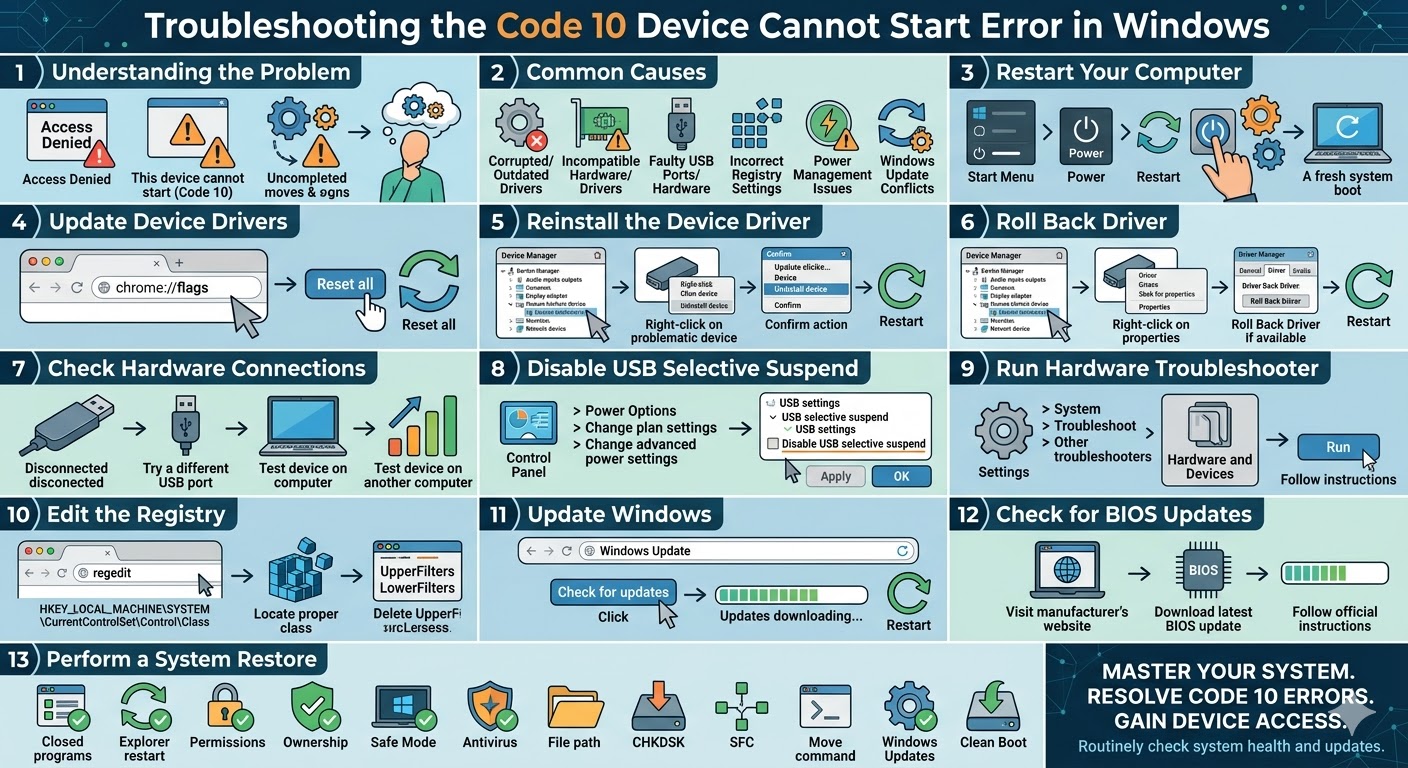
How to Fix the “APC Index Mismatch” BSOD Error on Windows
The “APC Index Mismatch” Blue Screen of Death (BSOD) is a serious Windows error that can abruptly interrupt your work and force your system to restart. This error typically appears with a stop code and indicates a mismatch in the Asynchronous Procedure Call (APC) state index, which is used by Windows to manage processes and threads.
Although the name sounds technical, the issue is often related to driver conflicts, corrupted system files, incompatible software, or hardware problems. The error may occur randomly or when launching specific applications like Skype, Zoom, or other programs that rely heavily on system resources.
In this guide, you will learn what causes the APC Index Mismatch error and how to fix it effectively on Windows 10 and Windows 11.
What Is the APC Index Mismatch Error?
The APC Index Mismatch error occurs when there is an inconsistency in how Windows tracks asynchronous procedure calls within system threads. This mismatch can cause system instability and lead to a crash.
The error may appear as:
- APC_INDEX_MISMATCH
- Blue screen with stop code message
- Sudden system restart during specific tasks
This issue often points to problems with drivers or low-level system operations.
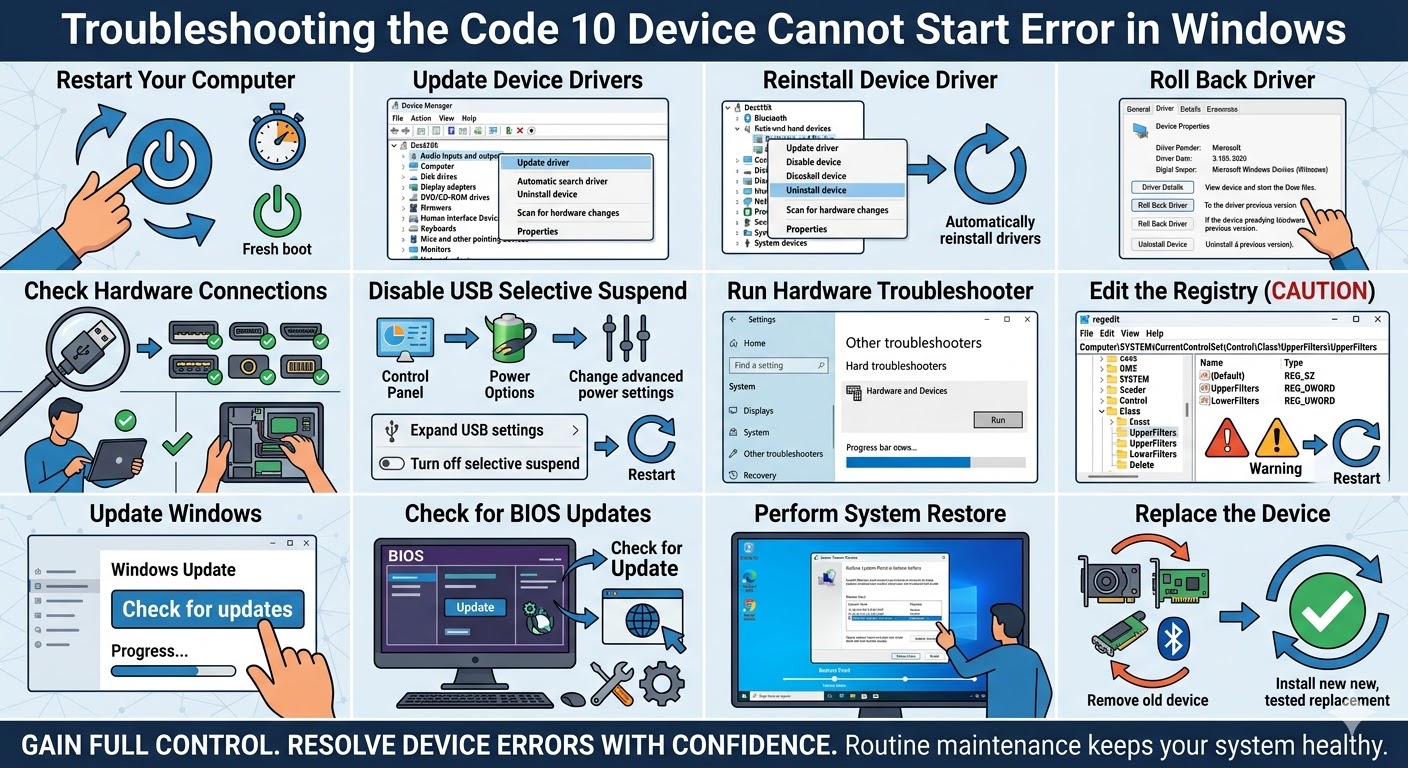
Common Causes of APC Index Mismatch
Understanding the causes of this error can help you troubleshoot it more effectively.
Some common causes include:
- Outdated or incompatible device drivers
- Corrupted Windows system files
- Faulty or incompatible software
- Audio or display driver conflicts
- Problems with Windows updates
- Hardware issues such as faulty RAM
Identifying the source of the problem is key to resolving it.
Restart Your Computer
If the error occurs only once, it may be caused by a temporary glitch. Restarting your system can resolve minor issues.
To restart:
- Click the Start Menu.
- Select the Power icon.
- Click Restart.
If the error continues to appear, proceed with the solutions below.
Update Device Drivers
Outdated or incompatible drivers are one of the most common causes of this BSOD error.
To update drivers:
- Right-click the Start Menu.
- Select Device Manager.
- Expand categories such as Display adapters, Sound, or Network adapters.
- Right-click each device and select Update driver.
- Choose Search automatically for drivers.
Pay special attention to graphics and audio drivers, as they are often linked to this error.
Roll Back Problematic Drivers
If the error started after updating a driver, rolling it back may fix the issue.
Steps:
- Open Device Manager.
- Right-click the device.
- Select Properties.
- Go to the Driver tab.
- Click Roll Back Driver.
Restart your computer after rolling back.
Run System File Checker (SFC)
Corrupted system files can cause serious system errors, including BSODs.
To run SFC:
- Open Command Prompt as administrator.
- Enter:
sfc /scannow
- Press Enter.
Wait for the scan to complete and restart your system.
Use the DISM Tool
If SFC does not fix the issue, use DISM to repair the Windows image.
Steps:
- Open Command Prompt as administrator.
- Enter:
DISM /Online /Cleanup-Image /RestoreHealth
- Press Enter.
Restart your computer after the process finishes.
Disable Problematic Applications
Certain applications, especially communication tools like Skype or VPN software, can trigger the APC Index Mismatch error.
To fix this:
- Uninstall recently installed applications
- Disable startup programs
- Check if the error occurs when launching specific software
If removing the app resolves the issue, consider installing an updated version.
Update Windows
Outdated Windows versions may contain bugs that cause system crashes.
To update Windows:
- Press Windows + I.
- Go to Windows Update.
- Click Check for updates.
- Install available updates.
Restart your computer after updating.
Check RAM for Errors
Faulty memory can lead to system crashes and BSOD errors.
To test your RAM:
- Press Windows + R.
- Type mdsched.exe and press Enter.
- Select Restart now and check for problems.
Your system will restart and run a memory diagnostic test.
Perform a Clean Boot
A clean boot helps identify whether background services are causing the issue.
To perform a clean boot:
- Press Windows + R.
- Type msconfig and press Enter.
- Go to the Services tab.
- Check Hide all Microsoft services.
- Click Disable all.
- Restart your computer.
If the error disappears, a third-party service may be responsible.
Check for Hardware Issues
If software fixes do not work, hardware problems may be the cause.
Check the following components:
- RAM modules
- Graphics card
- Storage drives
Ensure all components are properly connected and functioning.
Update BIOS
In rare cases, outdated BIOS firmware can cause compatibility issues that lead to BSOD errors.
You can:
- Visit your motherboard or laptop manufacturer’s website
- Download the latest BIOS version
- Follow official update instructions carefully
Updating BIOS should be done with caution.
Use System Restore
If the error started recently, restoring your system to an earlier state may resolve it.
Steps:
- Search for Create a restore point.
- Open System Restore.
- Choose a restore point before the issue occurred.
- Follow the instructions.
Reset Windows
If all else fails, resetting Windows can eliminate deep system issues.
To reset your system:
- Open Settings.
- Go to System > Recovery.
- Click Reset this PC.
- Choose whether to keep your files or remove everything.
- Follow the instructions.
Final Thoughts
The “APC Index Mismatch” Blue Screen error can be alarming, but it is usually caused by driver conflicts, corrupted system files, or incompatible software. While the issue may seem complex, most users can resolve it with proper troubleshooting.
Updating drivers, repairing system files, checking RAM, and removing problematic applications are some of the most effective solutions. In more serious cases, system restore or resetting Windows may be required.
Related articles
Fixing the “Kernel Security Check Failure” Error on Windows 10