


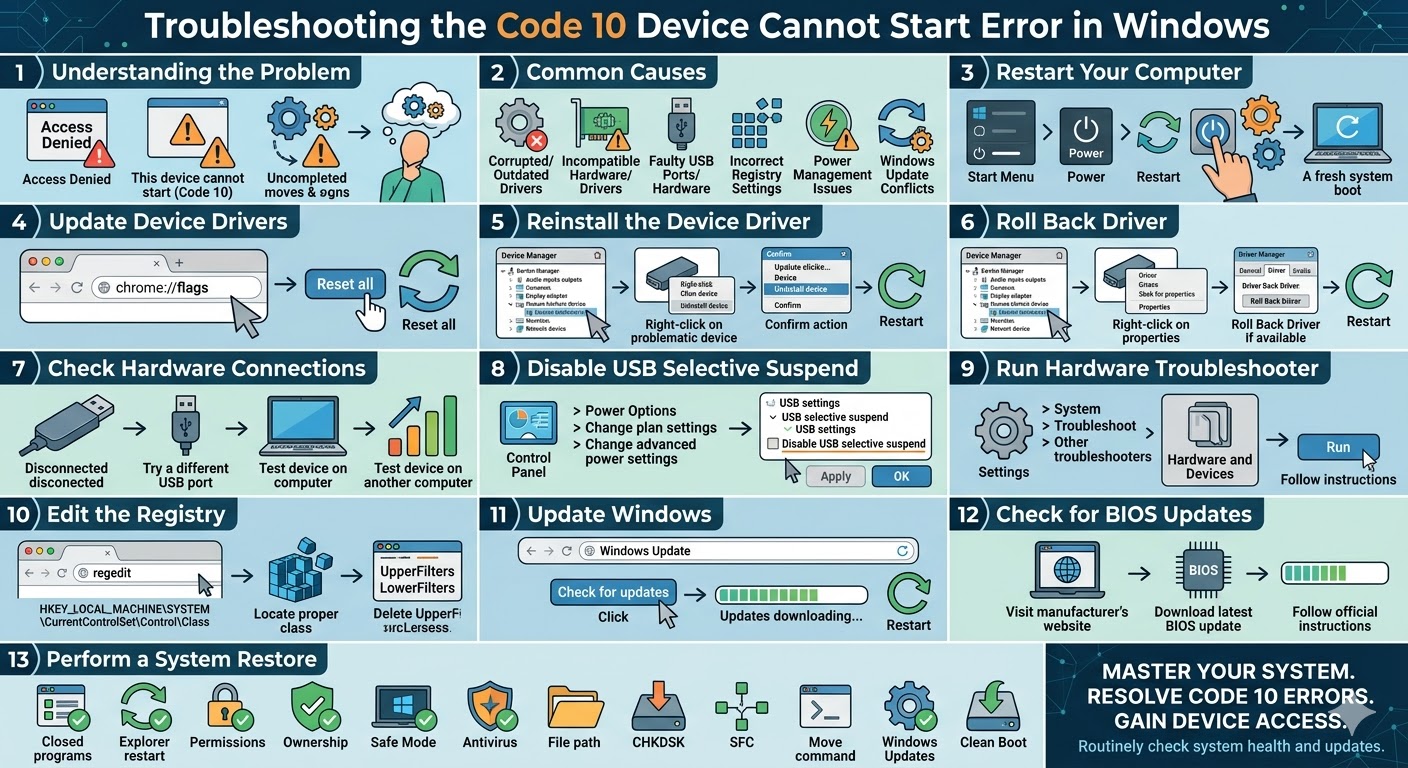
Troubleshooting the Code 10 Device Cannot Start Error in Windows
The “This device cannot start (Code 10)” error is a common issue in Windows that usually appears in Device Manager. It indicates that a hardware device—such as a USB device, audio adapter, network card, or Bluetooth module—has failed to start properly.
When this error occurs, the affected device may stop working entirely or function unpredictably. You might see a yellow warning icon next to the device in Device Manager along with the Code 10 message.
Although this error can seem complicated, it is often caused by driver issues, hardware conflicts, or incorrect system settings. The good news is that there are several proven methods to fix the Code 10 error in Windows 10 and Windows 11.
What Does Code 10 Mean in Windows?
The Code 10 error is a generic message that Windows displays when it cannot start a hardware device. It does not always specify the exact cause, which is why troubleshooting is necessary.
This error can appear with messages like:
- “This device cannot start. (Code 10)”
- “The device failed to start”
- “Operation failed”
It usually indicates a communication failure between the device and the operating system.
Common Causes of Code 10 Error
Understanding the possible causes can help you fix the issue more effectively.
Some common causes include:
- Corrupted or outdated device drivers
- Incompatible hardware or drivers
- Faulty USB ports or hardware components
- Incorrect registry settings
- Power management issues
- Windows update conflicts
Identifying the cause can help narrow down the solution.
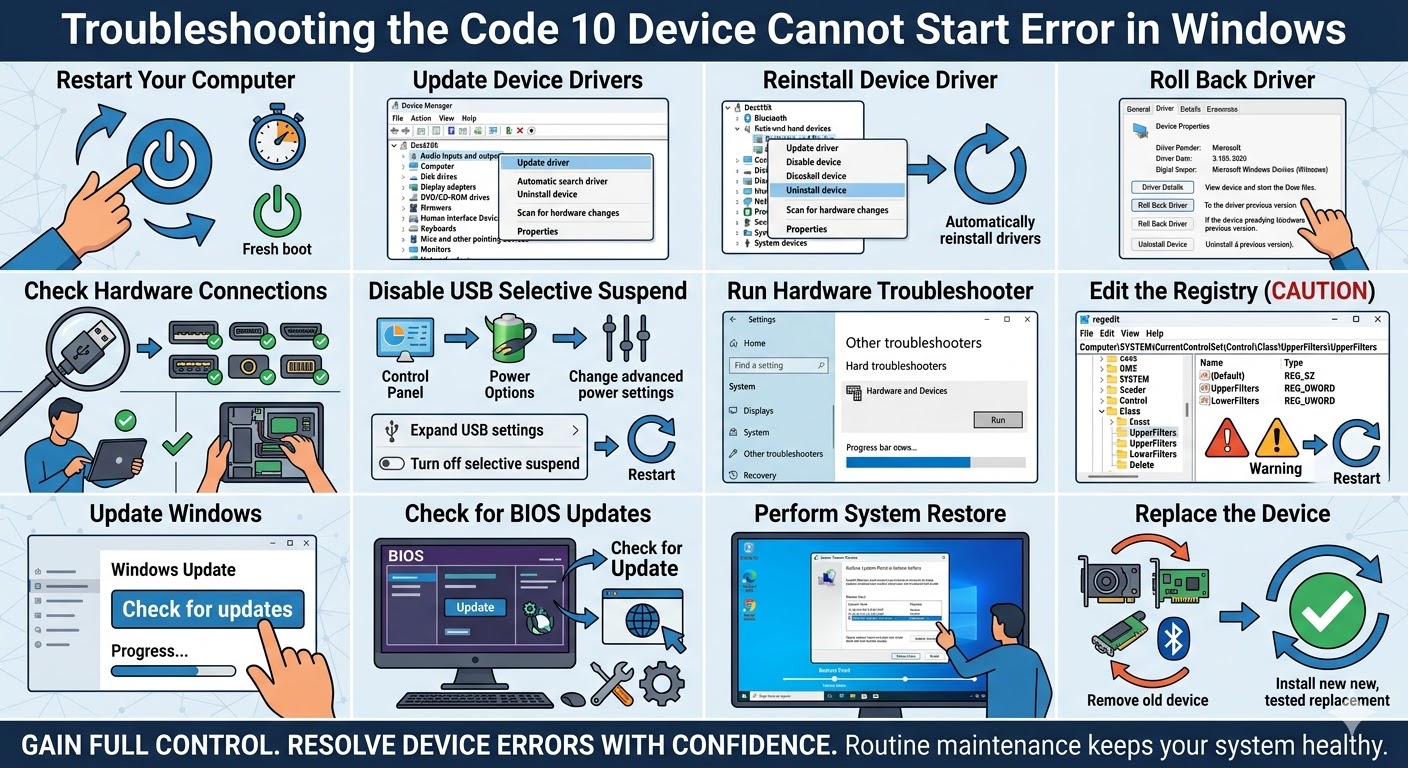
Restart Your Computer
Before applying advanced fixes, restart your computer. Temporary glitches or conflicts may cause devices to fail during startup.
To restart:
- Click the Start Menu.
- Select the Power icon.
- Click Restart.
After rebooting, check if the device works properly.
Update Device Drivers
Outdated or corrupted drivers are the most common reason for Code 10 errors.
To update drivers:
- Right-click the Start Menu.
- Select Device Manager.
- Locate the device with the error.
- Right-click it and select Update driver.
- Choose Search automatically for drivers.
After updating, restart your computer.
Reinstall the Device Driver
If updating does not work, reinstalling the driver can fix corrupted configurations.
Follow these steps:
- Open Device Manager.
- Right-click the problematic device.
- Select Uninstall device.
- Confirm the action.
- Restart your computer.
Windows will automatically reinstall the driver after reboot.
Roll Back Driver
If the error appeared after a recent driver update, rolling back to a previous version may resolve the issue.
To roll back a driver:
- Open Device Manager.
- Right-click the device.
- Select Properties.
- Go to the Driver tab.
- Click Roll Back Driver (if available).
Restart your system afterward.
Check Hardware Connections
Loose or faulty hardware connections can cause devices to fail.
You should:
- Disconnect and reconnect the device
- Try a different USB port
- Test the device on another computer
If the device does not work elsewhere, it may be defective.
Disable USB Selective Suspend
Power management settings may disable devices to save energy, causing the Code 10 error.
To disable USB selective suspend:
- Open Control Panel.
- Click Power Options.
- Select Change plan settings.
- Click Change advanced power settings.
- Expand USB settings.
- Disable USB selective suspend setting.
- Click Apply and OK.
Restart your computer.
Run Hardware and Devices Troubleshooter
Windows includes troubleshooting tools that can detect and fix hardware issues.
To run the troubleshooter:
- Open Settings.
- Go to System > Troubleshoot.
- Click Other troubleshooters.
- Run the Hardware and Devices troubleshooter if available.
Follow the on-screen instructions.
Edit the Registry
Incorrect registry entries can cause the Code 10 error. Fixing them may resolve the issue.
Follow these steps carefully:
- Press Windows + R.
- Type regedit and press Enter.
- Navigate to:
HKEY_LOCAL_MACHINE\SYSTEM\CurrentControlSet\Control\Class
- Locate the appropriate device class.
- Delete UpperFilters and LowerFilters entries if present.
- Restart your computer.
Be cautious when editing the registry to avoid system issues.
Update Windows
Outdated Windows versions may cause compatibility problems with hardware devices.
To update Windows:
- Press Windows + I.
- Go to Windows Update.
- Click Check for updates.
- Install available updates.
Restart your computer after updating.
Check for BIOS Updates
In rare cases, outdated BIOS firmware can cause hardware compatibility issues.
You can:
- Visit your motherboard or laptop manufacturer’s website
- Download the latest BIOS update
- Follow official instructions carefully
Updating BIOS should be done cautiously.
Perform a System Restore
If the error started recently, restoring your system to a previous state may fix it.
To use System Restore:
- Search for Create a restore point.
- Open System Restore.
- Choose a restore point before the issue began.
- Follow the instructions.
This will not affect personal files but may remove recent changes.
Replace the Device
If none of the solutions work, the hardware device itself may be faulty.
In this case:
- Replace the device
- Contact the manufacturer for support
- Check warranty options
Hardware failure is sometimes the root cause of persistent Code 10 errors.
Final Thoughts
The “This device cannot start (Code 10)” error is a common but fixable problem in Windows. It is usually caused by driver issues, hardware conflicts, or incorrect system settings.
Most users can resolve the issue by updating or reinstalling drivers, adjusting power settings, or checking hardware connections. Advanced methods like registry edits and system restore can help in more complex cases.
Related articles
Fixing the “Kernel Security Check Failure” Error on Windows 10