


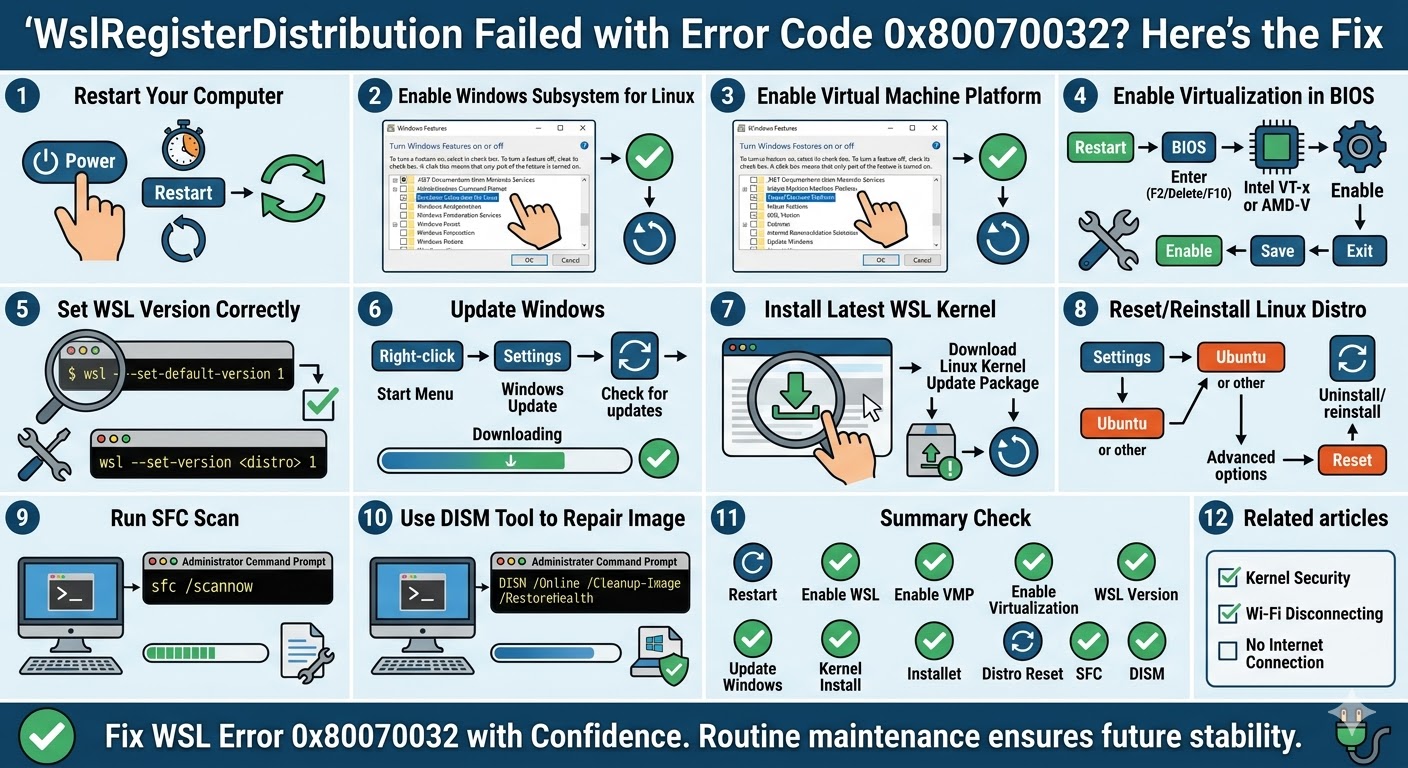
WslRegisterDistribution Failed with Error Code 0x80070032? Here’s the Fix
The WslRegisterDistribution failed with error: 0x80070032 is a common issue faced by users when setting up or launching the Windows Subsystem for Linux (WSL). This error usually appears when attempting to install a Linux distribution such as Ubuntu, Debian, or Kali Linux from the Microsoft Store.
The error code 0x80070032 generally indicates that a required feature is not supported or properly configured on your system. As a result, the Linux distribution fails to register, preventing you from using WSL.
Although the error can seem technical, it is often caused by simple configuration issues related to Windows features, virtualization, or system settings. In this guide, you will learn how to fix the WslRegisterDistribution failed error with code 0x80070032 step by step.
What Causes the 0x80070032 Error in WSL?
Understanding the root cause of the error can help you apply the correct solution.
Common causes include:
-
WSL feature not enabled
-
Virtualization disabled in BIOS
-
Using WSL 2 without proper support
-
Missing or outdated Windows updates
-
Corrupted system files
-
Incompatible system configuration
This error often occurs when WSL components are not fully configured.
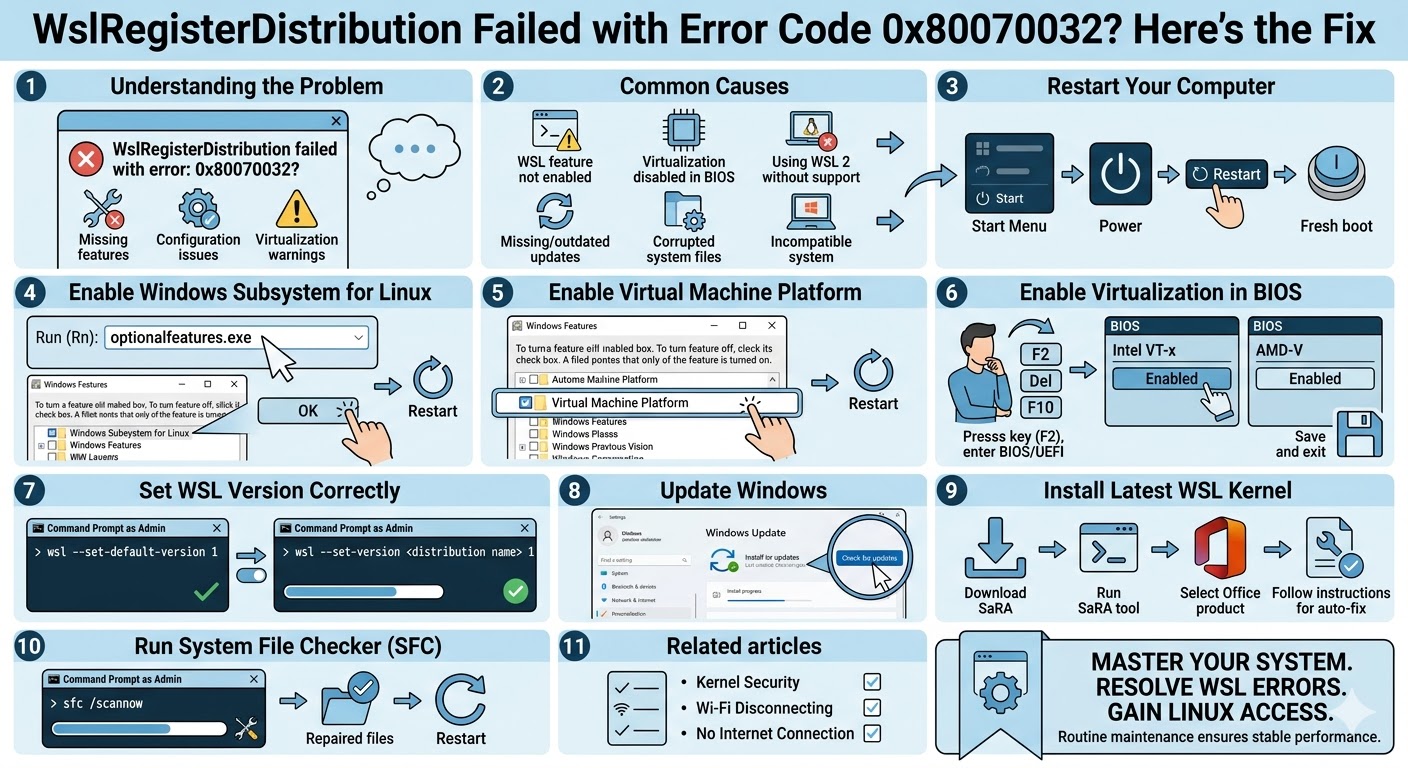
Restart Your Computer
Before applying advanced fixes, restart your system. Temporary glitches or incomplete installations can trigger the error.
To restart:
-
Click the Start Menu.
-
Select the Power icon.
-
Click Restart.
After rebooting, try launching your Linux distribution again.
Enable Windows Subsystem for Linux
The most important requirement for running WSL is enabling the feature in Windows.
To enable WSL:
-
Press Windows + R.
-
Type optionalfeatures.exe and press Enter.
-
In the Windows Features window, check:
-
Windows Subsystem for Linux
-
Click OK.
-
Restart your computer.
After enabling WSL, try installing your Linux distribution again.
Enable Virtual Machine Platform
If you are using WSL 2, you must enable the Virtual Machine Platform feature.
Follow these steps:
-
Open Windows Features again.
-
Check Virtual Machine Platform.
-
Click OK.
-
Restart your computer.
Without this feature, WSL 2 will not function properly.
Enable Virtualization in BIOS
Virtualization must be enabled in your system BIOS or UEFI settings.
To check this:
-
Restart your computer.
-
Enter BIOS/UEFI (usually by pressing F2, Delete, or F10).
-
Look for settings such as:
-
Intel Virtualization Technology (VT-x)
-
AMD-V
-
Enable virtualization.
-
Save changes and exit.
Once enabled, restart Windows and try again.
Set WSL Version Correctly
If your system does not fully support WSL 2, switching to WSL 1 may resolve the error.
To set WSL version:
-
Open Command Prompt as administrator.
-
Enter:
wsl –set-default-version 1
-
Press Enter.
You can also set a specific distribution:
wsl –set-version <distribution name> 1
This ensures compatibility with older systems.
Update Windows
WSL relies on updated system components. Running an outdated version of Windows can cause the 0x80070032 error.
To update Windows:
-
Press Windows + I.
-
Go to Windows Update.
-
Click Check for updates.
-
Install all available updates.
Restart your computer after updating.
Install the Latest WSL Kernel
For WSL 2, you may need the latest Linux kernel update package.
To install it:
-
Visit the official Microsoft WSL kernel update page.
-
Download the latest package.
-
Run the installer.
-
Restart your computer.
After installation, try launching your Linux distribution again.
Reset or Reinstall the Linux Distribution
Sometimes the issue is specific to the installed Linux distribution.
To reset the distribution:
-
Open Settings.
-
Go to Apps.
-
Select your Linux distribution (e.g., Ubuntu).
-
Click Advanced options.
-
Select Reset.
If resetting does not work, uninstall and reinstall the distribution from the Microsoft Store.
Run System File Checker
Corrupted system files can interfere with WSL functionality.
To run SFC:
-
Open Command Prompt as administrator.
-
Enter:
sfc /scannow
-
Press Enter.
Wait for the scan to complete and restart your system.
Use the DISM Tool
If SFC does not fix the issue, use DISM to repair the system image.
Steps:
-
Open Command Prompt as administrator.
-
Enter:
DISM /Online /Cleanup-Image /RestoreHealth
-
Press Enter.
Restart your computer after the process finishes.
Check for Compatibility Issues
Some older hardware or Windows editions may not fully support WSL 2.
If your system lacks compatibility:
-
Use WSL 1 instead of WSL 2
-
Ensure you are running a supported version of Windows 10 or 11
-
Upgrade your system if necessary
Checking compatibility can save time during troubleshooting.
Perform a Clean Boot
Background services may conflict with WSL setup.
To perform a clean boot:
-
Press Windows + R.
-
Type msconfig and press Enter.
-
Go to the Services tab.
-
Check Hide all Microsoft services.
-
Click Disable all.
-
Restart your computer.
After restarting, try running WSL again.
Reset Windows as a Last Resort
If none of the methods work, resetting Windows may resolve deep configuration issues.
To reset your system:
-
Open Settings.
-
Go to System > Recovery.
-
Click Reset this PC.
-
Choose whether to keep your files or remove everything.
-
Follow the instructions.
This step should only be used if all other solutions fail.
Final Thoughts
The WslRegisterDistribution failed error with code 0x80070032 can prevent you from using Linux distributions on Windows, but it is usually caused by missing features, disabled virtualization, or outdated system components.
Most users can fix the problem by enabling WSL and Virtual Machine Platform, updating Windows, or switching to a compatible WSL version.
Related articles
How to Fix Wi-Fi Disconnecting Issues on Windows 10
How to Fix No Internet Connection in Windows 10
Troubleshooting the Code 10 Device Cannot Start Error in Windows