


Google Chrome Flickering? Here’s How to Fix It
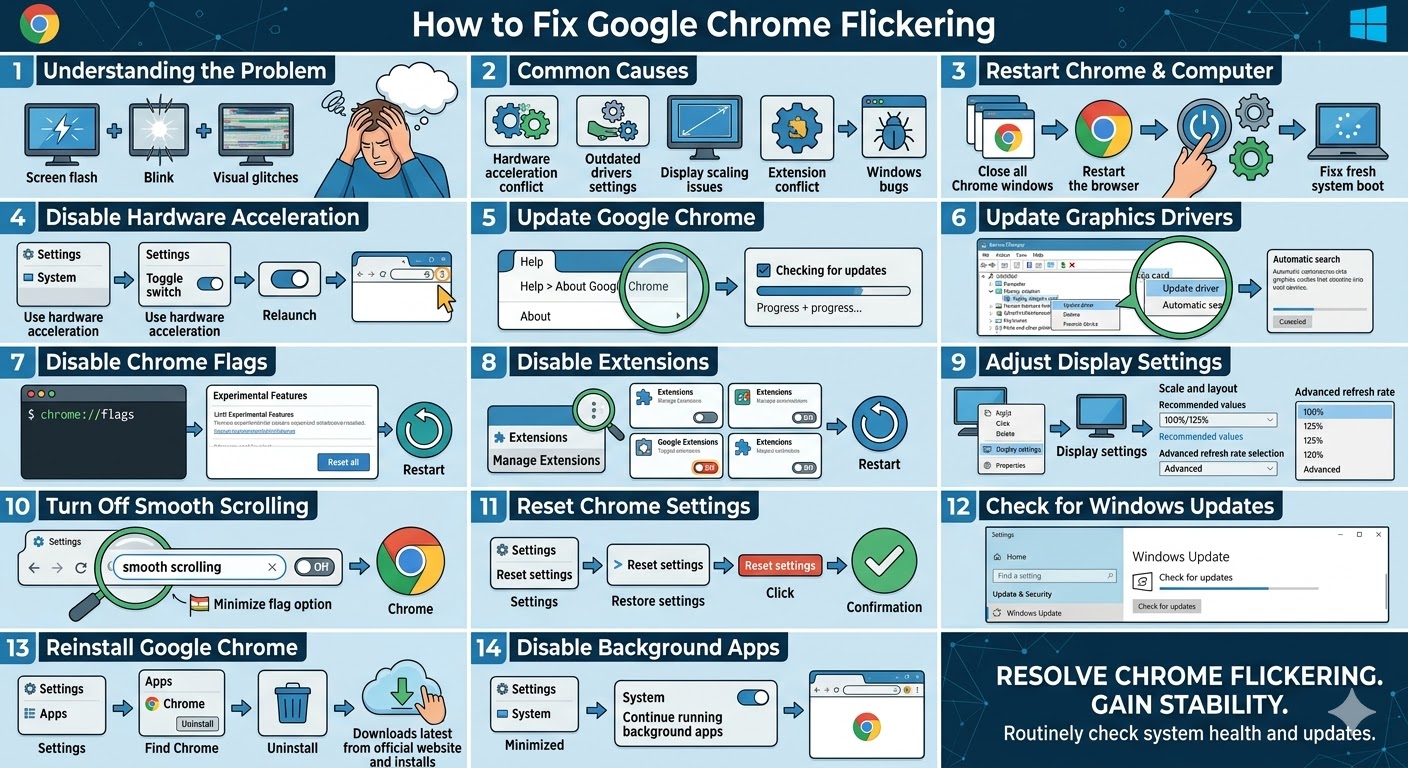
Google Chrome is one of the most widely used web browsers thanks to its speed, simplicity, and compatibility with modern websites. However, some users experience an annoying issue where Google Chrome starts flickering on Windows. The screen may flash, blink, or show visual glitches when scrolling, opening tabs, or playing videos.
This flickering problem can make browsing uncomfortable and may even indicate deeper issues related to graphics drivers, hardware acceleration, or system settings. Fortunately, in most cases, the issue can be fixed with a few simple adjustments.
In this guide, you will learn the most effective methods to fix the Google Chrome flickering issue on Windows 10 and Windows 11.
Common Causes of Chrome Flickering
Before applying solutions, it helps to understand what might be causing the flickering problem.
Some common causes include:
-
Hardware acceleration conflicts
-
Outdated or corrupted graphics drivers
-
Incorrect Chrome settings
-
Display scaling or resolution issues
-
Conflicts with extensions
-
Windows system bugs
Identifying the cause will help you apply the right fix.
Restart Google Chrome and Your Computer
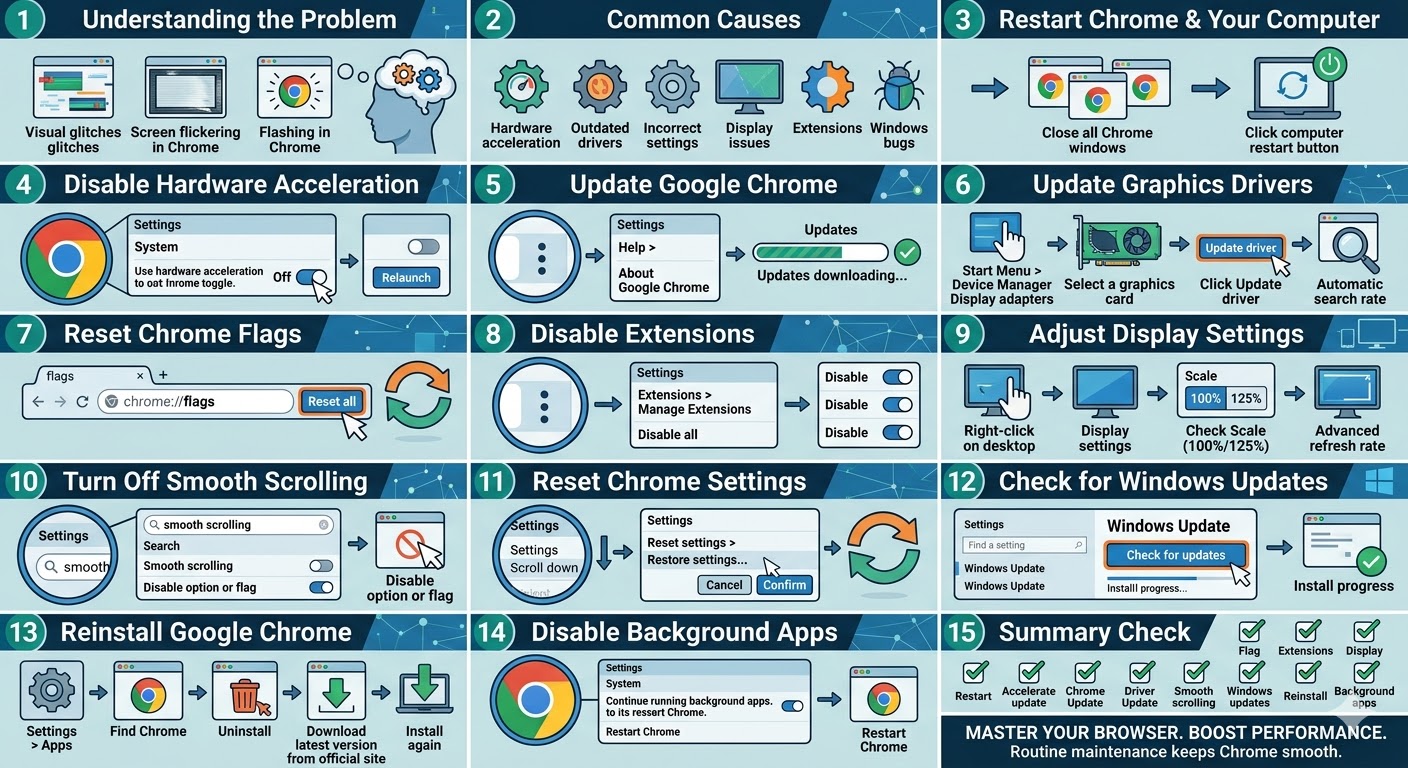
The first step is to restart Chrome and your computer. Temporary glitches or background processes may cause flickering.
To restart Chrome:
-
Close all Chrome windows.
-
Reopen the browser.
Then restart your computer and check if the issue persists.
Disable Hardware Acceleration
Hardware acceleration allows Chrome to use your GPU to improve performance, but it can sometimes cause display issues like flickering.
To disable hardware acceleration:
-
Open Google Chrome.
-
Click the three-dot menu in the top-right corner.
-
Select Settings.
-
Scroll down and click System.
-
Turn off Use hardware acceleration when available.
-
Click Relaunch.
After restarting Chrome, check if the flickering stops.
Update Google Chrome
Running an outdated version of Chrome can cause compatibility issues with your system.
To update Chrome:
-
Click the three-dot menu.
-
Go to Help > About Google Chrome.
-
Chrome will automatically check for updates.
-
Install any available updates and restart the browser.
Update Graphics Drivers
Outdated or corrupted graphics drivers are one of the most common causes of screen flickering.
To update your graphics drivers:
-
Right-click the Start Menu.
-
Select Device Manager.
-
Expand Display adapters.
-
Right-click your graphics card.
-
Select Update driver.
-
Choose Search automatically for drivers.
After updating, restart your computer.
Disable Chrome Flags
Certain experimental features in Chrome (called flags) may cause instability.
To reset Chrome flags:
-
Type chrome://flags in the address bar.
-
Press Enter.
-
Click Reset all.
-
Restart Chrome.
This will restore default experimental settings.
Disable Extensions
Some Chrome extensions may conflict with browser rendering and cause flickering.
To disable extensions:
-
Click the three-dot menu.
-
Go to Extensions > Manage Extensions.
-
Disable all extensions.
-
Restart Chrome.
If the flickering stops, enable extensions one by one to identify the problematic one.
Adjust Display Settings
Incorrect display settings such as scaling or refresh rate can cause flickering.
To adjust display settings:
-
Right-click on the desktop.
-
Select Display settings.
-
Check the Scale and layout settings.
-
Set scaling to recommended values (e.g., 100% or 125%).
You can also check refresh rate:
-
Go to Advanced display settings.
-
Choose a suitable refresh rate for your monitor.
Turn Off Smooth Scrolling
Smooth scrolling can sometimes cause rendering issues in Chrome.
To disable it:
-
Open Chrome settings.
-
Search for smooth scrolling.
-
Disable the option if available.
Alternatively, you can disable it via Chrome flags.
Reset Chrome Settings
If the issue persists, resetting Chrome to default settings may help.
To reset Chrome:
-
Open Settings.
-
Scroll down and click Reset settings.
-
Select Restore settings to their original defaults.
-
Click Reset settings.
This will remove custom configurations and fix potential conflicts.
Check for Windows Updates
System bugs in Windows may affect Chrome performance.
To update Windows:
-
Press Windows + I.
-
Open Windows Update.
-
Click Check for updates.
-
Install available updates.
Restart your computer after updating.
Reinstall Google Chrome
If none of the above methods work, reinstalling Chrome may fix corrupted files.
To reinstall Chrome:
-
Open Settings > Apps.
-
Find Google Chrome.
-
Click Uninstall.
-
Download the latest version from the official website.
-
Install Chrome again.
This ensures a clean installation.
Disable Background Apps
Some background applications may interfere with Chrome’s display.
To disable background apps:
-
Open Chrome settings.
-
Go to System.
-
Turn off Continue running background apps when Google Chrome is closed.
Restart Chrome after making changes.
Final Thoughts
The Google Chrome flickering issue can be caused by several factors, including hardware acceleration conflicts, outdated drivers, or problematic extensions. While the issue may seem serious, it is usually easy to fix with the right steps.
Disabling hardware acceleration, updating drivers, adjusting display settings, and resetting Chrome are among the most effective solutions.
Related articles
How to Fix Wi-Fi Disconnecting Issues on Windows 10
How to Fix No Internet Connection in Windows 10
WslRegisterDistribution Failed with Error Code 0x80070032? Here’s the Fix