


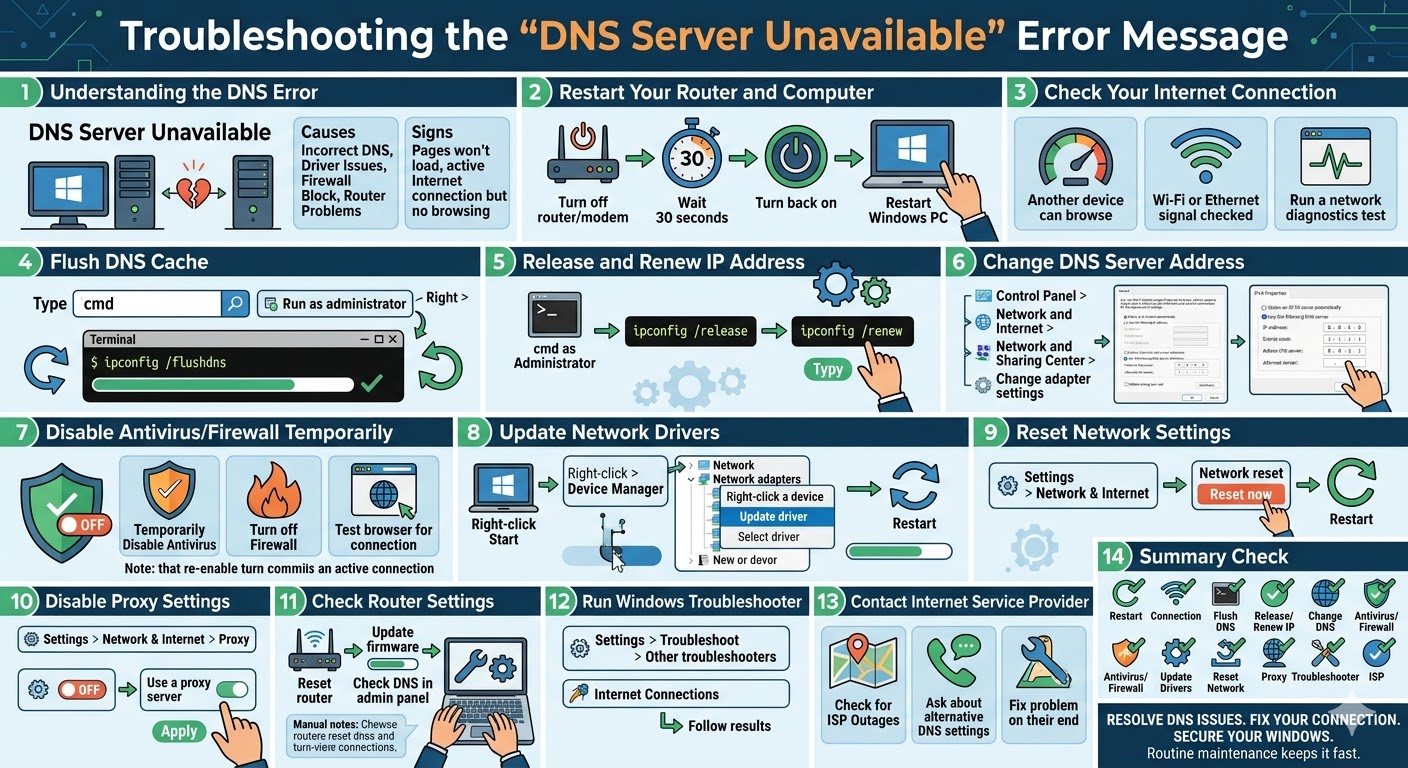
Troubleshooting the “DNS Server Unavailable” Error Message
The “DNS Server Unavailable” error is a common issue that prevents users from accessing websites on their computers. Even though your internet connection may appear to be active, your browser fails to load pages because it cannot communicate with the Domain Name System (DNS) server.
DNS plays a crucial role in translating website names (like google.com) into IP addresses that computers use to locate servers. When the DNS server becomes unavailable or fails to respond, your system cannot resolve domain names, resulting in this error.
Fortunately, the DNS Server Unavailable error is usually easy to fix with a few troubleshooting steps. In this guide, you will learn the causes of this issue and how to resolve it effectively on Windows systems.
What Causes the “DNS Server Unavailable” Error?
Before fixing the issue, it helps to understand what might be causing it.
Some common causes include:
-
Incorrect DNS server settings
-
Network configuration issues
-
Outdated or corrupted network drivers
-
Router or modem problems
-
Firewall or antivirus interference
-
DNS cache corruption
-
ISP-related DNS issues
Identifying the cause will help you choose the most appropriate solution.
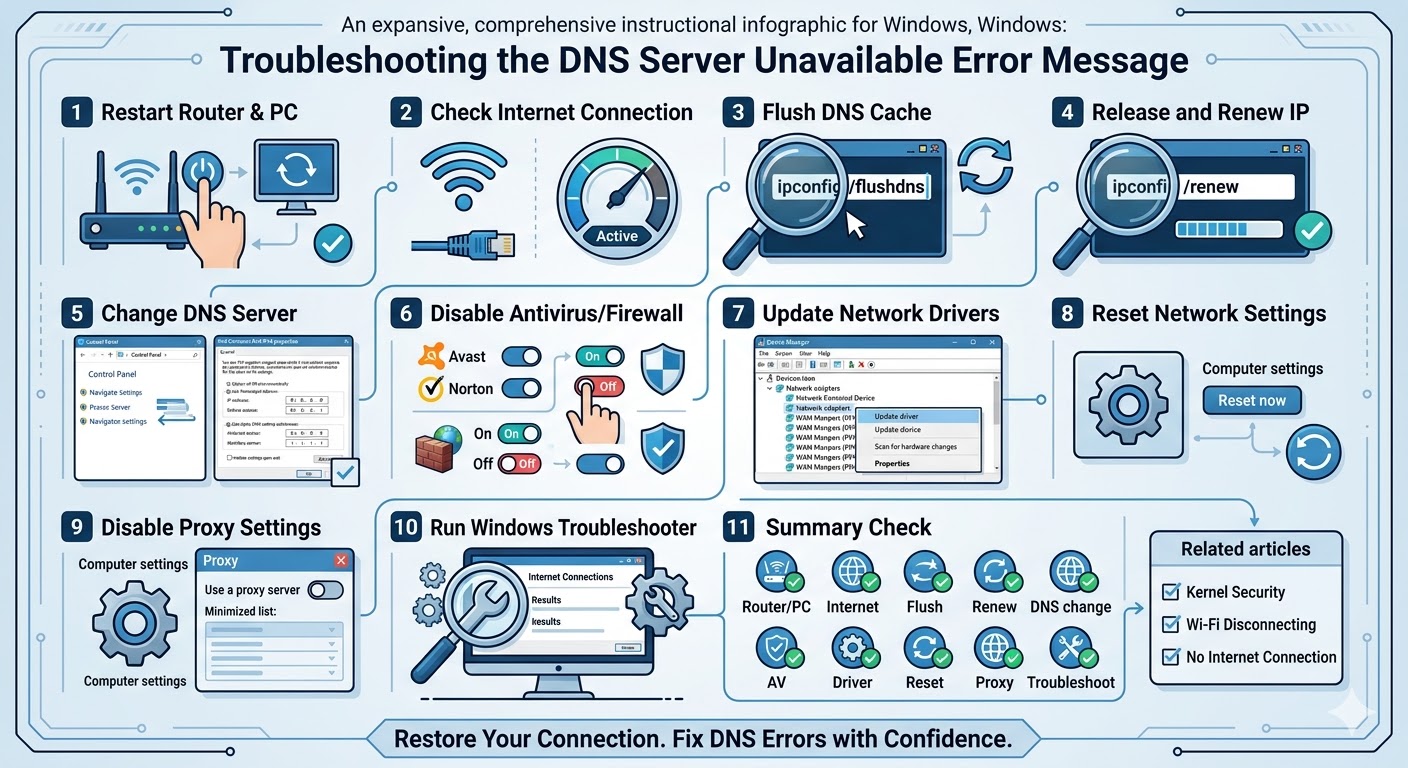
Restart Your Router and Computer
One of the simplest and most effective fixes is restarting your network devices and computer. Temporary network glitches can disrupt DNS communication.
To restart your router:
-
Turn off the router or modem.
-
Wait about 30 seconds.
-
Turn it back on.
-
Wait for the connection to stabilize.
Then restart your computer and check if the error is resolved.
Check Your Internet Connection
Before troubleshooting DNS settings, ensure your internet connection is working properly.
You can:
-
Try opening a website on another device
-
Check Wi-Fi or Ethernet connection status
-
Run a network diagnostics test
If the internet is not working on any device, the issue may be with your internet service provider.
Flush DNS Cache
Corrupted DNS cache can cause domain resolution problems. Flushing the DNS cache clears outdated or incorrect records.
To flush DNS:
-
Type cmd in the Windows search bar.
-
Right-click Command Prompt and select Run as administrator.
-
Enter the following command:
ipconfig /flushdns
-
Press Enter.
After the process completes, try accessing websites again.
Release and Renew IP Address
Refreshing your IP address can help fix DNS-related issues.
Follow these steps:
-
Open Command Prompt as administrator.
-
Enter the following commands one by one:
ipconfig /release
ipconfig /renew
-
Press Enter after each command.
This process resets your network connection and may resolve the error.
Change DNS Server Address
If your current DNS server is unavailable, switching to a public DNS service can fix the problem.
Popular DNS servers include:
-
Google DNS: 8.8.8.8 and 8.8.4.4
-
Cloudflare DNS: 1.1.1.1 and 1.0.0.1
To change DNS settings:
-
Open Control Panel.
-
Go to Network and Internet.
-
Click Network and Sharing Center.
-
Select Change adapter settings.
-
Right-click your network connection and choose Properties.
-
Select Internet Protocol Version 4 (IPv4).
-
Click Properties.
-
Choose Use the following DNS server addresses.
-
Enter the preferred DNS values.
-
Click OK.
After applying the changes, test your connection again.
Disable Antivirus and Firewall Temporarily
Sometimes antivirus programs or firewalls block DNS requests, causing connection problems.
To test this:
-
Temporarily disable your antivirus software.
-
Turn off your firewall.
-
Try accessing websites again.
If the issue is resolved, add your browser or network connection to the allowed list.
Remember to re-enable security software afterward.
Update Network Drivers
Outdated or corrupted network drivers can interfere with DNS communication.
To update your drivers:
-
Right-click the Start Menu.
-
Select Device Manager.
-
Expand Network adapters.
-
Right-click your network device.
-
Select Update driver.
-
Choose Search automatically for drivers.
After updating, restart your computer.
Reset Network Settings
If the issue persists, resetting your network settings can restore default configurations.
To reset network settings:
-
Open Settings.
-
Go to Network & Internet.
-
Scroll down and click Network reset.
-
Click Reset now.
Your computer will restart and reinstall network components.
Disable Proxy Settings
Incorrect proxy settings can block DNS communication.
To disable proxy:
-
Open Settings.
-
Click Network & Internet.
-
Select Proxy.
-
Turn off Use a proxy server.
Restart your computer and test your connection.
Check Router Settings
Sometimes the problem lies in your router configuration.
You can:
-
Reset the router to default settings
-
Update router firmware
-
Check DNS settings in the router admin panel
Consult your router’s manual for detailed instructions.
Run Windows Troubleshooter
Windows includes built-in tools to diagnose and fix network problems.
To run the troubleshooter:
-
Open Settings.
-
Go to System > Troubleshoot.
-
Click Other troubleshooters.
-
Run the Internet Connections troubleshooter.
Follow the instructions provided by the tool.
Contact Your Internet Service Provider
If none of the above solutions work, the issue may be related to your ISP’s DNS servers.
Contact your ISP and ask if there are outages or DNS-related issues in your area.
They may provide alternative DNS settings or fix the problem on their end.
Final Thoughts
The “DNS Server Unavailable” error can prevent you from accessing the internet, even when your connection appears to be active. This issue is usually caused by DNS misconfiguration, network problems, or software interference.
Fortunately, most users can resolve the problem by restarting their devices, flushing DNS cache, updating drivers, or switching to a public DNS server.
Related articles
Fixing the “Kernel Security Check Failure” Error on Windows 10