


Fix the Windows 10 Start Menu Not Responding Problem
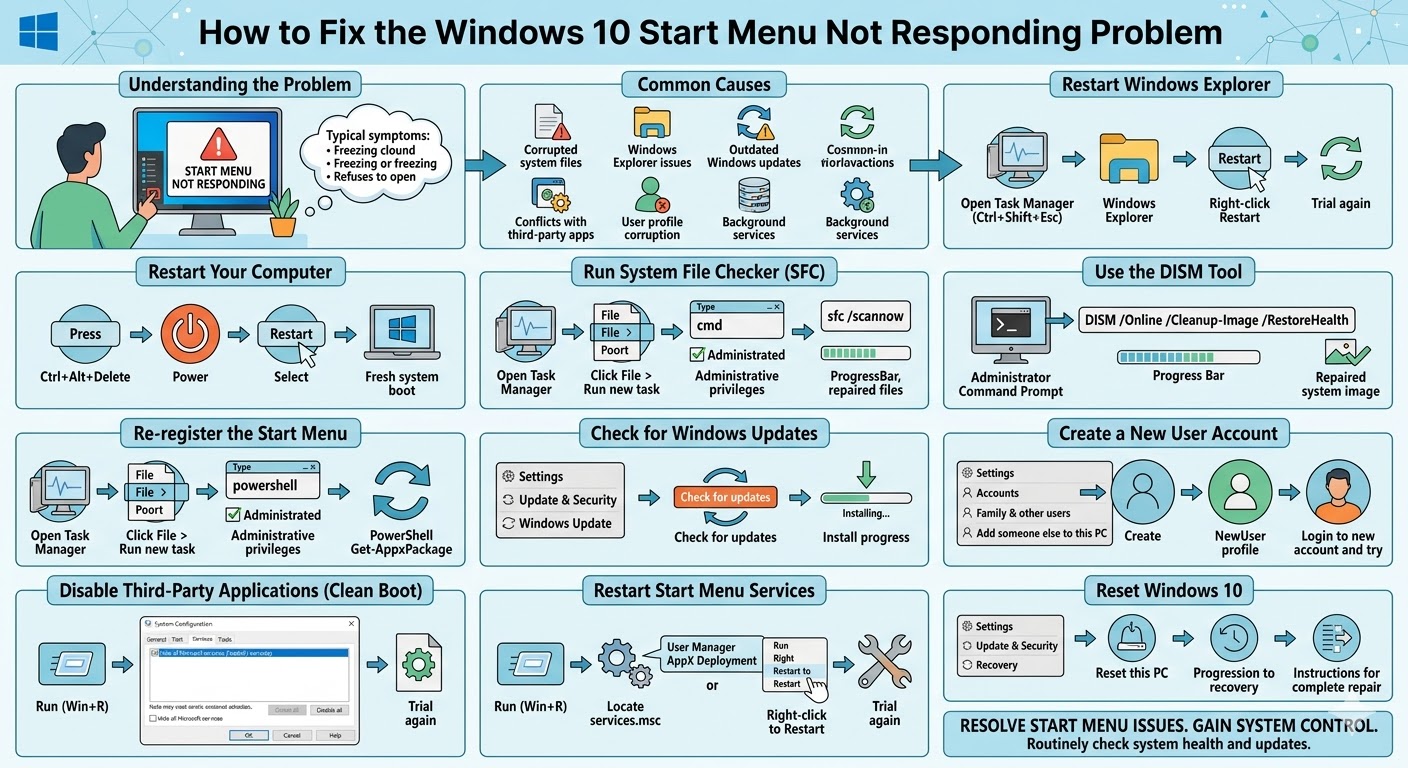
The Start Menu is one of the most important features in Windows 10. It provides quick access to apps, settings, power options, and search functionality. When the Start Menu stops working or refuses to open, it can significantly disrupt your workflow and make it difficult to navigate your system.
Many users report issues where clicking the Start button does nothing, the menu freezes, or it opens but becomes unresponsive. This problem can be caused by system glitches, corrupted files, outdated drivers, or conflicts with background applications.
Fortunately, there are several effective ways to fix the Windows 10 Start Menu not opening issue. In this guide, you will learn practical methods to restore the Start Menu and get your system working normally again.
Common Causes of Start Menu Not Opening
Before applying solutions, it is helpful to understand why the Start Menu may stop working.
Some common causes include:
-
Corrupted system files
-
Windows Explorer issues
-
Outdated Windows updates
-
Conflicts with third-party applications
-
User profile corruption
-
Background services not functioning properly
Identifying the cause can help you choose the right fix.
Restart Windows Explorer
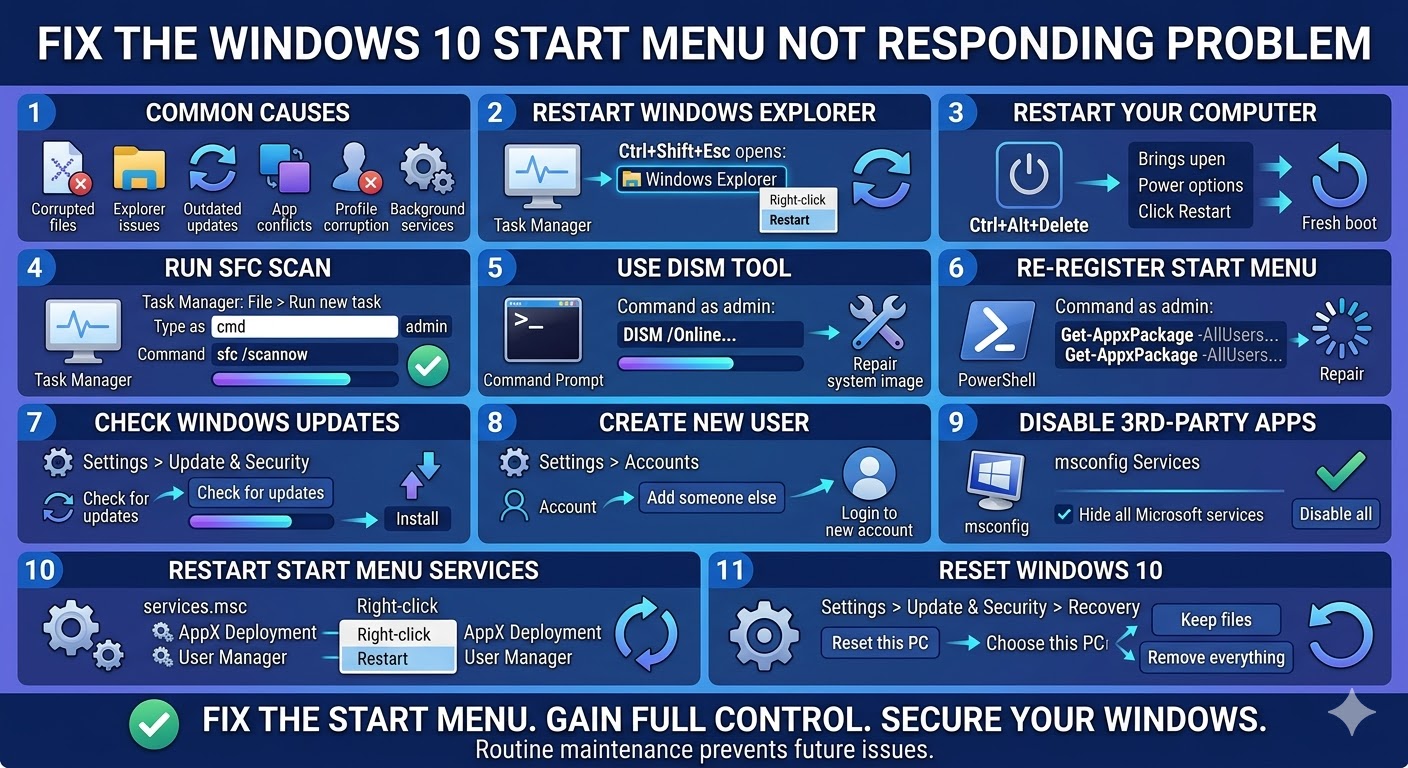
The Start Menu is closely tied to Windows Explorer, so restarting it can often fix the issue.
Follow these steps:
-
Press Ctrl + Shift + Esc to open Task Manager.
-
Locate Windows Explorer in the list.
-
Right-click it and select Restart.
After restarting Explorer, try opening the Start Menu again.
Restart Your Computer
A simple restart can resolve temporary glitches affecting the Start Menu.
To restart your computer:
-
Press Ctrl + Alt + Delete.
-
Click the Power icon.
-
Select Restart.
After rebooting, check if the Start Menu works properly.
Run System File Checker (SFC)
Corrupted system files can prevent the Start Menu from functioning correctly.
To run SFC:
-
Press Ctrl + Shift + Esc to open Task Manager.
-
Click File > Run new task.
-
Type cmd and check Create this task with administrative privileges.
-
Enter the following command:
sfc /scannow
-
Press Enter.
Wait for the scan to complete and restart your computer.
Use the DISM Tool
If SFC does not fix the issue, you can use the DISM tool to repair the Windows system image.
Follow these steps:
-
Open Command Prompt as administrator.
-
Enter the command:
DISM /Online /Cleanup-Image /RestoreHealth
-
Press Enter.
After the process completes, restart your computer.
Re-register the Start Menu
Sometimes the Start Menu stops working due to corrupted app registrations.
You can fix this by re-registering the Start Menu using PowerShell.
Steps:
-
Press Ctrl + Shift + Esc to open Task Manager.
-
Click File > Run new task.
-
Type powershell and check administrative privileges.
-
Enter the following command:
Get-AppxPackage -AllUsers | Foreach {Add-AppxPackage -DisableDevelopmentMode -Register “$($_.InstallLocation)\AppXManifest.xml”}
-
Press Enter.
Wait for the process to complete and restart your system.
Check for Windows Updates
Outdated Windows versions may contain bugs that affect the Start Menu.
To update Windows:
-
Open Settings.
-
Click Update & Security.
-
Select Windows Update.
-
Click Check for updates.
-
Install any available updates.
Restart your computer after updating.
Create a New User Account
If your user profile is corrupted, the Start Menu may stop working.
Creating a new account can help resolve the issue.
To create a new user account:
-
Open Settings.
-
Click Accounts.
-
Select Family & other users.
-
Click Add someone else to this PC.
-
Follow the instructions.
Log in with the new account and check if the Start Menu works.
Disable Third-Party Applications
Some third-party applications may interfere with the Start Menu.
You can perform a clean boot to identify the problem.
Steps:
-
Press Windows + R.
-
Type msconfig and press Enter.
-
Go to the Services tab.
-
Check Hide all Microsoft services.
-
Click Disable all.
-
Restart your computer.
If the Start Menu works after a clean boot, a third-party application is likely the cause.
Restart Start Menu Services
Certain Windows services are responsible for Start Menu functionality.
To restart them:
-
Press Windows + R.
-
Type services.msc and press Enter.
-
Look for services related to User Manager or AppX Deployment.
-
Restart these services.
This may restore Start Menu functionality.
Reset Windows 10
If none of the above solutions work, resetting Windows may be necessary.
To reset your system:
-
Open Settings.
-
Click Update & Security.
-
Select Recovery.
-
Click Reset this PC.
-
Choose whether to keep your files or remove everything.
Follow the instructions to complete the reset.
Final Thoughts
The Windows 10 Start Menu not opening issue can be frustrating, as it affects one of the most essential parts of the operating system. Fortunately, this problem is usually caused by software-related issues such as corrupted system files, outdated updates, or application conflicts.
Most users can fix the issue by restarting Windows Explorer, running system repair tools like SFC and DISM, updating Windows, or re-registering the Start Menu.
Related articles
Fixing the “Kernel Security Check Failure” Error on Windows 10