


Fix the Unexpected Store Exception BSOD on Windows 10
The “Unexpected Store Exception” error is a Blue Screen of Death (BSOD) issue that can suddenly crash your system and force a restart. It often appears without warning, making it one of the more frustrating problems Windows 10 users face. This error is usually linked to hardware issues, corrupted system files, or driver conflicts.
While it may seem serious, the error is often fixable with the right troubleshooting steps. In this guide, you’ll learn what causes the Unexpected Store Exception error and how to fix it effectively.
What Is the Unexpected Store Exception Error?
Despite its name, this error is not directly related to the Microsoft Store. Instead, it refers to issues with how Windows handles storage operations and system data. When Windows encounters a critical failure in accessing or managing storage, it triggers this BSOD.
When this error occurs, your system may:
- Suddenly crash and restart
- Display a blue screen with the error message
- Enter a restart loop
- Lose unsaved data
Understanding the root cause is key to resolving it.
Common Causes of the Error
There are several reasons why this error may occur.
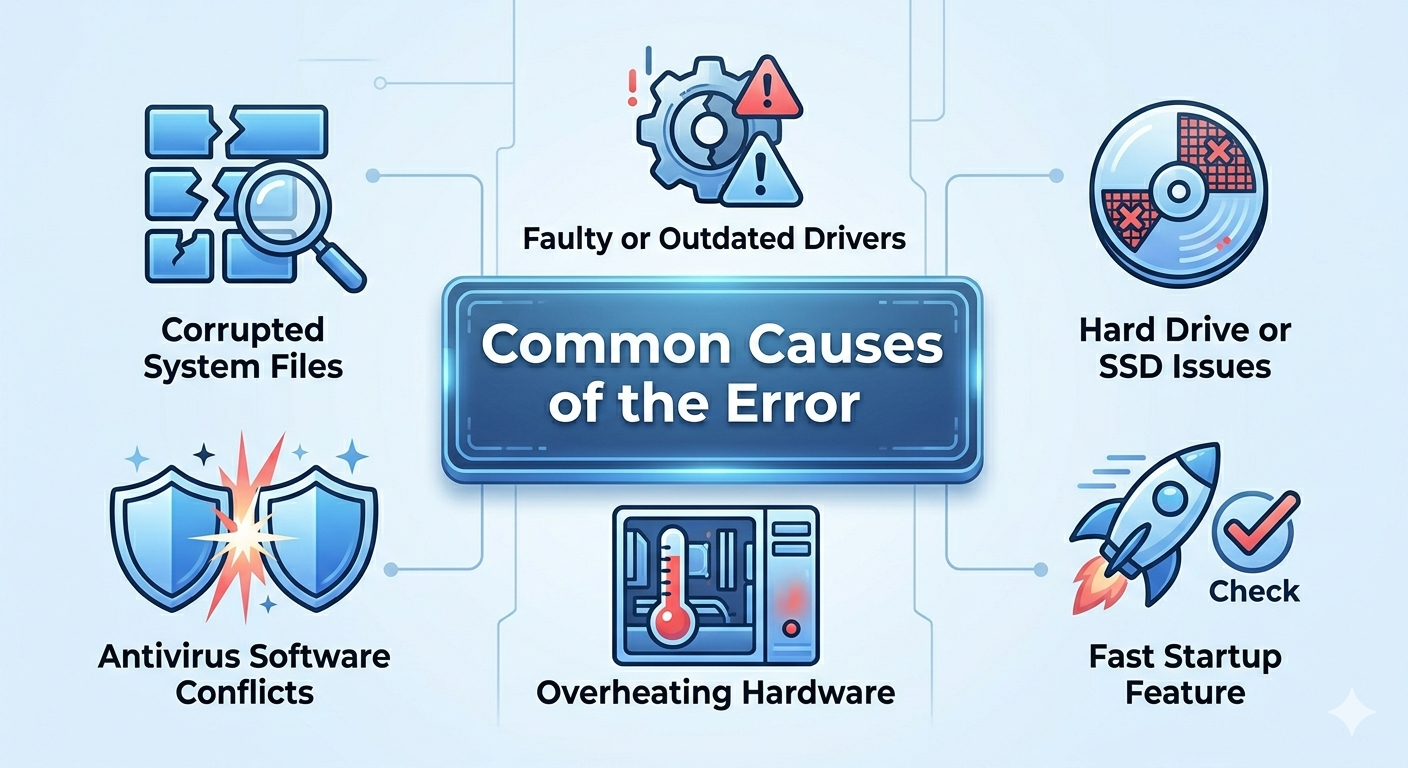
Corrupted System Files
Damaged or missing system files can cause Windows to fail during critical operations.
Faulty or Outdated Drivers
Drivers, especially for storage devices, can trigger this error if they are incompatible or corrupted.
Hard Drive or SSD Issues
Disk errors, bad sectors, or failing drives can lead to storage-related crashes.
Antivirus Software Conflicts
Some antivirus programs interfere with system processes and cause instability.
Overheating Hardware
Excessive heat can affect system performance and lead to unexpected crashes.
Fast Startup Feature
Fast Startup may cause improper initialization of system components.
How to Fix Unexpected Store Exception Error in Windows 10
Below are the most effective solutions to fix this issue.
Restart Your Computer
Start with a simple restart.
Why It Helps
A restart can resolve temporary glitches causing the error.
Steps
- Save your work
- Restart your PC
- Monitor if the issue reappears
If the problem persists, continue troubleshooting.
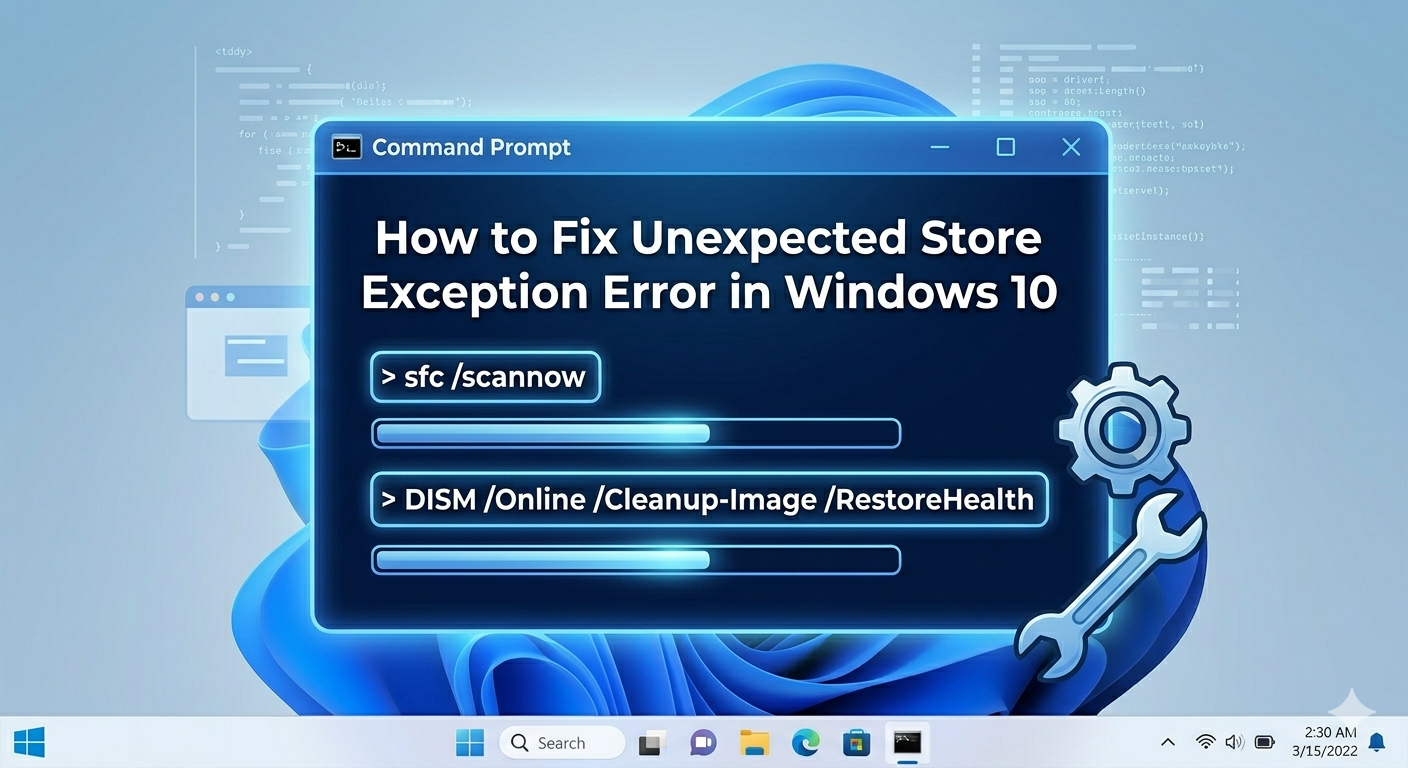
Run System File Checker (SFC)
SFC scans and repairs corrupted system files.
Steps
- Open Command Prompt as administrator
-
Run:
sfc /scannow - Wait for the scan to complete
Restart your computer afterward.
Use DISM Tool
DISM repairs deeper system issues.
Steps
- Open Command Prompt as administrator
-
Run:
DISM /Online /Cleanup-Image /RestoreHealth - Wait for completion
Restart your system.
Check Disk for Errors
Disk problems are a common cause.
Steps
- Open Command Prompt as administrator
-
Run:
chkdsk /f /r - Restart your PC and allow the scan to complete
This will fix disk errors and bad sectors.
Update Device Drivers
Outdated drivers can cause system crashes.
Steps
- Open Device Manager
- Expand device categories
- Right-click and update drivers
- Focus on storage and graphics drivers
Restart your PC after updating.
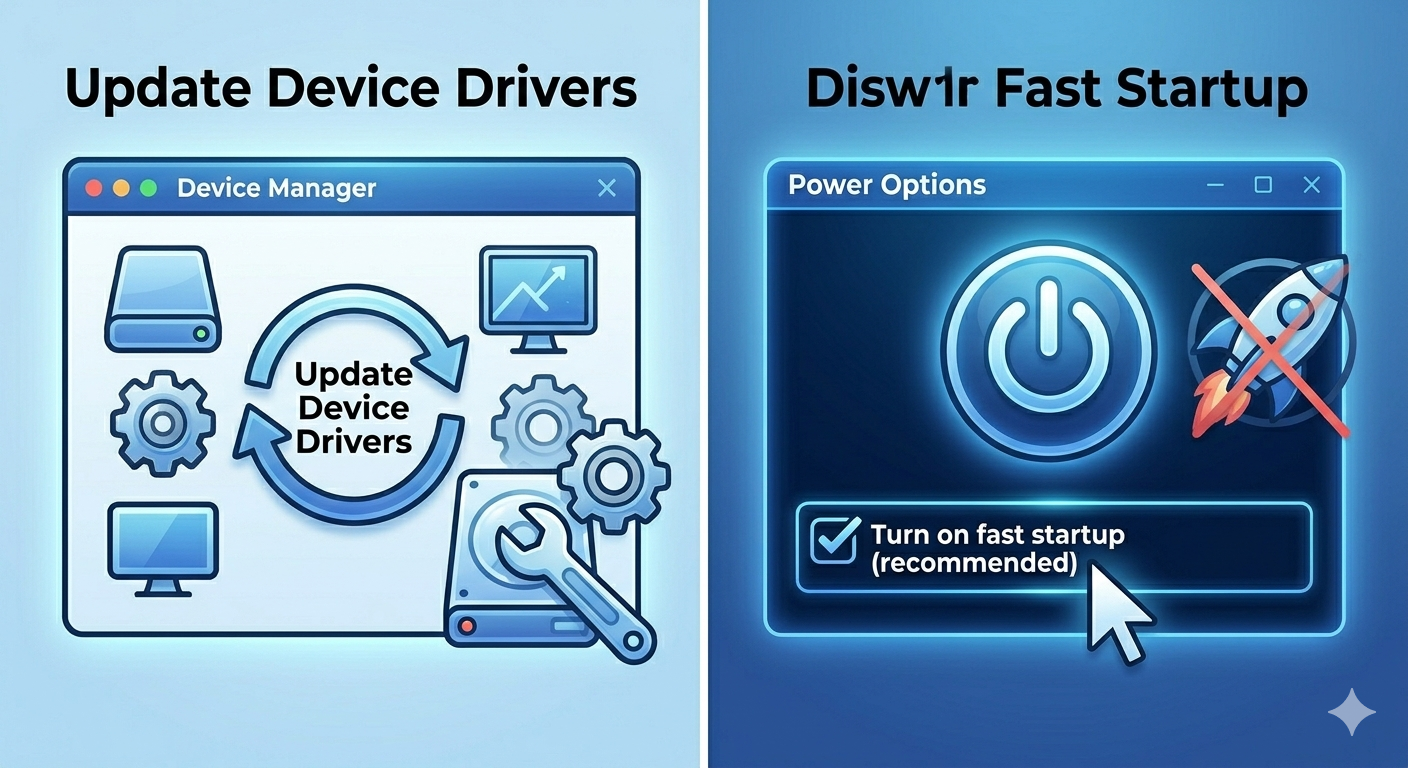
Disable Fast Startup
Fast Startup can lead to system instability.
Steps
- Open Control Panel
- Go to Power Options
- Click Choose what the power buttons do
- Select Change settings that are currently unavailable
- Uncheck Turn on fast startup
- Save changes
Restart your system.
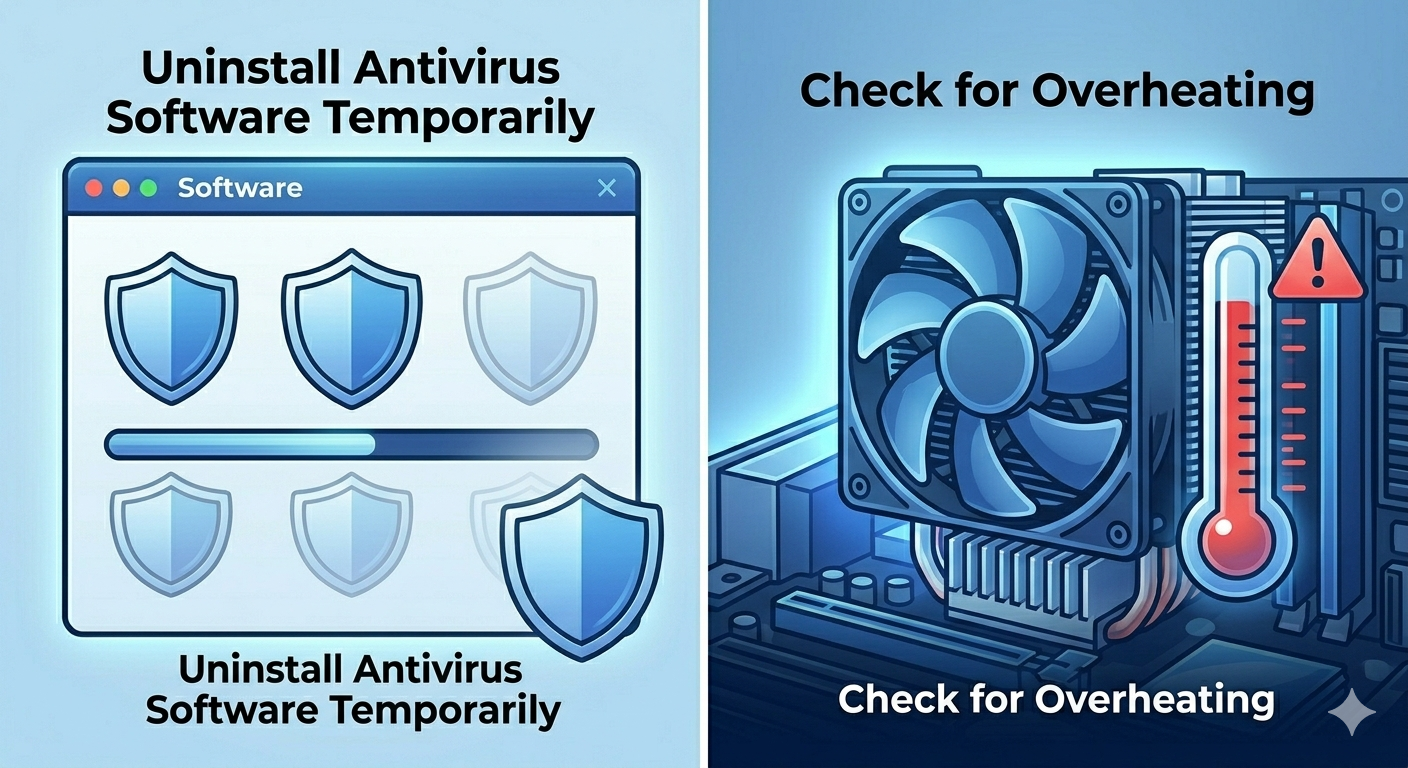
Uninstall Antivirus Software Temporarily
Some antivirus programs may cause conflicts.
What to Do
- Uninstall or disable your antivirus temporarily
- Check if the issue persists
- Reinstall or switch to another antivirus if needed
Update Windows
Keeping your system updated can fix bugs.
Steps
- Open Settings
- Go to Windows Update
- Click Check for updates
- Install available updates
Restart your PC.
Check for Overheating
Overheating can cause system crashes.
What to Do
- Clean dust from your PC
- Ensure proper ventilation
- Monitor CPU and GPU temperatures
If overheating is severe, consider hardware maintenance.
Run a Clean Boot
A clean boot helps identify software conflicts.
Steps
- Press
Windows + R, type msconfig, and press Enter - Go to the Services tab
- Check Hide all Microsoft services
- Click Disable all
- Disable startup programs
- Restart your PC
If the error disappears, a third-party app is likely responsible.
Check Hard Drive Health
If the issue continues, your drive may be failing.
What to Check
- Use disk diagnostic tools
- Listen for unusual noises
- Monitor system performance
Consider replacing the drive if necessary.
Perform System Restore
If the error started recently, restore your system.
Steps
- Search for System Restore
- Choose a restore point before the issue
- Follow the instructions
Reset or Reinstall Windows
If all else fails, resetting Windows may be necessary.
Steps
- Open Settings
- Go to Update & Security → Recovery
- Click Get started under Reset this PC
- Choose Keep my files
This can resolve deep system issues.
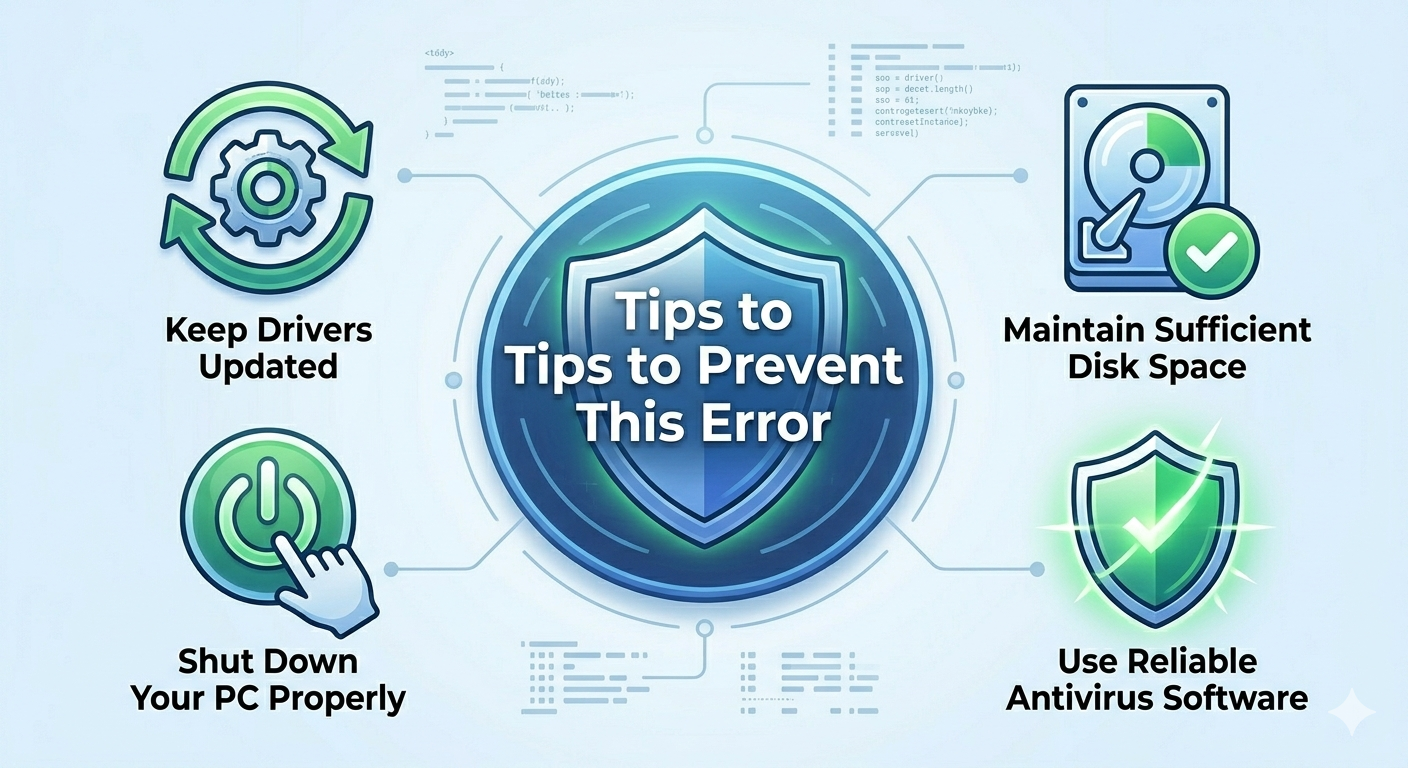
Tips to Prevent This Error
To avoid encountering this issue again:
- Keep drivers updated
- Maintain sufficient disk space
- Avoid overheating
- Use reliable antivirus software
- Shut down your PC properly
These practices help maintain system stability.
Final Thoughts
The Unexpected Store Exception error in Windows 10 can be alarming, especially when it causes sudden crashes. However, it is usually caused by manageable issues such as corrupted system files, driver conflicts, or disk problems.
By following the steps in this guide—running SFC and DISM, checking your disk, updating drivers, and disabling problematic features—you can resolve the issue and restore system stability. Start with simple fixes and move to advanced solutions if needed.
Related articles
Fix Outlook Password Prompt Issue in Office 365
How to Fix Mobile Hotspot Not Working in Windows 10
Updated Guide to Fix Unexpected Store Exception Error in Windows 10