


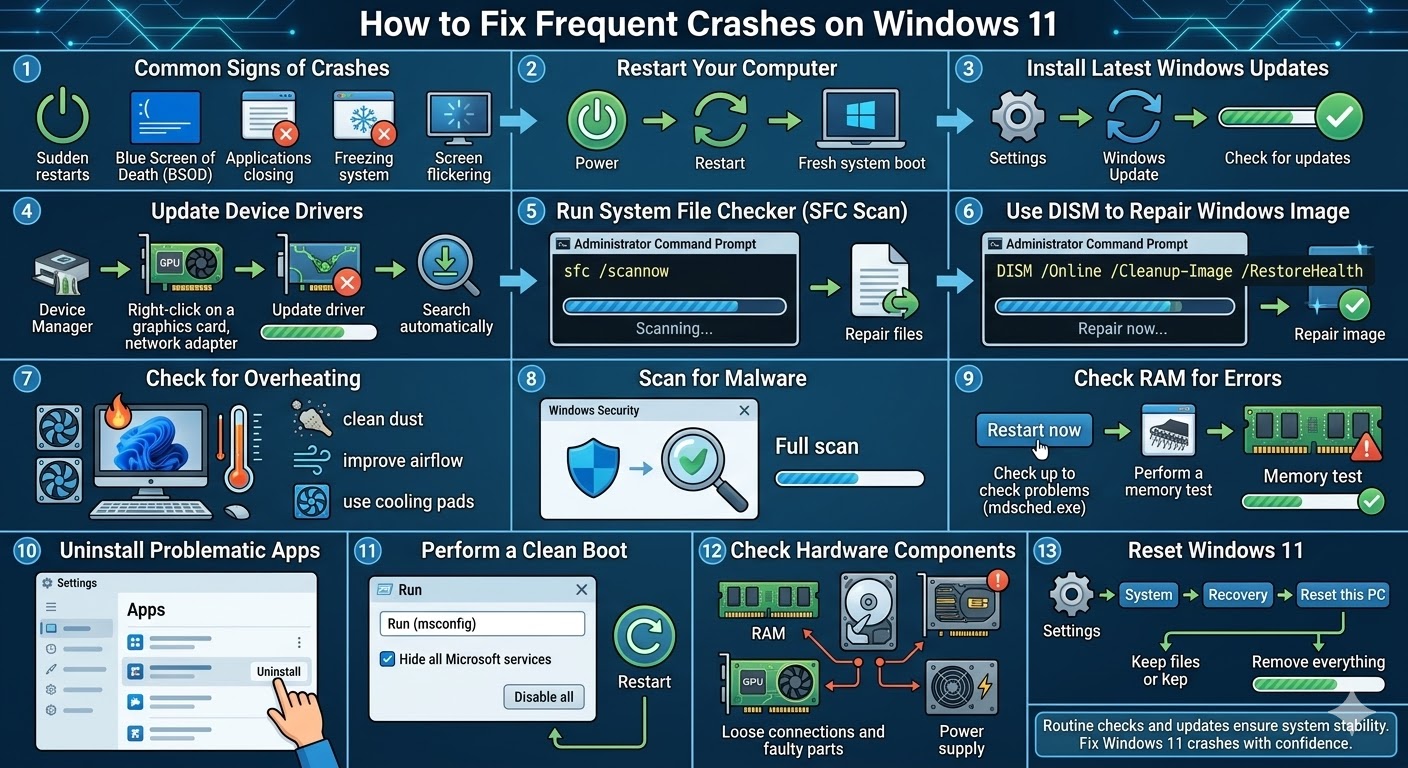
How to Fix Frequent Crashes on Windows 11
Windows 11 offers a modern interface, improved performance, and enhanced security features compared to previous versions of Windows. However, like any operating system, it is not completely free from problems. Some users experience a frustrating issue where Windows 11 keeps crashing unexpectedly. The system may freeze, restart suddenly, display a blue screen, or close applications without warning.
Frequent crashes can interrupt your work, affect productivity, and even risk data loss. These crashes may occur due to various reasons, including outdated drivers, corrupted system files, hardware issues, or software conflicts.
Fortunately, there are several troubleshooting methods that can help you identify the cause and restore system stability. This guide explains why Windows 11 keeps crashing and how you can fix the problem effectively.
Common Signs That Windows 11 Is Crashing
Before troubleshooting the issue, it is helpful to recognize the symptoms of system crashes.
Common signs include:
-
Sudden system restarts
-
Blue Screen of Death (BSOD) errors
-
Applications closing unexpectedly
-
System freezing or becoming unresponsive
-
Screen flickering or display glitches
-
Slow performance followed by a crash
If you experience these problems frequently, it is important to investigate the cause.
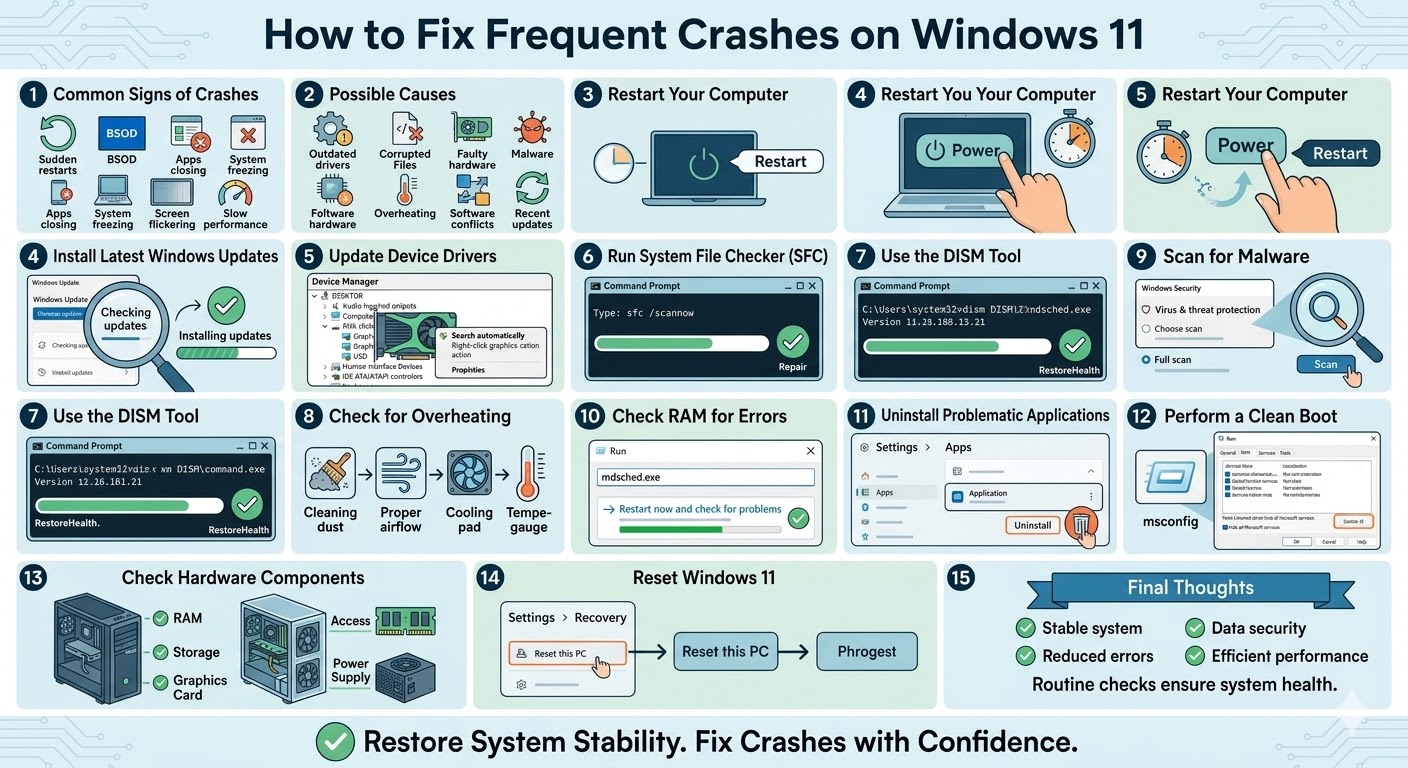
Possible Causes of Windows 11 Crashes
System crashes can occur for several reasons. Understanding these causes can help you choose the correct solution.
Some common causes include:
-
Outdated or incompatible device drivers
-
Corrupted Windows system files
-
Faulty hardware components
-
Malware or harmful software
-
Overheating components
-
Conflicting background applications
-
Problems with recent Windows updates
Identifying the underlying issue is key to fixing the problem.
Restart Your Computer
Although it may seem simple, restarting your computer can resolve many temporary system problems. Background processes, memory leaks, or temporary glitches can sometimes cause crashes.
To restart your system:
-
Click the Start Menu.
-
Select the Power icon.
-
Click Restart.
After restarting, monitor the system to see whether crashes continue.
Install the Latest Windows Updates
Microsoft regularly releases updates that fix bugs, improve compatibility, and enhance system stability. If your system is outdated, installing updates may resolve crash-related issues.
To check for updates:
-
Press Windows + I to open Settings.
-
Click Windows Update.
-
Select Check for updates.
-
Install any available updates.
After installing updates, restart your computer.
Update Device Drivers
Outdated or incompatible drivers are one of the most common causes of Windows crashes.
Drivers allow Windows to communicate with hardware devices such as graphics cards, network adapters, and storage drives. If drivers become corrupted or outdated, system instability may occur.
To update drivers:
-
Right-click the Start Menu.
-
Select Device Manager.
-
Expand the hardware category you want to update.
-
Right-click the device and select Update driver.
-
Choose Search automatically for drivers.
Updating graphics drivers is especially important because display drivers often cause crashes.
Run System File Checker (SFC)
Corrupted or missing system files can cause Windows 11 to crash repeatedly.
The System File Checker (SFC) tool scans the system for damaged files and repairs them automatically.
To run SFC:
-
Type cmd in the Windows search bar.
-
Right-click Command Prompt and select Run as administrator.
-
Enter the following command:
sfc /scannow
-
Press Enter.
The scan may take several minutes to complete. After the process finishes, restart your computer.
Use the DISM Tool
If the SFC scan cannot repair all system files, you can use the DISM (Deployment Image Servicing and Management) tool to repair the Windows system image.
To run DISM:
-
Open Command Prompt as administrator.
-
Enter the following command:
DISM /Online /Cleanup-Image /RestoreHealth
-
Press Enter.
Once the repair process is complete, restart your computer.
Check for Overheating
Overheating hardware components can cause sudden system crashes. If your computer becomes too hot, Windows may shut down or restart to prevent damage.
Signs of overheating include:
-
Loud fan noise
-
Extremely hot laptop surfaces
-
Sudden shutdowns during heavy tasks
To reduce overheating:
-
Clean dust from air vents and fans
-
Ensure proper airflow around the computer
-
Avoid using the device on soft surfaces like beds or couches
-
Consider using a cooling pad for laptops
Maintaining proper cooling helps improve system stability.
Scan for Malware
Malicious software can damage system files, consume resources, and cause crashes.
Running a full system scan can help detect and remove threats.
To scan your system:
-
Open Windows Security.
-
Click Virus & threat protection.
-
Select Scan options.
-
Choose Full scan.
-
Click Scan now.
Removing harmful software can significantly improve system performance and stability.
Check RAM for Errors
Faulty memory can cause frequent system crashes and blue screen errors.
You can test your RAM using Windows Memory Diagnostic.
To run the memory test:
-
Press Windows + R.
-
Type mdsched.exe and press Enter.
-
Select Restart now and check for problems.
Your computer will restart and perform a memory test automatically.
If memory errors are detected, replacing the faulty RAM may be necessary.
Uninstall Problematic Applications
Sometimes newly installed programs may conflict with Windows or other software.
If crashes started after installing a specific program, uninstalling it may fix the problem.
To uninstall an application:
-
Open Settings.
-
Click Apps.
-
Select Installed apps.
-
Find the program you want to remove.
-
Click Uninstall.
Restart your computer after removing the application.
Perform a Clean Boot
A clean boot allows Windows to start with only essential services and drivers. This can help identify whether background software is causing the crashes.
To perform a clean boot:
-
Press Windows + R.
-
Type msconfig and press Enter.
-
Go to the Services tab.
-
Check Hide all Microsoft services.
-
Click Disable all.
-
Restart your computer.
If the crashes stop, one of the disabled services may be causing the problem.
Check Hardware Components
If software solutions do not fix the issue, hardware problems may be responsible.
Check the following components:
-
RAM modules
-
Storage drives
-
Graphics card
-
Power supply
Loose connections or failing hardware can lead to frequent system crashes.
Reset Windows 11
If the crashes continue after trying all other methods, resetting Windows may be the best solution.
Resetting Windows reinstalls the operating system and removes problematic files or settings.
To reset Windows:
-
Open Settings.
-
Go to System.
-
Click Recovery.
-
Select Reset this PC.
-
Choose whether to keep your files or remove everything.
Follow the instructions to complete the reset process.
Final Thoughts
Frequent crashes in Windows 11 can be caused by many factors, including outdated drivers, corrupted system files, overheating hardware, or software conflicts. While these problems can be frustrating, most of them can be resolved through systematic troubleshooting.
Related articles
Fixing the “Kernel Security Check Failure” Error on Windows 10
How to Fix Wi-Fi Disconnecting Issues on Windows 10
How to Resolve the “Windows Needs Your Current Credentials” Message on Windows