


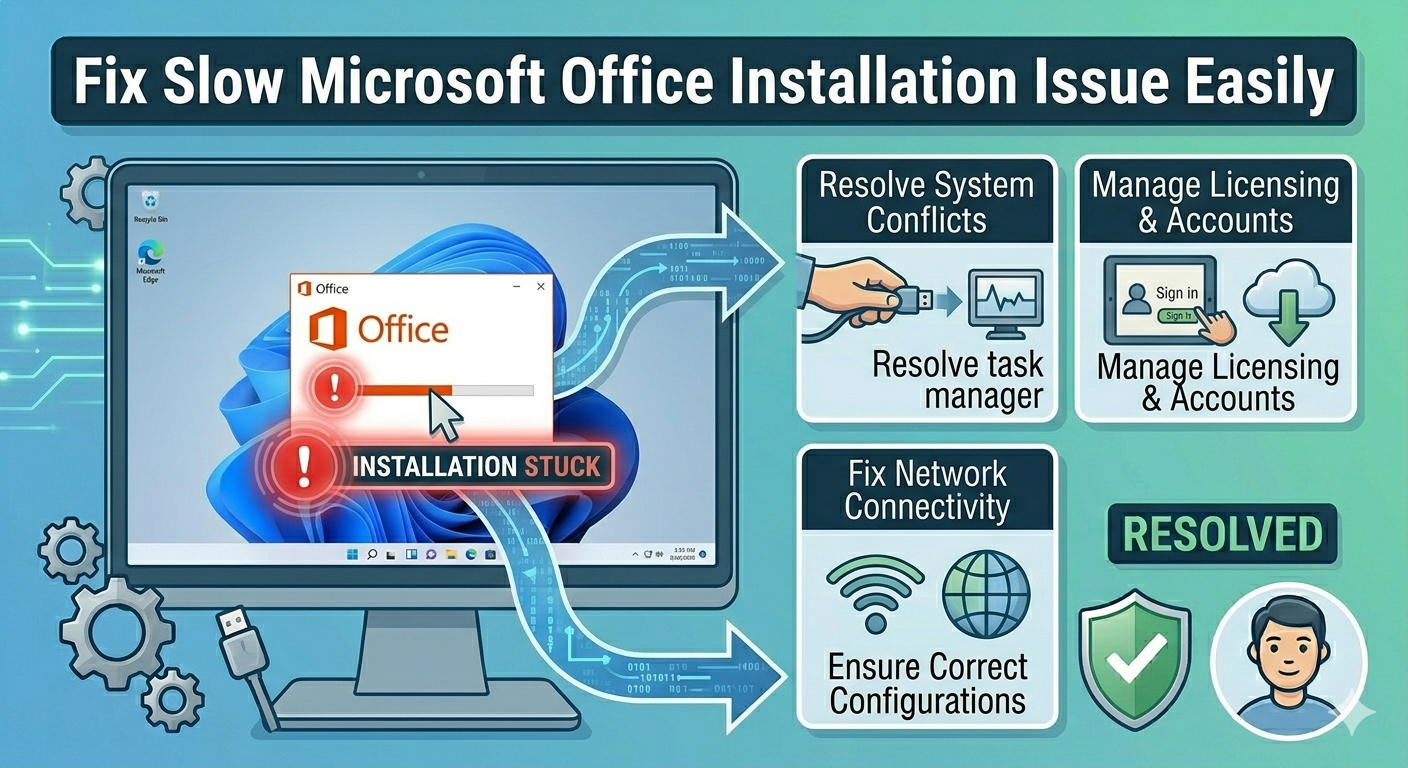
Fix Slow Microsoft Office Installation Issue Easily
Installing Microsoft Office should typically take only a few minutes, but in some cases, users find that the installation process takes an unusually long time or seems stuck. This issue can be frustrating, especially when you need to use Office applications urgently.
The problem of Microsoft Office taking too long to install is often caused by slow internet connections, system conflicts, background processes, or corrupted installation files. Whether you’re installing Office 365, Office 2019, or Office 2016, the solutions are generally the same.
In this guide, you will learn the most common causes and effective methods to fix slow or stuck Office installation on Windows systems.
Why Office Installation Takes Too Long
Before fixing the issue, it’s helpful to understand the possible reasons behind it.
Common causes include:
- Slow or unstable internet connection
- Background applications consuming resources
- Conflicts with previous Office installations
- Antivirus or firewall interference
- Corrupted installation files
- Insufficient system resources
- Windows update issues
Identifying the root cause will help you apply the right solution.
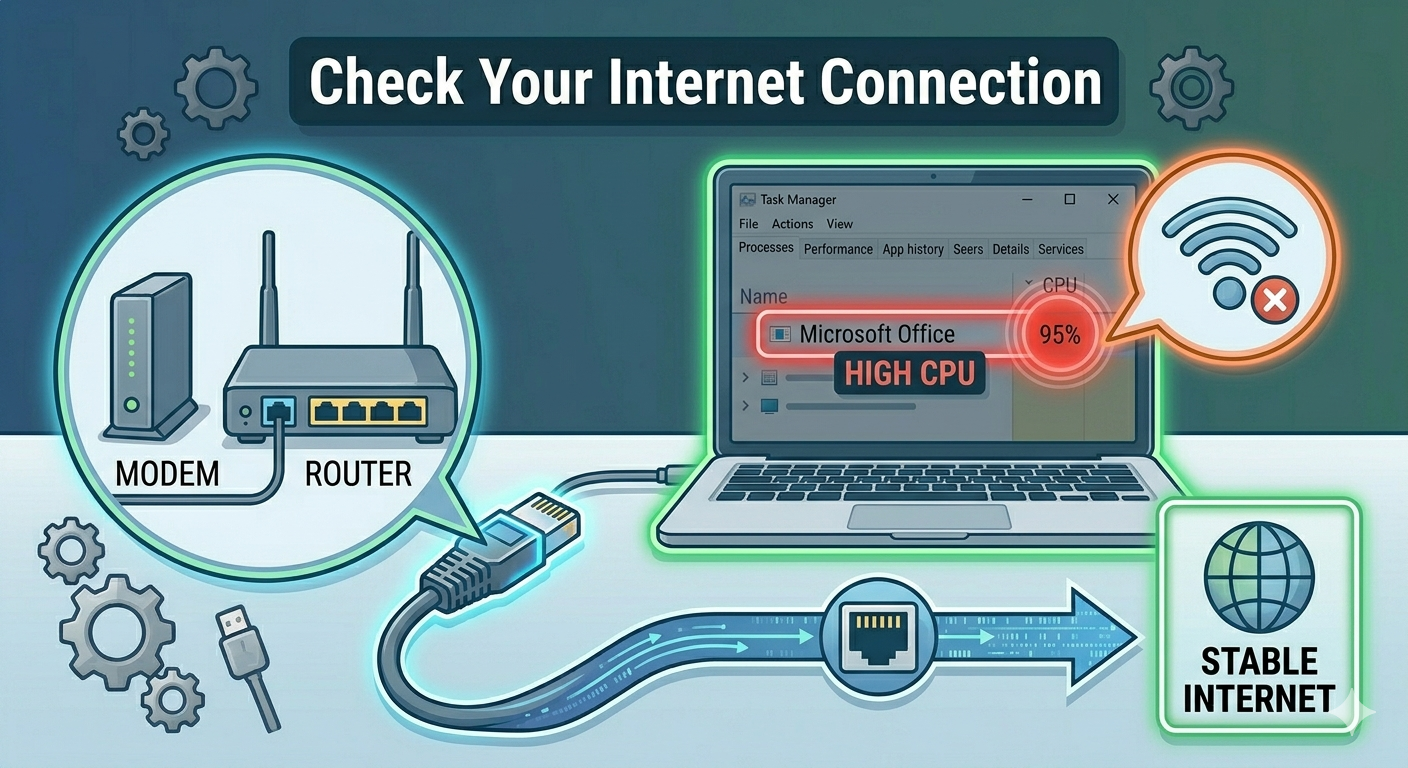
Check Your Internet Connection
Microsoft Office installation—especially for Office 365—relies heavily on internet speed.
To improve connection:
- Use a wired Ethernet connection instead of Wi-Fi
- Restart your router or modem
- Avoid downloading large files during installation
A stable and fast connection can significantly reduce installation time.
Restart Your Computer
Temporary system glitches can slow down installation.
To restart:
- Click the Start Menu.
- Select Power.
- Click Restart.
After rebooting, try installing Office again.
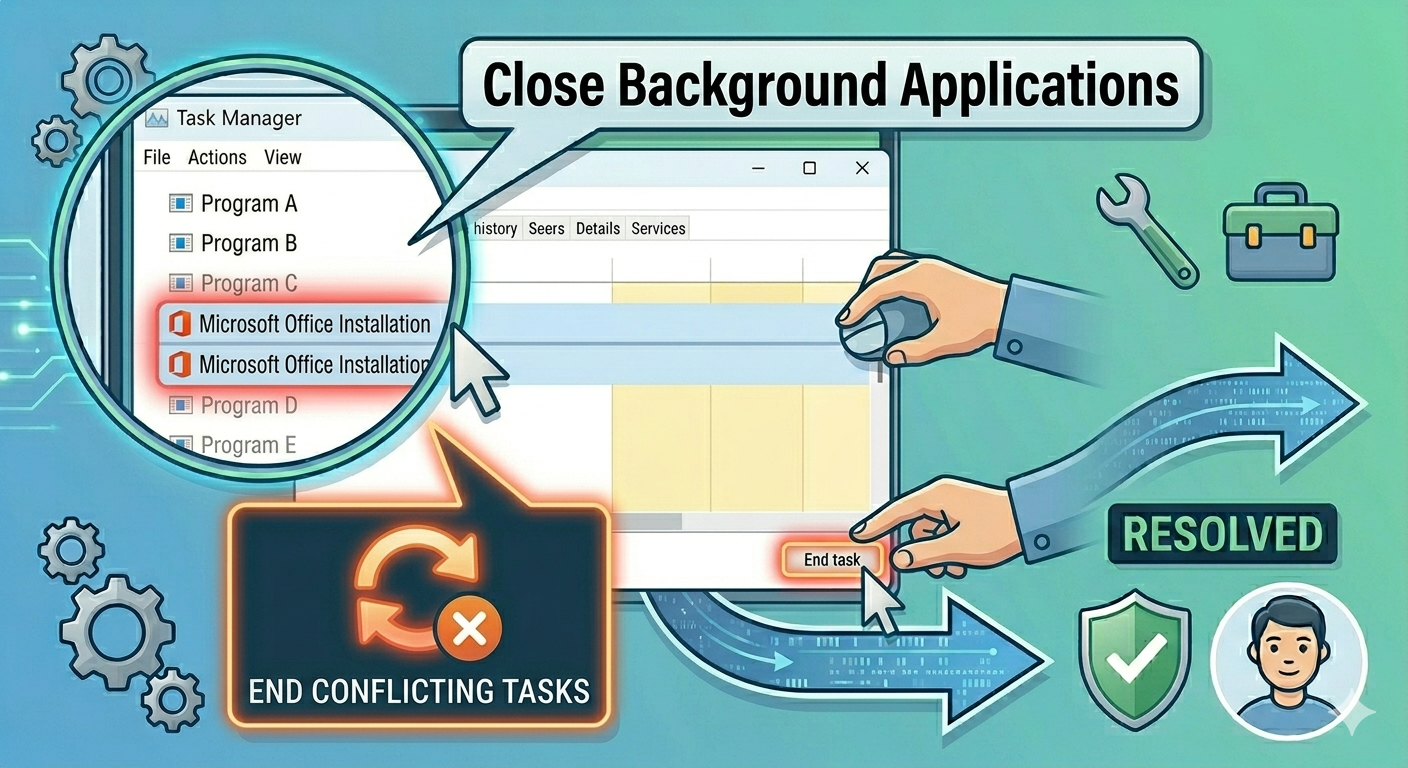
Close Background Applications
Too many running applications can slow down your system.
To close them:
- Press Ctrl + Shift + Esc to open Task Manager.
- End unnecessary tasks.
- Focus on freeing CPU and memory resources.
This helps speed up the installation process.
Disable Antivirus and Firewall
Security software can interfere with Office installation.
To fix this:
- Temporarily disable antivirus programs
- Turn off Windows Firewall
- Run the Office installer
After installation, re-enable your security software.
Use the Offline Installer
Online installation depends on internet speed and can be slow.
Using the offline installer:
- Downloads all files beforehand
- Avoids interruptions
- Provides faster and more stable installation
You can download the offline installer from Microsoft’s official website.
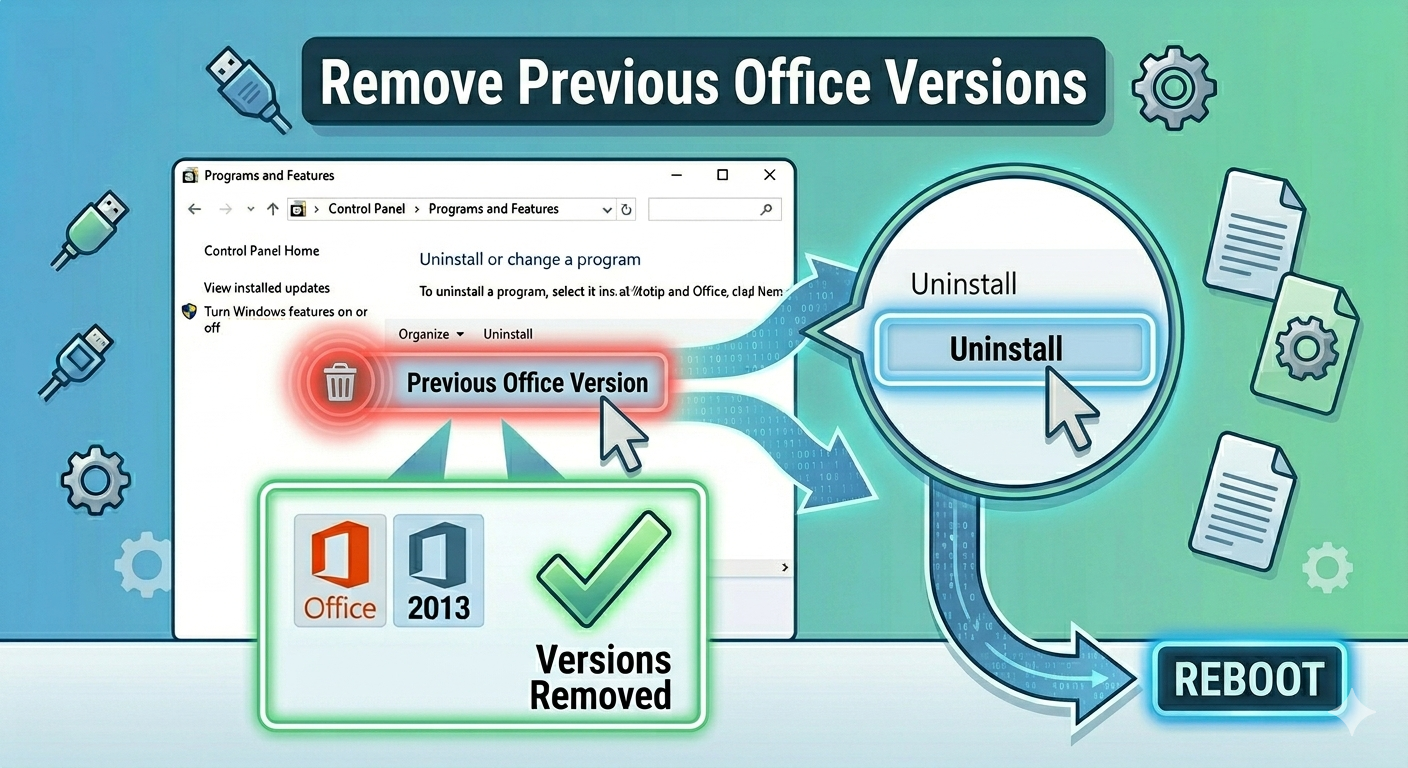
Remove Previous Office Versions
Leftover files from older Office versions can slow down installation.
To remove them:
- Open Control Panel.
- Go to Programs and Features.
- Uninstall all Microsoft Office versions.
For a complete cleanup, use Microsoft’s Office Removal Tool.
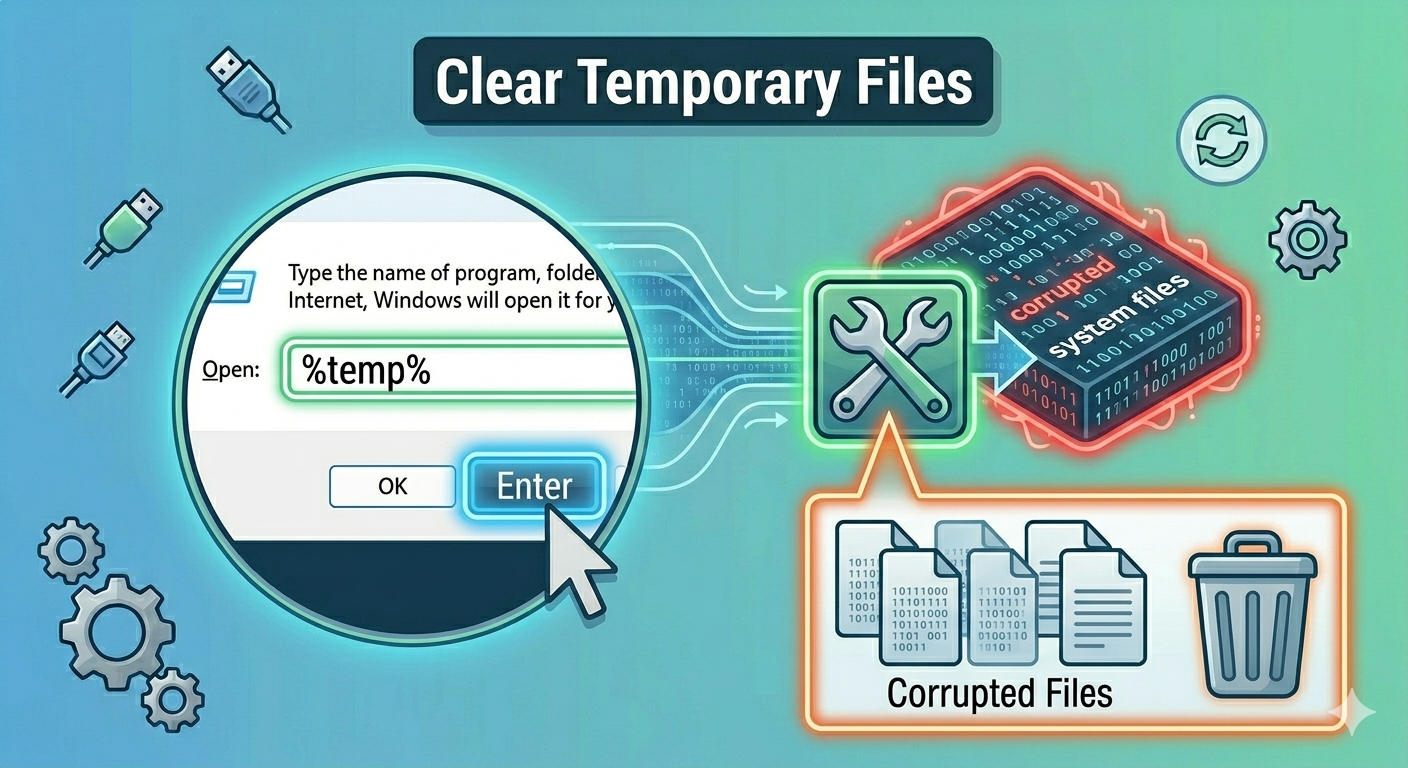
Clear Temporary Files
Temporary files can interfere with installation.
To clear them:
- Press Windows + R.
- Type %temp% and press Enter.
- Delete all files in the folder.
This removes unnecessary data that may slow down the process.
Run the Installer as Administrator
Lack of permissions can delay installation.
To run as administrator:
- Right-click the Office installer.
- Select Run as administrator.
This ensures the installer has full access to system resources.
Check Disk Space
Insufficient disk space can slow or halt installation.
Make sure you have:
- Enough free storage (at least several GB)
- Space for temporary installation files
Free up space if necessary before retrying.
Update Windows
Outdated Windows systems may cause compatibility issues.
To update Windows:
- Press Windows + I.
- Go to Windows Update.
- Click Check for updates.
- Install available updates.
Restart your system after updating.
Disable Background Services (Clean Boot)
Some services may interfere with installation.
To perform a clean boot:
- Press Windows + R.
- Type msconfig.
- Go to the Services tab.
- Check Hide all Microsoft services.
- Click Disable all.
- Restart your computer.
Then try installing Office again.
Use Microsoft Support and Recovery Assistant
Microsoft provides a tool to fix installation problems.
To use it:
- Download the Support and Recovery Assistant (SaRA).
- Run the tool.
- Select Office installation issues.
- Follow the instructions.
This tool can automatically detect and resolve issues.
Repair System Files
Corrupted system files can slow down or block installation.
Run SFC
- Open Command Prompt as administrator.
- Enter:
sfc /scannow
- Press Enter.
Use DISM
- Enter:
DISM /Online /Cleanup-Image /RestoreHealth
- Press Enter.
Restart your computer after completion.
Check Task Manager for Installation Activity
Sometimes the installer appears stuck but is still running.
To check:
- Open Task Manager.
- Look for Office-related processes.
- Monitor CPU, disk, and network usage.
If activity is ongoing, the installation may still be progressing.
Try Installing in Safe Mode
Safe Mode can eliminate interference from third-party applications.
Steps:
- Restart your computer.
- Boot into Safe Mode with Networking.
- Run the Office installer.
This can help complete installation without interruptions.
Final Thoughts
The issue of Microsoft Office taking too long to install is usually caused by slow internet, system conflicts, or background processes. While it may seem like the installation is stuck, it is often fixable with a few simple steps.
Using the offline installer, removing previous Office versions, clearing temporary files, and ensuring a stable system environment are among the most effective solutions.
Related articles
How to Fix Wi-Fi Disconnecting Issues on Windows 10