


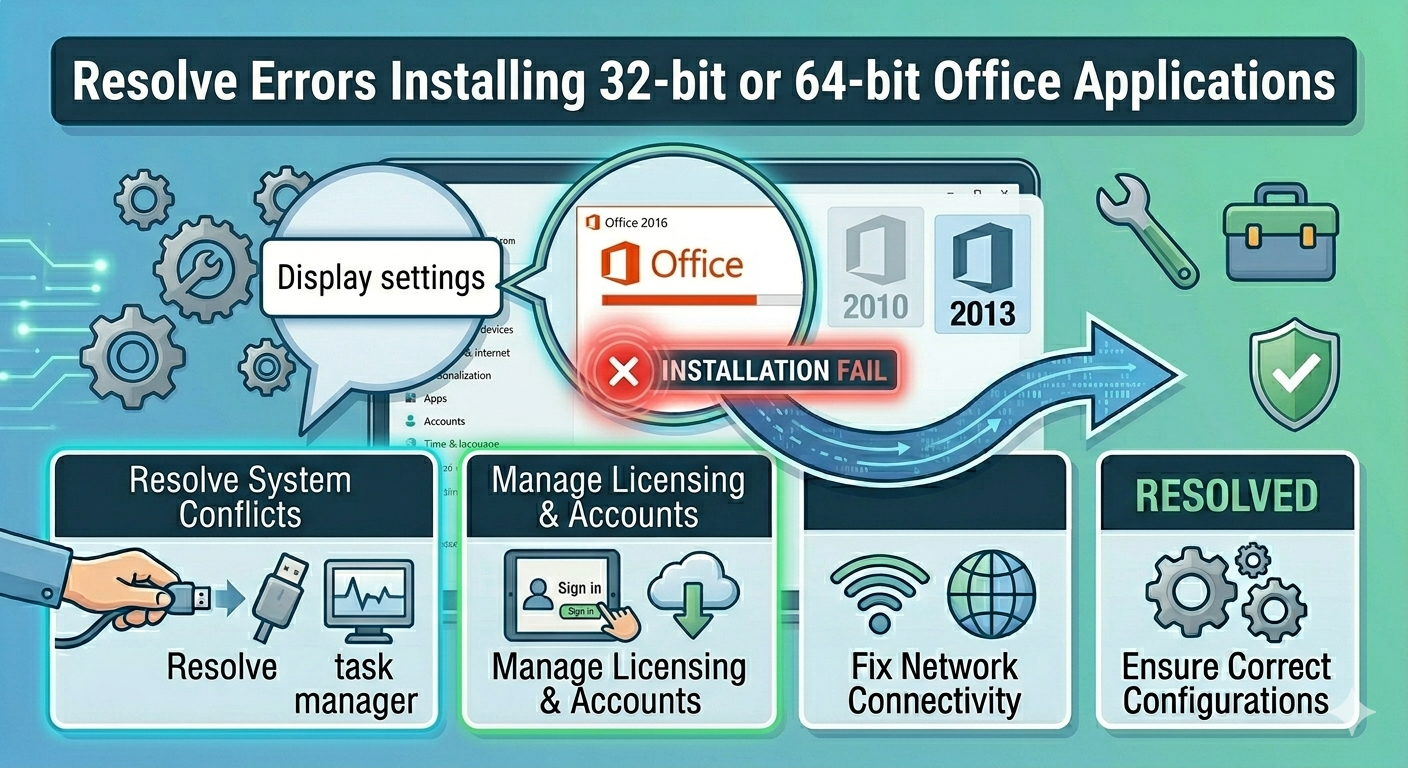
Resolve Errors Installing 32-bit or 64-bit Office Applications
Installing Microsoft Office should be a straightforward process, but many users encounter errors when trying to install either the 32-bit or 64-bit version of Office applications. These errors can prevent installation entirely or cause it to fail midway, leaving your system without a working Office suite.
This issue is commonly seen when there is a conflict between existing Office components and the version you are trying to install. It can also occur due to leftover files, incompatible system settings, or incorrect installation methods.
In this guide, you will learn the causes and effective solutions to fix the error trying to install 32-bit or 64-bit Office applications on Windows systems.
Why This Error Happens
Before applying fixes, it is important to understand why this problem occurs.
Common causes include:
- Conflict between 32-bit and 64-bit Office versions
- Existing Office installation not fully removed
- Corrupted installation files
- Registry conflicts
- Insufficient system permissions
- Click-to-Run and MSI installation conflicts
Understanding these causes will help you troubleshoot more efficiently.
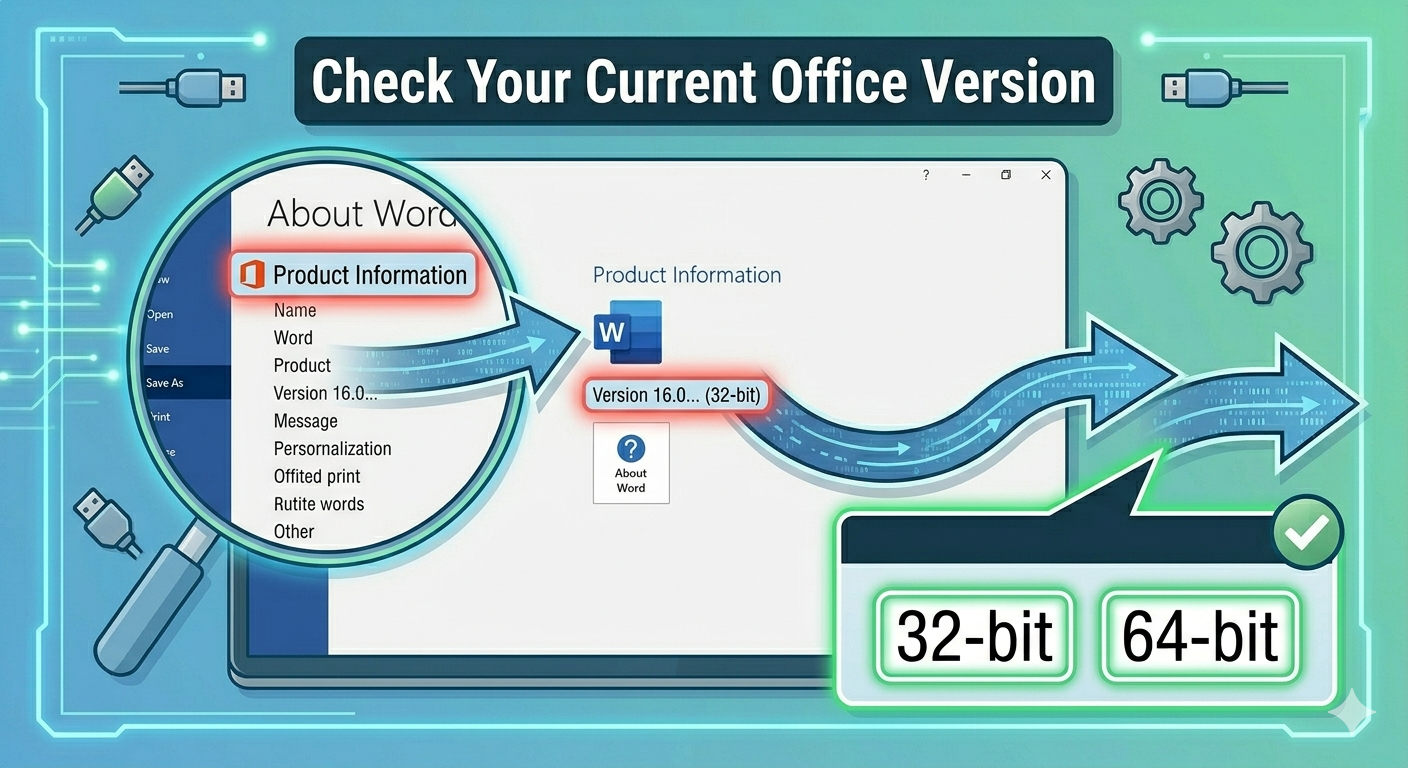
Check Your Current Office Version
The most common reason for this error is trying to install a version that conflicts with an existing one.
To check your Office version:
- Open any Office application (if available).
- Click File > Account.
- Check whether it is 32-bit or 64-bit.
If a different version is already installed, you must remove it before installing another.
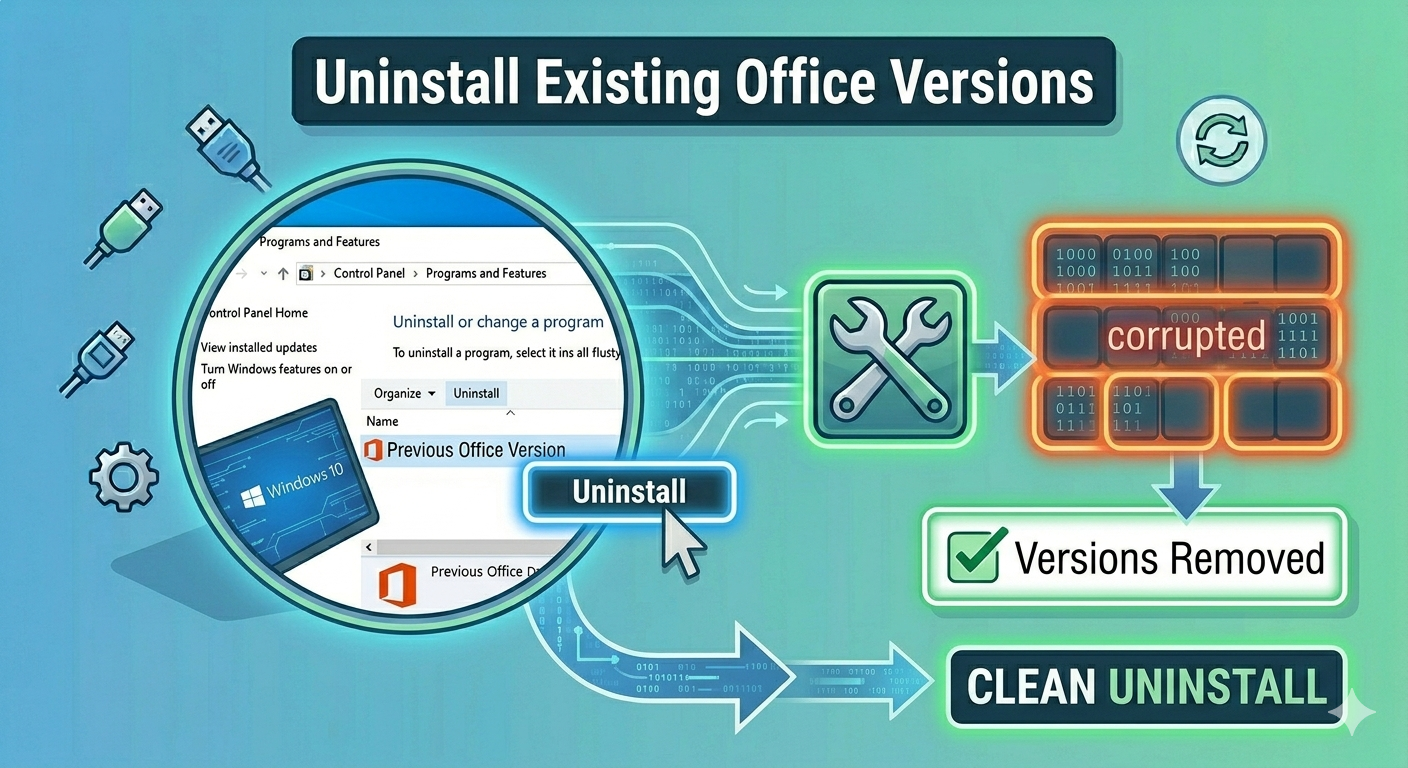
Uninstall Existing Office Versions
To avoid conflicts, completely remove all existing Office installations.
Steps:
- Open Control Panel.
- Go to Programs and Features.
- Locate Microsoft Office.
- Click Uninstall.
- Follow the instructions.
For best results, use Microsoft’s Office Removal Tool to remove all leftover components.
Use Microsoft Support and Recovery Assistant
Microsoft provides a tool that can automatically fix installation issues.
To use it:
- Download the Microsoft Support and Recovery Assistant (SaRA).
- Run the tool.
- Select Office installation issues.
- Follow the on-screen instructions.
This tool can detect and resolve conflicts quickly.
Install the Correct Version
Choose the correct version of Office based on your needs.
When to Use 32-bit Office
- Compatibility with older add-ins
- Legacy applications
- Systems with limited resources
When to Use 64-bit Office
- Working with large files
- Advanced data processing
- Modern systems with more RAM
Always ensure you install only one version.
Run the Installer as Administrator
Lack of permissions can cause installation errors.
To run as administrator:
- Right-click the Office installer.
- Select Run as administrator.
This ensures the installer has full system access.
Disable Antivirus and Firewall
Security software may block Office installation files.
To fix this:
- Temporarily disable antivirus
- Turn off firewall
- Install Office
- Re-enable protection afterward
Make sure to restore security settings once installation is complete.
Clear Temporary Files
Temporary files can interfere with installation.
To clear them:
- Press Windows + R.
- Type %temp% and press Enter.
- Delete all files in the folder.
This helps remove corrupted or leftover data.
Use Offline Installer
If online installation fails, use the offline installer.
Benefits include:
- More stable installation
- No dependency on internet speed
- Reduced chance of file corruption
Download the offline installer from Microsoft’s official website.
Check System Compatibility
Ensure your system meets Office requirements.
Check for:
- Supported Windows version
- Sufficient disk space
- Updated system components
Installing Office on unsupported systems can lead to errors.
Fix Click-to-Run Conflicts
Office installations may fail due to conflicts between Click-to-Run and MSI-based installations.
To fix this:
- Remove existing Office installations
- Ensure only one installation method is used
- Reinstall Office using the correct installer
Consistency is key to avoiding conflicts.
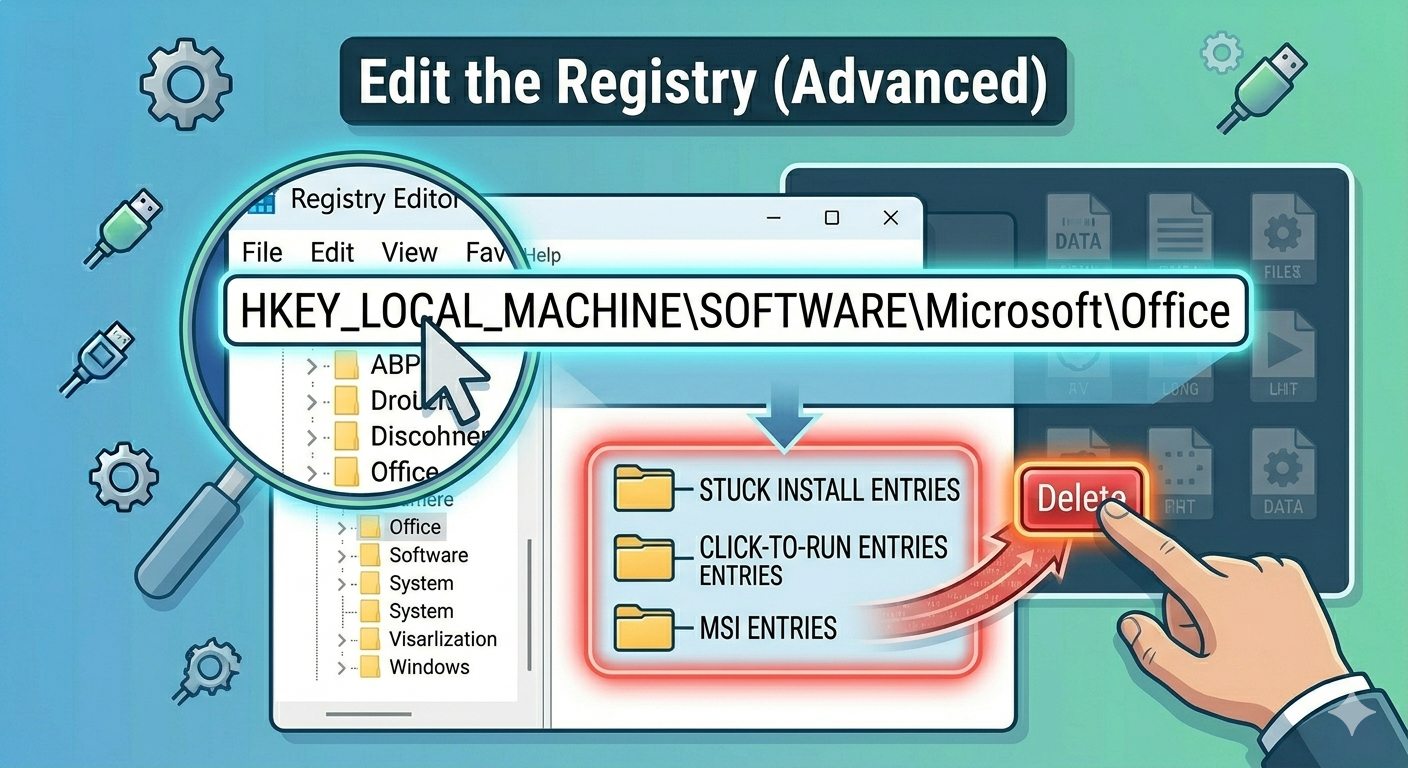
Edit the Registry (Advanced)
Registry conflicts can prevent installation.
Steps:
- Press Windows + R.
- Type regedit and press Enter.
- Navigate to:
HKEY_LOCAL_MACHINE\SOFTWARE\Microsoft\Office
- Delete leftover Office entries (if present).
Be cautious when editing the registry and back it up beforehand.
Update Windows
Outdated Windows versions may cause compatibility issues.
To update:
- Press Windows + I.
- Go to Windows Update.
- Click Check for updates.
- Install available updates.
Restart your system after updating.
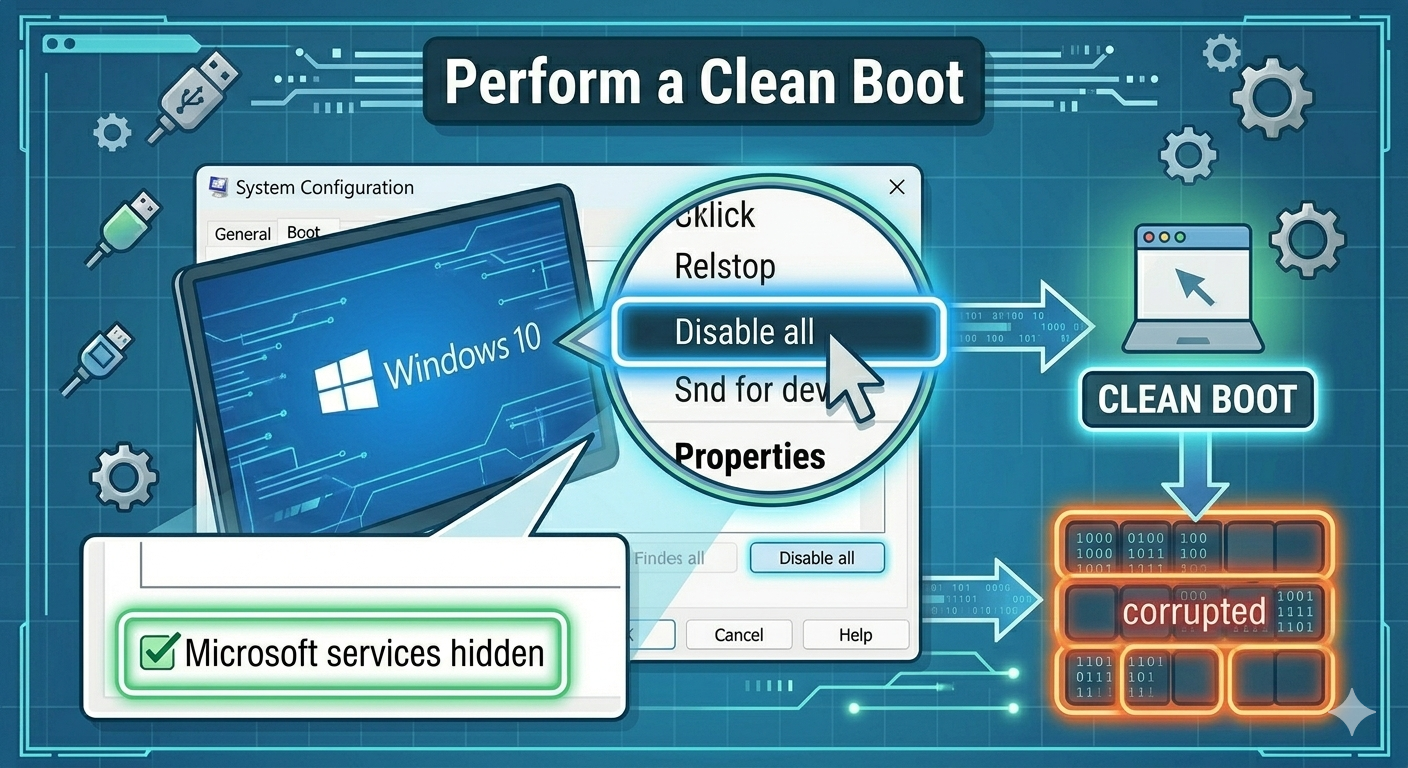
Perform a Clean Boot
Background services can interfere with installation.
To perform a clean boot:
- Press Windows + R.
- Type msconfig.
- Go to the Services tab.
- Check Hide all Microsoft services.
- Click Disable all.
- Restart your computer.
Then attempt installation again.
Repair System Files
Corrupted system files can cause installation failures.
Run SFC
- Open Command Prompt as administrator.
- Enter:
sfc /scannow
- Press Enter.
Use DISM
- Enter:
DISM /Online /Cleanup-Image /RestoreHealth
- Press Enter.
Restart your system afterward.
Check Disk Space
Insufficient storage can interrupt installation.
Ensure you have:
- Enough free disk space
- Space for temporary installation files
Free up storage if necessary.
Final Thoughts
The error trying to install 32-bit or 64-bit Office applications is usually caused by version conflicts, leftover files, or system configuration issues. While it may seem complicated, most users can resolve it with proper troubleshooting.
Removing existing Office versions, using the correct installer, and ensuring system compatibility are the most effective solutions. Tools like the Microsoft Support and Recovery Assistant can also simplify the process.
Related articles
Fixing the “Kernel Security Check Failure” Error on Windows 10