


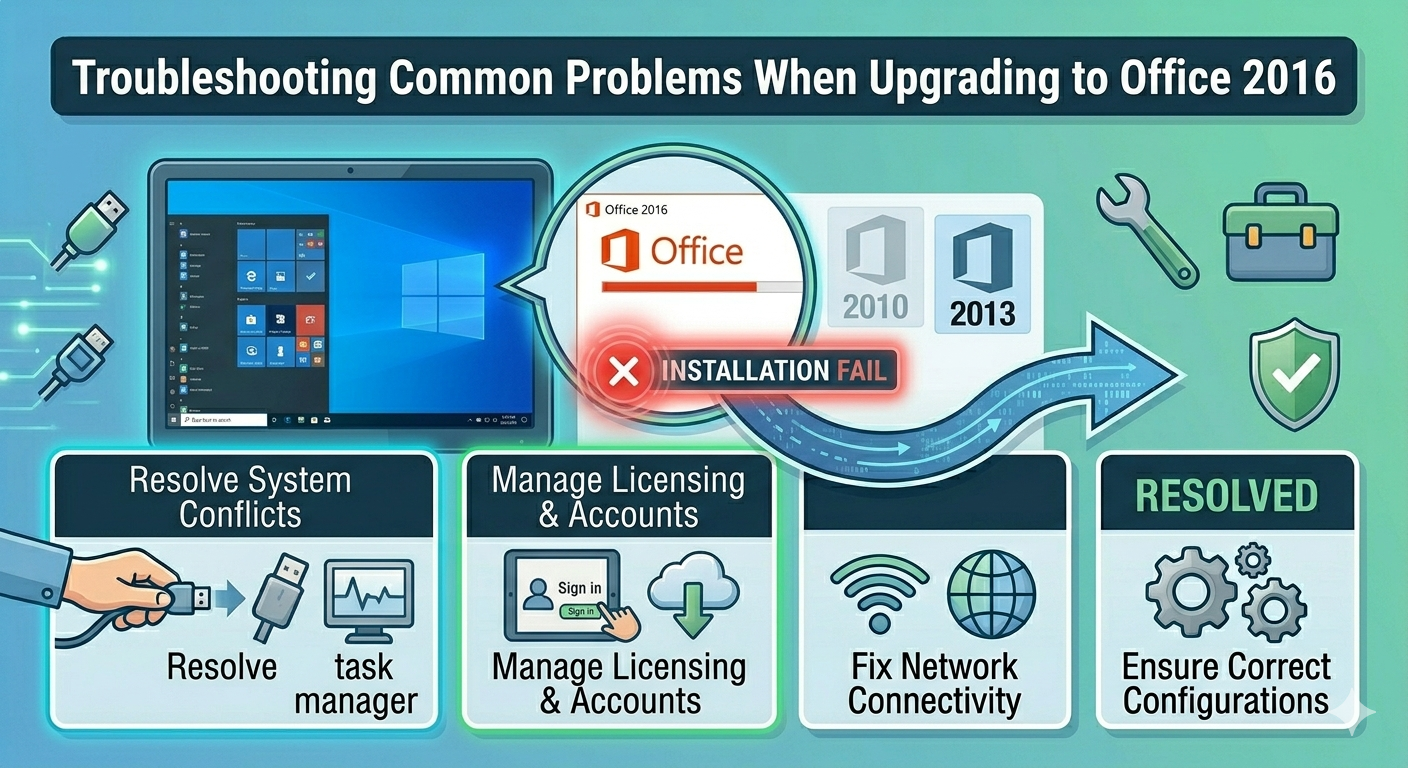
Troubleshooting Common Problems When Upgrading to Office 2016
Upgrading to Microsoft Office 2016 can bring improved performance, enhanced features, and better compatibility with modern systems. However, many users encounter various errors during the upgrade process, which can interrupt installation and prevent successful deployment.
These issues can arise due to system conflicts, outdated components, licensing problems, or leftover files from previous Office versions. Whether you’re upgrading from Office 2010, 2013, or an older version, understanding these errors and how to fix them is essential.
In this guide, we will explore the most common errors when upgrading to Office 2016 and provide effective solutions to help you complete the upgrade smoothly.
Why Upgrade Errors Occur
Before addressing specific errors, it is helpful to understand the main reasons why Office upgrades fail.
Common causes include:
- Conflicts with older Office installations
- Corrupted installation files
- Insufficient system permissions
- Incompatible system configurations
- Network interruptions during download
- Antivirus or firewall interference
Identifying the cause can make troubleshooting easier.
Error 30015-6 (Installation Failed)
What It Means
Error 30015-6 typically occurs when the Office installer cannot complete the upgrade due to corrupted files or conflicts with existing installations.
How To Fix It
- Restart your computer and try again
- Run the installer as administrator
- Temporarily disable antivirus software
- Use Microsoft’s Office Removal Tool to uninstall previous versions
A clean installation environment is key to resolving this error.
Error 0-1018 (Another Installation in Progress)
What It Means
This error appears when another Office installation or update is already running.
How To Fix It
- Press Ctrl + Shift + Esc to open Task Manager.
- End all Office-related processes.
- Restart your computer.
- Retry the upgrade process.
Ensuring no background installations are running will resolve the issue.
Error 30125-1011 (Corrupted Installation Files)
What It Means
This error indicates that the installation files are damaged or incomplete.
How To Fix It
- Delete the existing installer
- Download a fresh copy from the official Microsoft website
- Ensure a stable internet connection during download
Reinstalling with clean files usually fixes this problem.
Error 0-1005 (Network or Permission Issue)
What It Means
Error 0-1005 often occurs due to network restrictions or insufficient permissions.
How To Fix It
- Check your internet connection
- Disable VPN or proxy settings
- Ensure you are logged in as an administrator
- Temporarily disable firewall
This error is common in corporate or restricted networks.
“Something Went Wrong” Error
What It Means
This generic error message can appear for various reasons, including system conflicts or missing components.
How To Fix It
- Restart your computer
- Disable antivirus software
- Run the installer in Safe Mode
- Use the Office Support and Recovery Assistant tool
This tool can automatically detect and fix installation problems.
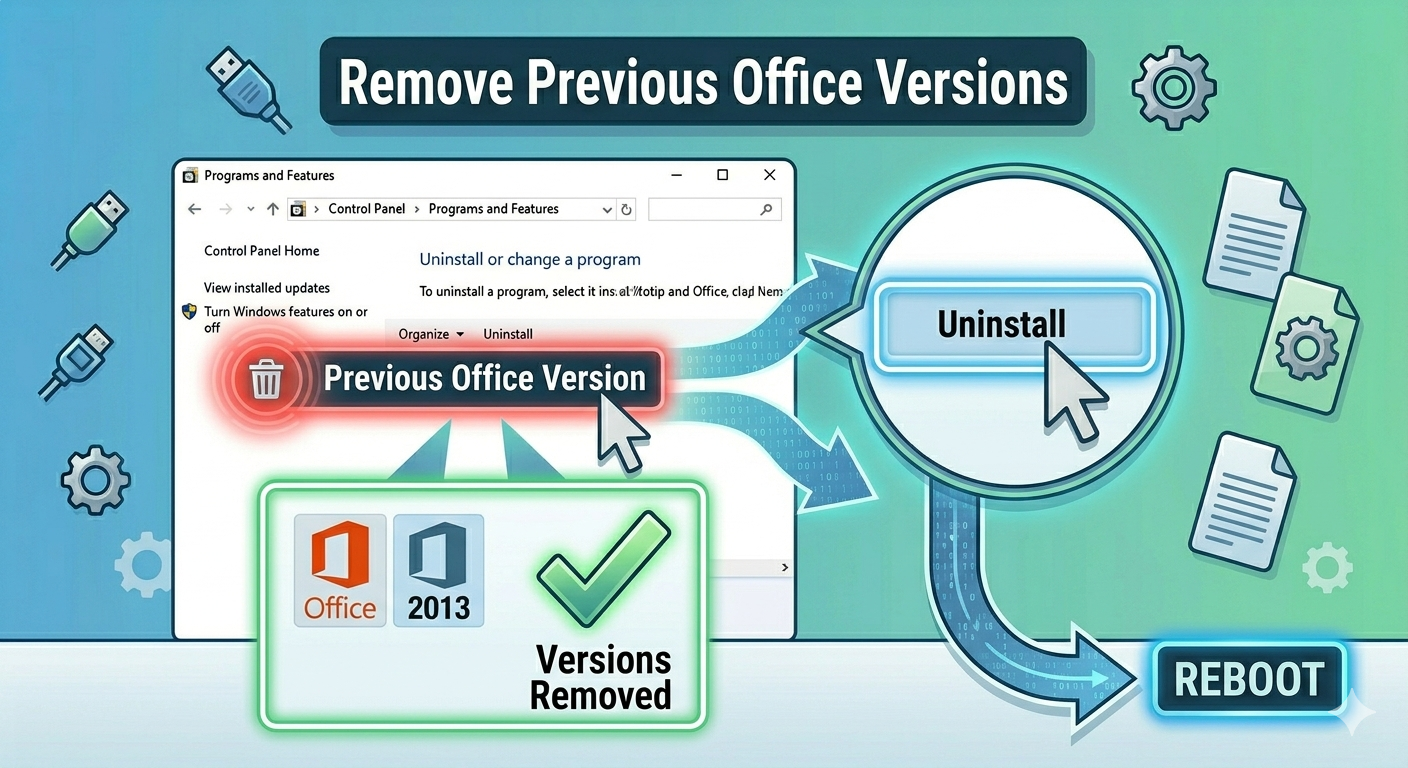
Remove Previous Office Versions
One of the most common causes of upgrade errors is leftover files from older Office versions.
To remove them:
- Open Control Panel.
- Go to Programs and Features.
- Uninstall all existing Office versions.
For a thorough cleanup, use Microsoft’s official removal tool to eliminate residual files.
Check System Requirements
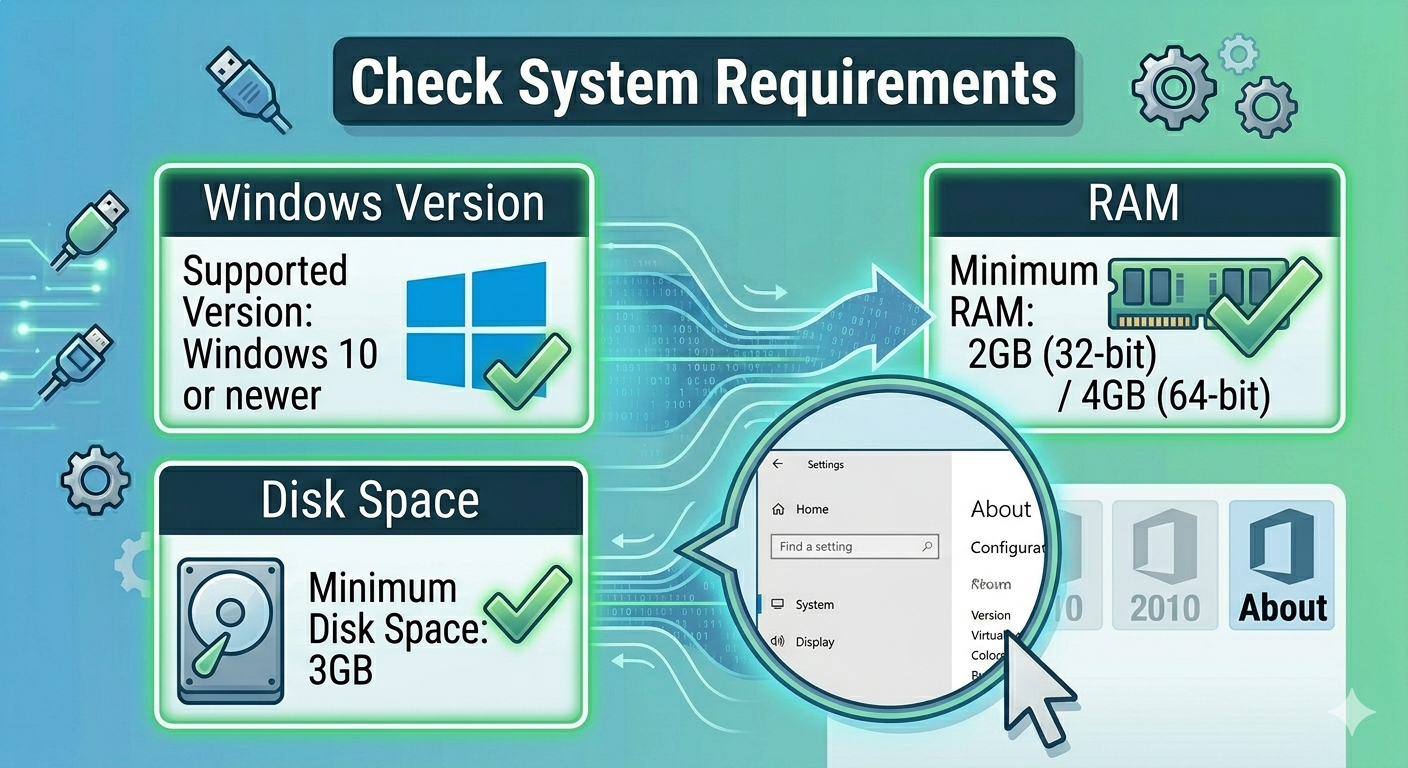
Ensure your system meets the minimum requirements for Office 2016.
Check for:
- Supported Windows version
- Sufficient RAM and disk space
- Updated system components
Installing Office on unsupported systems can lead to errors.
Run Office as Administrator
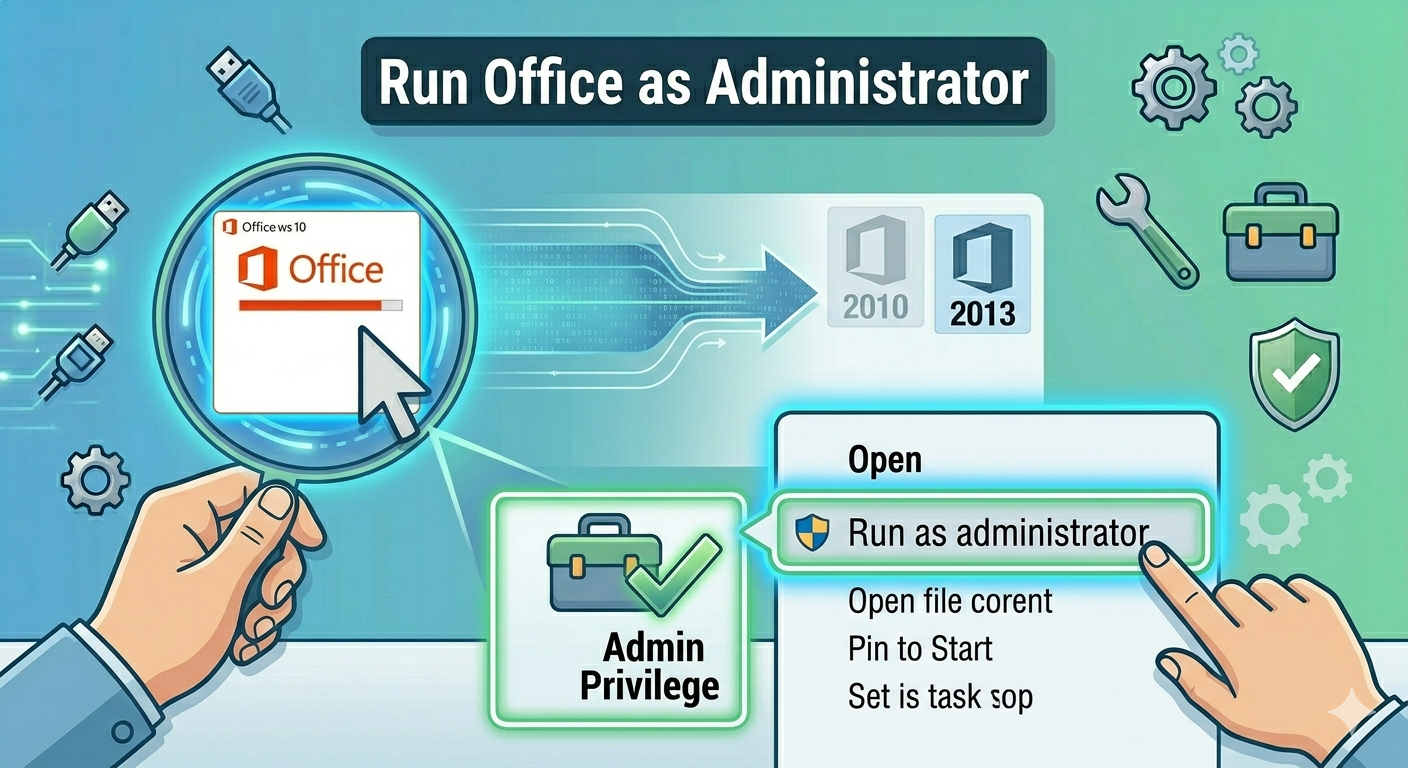
Lack of administrative privileges can prevent the upgrade from completing.
To run as administrator:
- Right-click the Office installer.
- Select Run as administrator.
This ensures the installer has full system access.
Disable Antivirus and Firewall
Security software may block installation files or processes.
To fix this:
- Temporarily disable antivirus
- Turn off firewall
- Install Office
- Re-enable security software afterward
Always ensure your system remains protected after installation.
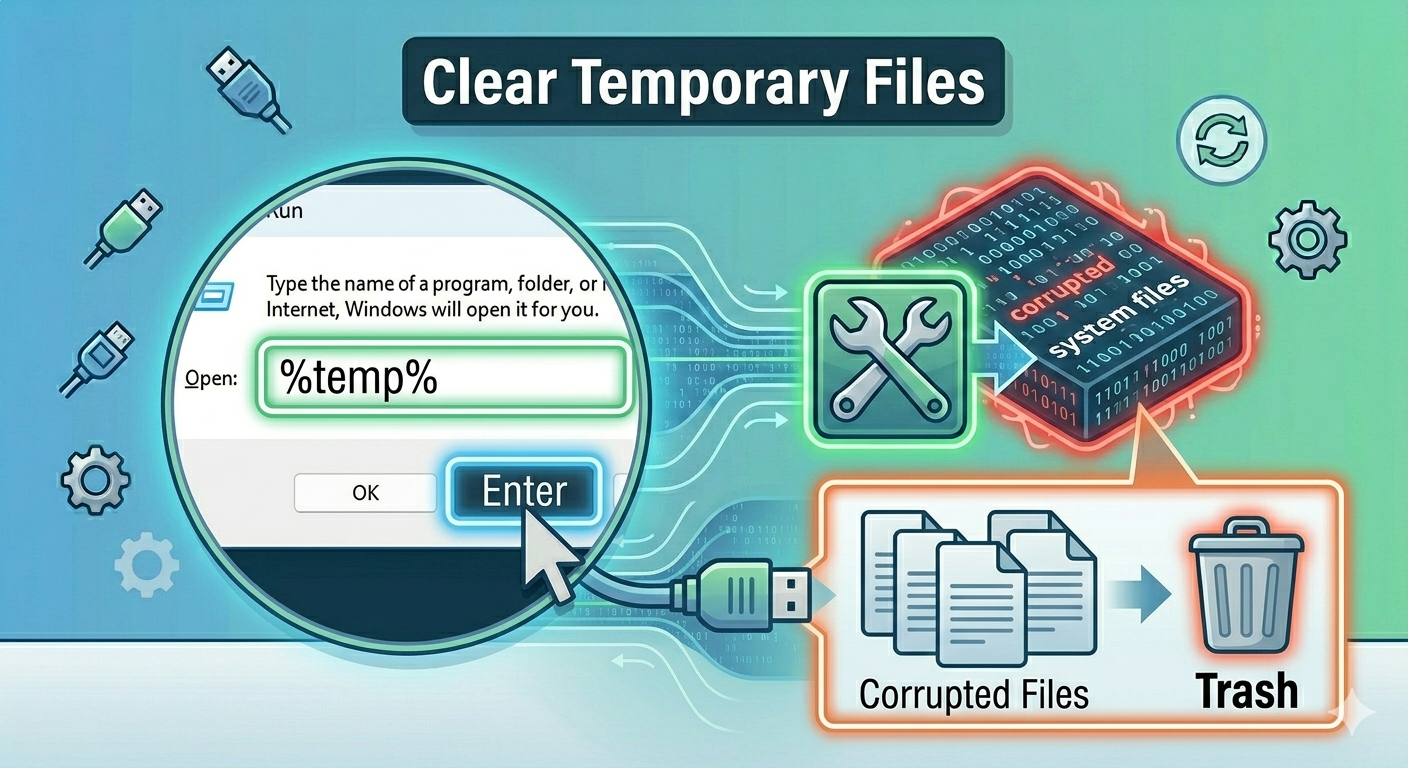
Clear Temporary Files
Temporary files can interfere with the installation process.
To clear them:
- Press Windows + R.
- Type %temp% and press Enter.
- Delete all files in the folder.
This helps remove corrupted or conflicting data.
Update Windows
Outdated Windows systems may not support Office 2016 properly.
To update Windows:
- Press Windows + I.
- Go to Windows Update.
- Click Check for updates.
- Install available updates.
Restart your computer after updating.
Use the Offline Installer
If online installation fails, using the offline installer can help.
Benefits include:
- Avoiding network interruptions
- Faster installation
- More reliable setup
Download the offline installer from Microsoft’s official site.
Perform a Clean Boot
Background services may interfere with the upgrade process.
To perform a clean boot:
- Press Windows + R.
- Type msconfig and press Enter.
- Go to the Services tab.
- Check Hide all Microsoft services.
- Click Disable all.
- Restart your computer.
Then try installing Office again.
Repair System Files
Corrupted system files can cause installation failures.
Run SFC
- Open Command Prompt as administrator.
- Enter:
sfc /scannow
- Press Enter.
Use DISM
- Enter:
DISM /Online /Cleanup-Image /RestoreHealth
- Press Enter.
Restart your system after completion.
Check Disk Space
Insufficient disk space can prevent the upgrade from completing.
Ensure you have:
- At least several gigabytes of free space
- Enough room for temporary installation files
Free up space if necessary before retrying.
Final Thoughts
Upgrading to Office 2016 can sometimes be challenging due to various installation errors. However, most of these issues are caused by common factors such as corrupted files, system conflicts, or network problems.
By removing previous Office versions, ensuring proper system configuration, and using tools like SFC, DISM, and the Office Support Assistant, you can resolve these errors effectively.
Related articles
Fixing the “Kernel Security Check Failure” Error on Windows 10
How to Fix No Internet Connection in Windows 10
Resolve Errors Installing 32-bit or 64-bit Office Applications