


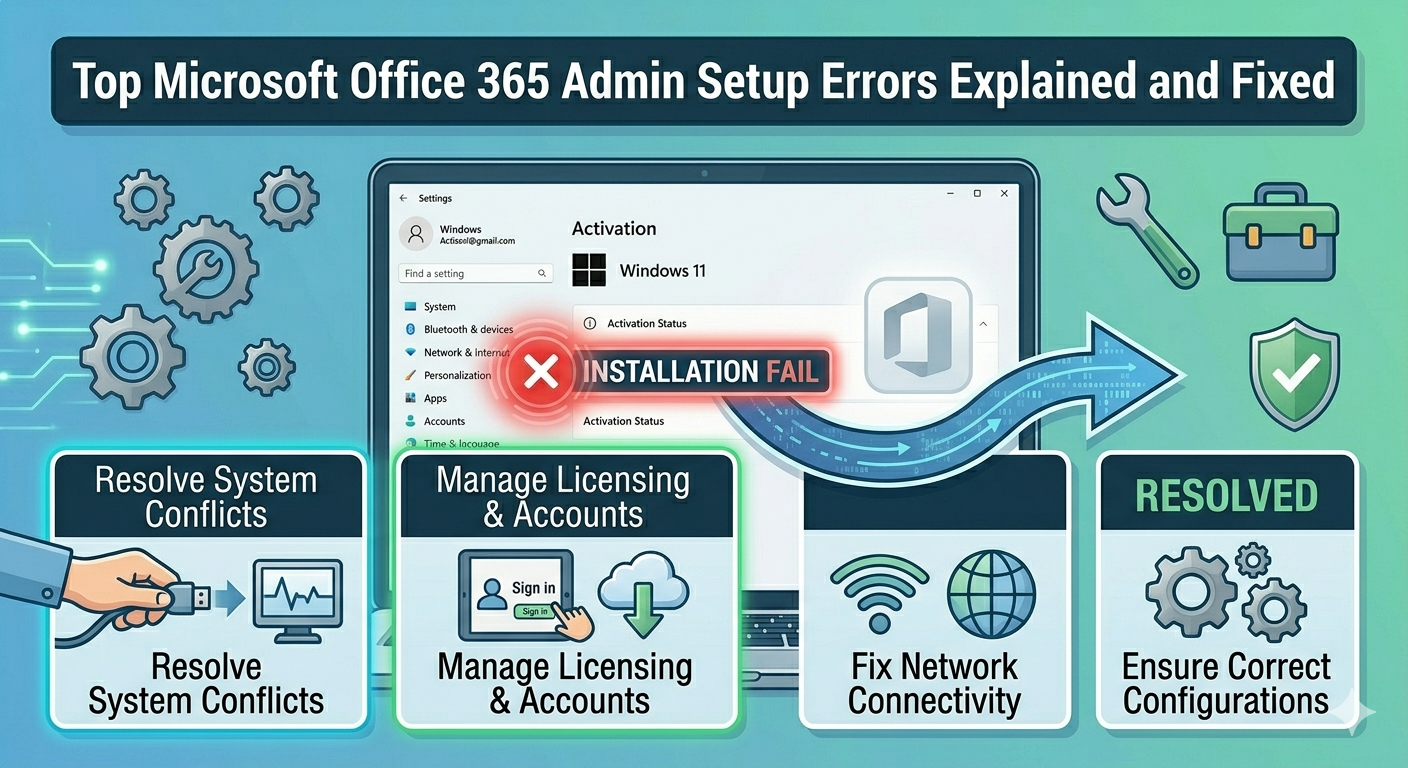
Top Microsoft Office 365 Admin Setup Errors Explained and Fixed
Microsoft Office 365 is a powerful suite of productivity tools widely used by businesses, schools, and individuals. However, administrators often encounter various installation errors when deploying Office 365 across systems. These issues can delay productivity, disrupt workflows, and create frustration—especially in enterprise environments.
Office 365 installation errors can arise from system conflicts, licensing problems, network issues, or incorrect configurations. Understanding these common errors and how to fix them can save time and ensure a smooth deployment process.
In this guide, we will explore the most common Microsoft Office 365 admin installation errors and provide practical solutions to resolve them effectively.
Why Office 365 Installation Errors Occur
Before diving into specific errors, it’s important to understand the general causes.
Common reasons include:
- Incomplete or corrupted installation files
- Conflicts with previous Office versions
- Network connectivity issues
- Incorrect licensing or account problems
- Insufficient system permissions
- Firewall or antivirus interference
Identifying the root cause is essential for successful troubleshooting.
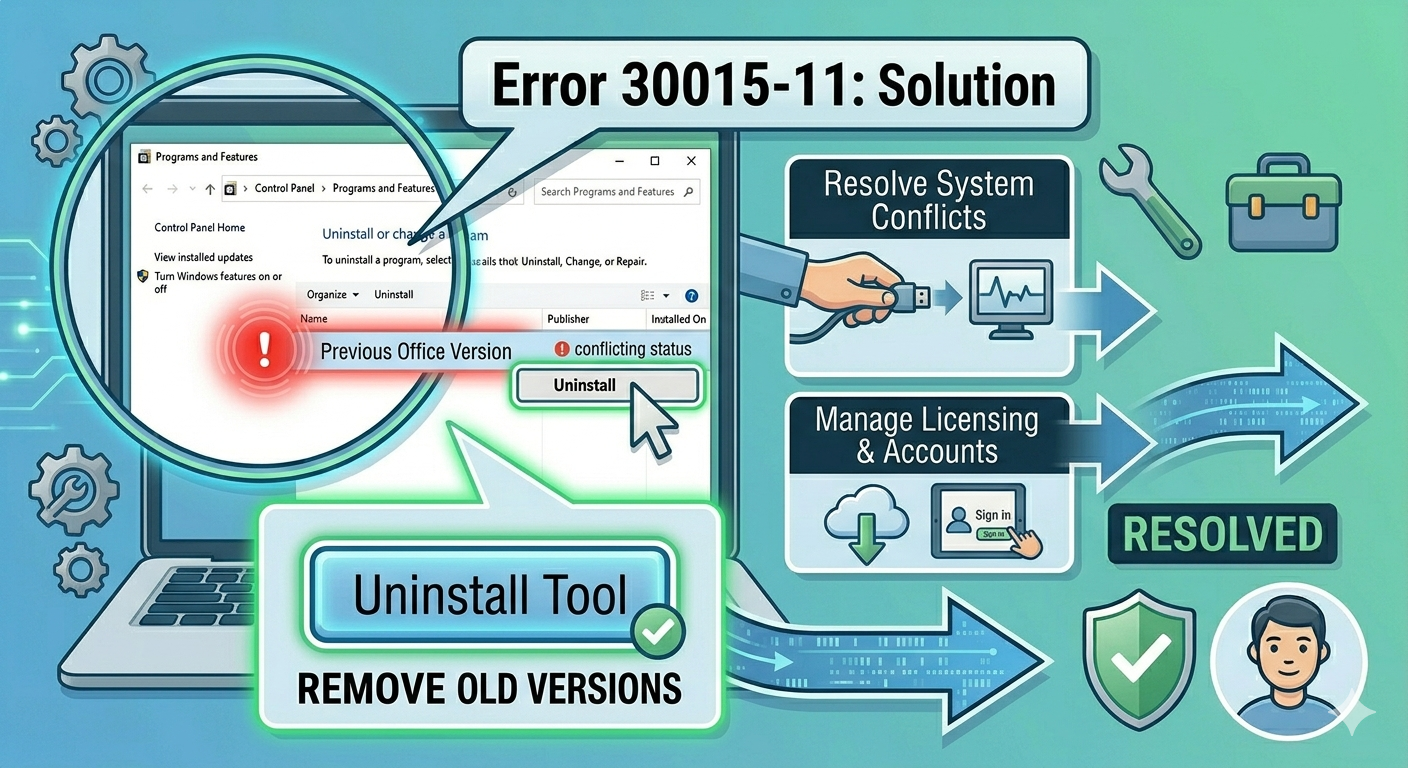
Error 30015-11 (Installation Failure)
What It Means
Error 30015-11 usually appears when Office installation fails due to corrupted files or system conflicts.
How To Fix It
- Restart your computer and try installing again
- Disable antivirus software temporarily
- Run the Office installer as administrator
- Use the Office uninstall tool to remove previous versions
This error is often resolved by cleaning up previous installations.
Error 0-1018 (Conflicting Processes)
What It Means
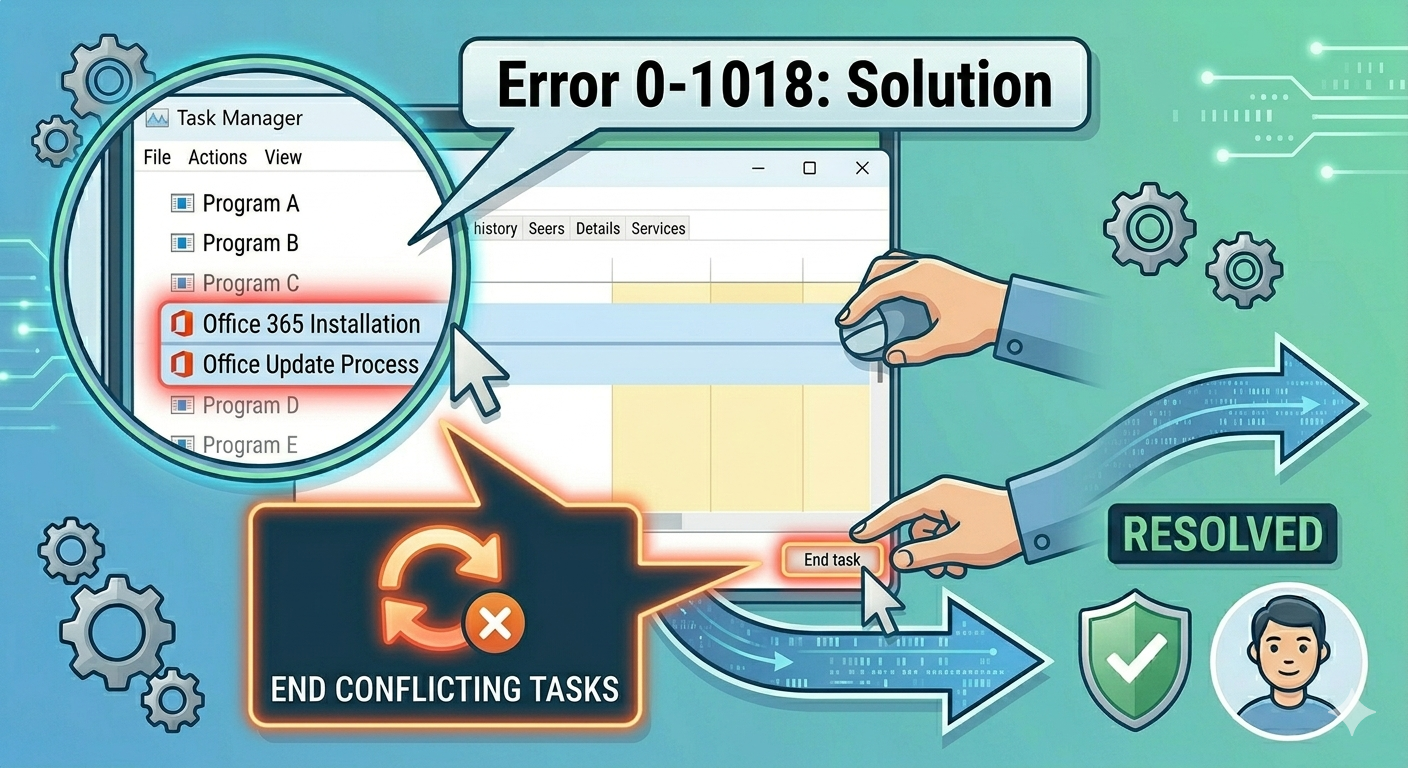
Error 0-1018 occurs when another Office installation or update process is running in the background.
How To Fix It
- Open Task Manager.
- Look for Office-related processes.
- End all related tasks.
- Restart your computer.
- Try installing Office again.
Ensuring no background conflicts is key to fixing this error.
Error 30125-4 (Corrupted Installation Files)
What It Means
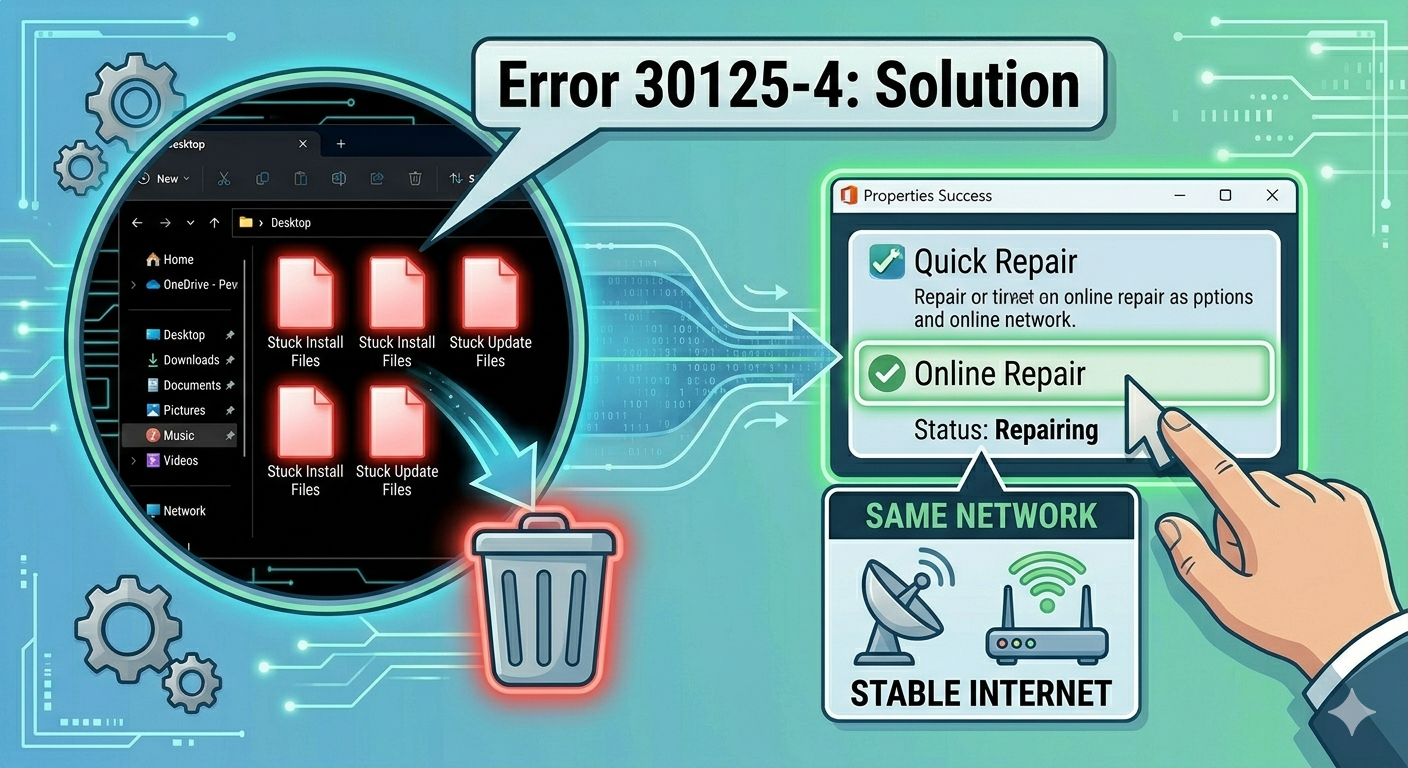
This error indicates that Office installation files are damaged or incomplete.
How To Fix It
- Re-download the Office installer from the official portal
- Use a stable internet connection
- Clear temporary files before reinstalling
A fresh installation package usually resolves the issue.
Error 0-1005 (Network or Permission Issue)
What It Means
Error 0-1005 is often related to network problems or insufficient permissions.
How To Fix It
- Check your internet connection
- Ensure you are logged in with an admin account
- Disable firewall temporarily
- Try installing from a different network
This error is common in restricted corporate environments.
Error 30088-26 (Update or Installation Conflict)
What It Means
This error occurs when Office updates fail or conflict with the installation process.
How To Fix It
- Open Control Panel.
- Go to Programs and Features.
- Select Microsoft Office.
- Click Change.
- Choose Quick Repair or Online Repair.
Repairing Office can fix update-related issues.
Error 0-2 (Click-to-Run Issue)
What It Means
Error 0-2 is related to problems with the Click-to-Run service used by Office 365.
How To Fix It
- Restart the Click-to-Run service
- Disable proxy settings
- Reinstall Office
Ensuring proper service functionality is important.
Unlicensed Product Error
What It Means
This error occurs when Office cannot verify your license.
How To Fix It
- Sign in with the correct Microsoft account
- Check subscription status
- Activate Office manually
Licensing issues are common in multi-user environments.
“We Couldn’t Install Office” Error
What It Means
This generic error can occur due to multiple issues, including system conflicts or network interruptions.
How To Fix It
- Restart your computer
- Disable antivirus temporarily
- Use the Office Support and Recovery Assistant tool
- Install Office in Safe Mode
This error requires a combination of troubleshooting steps.
Remove Previous Office Versions
Having older versions of Office installed can cause conflicts.
To remove them:
- Open Control Panel.
- Go to Programs and Features.
- Uninstall all previous Office versions.
You can also use Microsoft’s official removal tool for a clean uninstall.
Check System Requirements
Ensure your system meets Office 365 requirements.
Check for:
- Supported Windows version
- Sufficient RAM and storage
- Updated system components
Installing Office on unsupported systems may lead to errors.
Disable Antivirus and Firewall
Security software can block installation files.
To fix this:
- Temporarily disable antivirus
- Turn off firewall
- Install Office
- Re-enable security software afterward
Always ensure your system is protected after installation.
Clear Temporary Files
Temporary files can interfere with installation.
To clear them:
- Press Windows + R.
- Type %temp% and press Enter.
- Delete all files in the folder.
This can help resolve installation conflicts.
Use Office Deployment Tool (For Admins)
For enterprise environments, the Office Deployment Tool (ODT) provides better control over installations.
Benefits include:
- Custom configurations
- Offline installation support
- Bulk deployment
Using ODT can reduce installation errors in large organizations.
Check Group Policy Settings
In managed environments, Group Policy settings may block installation.
To fix this:
- Review administrative policies
- Ensure Office installation is allowed
- Contact your IT administrator if needed
Policy restrictions are common in corporate networks.
Final Thoughts
Microsoft Office 365 installation errors can be frustrating, especially for administrators managing multiple systems. However, most issues are caused by common factors such as corrupted files, network problems, or software conflicts.
By understanding the most frequent errors and applying the appropriate solutions—such as removing old installations, repairing Office, and ensuring proper system configuration—you can resolve these issues efficiently.
Related articles
How to Fix Wi-Fi Disconnecting Issues on Windows 10
How to Fix No Internet Connection in Windows 10
Troubleshooting Common Problems When Upgrading to Office 2016