


Unable to Reach Windows Activation Servers? Here’s How to Fix It
The “Unable to reach Windows activation servers” error is a common issue that prevents users from activating their copy of Windows 10 or Windows 11. When this error appears, your system may show messages like “Windows can’t activate right now” or “We can’t connect to the activation servers”.
Activation is essential because it verifies that your copy of Windows is genuine and allows you to access all features without restrictions. When activation fails, you may encounter limitations such as personalization restrictions or persistent watermark messages.
This issue is usually related to network problems, incorrect settings, or server-side issues. Fortunately, there are several effective methods to fix the Windows activation server error and complete the activation process successfully.
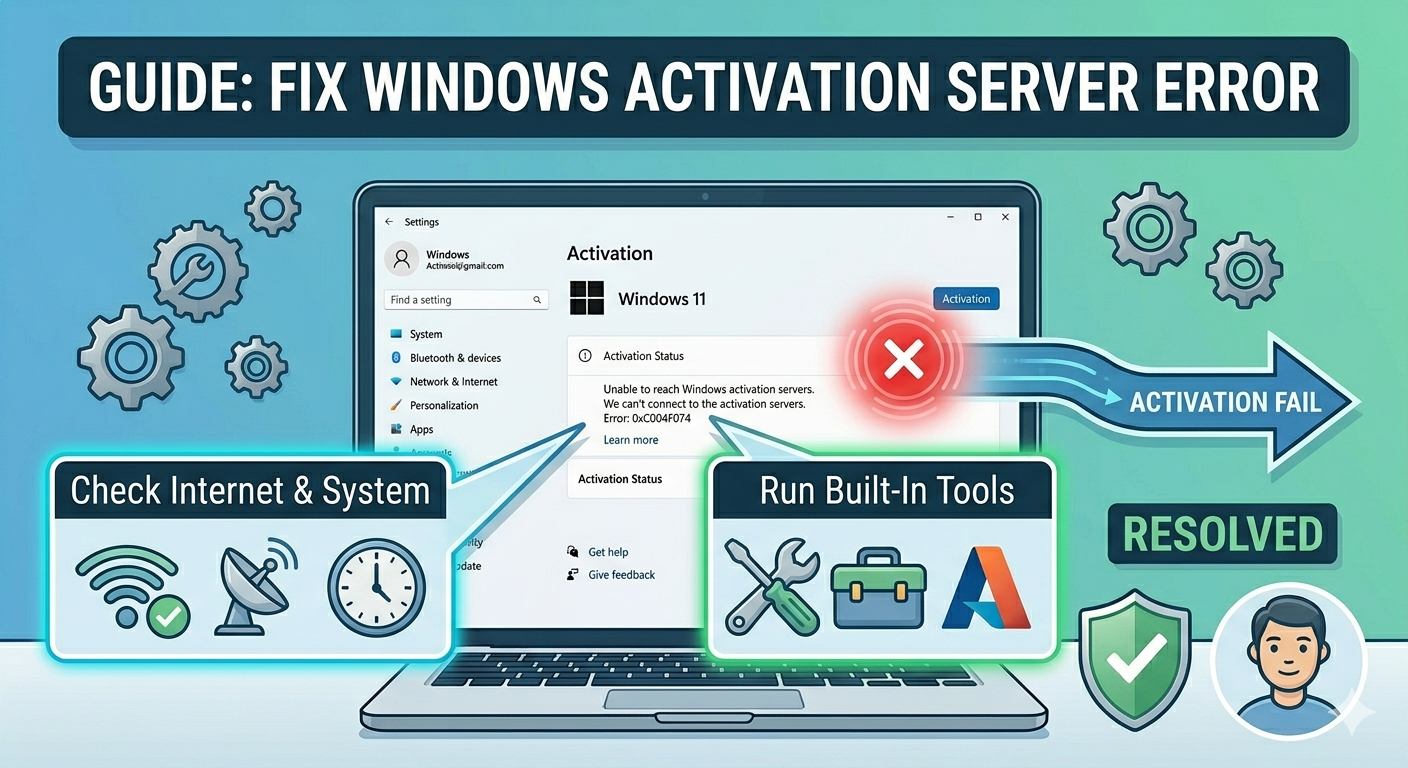
Common Causes of Activation Server Errors
Understanding the root cause can help you troubleshoot more efficiently.
Some common causes include:
- Internet connection problems
- Microsoft activation server downtime
- Incorrect date and time settings
- Firewall or antivirus blocking the connection
- Invalid or incorrect product key
- Corrupted system files
- Proxy or VPN interference
Identifying the cause is the first step toward fixing the issue.
Check Your Internet Connection
A stable internet connection is required to communicate with Microsoft’s activation servers.
To check your connection:
- Open a web browser and visit any website
- Restart your router or modem
- Switch between Wi-Fi and Ethernet if possible
If your internet is unstable, fix the connection before attempting activation again.
Verify Date and Time Settings
Incorrect system date and time can prevent Windows from connecting to activation servers.
To fix date and time:
- Press Windows + I to open Settings.
- Go to Time & Language.
- Select Date & Time.
- Enable Set time automatically and Set time zone automatically.
Restart your computer and try activating Windows again.
Try Activating Later
Sometimes the issue is on Microsoft’s side due to server overload or maintenance.
In this case:
- Wait a few hours
- Try activating again later
This is especially common during major Windows updates.
Run the Activation Troubleshooter
Windows includes a built-in troubleshooter for activation issues.
To run it:
- Open Settings.
- Go to Update & Security > Activation.
- Click Troubleshoot.
- Follow the on-screen instructions.
This tool can automatically detect and fix activation problems.
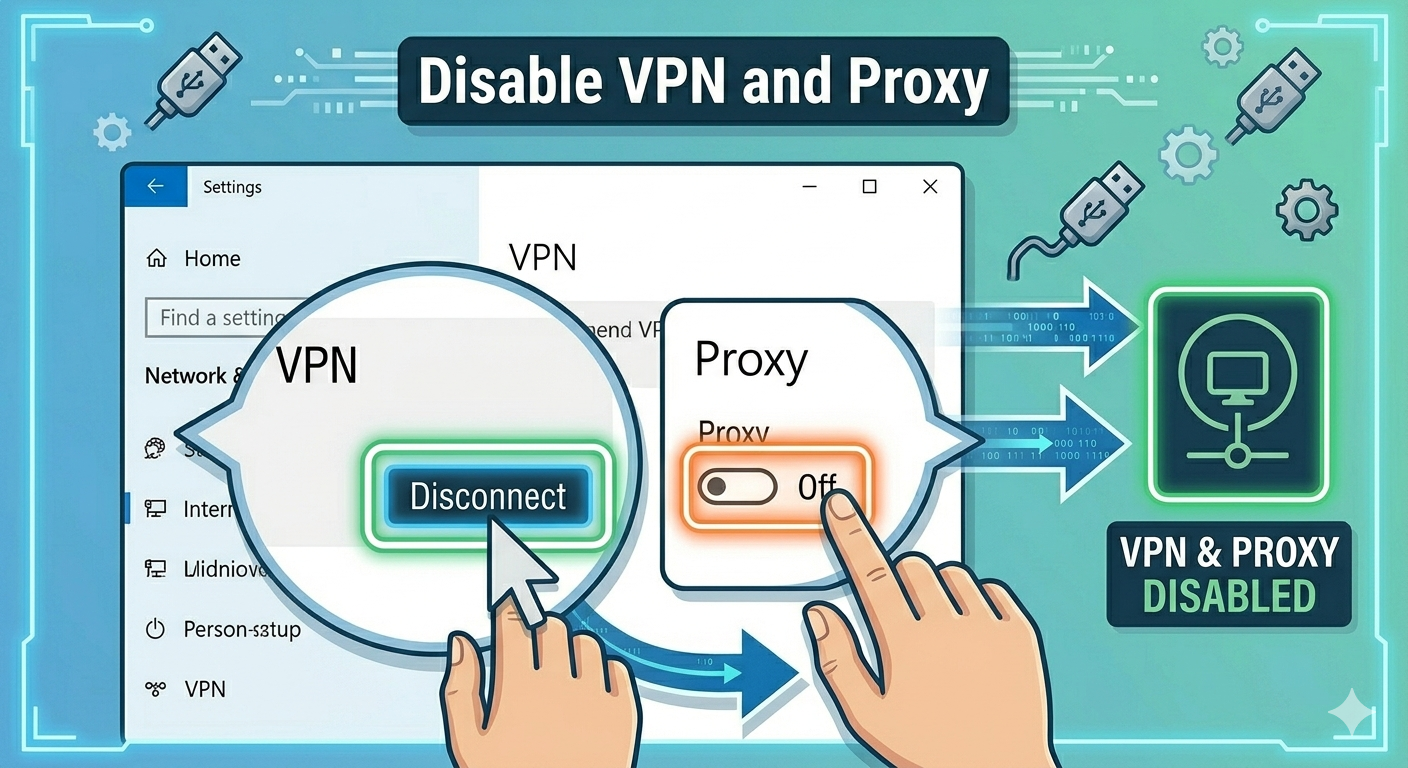
Disable VPN and Proxy
VPNs and proxy servers can interfere with activation by masking your real location.
To disable VPN:
- Turn off any active VPN software
- Disconnect from proxy servers in network settings
After disabling, try activating Windows again.
Temporarily Disable Firewall and Antivirus
Security software may block communication with activation servers.
To test this:
- Temporarily disable your antivirus program.
- Turn off Windows Firewall.
- Attempt activation again.
If activation works, add an exception for Windows services and re-enable security software.
Re-enter Your Product Key
If your product key is incorrect or not recognized, activation will fail.
To re-enter the key:
- Open Settings.
- Go to Update & Security > Activation.
- Click Change product key.
- Enter your valid product key.
Make sure the key matches your Windows edition.
Use Command Prompt to Activate Windows
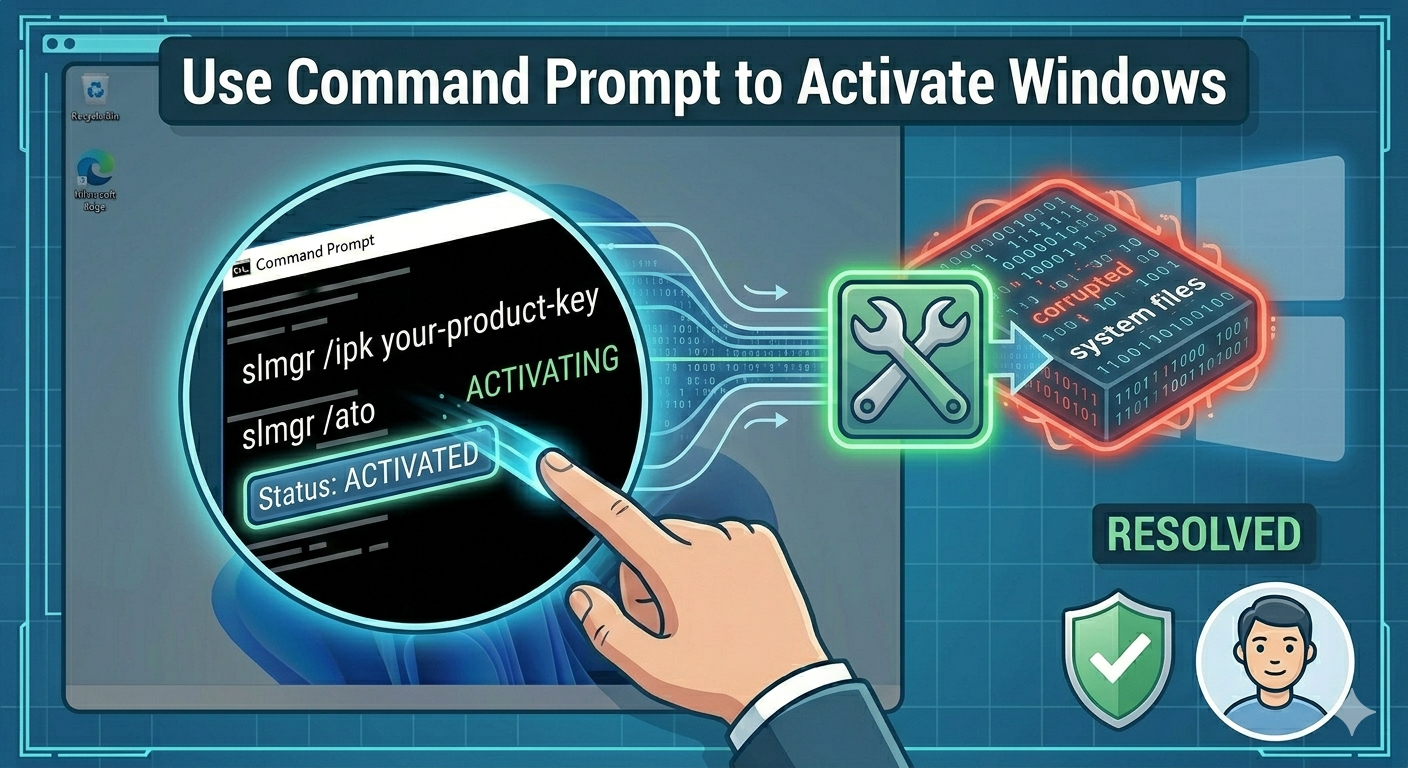
You can try activating Windows manually using Command Prompt.
Steps:
- Open Command Prompt as administrator.
- Enter the following command:
slmgr /ipk your-product-key
- Press Enter.
- Then type:
slmgr /ato
- Press Enter.
This will attempt to activate Windows using the provided key.
Check Windows Edition Compatibility
Your product key must match the installed version of Windows.
For example:
- A Windows 10 Home key will not activate Windows 10 Pro
- A Windows 11 key must match the correct edition
To check your edition:
- Open Settings.
- Go to System > About.
If necessary, install the correct version of Windows.
Run System File Checker (SFC)
Corrupted system files can interfere with activation.
To run SFC:
- Open Command Prompt as administrator.
- Enter:
sfc /scannow
- Press Enter.
Restart your system after the scan completes.
Use the DISM Tool
If SFC does not resolve the issue, use DISM:
- Open Command Prompt as administrator.
- Enter:
DISM /Online /Cleanup-Image /RestoreHealth
- Press Enter.
Restart your computer after completion.
Reset Network Settings
Network configuration issues can prevent communication with activation servers.
To reset network settings:
- Open Settings.
- Go to Network & Internet.
- Click Advanced network settings.
- Select Network reset.
- Click Reset now.
Your system will restart after the reset.
Contact Microsoft Support
If none of the methods work, contacting Microsoft Support may be necessary.
You can:
- Use the Get Help app in Windows
- Visit the official Microsoft support website
- Contact customer service for activation assistance
They can verify your product key and help resolve the issue.
Final Thoughts
The “Unable to reach Windows activation servers” error can prevent you from activating your system, but it is usually caused by network issues, incorrect settings, or temporary server problems.
Most users can fix the issue by checking their internet connection, correcting date and time settings, disabling VPNs, or running the activation troubleshooter.
Related articles
How to Fix Wi-Fi Disconnecting Issues on Windows 10
How to Fix No Internet Connection in Windows 10
Top Microsoft Office 365 Admin Setup Errors Explained and Fixed