


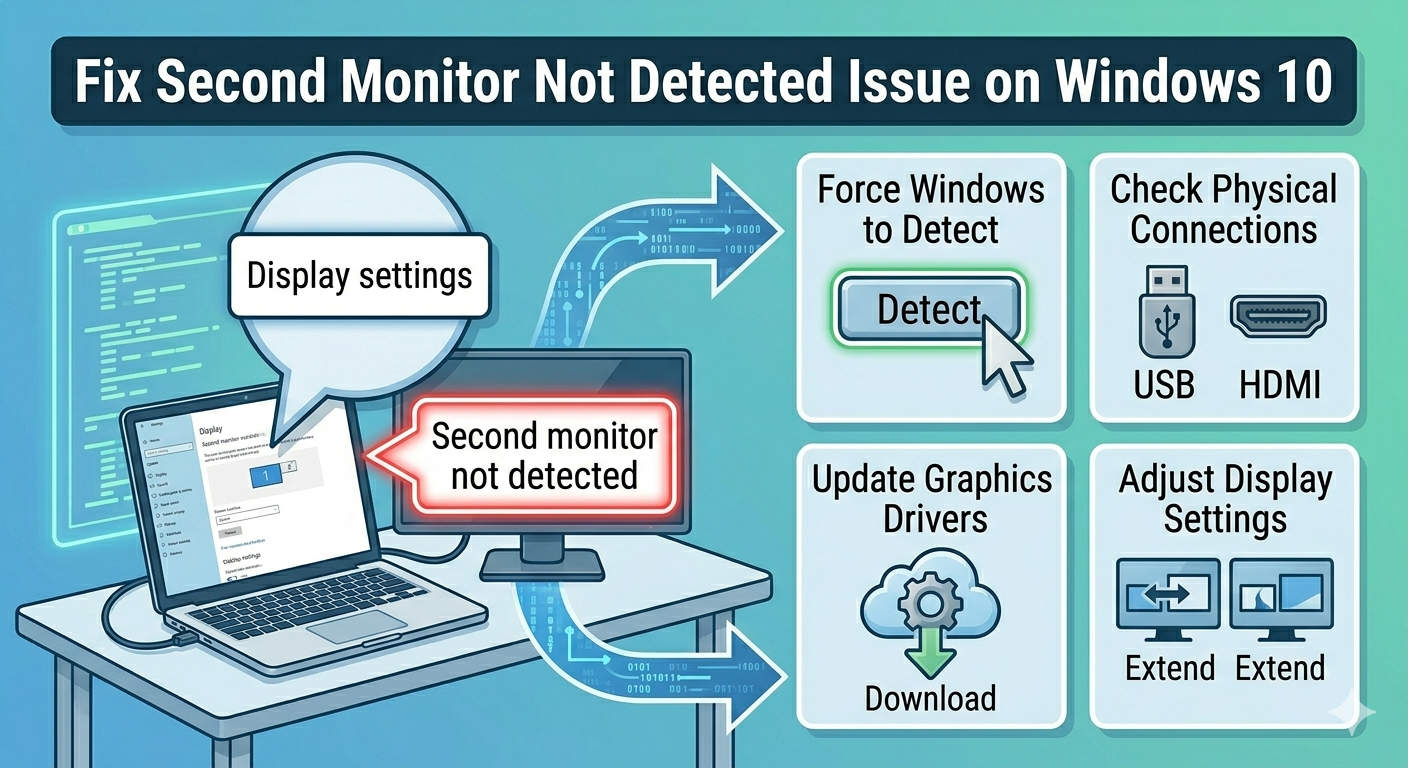
Fix Second Monitor Not Detected Issue on Windows 10
Using a second monitor can significantly improve productivity, whether you’re working, gaming, or multitasking. However, many users encounter an issue where Windows 10 fails to detect a second monitor, even when it is properly connected.
This problem can be frustrating, especially if your monitor previously worked without issues. The good news is that the “Windows 10 not detecting second monitor” problem is usually caused by software or configuration errors rather than hardware failure.
In this guide, you will learn the most effective methods to fix this issue and get your dual-monitor setup working again.
Common Causes of Second Monitor Detection Issues
Before diving into solutions, it helps to understand the possible causes.
Some common reasons include:
- Loose or faulty cable connections
- Incorrect display settings
- Outdated or corrupted graphics drivers
- Incompatible display settings
- Windows update issues
- Hardware limitations
Identifying the cause can make troubleshooting easier.
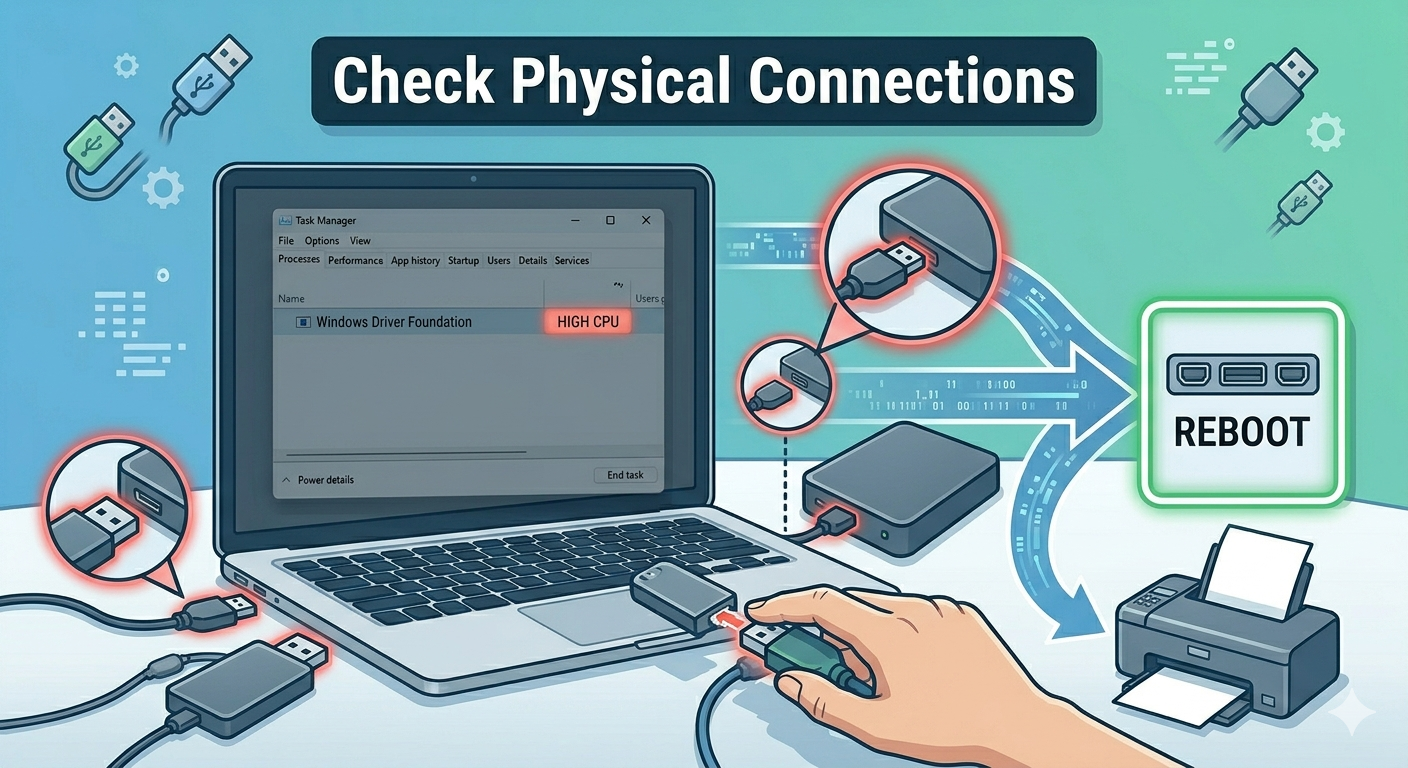
Check Physical Connections
Start with the basics by checking all hardware connections.
You should:
- Ensure the monitor is powered on
- Check that the cable (HDMI, DisplayPort, VGA) is securely connected
- Try a different cable or port
- Test the monitor on another computer
If the monitor works elsewhere, the issue is likely with your system settings.
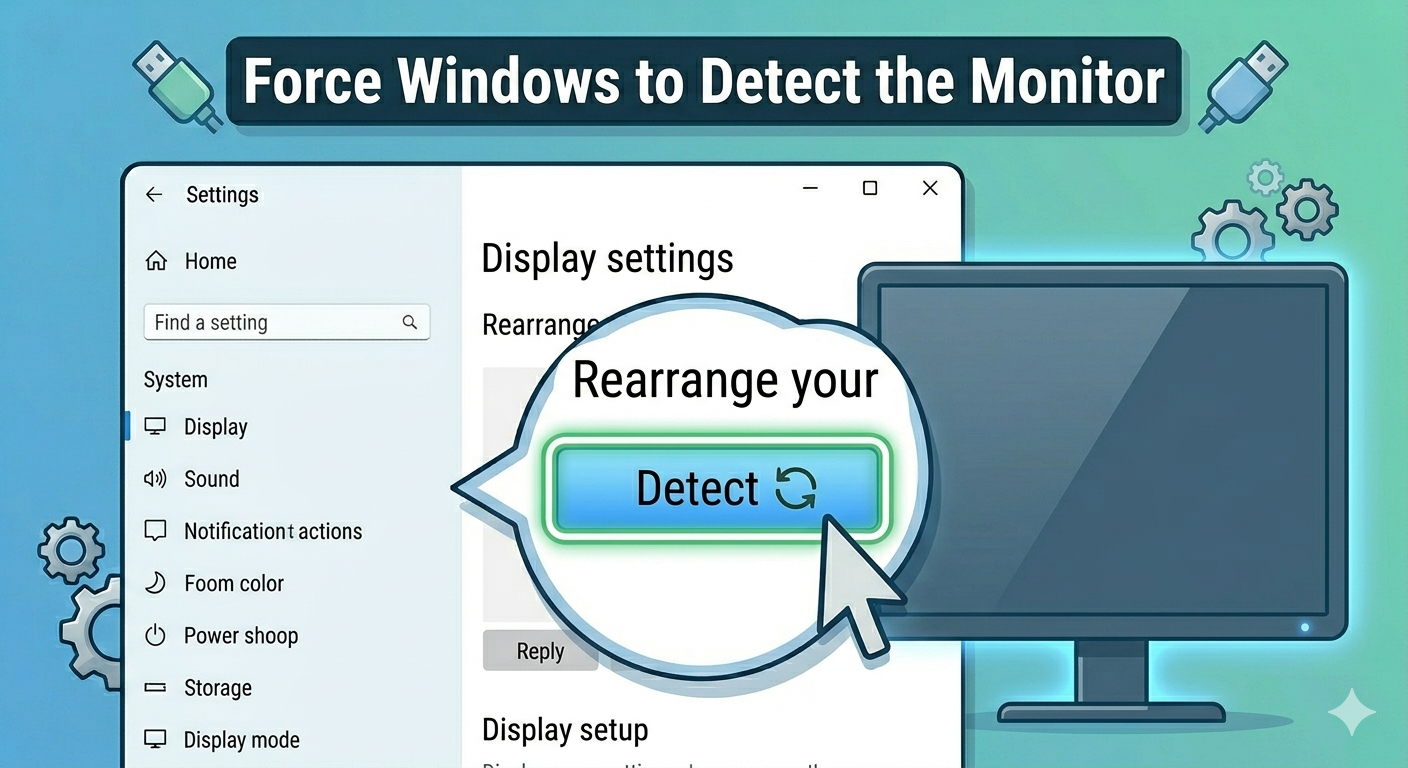
Force Windows to Detect the Monitor
Sometimes Windows does not automatically detect a second display.
To manually detect it:
- Right-click on the desktop.
- Select Display settings.
- Scroll down and click Detect.
If the monitor appears, configure it accordingly.
Adjust Display Settings
Incorrect display settings can prevent the second monitor from working.
To adjust settings:
- Open Display settings.
- Scroll to Multiple displays.
- Select Extend these displays from the dropdown menu.
- Click Apply.
You can also press Windows + P and select Extend.
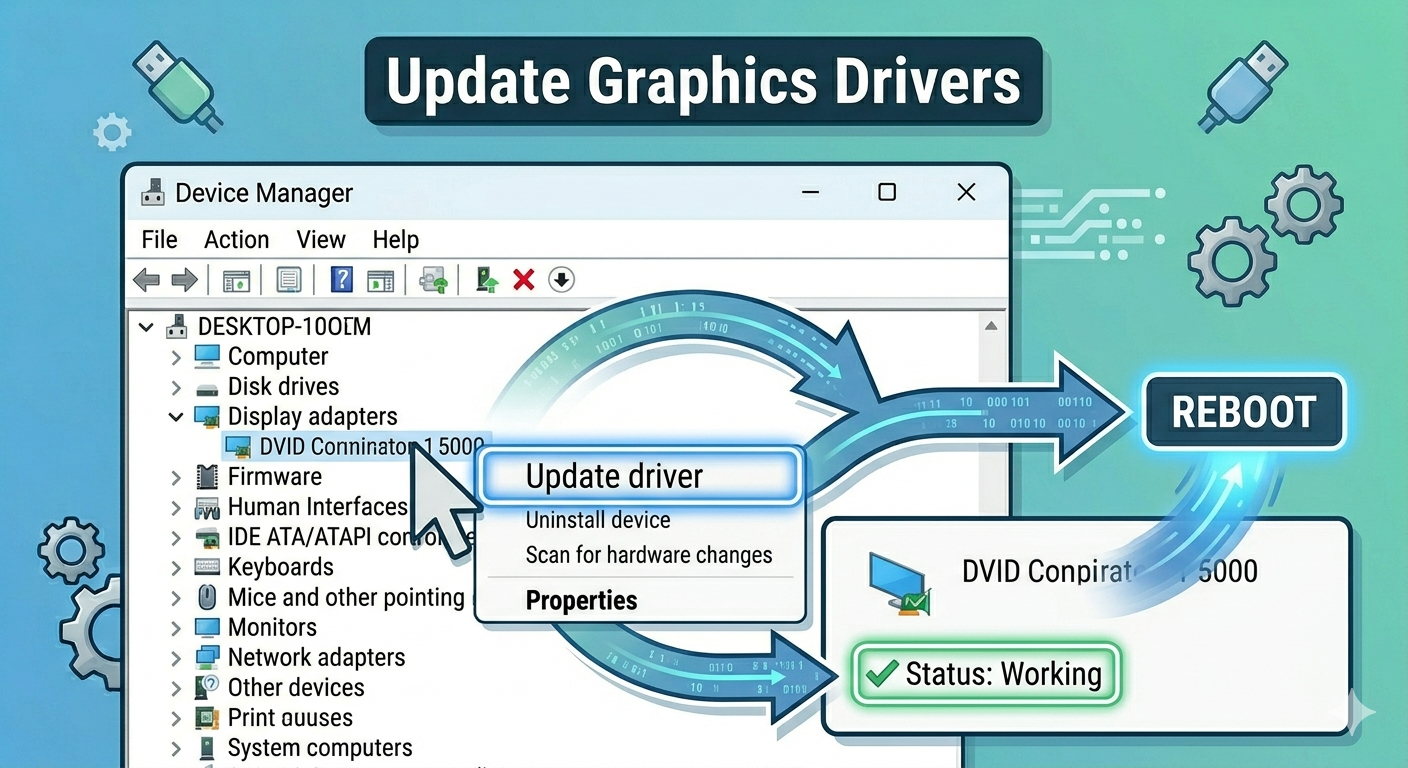
Update Graphics Drivers
Outdated or corrupted graphics drivers are one of the most common causes of this issue.
To update drivers:
- Right-click the Start Menu.
- Select Device Manager.
- Expand Display adapters.
- Right-click your graphics card.
- Select Update driver.
- Choose Search automatically for drivers.
Restart your computer after updating.
Reinstall Graphics Drivers
If updating does not work, reinstalling the drivers may fix the issue.
Steps:
- Open Device Manager.
- Right-click your graphics card.
- Select Uninstall device.
- Confirm the action.
- Restart your computer.
Windows will automatically reinstall the driver.
Roll Back Graphics Drivers
If the issue started after a driver update, rolling back to a previous version may help.
To roll back:
- Open Device Manager.
- Right-click the graphics device.
- Select Properties.
- Go to the Driver tab.
- Click Roll Back Driver.
Restart your system afterward.
Check Display Resolution and Refresh Rate
Incorrect resolution or refresh rate settings can cause display issues.
To adjust:
- Open Display settings.
- Select the second monitor.
- Set the resolution to the recommended value.
- Go to Advanced display settings.
- Adjust the refresh rate if needed.
Apply changes and check if the monitor works.
Use the Correct Input Source
Ensure your monitor is set to the correct input source.
For example:
- HDMI input for HDMI cable
- DisplayPort input for DisplayPort cable
Use the monitor’s built-in menu to switch input sources.
Update Windows
Outdated Windows versions can cause compatibility issues with display hardware.
To update Windows:
- Press Windows + I.
- Go to Windows Update.
- Click Check for updates.
- Install available updates.
Restart your computer after updating.
Check Graphics Card Compatibility
Some older graphics cards may not support multiple monitors or certain display configurations.
You can:
- Check your GPU specifications
- Ensure it supports dual monitors
- Update firmware if available
If necessary, consider upgrading your hardware.
Disable and Re-enable Display Adapter
Resetting the display adapter can help resolve detection issues.
Steps:
- Open Device Manager.
- Expand Display adapters.
- Right-click your graphics card.
- Select Disable device.
- Wait a few seconds and select Enable device.
Restart your computer.
Run Hardware Troubleshooter
Windows includes tools to detect and fix hardware issues.
To run the troubleshooter:
- Open Settings.
- Go to System > Troubleshoot.
- Click Other troubleshooters.
- Run relevant troubleshooters such as Hardware or Display.
Follow the instructions provided.
Check for Hardware Issues
If none of the solutions work, the problem may be hardware-related.
You should:
- Test the monitor with another PC
- Try a different cable
- Check GPU ports for damage
If the monitor or graphics card is faulty, replacement may be required.
Perform a System Restore
If the issue started recently, restoring your system can help.
Steps:
- Search for Create a restore point.
- Open System Restore.
- Choose a restore point before the issue began.
- Follow the instructions.
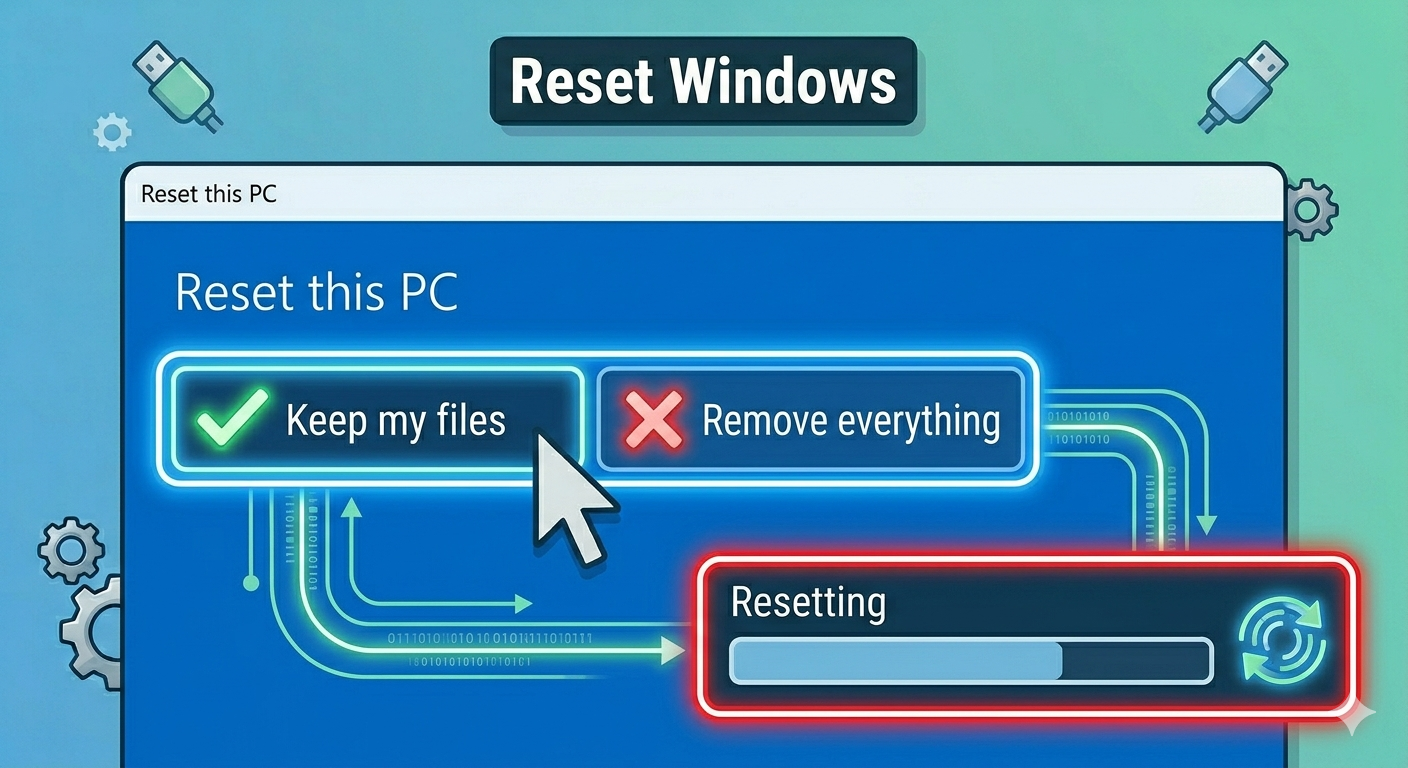
Reset Windows
As a last resort, resetting Windows can resolve deep system issues.
To reset:
- Open Settings.
- Go to System > Recovery.
- Click Reset this PC.
- Choose whether to keep your files or remove everything.
- Follow the instructions.
Final Thoughts
The Windows 10 not detecting second monitor issue can disrupt productivity, but it is usually caused by simple problems such as incorrect settings, outdated drivers, or connection issues.
Most users can resolve the issue by checking cables, updating drivers, adjusting display settings, or forcing Windows to detect the monitor.
Related articles
Fixing the “Kernel Security Check Failure” Error on Windows 10
How to Fix Wi-Fi Disconnecting Issues on Windows 10
Unable to Reach Windows Activation Servers? Here’s How to Fix It