


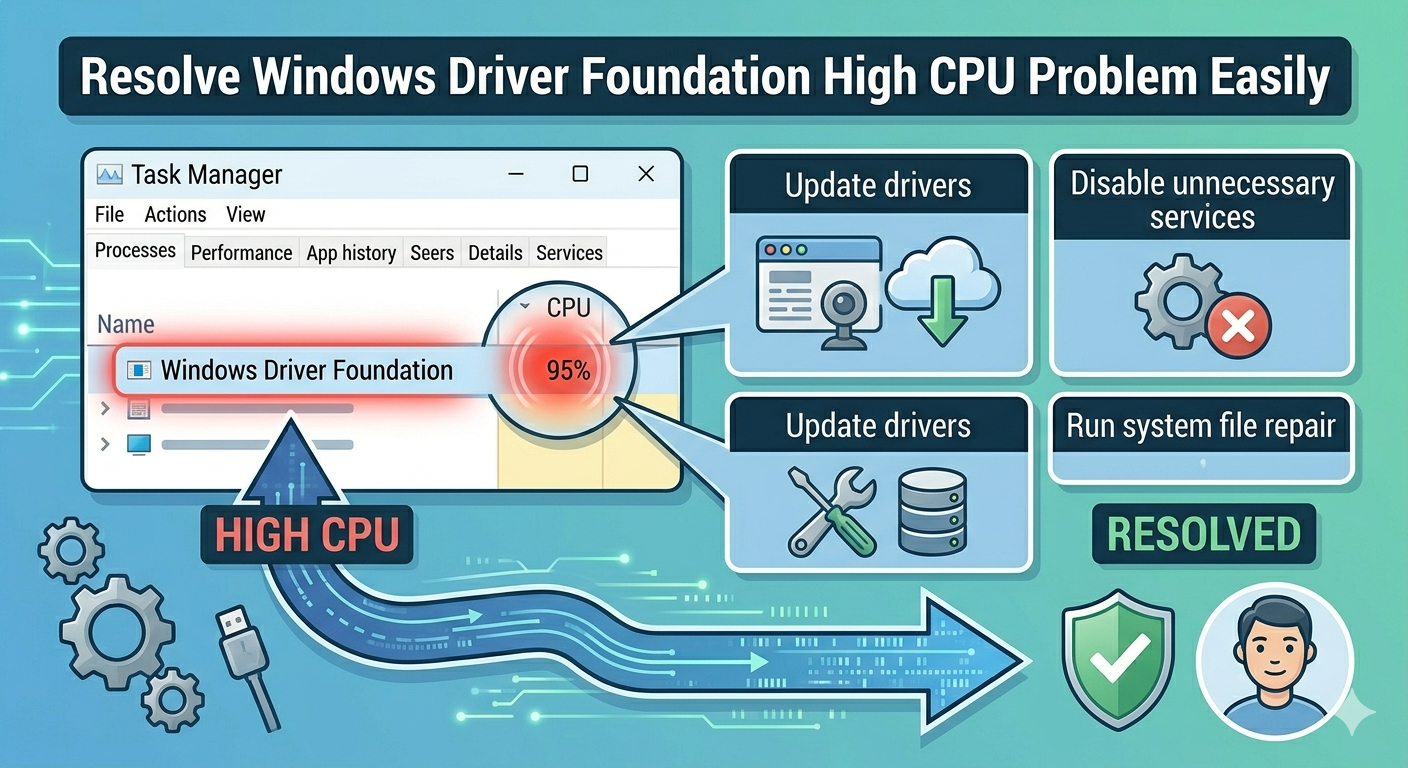
Resolve Windows Driver Foundation High CPU Problem Easily
The Windows Driver Foundation (WDF) High CPU usage issue is a common problem that can slow down your computer and make everyday tasks frustrating. When this issue occurs, you may notice your system becoming sluggish, fans running loudly, and applications responding slowly.
Windows Driver Foundation is an essential service that helps manage device drivers and ensures proper communication between hardware and the operating system. While it is designed to run efficiently in the background, it can sometimes consume excessive CPU resources due to driver conflicts, system errors, or hardware issues.
In this guide, you will learn what causes the Windows Driver Foundation high CPU usage problem and how to fix it effectively on Windows 10 and Windows 11.
What Is Windows Driver Foundation?
Windows Driver Foundation is a Microsoft framework that manages device drivers, especially for portable devices such as USB devices, cameras, and other peripherals. It ensures that drivers operate smoothly and securely.
The service often appears in Task Manager as:
- WDF Host Process (Wudfhost.exe)
Although it typically uses minimal resources, certain issues can cause it to spike in CPU usage.
Common Causes of High CPU Usage
Understanding the causes can help you troubleshoot the problem more efficiently.
Some common reasons include:
- Outdated or corrupted device drivers
- Faulty hardware devices
- Conflicts between drivers
- Windows update issues
- Malware or unwanted programs
- Background services interfering with WDF
Identifying the root cause is key to resolving the issue.
Restart Your Computer
Before trying advanced solutions, restart your system. Temporary glitches can cause abnormal CPU usage.
To restart:
- Click the Start Menu.
- Select the Power icon.
- Click Restart.
After rebooting, check Task Manager to see if CPU usage returns to normal.
Disconnect External Devices
External devices such as USB drives, printers, or webcams can cause WDF to use high CPU.
To troubleshoot:
- Disconnect all external devices
- Restart your computer
- Reconnect devices one by one
If the issue reappears after connecting a specific device, that device may be the cause.

Update Device Drivers
Outdated drivers are one of the main reasons for high CPU usage.
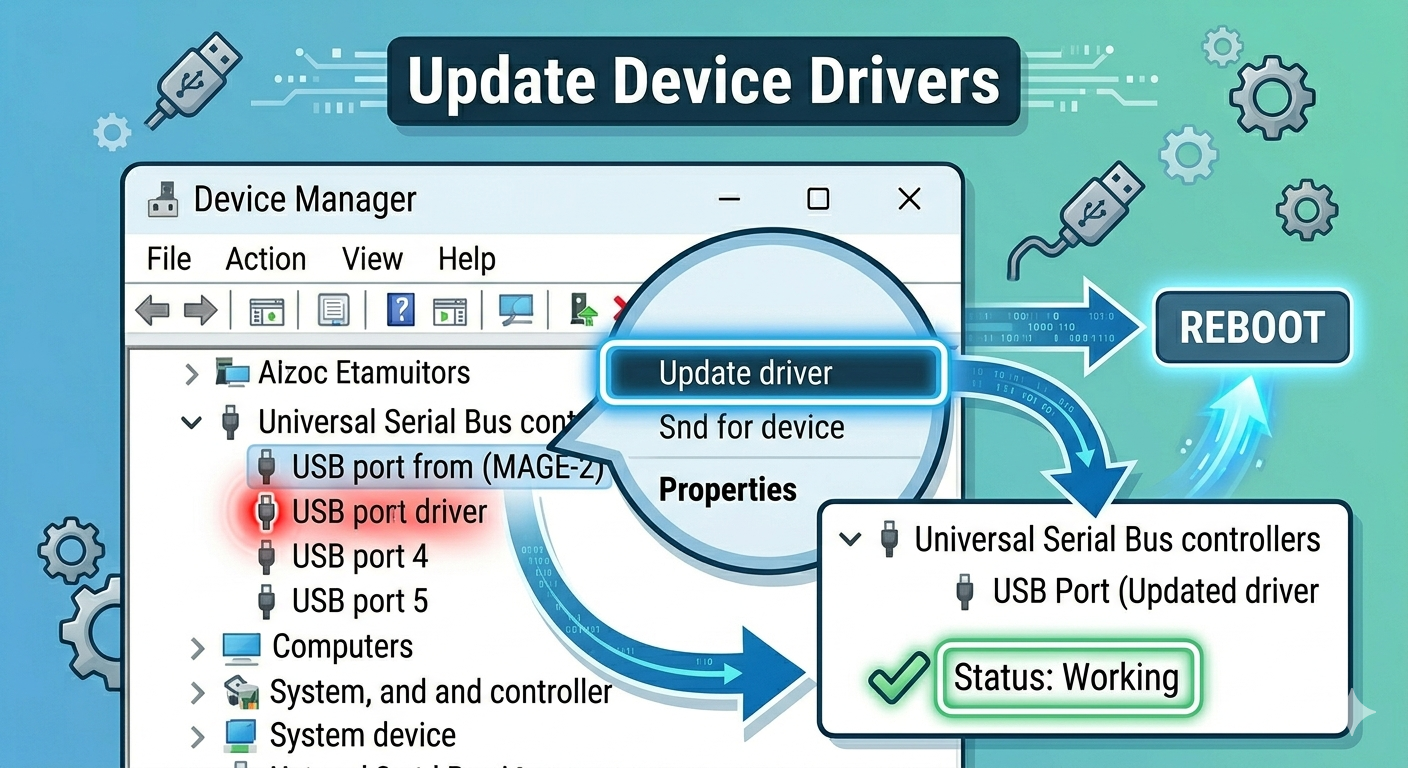
To update drivers:
- Right-click the Start Menu.
- Select Device Manager.
- Expand relevant categories such as Universal Serial Bus controllers.
- Right-click a device and select Update driver.
- Choose Search automatically for drivers.
Restart your computer after updating.
Reinstall Problematic Drivers
If updating does not work, reinstalling the driver can fix corruption issues.
Steps:
- Open Device Manager.
- Right-click the problematic device.
- Select Uninstall device.
- Confirm the action.
- Restart your computer.
Windows will reinstall the driver automatically.
Run Windows Update
Keeping Windows up to date can resolve compatibility issues and bugs.
To update Windows:
- Press Windows + I.
- Go to Windows Update.
- Click Check for updates.
- Install any available updates.
Restart your system afterward.
Disable Windows Driver Foundation Service
If the issue persists, you can temporarily disable the service to reduce CPU usage.
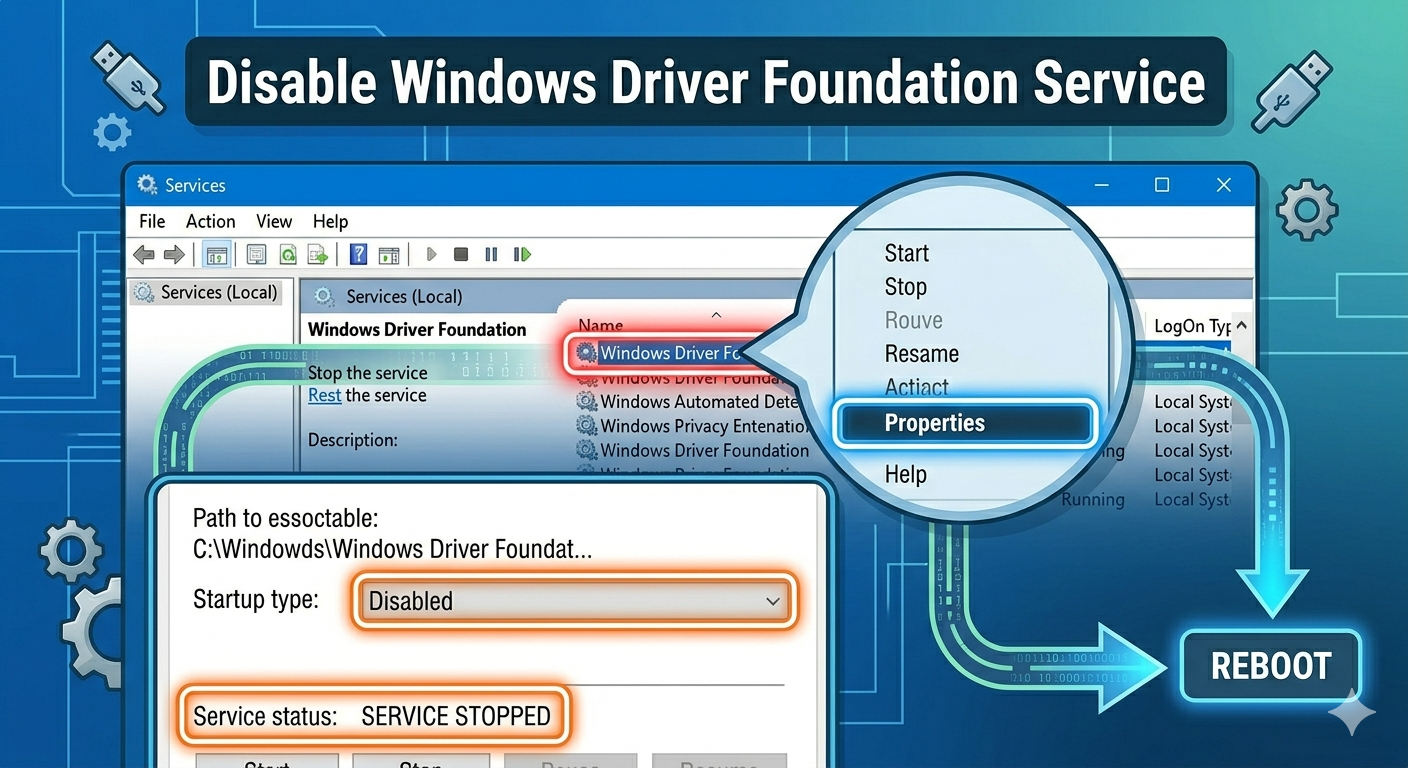
To disable the service:
- Press Windows + R.
- Type services.msc and press Enter.
- Locate Windows Driver Foundation – User-mode Driver Framework.
- Right-click it and select Properties.
- Set Startup type to Manual or Disabled.
- Click Stop, then Apply and OK.
Restart your computer.
Note: Disabling this service may affect some devices.
Run System File Checker (SFC)
Corrupted system files can cause abnormal behavior in system services.
To run SFC:
- Open Command Prompt as administrator.
- Enter:
sfc /scannow
- Press Enter.
Restart your computer after the scan.
Use the DISM Tool
If SFC does not fix the issue, use DISM:
- Open Command Prompt as administrator.
- Enter:
DISM /Online /Cleanup-Image /RestoreHealth
- Press Enter.
Restart your system after completion.
Check for Malware
Malware can consume CPU resources and interfere with system services.
To scan for malware:
- Open Windows Security.
- Go to Virus & threat protection.
- Run a Full scan.
Remove any detected threats.
Disable Problematic Services
Some background services may conflict with WDF.
To perform a clean boot:
- Press Windows + R.
- Type msconfig and press Enter.
- Go to the Services tab.
- Check Hide all Microsoft services.
- Click Disable all.
- Restart your computer.
If CPU usage decreases, a third-party service may be the cause.
Check Power Management Settings
Power settings can affect how devices behave.
To adjust settings:
- Open Device Manager.
- Expand Universal Serial Bus controllers.
- Right-click a USB Root Hub.
- Select Properties.
- Go to the Power Management tab.
- Uncheck Allow the computer to turn off this device to save power.
Repeat for other USB devices if necessary.
Reset Windows
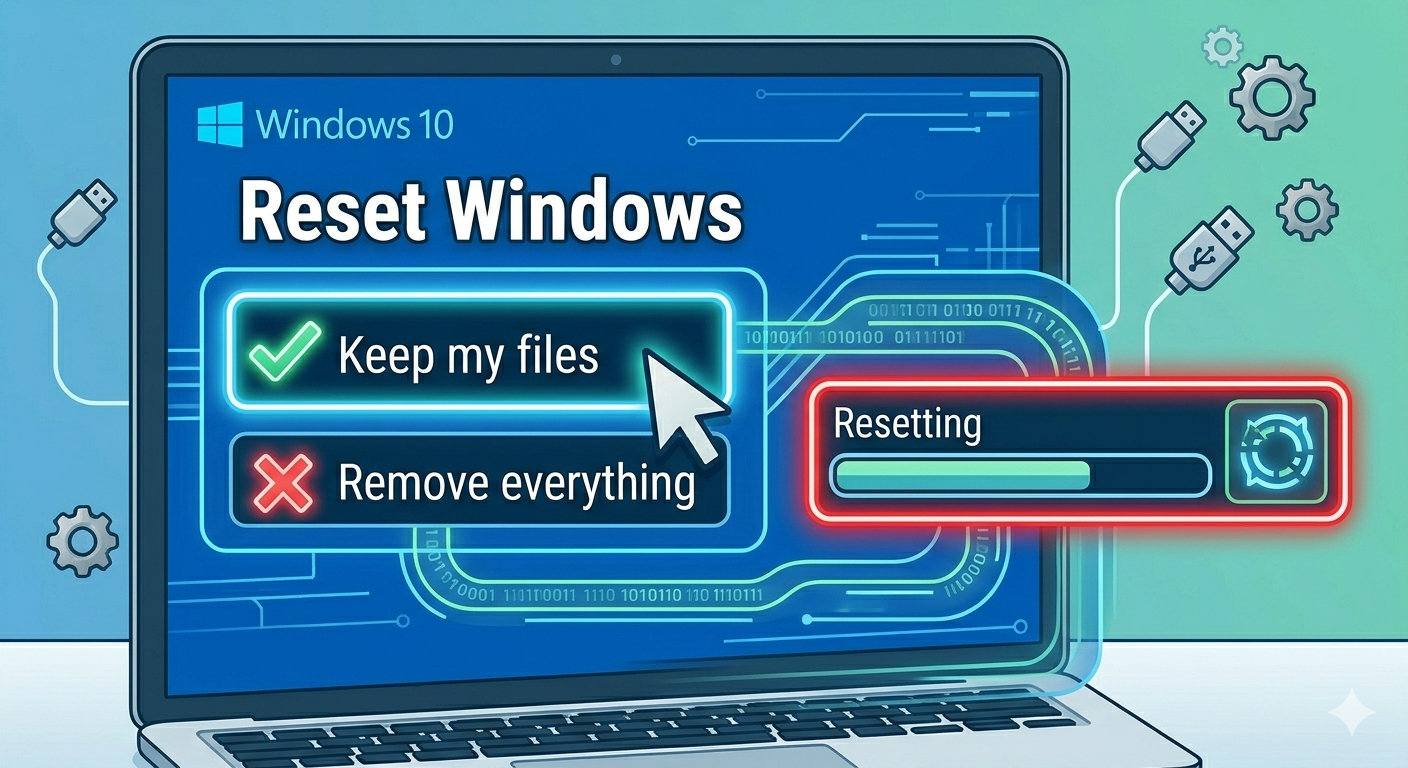
If none of the methods work, resetting Windows can resolve deep system issues.
To reset:
- Open Settings.
- Go to System > Recovery.
- Click Reset this PC.
- Choose whether to keep your files or remove everything.
- Follow the instructions.
Final Thoughts
The Windows Driver Foundation high CPU usage issue can significantly impact system performance, but it is usually caused by driver conflicts, faulty hardware, or system errors.
Most users can fix the problem by updating or reinstalling drivers, disconnecting problematic devices, or repairing system files. In more complex cases, disabling the service or resetting Windows may be necessary.
Related articles
Fixing the “Kernel Security Check Failure” Error on Windows 10