


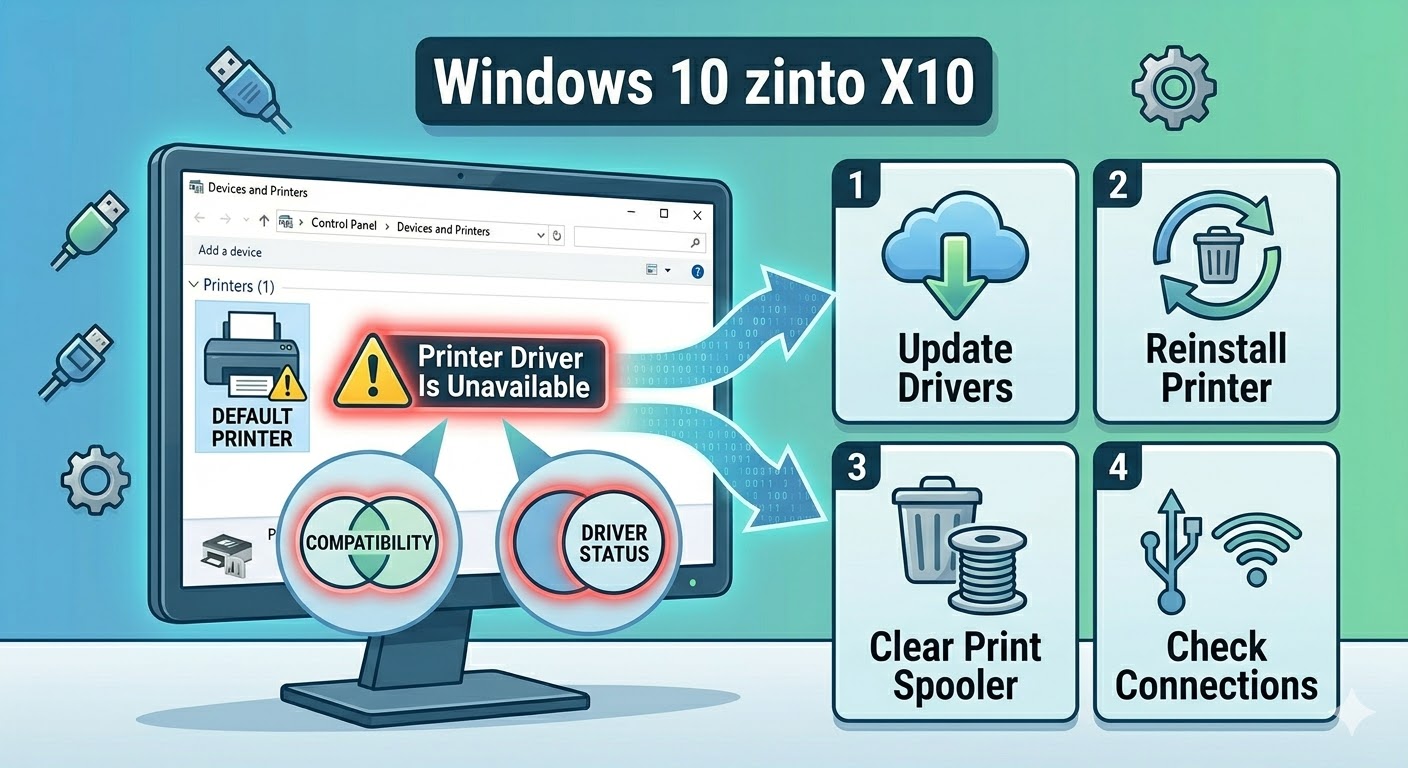
How to Fix “Printer Driver Is Unavailable” Error on Windows 10
The “Printer Driver Is Unavailable” error is a common issue that Windows 10 users encounter when trying to print documents. When this error appears, your printer may stop working completely, even though it is properly connected to your computer.
This problem is usually related to driver issues, system incompatibility, or corrupted files. It can occur after a Windows update, when installing a new printer, or when using an outdated driver.
The good news is that the printer driver unavailable error can be resolved with a few straightforward troubleshooting steps. In this guide, you will learn the causes and effective solutions to fix this issue on Windows 10.
What Does “Printer Driver Is Unavailable” Mean?
This error indicates that Windows cannot communicate properly with the printer driver. The driver may be missing, outdated, corrupted, or incompatible with your current system version.
When this happens, you may notice:
- Printer not responding
- Print jobs stuck in queue
- Error message in Devices and Printers
- Unable to install or use the printer
Resolving the driver issue is key to restoring normal printing functionality.
Common Causes of the Error
Understanding the possible causes can help you troubleshoot more effectively.
Some common reasons include:
- Outdated or incompatible printer drivers
- Corrupted driver files
- Windows update conflicts
- Incorrect printer configuration
- Missing system files
- Connectivity issues
Identifying the cause will help you apply the right fix.
Restart Your Computer and Printer
Before trying advanced solutions, restart both your computer and printer.
Steps:
- Turn off your printer.
- Shut down your computer.
- Wait for about 30 seconds.
- Turn the printer back on.
- Restart your computer.
This simple step can resolve temporary glitches.
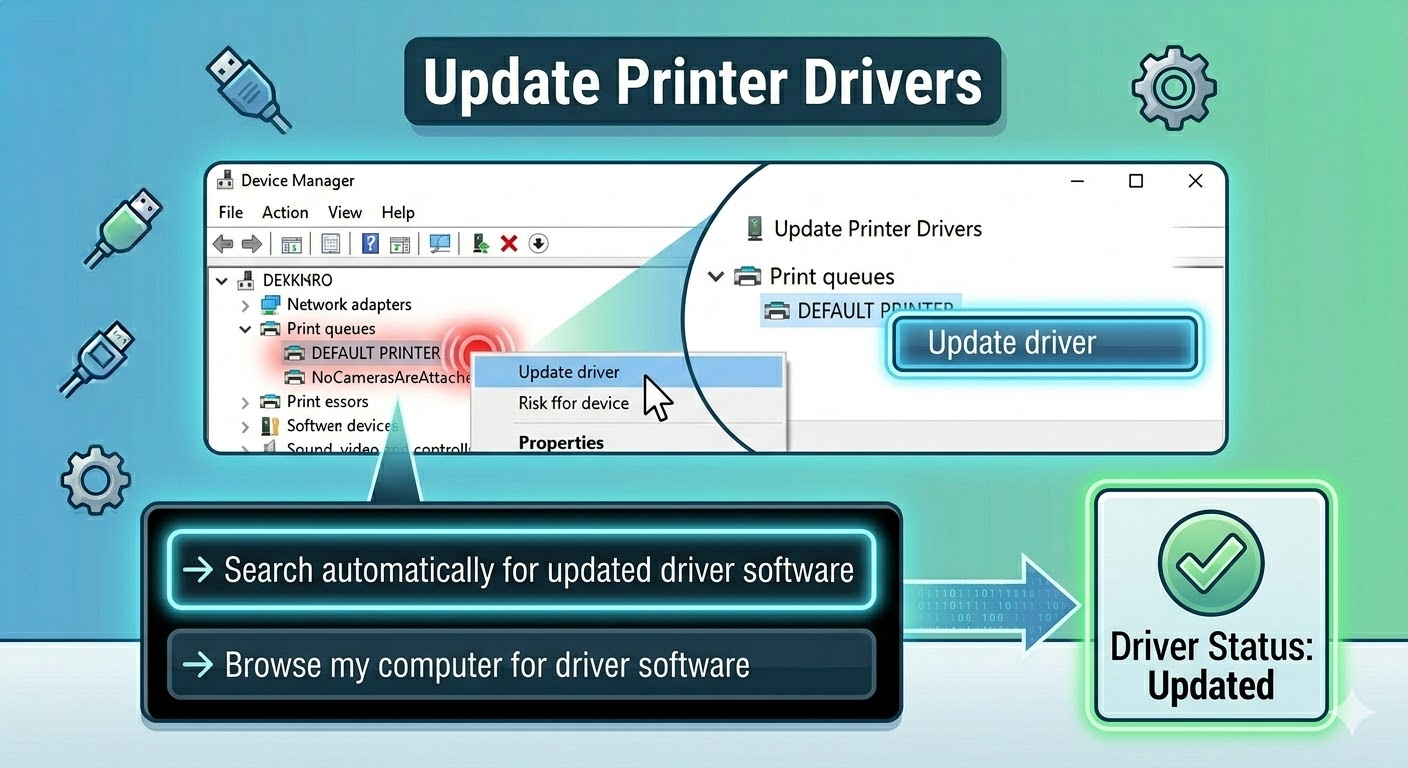
Update Printer Drivers
Outdated drivers are the most common cause of this error.
To update printer drivers:
- Right-click the Start Menu.
- Select Device Manager.
- Expand Print queues.
- Right-click your printer.
- Select Update driver.
- Choose Search automatically for drivers.
Restart your computer after updating.
Reinstall the Printer Driver
If updating does not fix the issue, reinstalling the driver may help.
Steps:
- Open Device Manager.
- Right-click your printer.
- Select Uninstall device.
- Confirm the action.
- Disconnect the printer.
- Restart your computer.
- Reconnect the printer.
Windows will attempt to reinstall the driver automatically.
Download the Latest Driver from Manufacturer
Sometimes Windows cannot find the correct driver.
To manually install the latest driver:
- Visit your printer manufacturer’s website (HP, Canon, Epson, etc.).
- Search for your printer model.
- Download the latest driver compatible with Windows 10.
- Install the driver and restart your computer.
This ensures compatibility and stability.
Run the Printer Troubleshooter
Windows includes a built-in tool to fix printer issues.
To run the troubleshooter:
- Open Settings.
- Go to Update & Security > Troubleshoot.
- Click Additional troubleshooters.
- Select Printer.
- Click Run the troubleshooter.
Follow the instructions to complete the process.
Check Windows Updates
System updates often include fixes for hardware compatibility issues.
To update Windows:
- Press Windows + I.
- Go to Windows Update.
- Click Check for updates.
- Install available updates.
Restart your system afterward.
Set Printer as Default
If your printer is not set as the default device, it may cause errors.
To set default printer:
- Open Settings.
- Go to Devices > Printers & scanners.
- Select your printer.
- Click Set as default.
Try printing again after setting it.
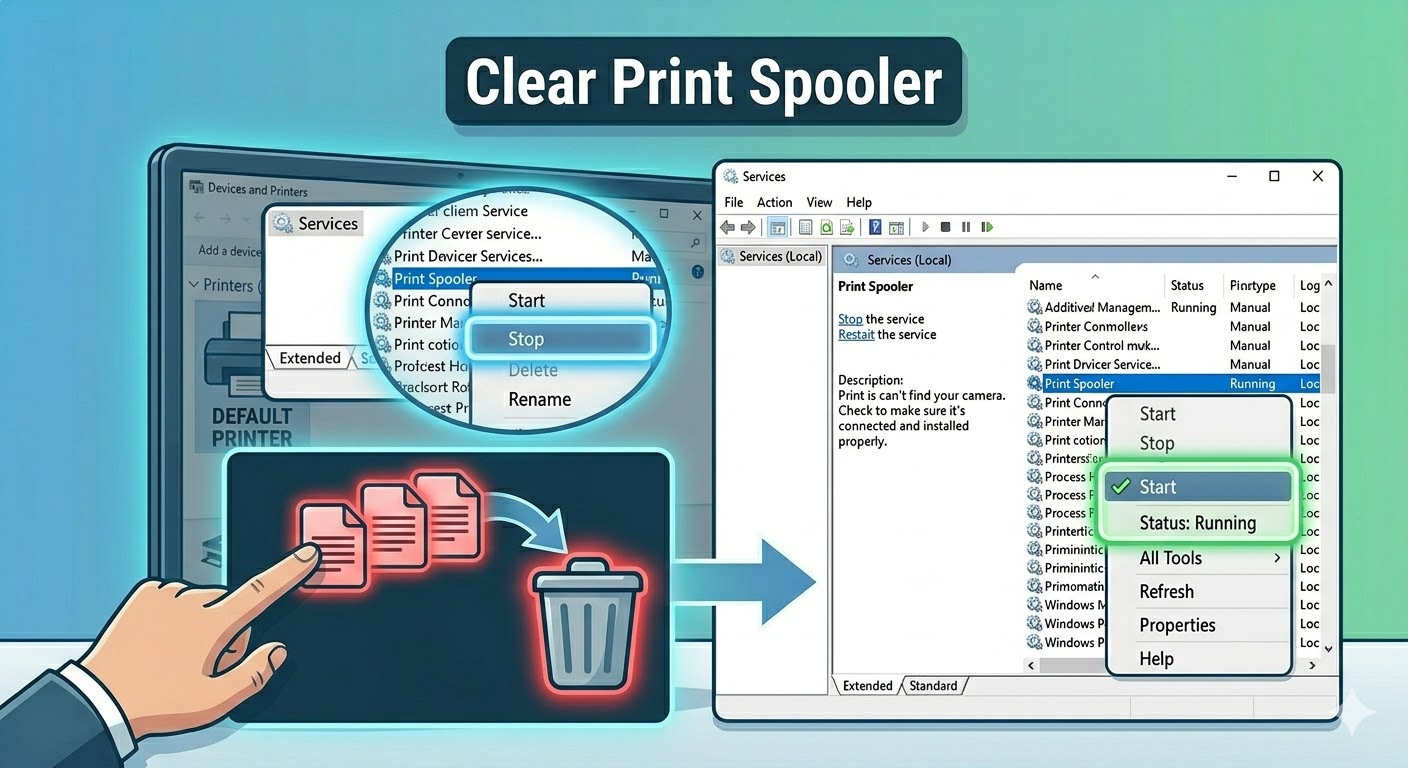
Clear Print Spooler
A stuck print spooler can cause driver-related errors.
To clear the spooler:
- Press Windows + R.
- Type services.msc and press Enter.
- Find Print Spooler.
- Right-click and select Stop.
- Navigate to:
C:\Windows\System32\spool\PRINTERS
- Delete all files in this folder.
- Go back to Services and start the Print Spooler again.
Restart your computer afterward.
Check Printer Connection
Ensure your printer is properly connected.
You should:
- Check USB cable connections
- Ensure Wi-Fi printers are connected to the same network
- Try a different USB port
Connection issues can sometimes trigger driver errors.
Run System File Checker
Corrupted system files may interfere with printer functionality.
To run SFC:
- Open Command Prompt as administrator.
- Enter:
sfc /scannow
- Press Enter.
Restart your system after the scan.
Use the DISM Tool
If SFC does not fix the problem, use DISM:
- Open Command Prompt as administrator.
- Enter:
DISM /Online /Cleanup-Image /RestoreHealth
- Press Enter.
Restart your computer after completion.
Remove and Re-add the Printer
Removing and re-adding the printer can fix configuration issues.
Steps:
- Open Settings > Devices > Printers & scanners.
- Select your printer.
- Click Remove device.
- Click Add a printer or scanner.
- Reinstall your printer.
Perform a System Restore
If the error started recently, restoring your system may help.
Steps:
- Search for Create a restore point.
- Click System Restore.
- Choose a restore point before the issue occurred.
- Follow the instructions.
Final Thoughts
The “Printer Driver Is Unavailable” error on Windows 10 is usually caused by driver issues, system conflicts, or incorrect configurations. While it may prevent you from printing, it is often easy to fix with the right steps.
Updating or reinstalling the printer driver, clearing the print spooler, and ensuring proper system settings are among the most effective solutions.
Related articles
How to Fix Wi-Fi Disconnecting Issues on Windows 10