


Troubleshooting Windows 10 Freezing on the Welcome Screen
Getting stuck on the Welcome screen in Windows 10 is a frustrating issue that prevents you from accessing your desktop. You may see the spinning dots or loading animation, but the system never proceeds beyond the login stage. This problem can occur after entering your password or even before the login screen fully loads.
The issue is usually caused by system glitches, corrupted user profiles, problematic updates, or driver conflicts. In some cases, background services or startup programs may also interfere with the login process.
Fortunately, there are several proven methods to fix the Windows 10 stuck on Welcome screen problem. This guide will walk you through the causes and solutions step by step.
Common Causes of the Welcome Screen Issue
Understanding the root cause can help you choose the most effective solution.
Some common causes include:
- Corrupted system files
- Faulty Windows updates
- Problematic startup programs
- Driver conflicts
- Slow or failing hard drive
- User profile issues
- External devices interfering with startup
Identifying the cause can save time during troubleshooting.
Disconnect External Devices
External devices can sometimes interfere with the boot process.
To troubleshoot:
- Disconnect USB drives, printers, and external hard drives
- Remove unnecessary peripherals
- Restart your computer
After rebooting, check if the issue is resolved.
Restart Your Computer
Although simple, restarting can fix temporary glitches causing the system to hang.
To restart:
- Press and hold the Power button until the system shuts down.
- Wait a few seconds.
- Turn the computer back on.
If the issue persists, move to the next method.
Boot into Safe Mode
Safe Mode allows Windows to start with minimal drivers and services, helping you identify the problem.
To enter Safe Mode:
- Force shutdown your computer 2–3 times during startup.
- Windows will enter Recovery Mode.
- Select Troubleshoot > Advanced options > Startup Settings.
- Click Restart.
- Press 4 or F4 to enable Safe Mode.
If your system works in Safe Mode, a third-party application or driver may be causing the issue.
Disable Fast Startup
Fast Startup can sometimes cause boot-related problems.
To disable it:
- Boot into Safe Mode.
- Open Control Panel.
- Click Power Options.
- Select Choose what the power buttons do.
- Click Change settings that are currently unavailable.
- Uncheck Turn on fast startup.
- Save changes and restart.
Run Startup Repair
Windows includes a built-in tool to fix startup issues.
To run Startup Repair:
- Enter Recovery Mode.
- Select Troubleshoot > Advanced options.
- Click Startup Repair.
- Follow the on-screen instructions.
This tool can automatically fix boot-related problems.
Run System File Checker (SFC)
Corrupted system files can prevent Windows from loading properly.
To run SFC:
- Boot into Safe Mode with Command Prompt.
- Enter:
sfc /scannow
- Press Enter.
Wait for the scan to complete and restart your computer.
Use the DISM Tool
If SFC does not fix the issue, use DISM to repair the system image.
Steps:
- Open Command Prompt as administrator.
- Enter:
DISM /Online /Cleanup-Image /RestoreHealth
- Press Enter.
Restart your system after completion.
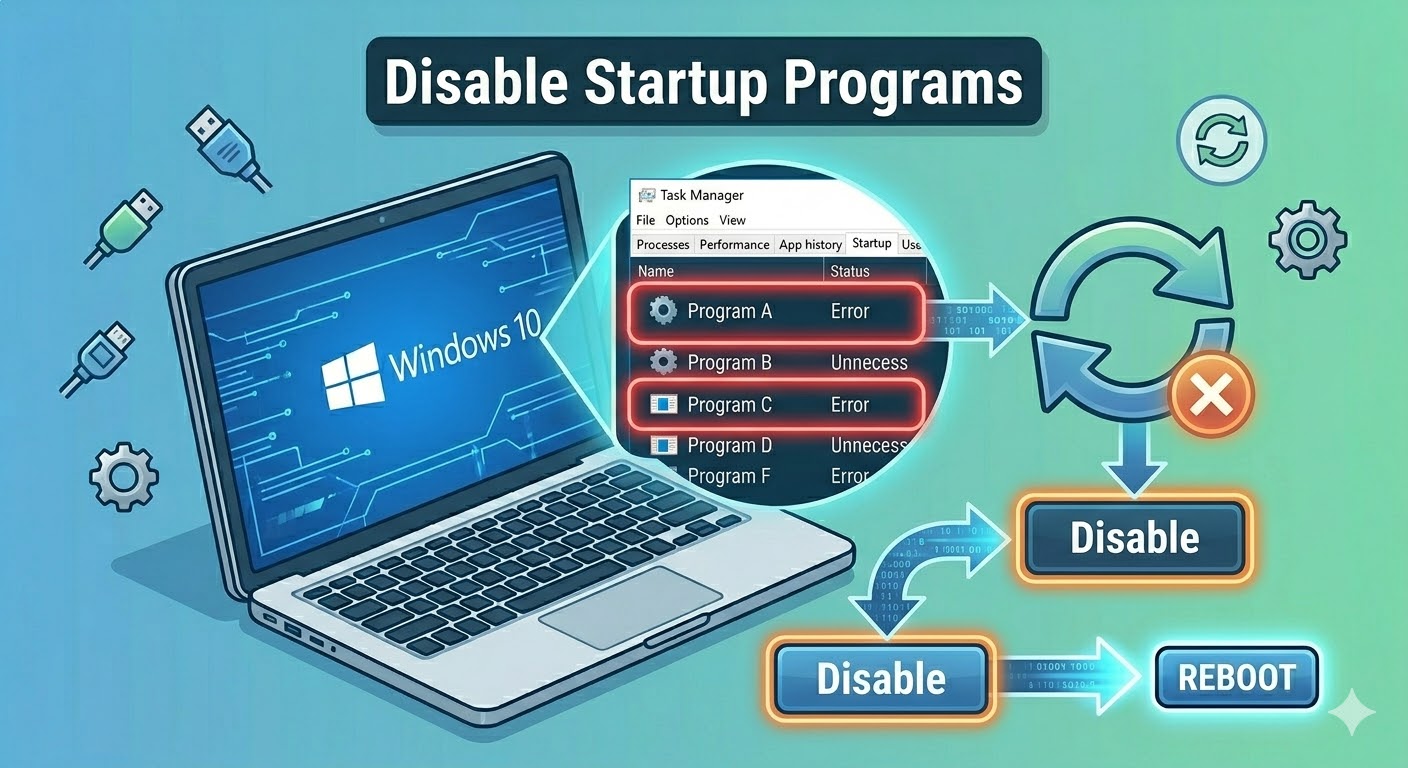
Disable Startup Programs
Too many startup programs can slow down the login process.
To disable them:
- Press Ctrl + Shift + Esc to open Task Manager.
- Go to the Startup tab.
- Disable unnecessary programs.
Restart your computer afterward.
Update or Roll Back Drivers
Driver issues can cause Windows to hang on the Welcome screen.
To update drivers:
- Open Device Manager.
- Right-click a device (especially graphics drivers).
- Select Update driver.
If the issue started after a driver update, roll back the driver instead.
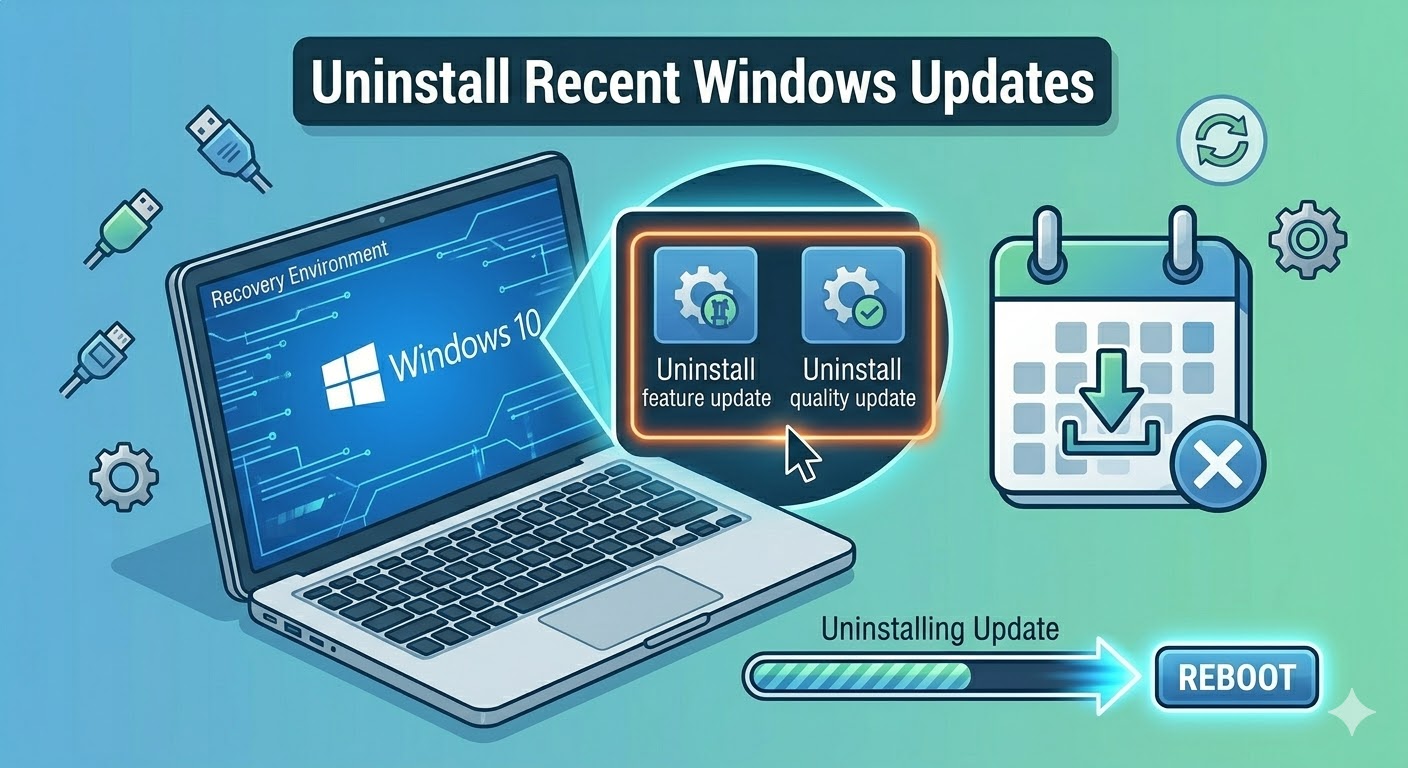
Uninstall Recent Windows Updates
If the problem started after a Windows update, uninstalling it may help.
Steps:
- Boot into Recovery Mode.
- Select Troubleshoot > Advanced options.
- Click Uninstall Updates.
- Choose the latest update to remove.
Restart your computer afterward.
Check Disk for Errors
Disk errors can prevent Windows from loading properly.
To run CHKDSK:
- Open Command Prompt as administrator.
- Enter:
chkdsk /f /r
- Press Enter.
Restart your computer to complete the scan.
Create a New User Account
A corrupted user profile can cause login issues.
To create a new account:
- Boot into Safe Mode.
- Open Settings > Accounts.
- Add a new user account.
- Restart and log in with the new account.
Perform System Restore
If the issue started recently, restoring your system may fix it.
Steps:
- Enter Recovery Mode.
- Select System Restore.
- Choose a restore point before the issue occurred.
- Follow the instructions.
Reset Windows 10
If none of the above methods work, resetting Windows may be necessary.
To reset:
- Go to Recovery Mode.
- Select Reset this PC.
- Choose whether to keep your files or remove everything.
- Follow the instructions.
Final Thoughts
The Windows 10 stuck on Welcome screen issue can be frustrating, but it is usually caused by software-related problems such as corrupted files, driver conflicts, or faulty updates.
Most users can fix the issue by booting into Safe Mode, running system repair tools like SFC and DISM, or disabling problematic startup programs. In more severe cases, system restore or resetting Windows may be required.
Related articles
How to Fix Wi-Fi Disconnecting Issues on Windows 10
How to Fix No Internet Connection in Windows 10
How to Fix “Printer Driver Is Unavailable” Error on Windows 10