


Fix Code 12 Error: This Device Cannot Find Enough Free Resources
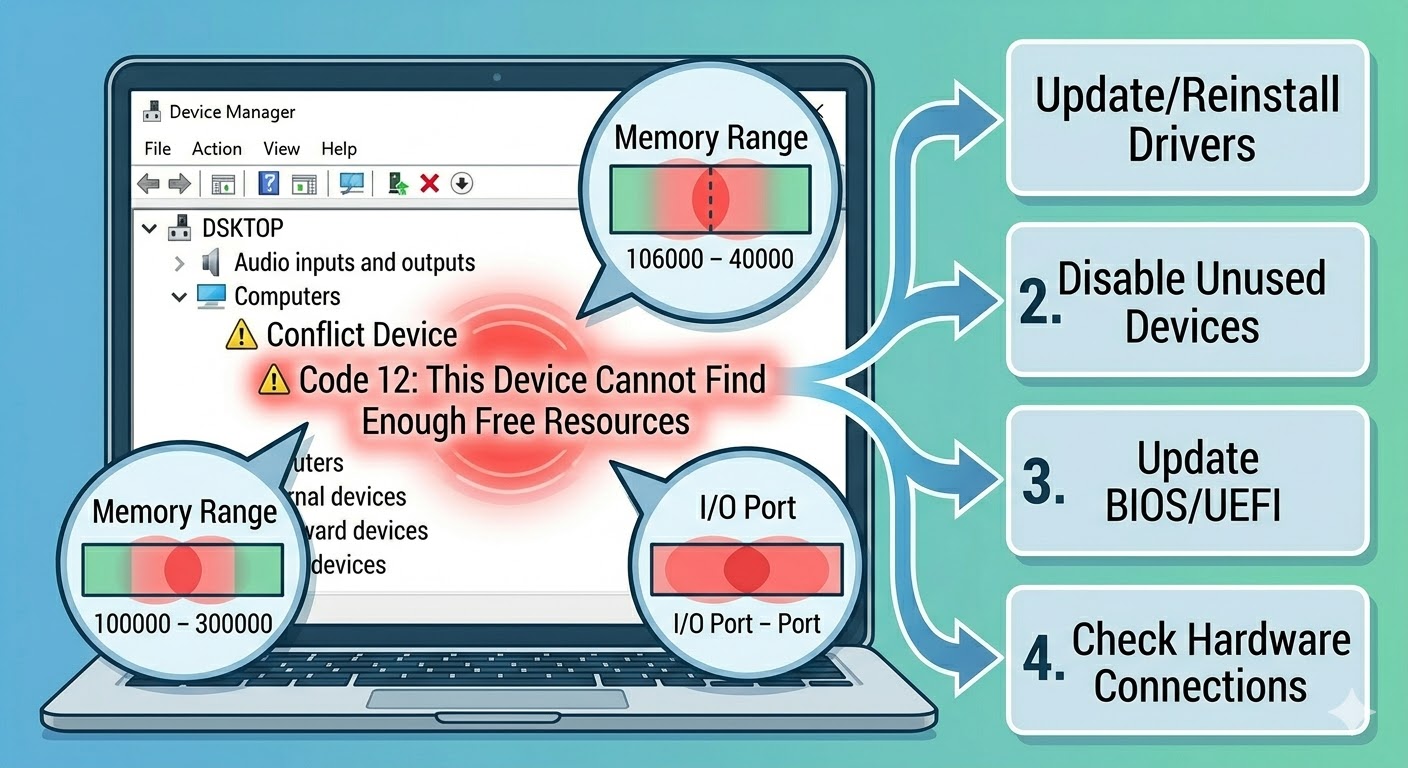
The “This device cannot find enough free resources to use (Code 12)” error is a common issue in Windows that appears in Device Manager when your system cannot allocate sufficient hardware resources to a device. These resources include memory ranges, input/output (I/O) ports, and interrupt requests (IRQ).
When this error occurs, the affected device—such as a graphics card, network adapter, or sound card—may stop working or fail to initialize properly. You may also see a yellow warning icon next to the device in Device Manager.
Although this issue may seem complex, it is often related to resource conflicts, outdated drivers, BIOS settings, or hardware limitations. Fortunately, there are several effective ways to fix the Code 12 error in Windows 10 and Windows 11.
What Does Code 12 Mean?
The Code 12 error indicates that Windows cannot assign enough system resources to a hardware device. This typically happens when two or more devices are trying to use the same resources.
The error message usually appears as:
- “This device cannot find enough free resources that it can use (Code 12)”
- “If you want to use this device, you will need to disable one of the other devices on this system”
This means a resource conflict is preventing the device from functioning.
Common Causes of Code 12 Error
Understanding the possible causes will help you troubleshoot the issue more effectively.
Some common causes include:
- Hardware resource conflicts
- Outdated or incompatible drivers
- BIOS/UEFI configuration issues
- Too many connected devices
- Faulty hardware
- Windows update conflicts
Identifying the root cause is key to resolving the problem.
Restart Your Computer
Before trying advanced fixes, restart your system. Temporary resource allocation issues can often be resolved with a reboot.
To restart:
- Click the Start Menu.
- Select the Power icon.
- Click Restart.
After restarting, check if the error persists.
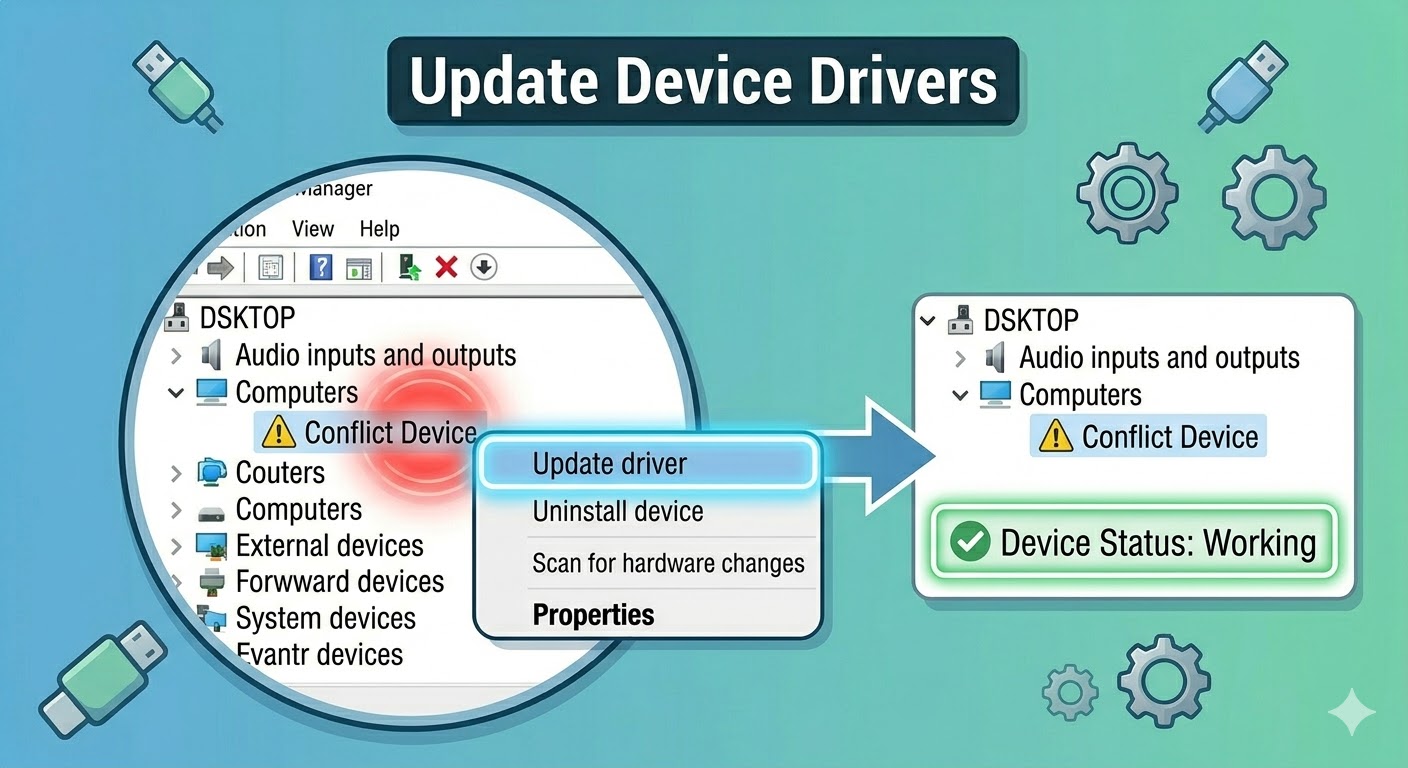
Update Device Drivers
Outdated drivers can cause resource conflicts and prevent devices from functioning correctly.
To update drivers:
- Right-click the Start Menu.
- Select Device Manager.
- Locate the device with the Code 12 error.
- Right-click it and select Update driver.
- Choose Search automatically for drivers.
Restart your computer after updating.
Reinstall the Device Driver
If updating does not work, reinstalling the driver may fix corrupted configurations.
Steps:
- Open Device Manager.
- Right-click the problematic device.
- Select Uninstall device.
- Confirm the action.
- Restart your computer.
Windows will automatically reinstall the driver.
Disable Unused Devices
If your system has too many devices competing for resources, disabling unused hardware can help free up resources.
To disable a device:
- Open Device Manager.
- Right-click an unused device.
- Select Disable device.
Avoid disabling essential devices such as your display or storage controllers.
Use the Device Troubleshooter
Windows includes built-in tools to detect and fix hardware issues.
To run the troubleshooter:
- Open Settings.
- Go to System > Troubleshoot.
- Click Other troubleshooters.
- Run the Hardware and Devices troubleshooter.
Follow the on-screen instructions.
Check for Windows Updates
System updates may include fixes for hardware compatibility issues.
To update Windows:
- Press Windows + I.
- Go to Windows Update.
- Click Check for updates.
- Install available updates.
Restart your computer afterward.
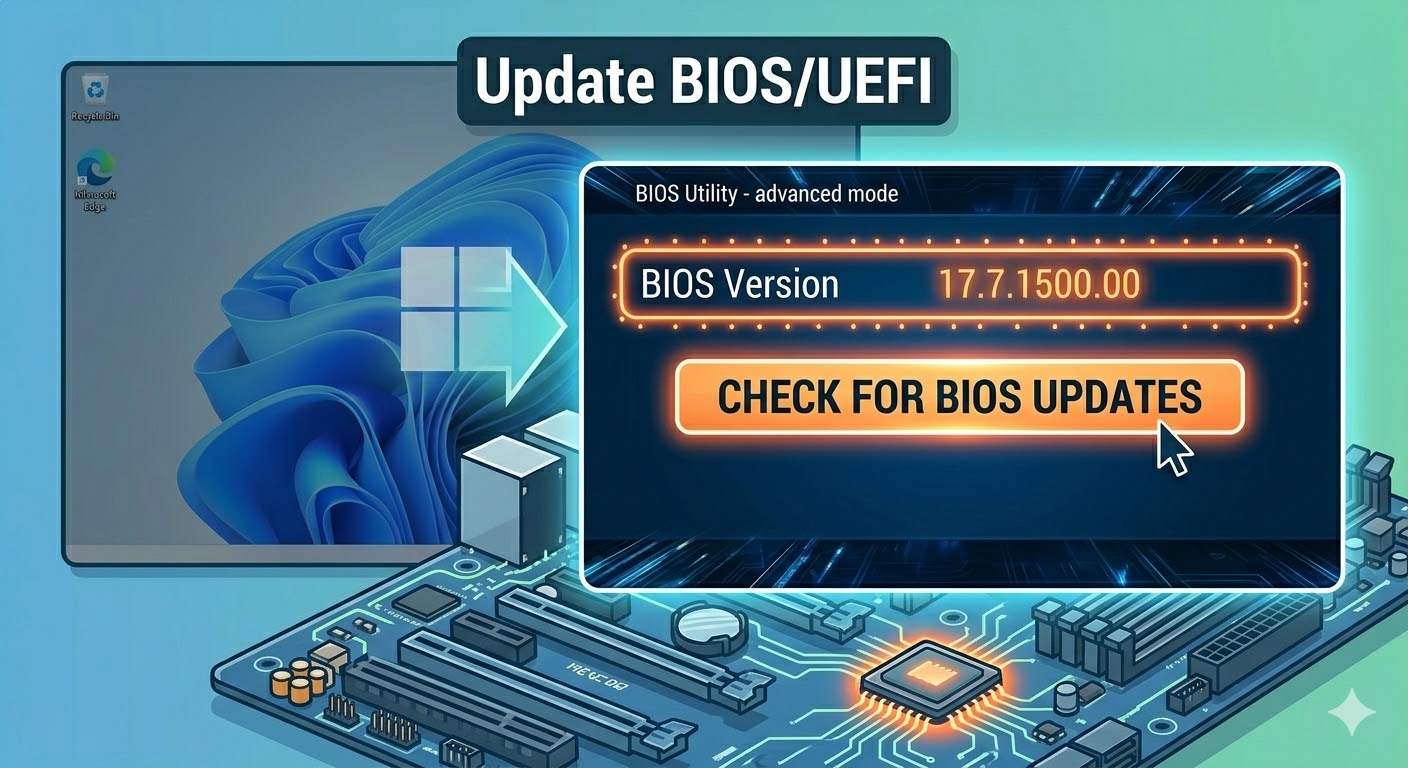
Update BIOS/UEFI
Outdated BIOS firmware can cause hardware resource allocation issues.
To update BIOS:
- Visit your motherboard or laptop manufacturer’s website
- Download the latest BIOS version
- Follow official instructions carefully
Updating BIOS can improve hardware compatibility and resource management.
Change PCI Slot (Desktop Only)
If you are using a desktop PC and the error involves a PCI device (such as a graphics card), changing the slot may resolve the issue.
Steps:
- Turn off your computer
- Open the case
- Move the device to another PCI or PCIe slot
- Restart the system
This can help reassign hardware resources.
Adjust BIOS Resource Settings
Some BIOS settings allow you to control resource allocation.
To check:
- Enter BIOS/UEFI settings.
- Look for options like:
- Plug and Play OS
- PCI configuration
- Resource allocation
- Enable automatic resource allocation if available.
Save changes and restart.
Run System File Checker
Corrupted system files can contribute to hardware issues.
To run SFC:
- Open Command Prompt as administrator.
- Enter:
sfc /scannow
- Press Enter.
Restart your computer after the scan.
Use DISM Tool
If SFC does not fix the problem, use DISM:
- Open Command Prompt as administrator.
- Enter:
DISM /Online /Cleanup-Image /RestoreHealth
- Press Enter.
Restart your system after completion.
Remove Recently Installed Hardware
If the error appeared after installing new hardware, it may be causing a conflict.
To fix this:
- Remove the recently added device
- Restart your computer
- Check if the error disappears
If so, the new hardware may not be compatible.
Perform a System Restore
If the issue started recently, restoring your system may help.
Steps:
- Search for Create a restore point.
- Click System Restore.
- Choose a restore point before the issue occurred.
- Follow the instructions.
Reset Windows
If none of the solutions work, resetting Windows may resolve deep system issues.
To reset:
- Open Settings.
- Go to System > Recovery.
- Click Reset this PC.
- Choose whether to keep your files or remove everything.
- Follow the instructions.
Final Thoughts
The “This device cannot find enough free resources to use (Code 12)” error is usually caused by hardware conflicts or resource allocation issues in Windows. While it may seem complicated, most users can resolve it with proper troubleshooting.
Updating drivers, disabling unused devices, adjusting BIOS settings, and checking hardware connections are among the most effective solutions.
Related articles
Fixing the “Kernel Security Check Failure” Error on Windows 10