


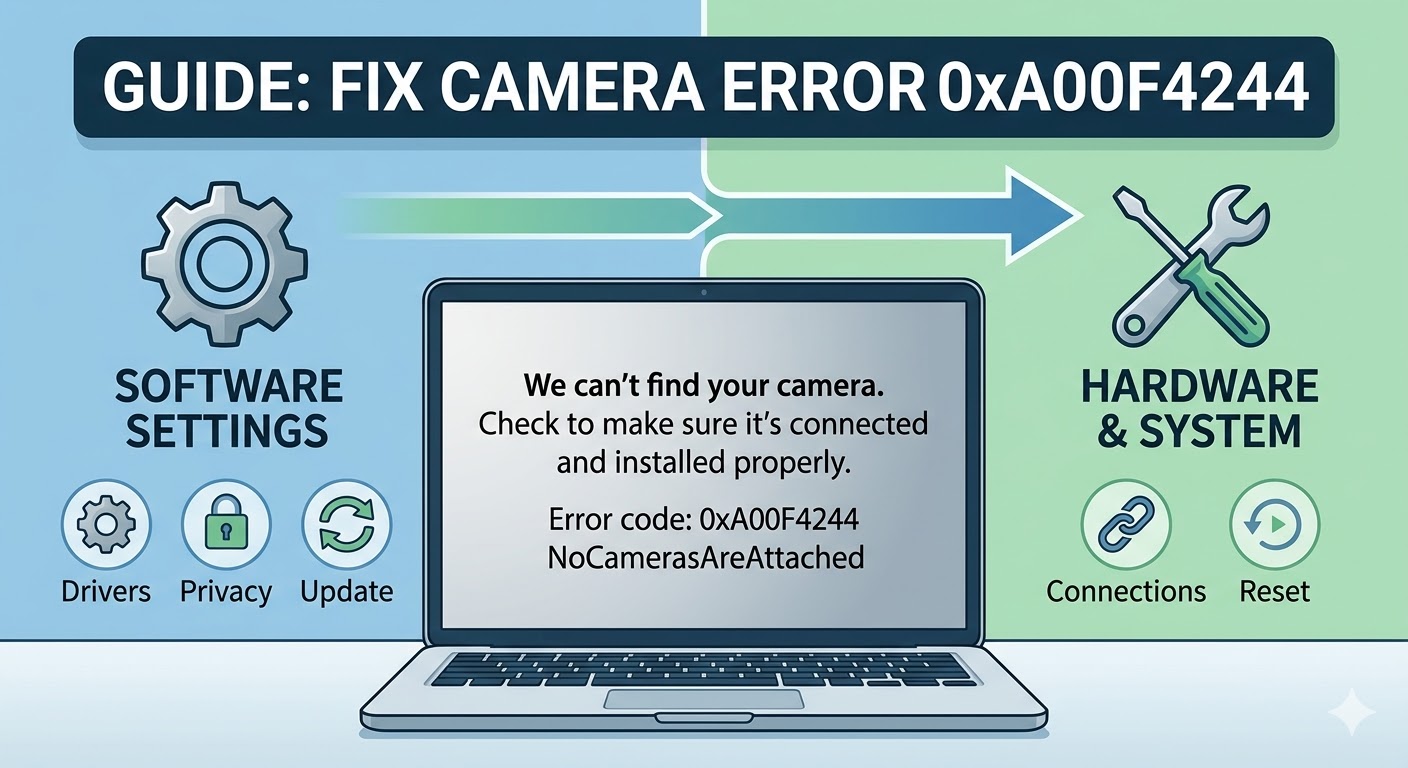
Camera Not Working? Fix Error 0xA00F4244 No Cameras Are Attached
The Error Code 0xA00F4244 (NoCamerasAreAttached) is a common issue in Windows 10 and Windows 11 that occurs when your system fails to detect a camera. This error typically appears in the Camera app or video conferencing tools such as Zoom, Microsoft Teams, or Skype.
When this problem occurs, you may see a message like “We can’t find your camera” along with the error code. This can be frustrating, especially if you rely on your webcam for online classes, meetings, or video calls.
The good news is that this issue is usually caused by software or configuration problems rather than hardware failure. In this guide, you will learn the causes and effective methods to fix the 0xA00F4244 NoCamerasAreAttached error on Windows.
What Causes Error Code 0xA00F4244?
Understanding the possible causes can help you fix the issue more efficiently.
Common causes include:
- Disabled camera device
- Outdated or corrupted camera drivers
- Privacy settings blocking camera access
- Conflicts with other applications
- Windows update issues
- Hardware connection problems
Identifying the root cause will help you choose the right solution.
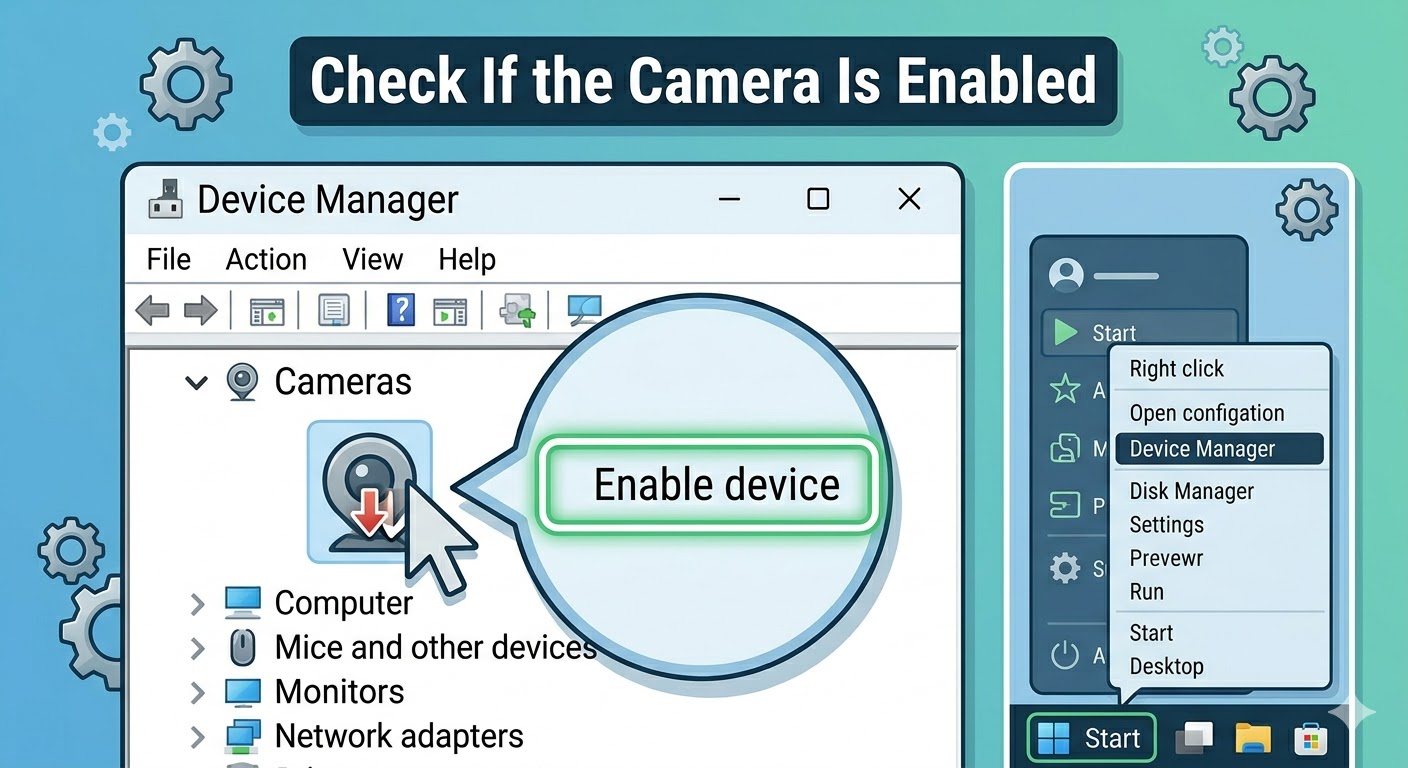
Check If the Camera Is Enabled
Sometimes the camera may be disabled in Device Manager or BIOS settings.
To check the camera:
- Right-click the Start Menu.
- Select Device Manager.
- Expand Cameras or Imaging devices.
- Right-click your camera.
- Select Enable device if it is disabled.
After enabling, test the camera again.
Check Camera Privacy Settings
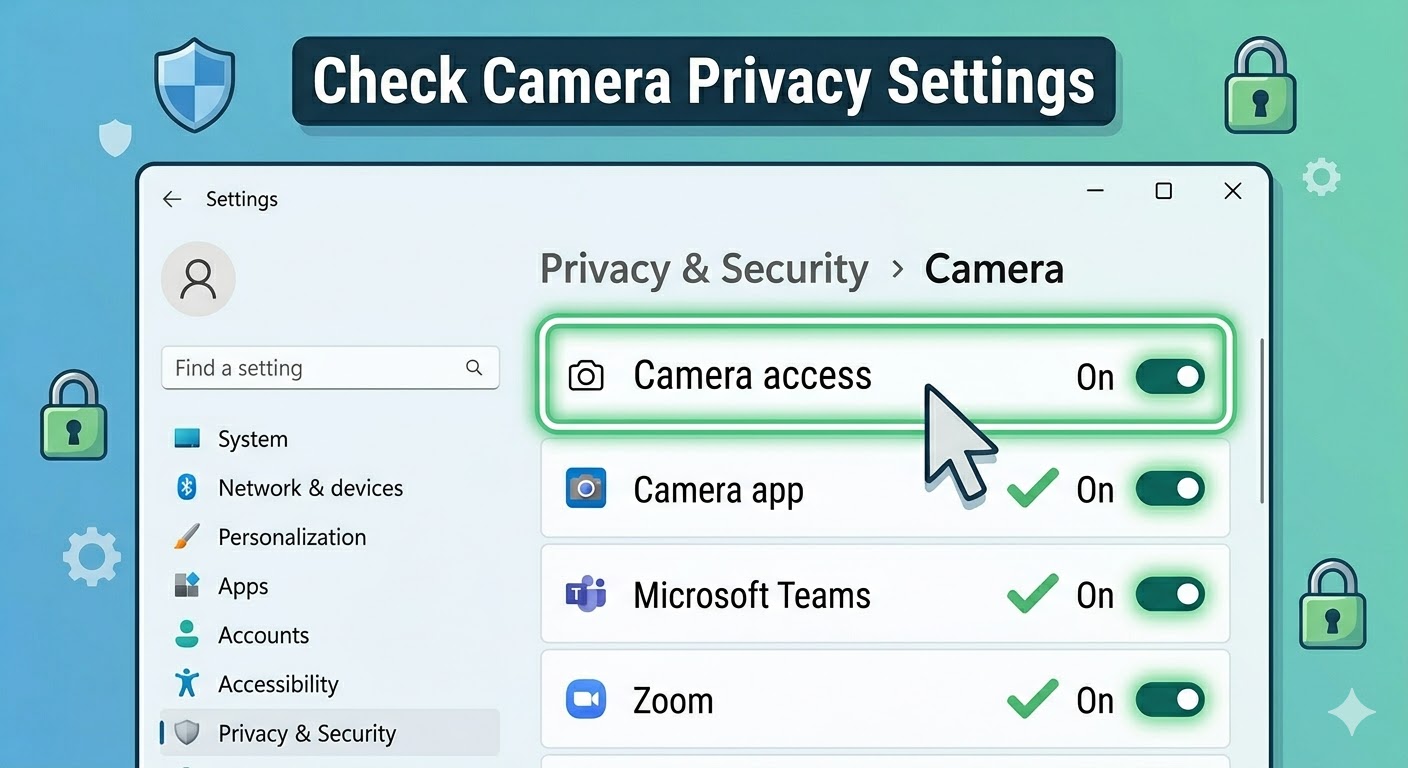
Windows privacy settings can block apps from accessing your camera.
To allow camera access:
- Press Windows + I to open Settings.
- Go to Privacy & Security.
- Click Camera.
- Turn on:
- Camera access
- Let apps access your camera
- Ensure the specific app (Zoom, Teams, etc.) is enabled.
After adjusting settings, try using the camera again.
Restart Your Computer
A simple restart can fix temporary glitches affecting the camera.
To restart:
- Click the Start Menu.
- Select the Power icon.
- Click Restart.
After rebooting, check if the error is resolved.
Update Camera Drivers
Outdated or corrupted drivers are a common cause of this error.
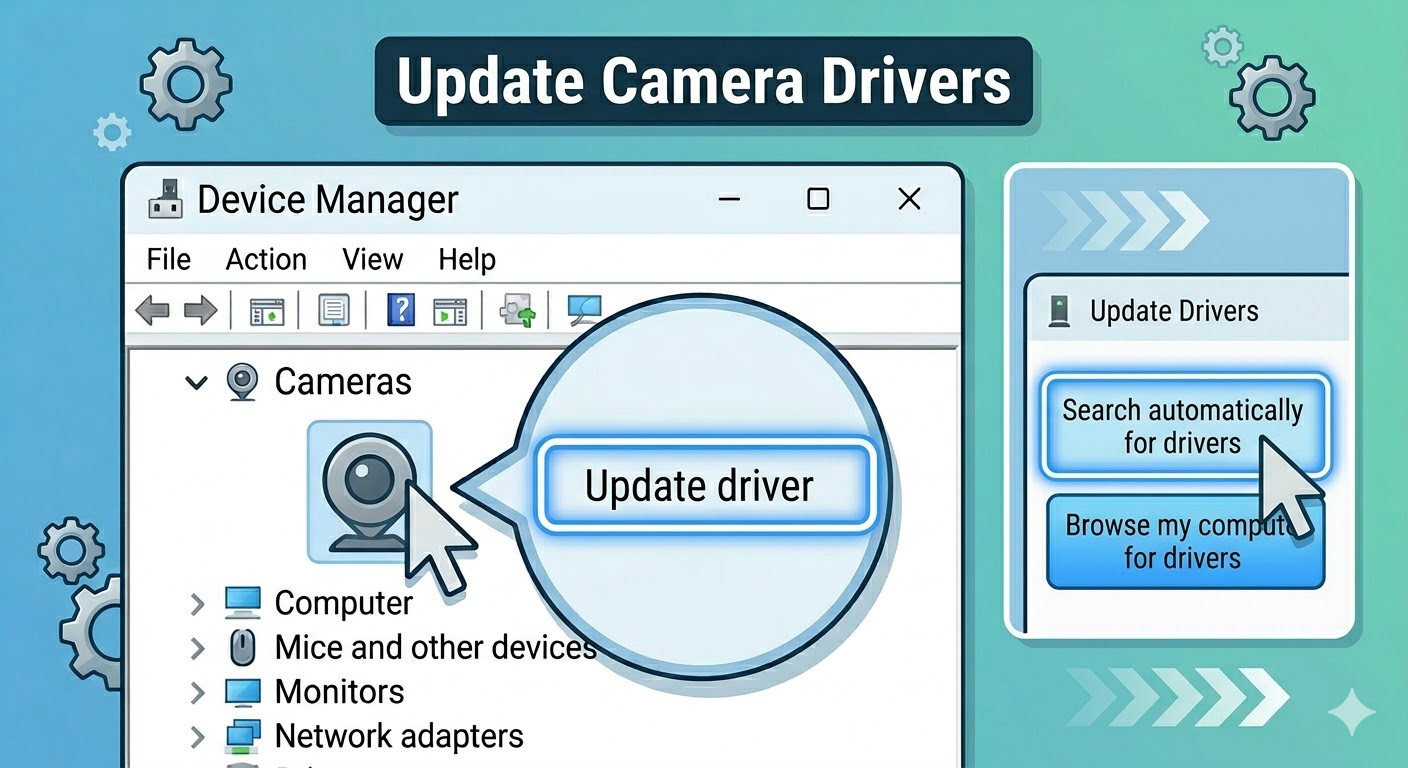
To update camera drivers:
- Open Device Manager.
- Expand Cameras.
- Right-click your camera device.
- Select Update driver.
- Choose Search automatically for drivers.
Restart your computer after updating.
Reinstall Camera Drivers
If updating does not work, reinstalling the driver may fix the issue.
Steps:
- Open Device Manager.
- Right-click the camera device.
- Select Uninstall device.
- Confirm the action.
- Restart your computer.
Windows will automatically reinstall the driver.
Run Windows Troubleshooter
Windows includes a built-in troubleshooter for fixing hardware issues.
To run the troubleshooter:
- Open Settings.
- Go to System > Troubleshoot.
- Click Other troubleshooters.
- Run the Camera troubleshooter (if available).
Follow the on-screen instructions.
Check for Windows Updates
System updates can fix bugs related to camera functionality.
To update Windows:
- Press Windows + I.
- Go to Windows Update.
- Click Check for updates.
- Install any available updates.
Restart your computer afterward.
Close Conflicting Applications
If another application is using the camera, it may prevent access.
To fix this:
- Close all apps that might use the camera
- Check background processes in Task Manager
- End tasks related to video or camera usage
After closing apps, try using the camera again.
Reset the Camera App
The Camera app itself may be causing the problem.
To reset it:
- Open Settings.
- Go to Apps.
- Select Installed apps.
- Find Camera.
- Click Advanced options.
- Select Reset.
Restart your computer after resetting.
Check Hardware Connections
If you are using an external webcam, ensure it is properly connected.
You can:
- Plug the camera into a different USB port
- Test the camera on another computer
- Check the cable for damage
If the camera does not work elsewhere, it may be faulty.
Enable Camera in BIOS
Some laptops allow disabling the camera at the BIOS level.
To check:
- Restart your computer.
- Enter BIOS/UEFI (usually F2, Delete, or F10).
- Look for camera or device settings.
- Ensure the camera is enabled.
Save changes and exit BIOS.
Run System File Checker
Corrupted system files may prevent the camera from working.
To run SFC:
- Open Command Prompt as administrator.
- Enter:
sfc /scannow
- Press Enter.
Restart your system after the scan.
Use the DISM Tool
If SFC does not resolve the issue, use DISM:
- Open Command Prompt as administrator.
- Enter:
DISM /Online /Cleanup-Image /RestoreHealth
- Press Enter.
Restart your computer after completion.
Perform a System Restore
If the error started recently, restoring your system to a previous state may help.
Steps:
- Search for Create a restore point.
- Click System Restore.
- Choose a restore point before the issue began.
- Follow the instructions.
Reset Windows as a Last Resort
If none of the methods work, resetting Windows may resolve deeper system issues.
To reset:
- Open Settings.
- Go to System > Recovery.
- Click Reset this PC.
- Choose whether to keep your files or remove everything.
- Follow the instructions.
Final Thoughts
The Error Code 0xA00F4244 (NoCamerasAreAttached) can prevent you from using your webcam, but it is usually caused by software settings, driver issues, or system misconfigurations rather than hardware failure.
Most users can fix the problem by enabling the camera, updating drivers, adjusting privacy settings, or reinstalling the device. Advanced methods like system file repair and system restore can help if the issue persists.
Related articles
Fixing the “Kernel Security Check Failure” Error on Windows 10
How to Fix No Internet Connection in Windows 10
Fix Code 12 Error: This Device Cannot Find Enough Free Resources