


Fix Unexpected Restarts on Windows 10/11: Causes and Solutions
Random restarts on Windows 10 or Windows 11 can be one of the most frustrating issues users face. Your computer may suddenly reboot without warning, interrupting your work, gaming sessions, or important tasks. In some cases, the system may restart repeatedly, making it difficult to use the computer at all.
This problem can be caused by a wide range of factors, including hardware failures, overheating, driver issues, or system configuration errors. Fortunately, most cases of random restarts on Windows can be fixed with proper troubleshooting.
In this guide, you will learn the common causes and effective solutions to fix random restart issues on Windows 10/11.
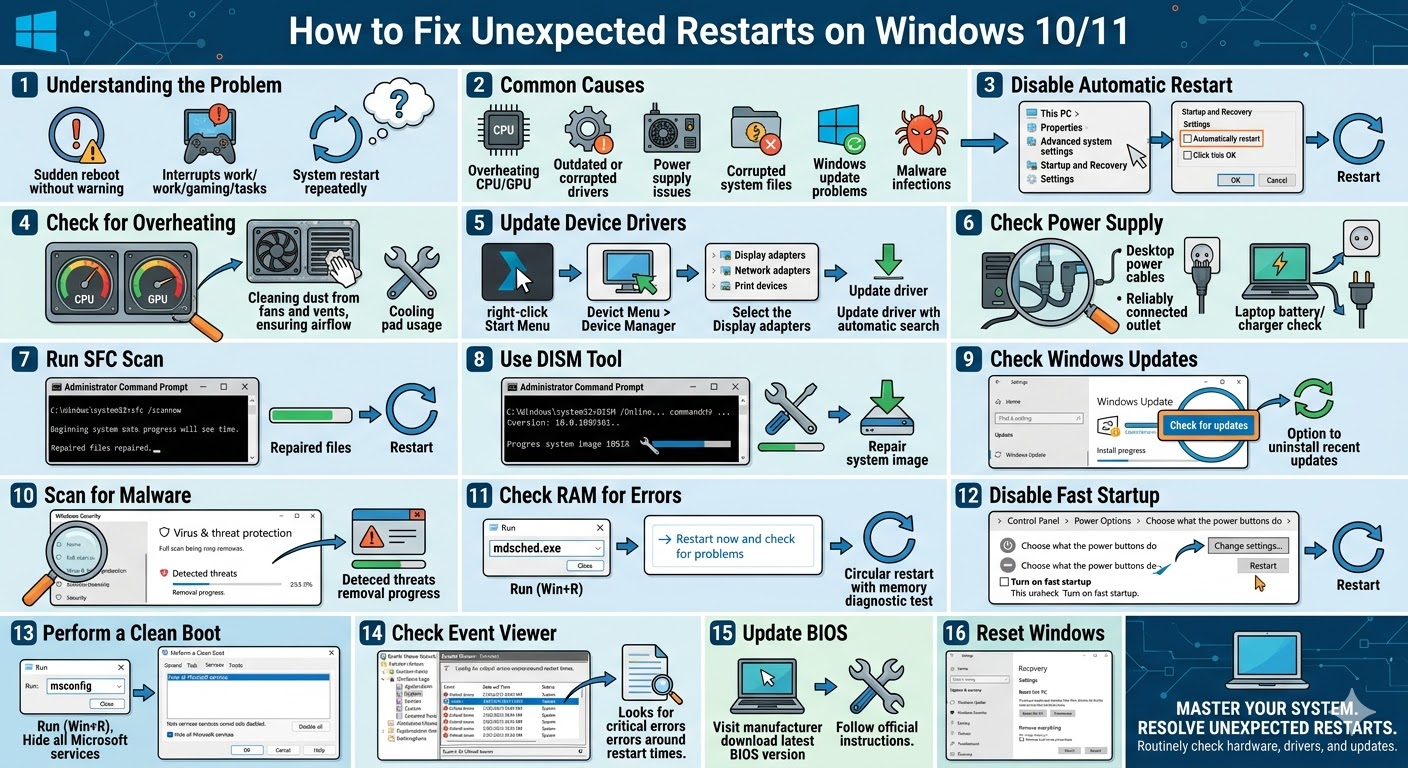
Common Causes of Random Restarts
Before applying solutions, it is important to understand why your system may be restarting unexpectedly.
Some common causes include:
- Overheating of CPU or GPU
- Faulty or outdated drivers
- Power supply issues
- Corrupted system files
- Windows update problems
- Malware infections
- Faulty RAM or hardware components
Identifying the root cause will help you apply the right fix.
Disable Automatic Restart
Windows may automatically restart after a system failure, making it difficult to identify the problem.
To disable automatic restart:
- Right-click This PC and select Properties.
- Click Advanced system settings.
- Under Startup and Recovery, click Settings.
- Uncheck Automatically restart.
- Click OK.
This will allow you to see error messages instead of automatic restarts.
Check for Overheating
Overheating is a common cause of random restarts. When temperatures rise too high, the system may shut down or restart to prevent damage.
Signs of overheating include:
- Loud fan noise
- Hot system surface
- Restarts during heavy tasks
To fix overheating:
- Clean dust from fans and vents
- Ensure proper airflow
- Use a cooling pad for laptops
- Avoid blocking ventilation areas
Keeping your system cool is essential for stability.
Update Device Drivers
Outdated or corrupted drivers can cause system instability and unexpected restarts.
To update drivers:
- Right-click the Start Menu.
- Select Device Manager.
- Expand categories like Display adapters and Network adapters.
- Right-click each device and select Update driver.
- Choose Search automatically for drivers.
Restart your computer after updating.
Check Power Supply
Power supply issues can cause sudden restarts, especially on desktop computers.
You should:
- Ensure all power cables are securely connected
- Use a reliable power outlet
- Test with another power supply if possible
For laptops, check the battery and charger condition.
Run System File Checker (SFC)
Corrupted system files can lead to system crashes and restarts.
To run SFC:
- Open Command Prompt as administrator.
- Enter:
sfc /scannow
- Press Enter.
Wait for the scan to complete and restart your system.
Use the DISM Tool
If SFC does not fix the issue, use DISM to repair the system image.
Steps:
- Open Command Prompt as administrator.
- Enter:
DISM /Online /Cleanup-Image /RestoreHealth
- Press Enter.
Restart your computer after completion.
Check Windows Updates
Sometimes updates can introduce bugs or conflicts that cause restarts.
To manage updates:
- Open Settings.
- Go to Windows Update.
- Click Check for updates.
- Install available updates.
If the problem started after an update, consider uninstalling recent updates.
Scan for Malware
Malware can interfere with system processes and cause unexpected restarts.
To scan your system:
- Open Windows Security.
- Go to Virus & threat protection.
- Run a Full scan.
Remove any detected threats.
Check RAM for Errors
Faulty RAM is a common cause of random restarts.
To test memory:
- Press Windows + R.
- Type mdsched.exe and press Enter.
- Select Restart now and check for problems.
Your system will run a memory diagnostic test.
Disable Fast Startup
Fast Startup can sometimes cause system instability.
To disable it:
- Open Control Panel.
- Click Power Options.
- Select Choose what the power buttons do.
- Click Change settings that are currently unavailable.
- Uncheck Turn on fast startup.
- Save changes.
Restart your computer afterward.
Perform a Clean Boot
A clean boot helps identify whether background applications are causing restarts.
To perform a clean boot:
- Press Windows + R.
- Type msconfig and press Enter.
- Go to the Services tab.
- Check Hide all Microsoft services.
- Click Disable all.
- Restart your computer.
If the issue disappears, a third-party application may be responsible.
Check Event Viewer
Event Viewer can help identify the cause of random restarts.
To use Event Viewer:
- Right-click the Start Menu.
- Select Event Viewer.
- Navigate to Windows Logs > System.
- Look for critical errors around the time of restarts.
This information can help pinpoint the issue.
Update BIOS
In some cases, outdated BIOS firmware can cause system instability.
You can:
- Visit your motherboard manufacturer’s website
- Download the latest BIOS update
- Follow official instructions carefully
Updating BIOS should be done with caution.
Reset Windows
If none of the solutions work, resetting Windows may fix deep system issues.
To reset Windows:
- Open Settings.
- Go to System > Recovery.
- Click Reset this PC.
- Choose whether to keep your files or remove everything.
- Follow the instructions.
Final Thoughts
Random restarts on Windows 10/11 can be caused by various factors, including overheating, hardware issues, driver conflicts, or corrupted system files. While the issue may seem serious, most cases can be resolved with proper troubleshooting.
By disabling automatic restart, checking hardware components, updating drivers, and repairing system files, you can identify and fix the root cause of the problem.
Related articles
How to Fix Wi-Fi Disconnecting Issues on Windows 10
How to Fix No Internet Connection in Windows 10
Camera Not Working? Fix Error 0xA00F4244 No Cameras Are Attached