


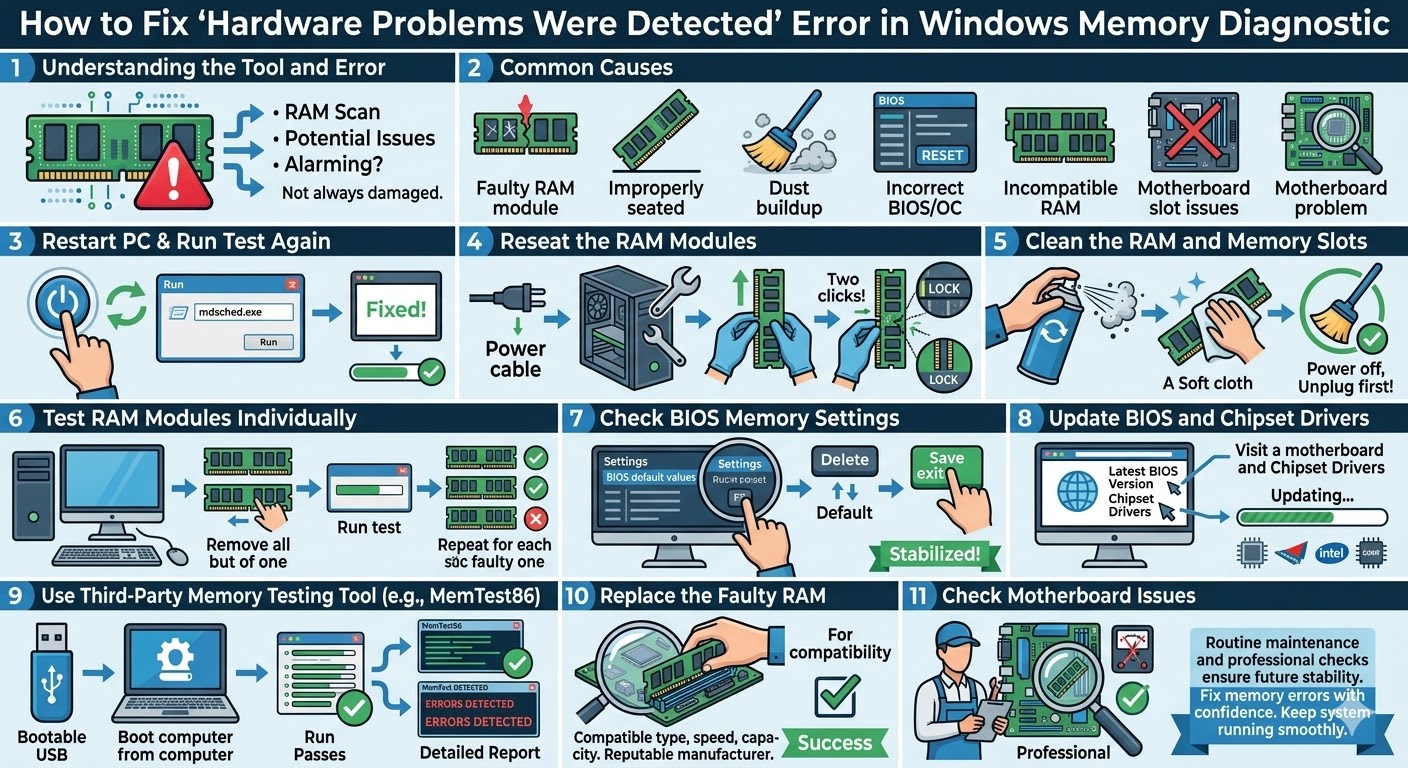
How to Fix the “Hardware Problems Were Detected” Error in Windows Memory Diagnostic
Windows includes several built-in tools designed to help users detect and fix system problems. One of these tools is Windows Memory Diagnostic, which checks your computer’s RAM for potential issues. When your system experiences frequent crashes, blue screens, freezing, or unexpected restarts, running this tool can help determine whether the problem is related to memory hardware.
However, after running the test, some users encounter the message “Hardware problems were detected”. This warning indicates that Windows has identified potential issues with your system memory. While this message may sound alarming, it does not always mean that your RAM is permanently damaged. In many cases, the problem can be resolved with proper troubleshooting.
This guide explains what the “Hardware Problems Were Detected” error means and provides several methods to fix or diagnose the issue effectively.
What Is Windows Memory Diagnostic?
Windows Memory Diagnostic is a built-in utility that scans your computer’s RAM (Random Access Memory) for errors. RAM plays a crucial role in system performance because it temporarily stores data that the CPU needs to access quickly.
If your RAM becomes faulty or unstable, your computer may experience issues such as:
-
Frequent system crashes
-
Blue Screen of Death (BSOD) errors
-
Applications freezing or closing unexpectedly
-
Random system restarts
-
Slow performance or data corruption
The Windows Memory Diagnostic tool helps detect these problems by running a series of tests on the memory modules.
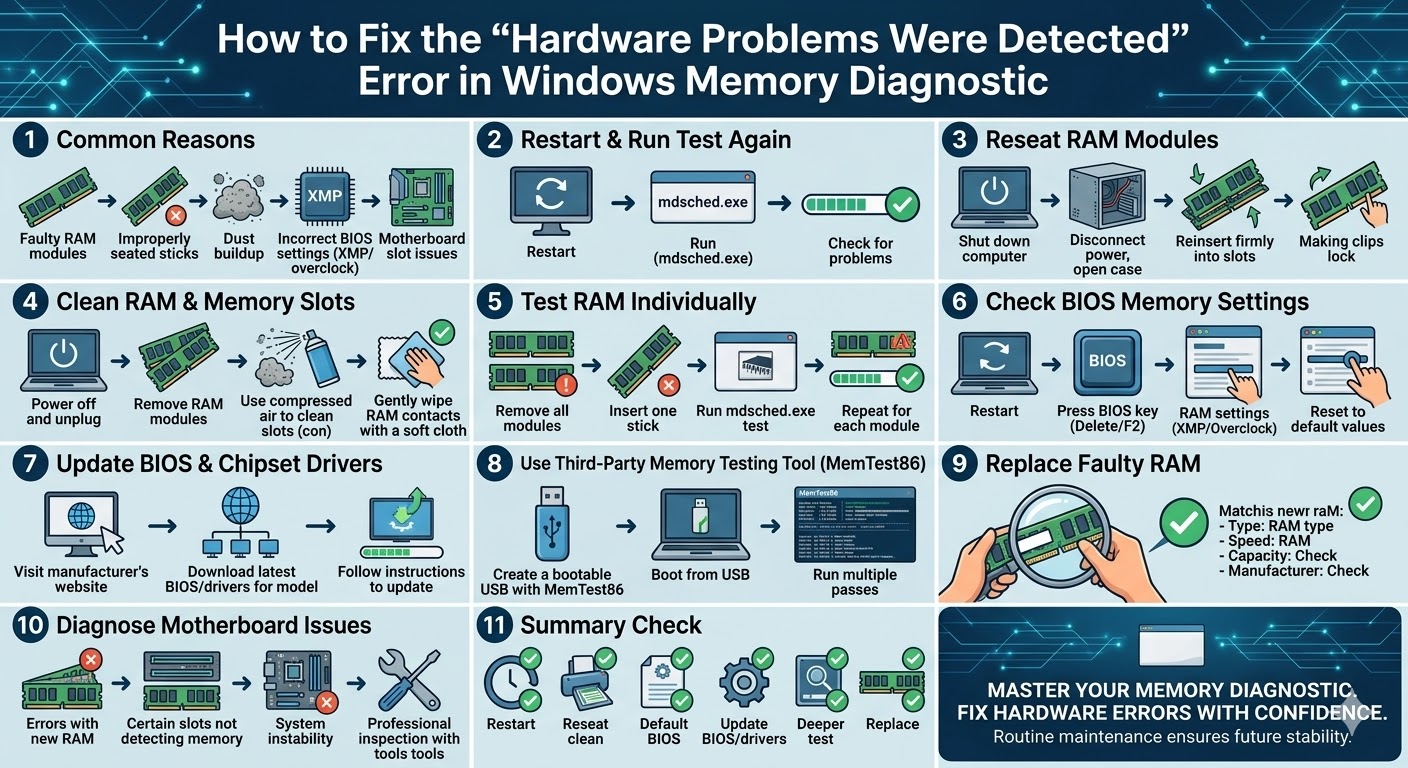
Why the “Hardware Problems Were Detected” Error Appears
When the diagnostic tool completes its test and reports hardware problems, it means that the system encountered errors while testing your memory. However, the cause is not always a permanently damaged RAM module.
Some possible reasons include:
-
Faulty or failing RAM modules
-
Improperly seated memory sticks
-
Dust buildup inside the RAM slots
-
Incorrect BIOS settings or memory overclocking
-
Incompatible RAM modules
-
Motherboard memory slot issues
Understanding the possible cause is important before deciding whether you need to replace hardware.
Restart Your Computer and Run the Test Again
Sometimes memory errors may appear due to temporary system glitches. Before performing more advanced troubleshooting, it is a good idea to restart your computer and run the test again.
To run the memory test:
-
Press Windows + R to open the Run dialog.
-
Type mdsched.exe and press Enter.
-
Select Restart now and check for problems.
Your computer will restart and run the memory test automatically.
If the error does not appear again, the issue may have been temporary.
Reseat the RAM Modules
Loose or improperly installed RAM sticks can trigger memory errors. Reseating the memory modules can often fix the issue.
Follow these general steps:
-
Shut down your computer completely.
-
Disconnect the power cable.
-
Open the computer case carefully.
-
Locate the RAM modules on the motherboard.
-
Remove the memory sticks.
-
Reinsert them firmly into the slots.
Make sure the clips on both sides lock into place properly.
After reinstalling the RAM, close the case and run the memory diagnostic test again.
Clean the RAM and Memory Slots
Dust accumulation inside your computer can interfere with electrical connections between RAM modules and motherboard slots.
To clean the RAM:
-
Power off the computer and unplug it.
-
Remove the RAM modules.
-
Use compressed air to clean the memory slots.
-
Gently wipe the RAM contacts with a soft cloth.
Avoid using liquids or harsh materials that could damage the components.
Once cleaned, reinstall the RAM and run the diagnostic tool again.
Test RAM Modules Individually
If your computer has multiple RAM sticks installed, one of them may be faulty while the others work normally.
Testing each RAM module separately can help identify the defective one.
To perform this test:
-
Turn off your computer and remove all RAM modules.
-
Insert only one memory stick.
-
Turn on the computer and run the memory diagnostic test.
-
Repeat the process with each RAM module.
If the error appears only with one specific stick, that module is likely defective and should be replaced.
Check BIOS Memory Settings
Incorrect BIOS settings or memory overclocking can also cause RAM errors.
If you have enabled XMP profiles or manual memory overclocking, the RAM may become unstable.
To check BIOS settings:
-
Restart your computer.
-
Press the BIOS key (commonly Delete, F2, or F10) during startup.
-
Locate memory or RAM settings.
-
Reset them to default values.
Saving default settings can often stabilize the memory and prevent diagnostic errors.
Update BIOS and Chipset Drivers
Outdated BIOS firmware or chipset drivers may cause compatibility issues with memory modules.
Updating these components can improve system stability.
To update BIOS:
-
Visit your motherboard manufacturer’s official website.
-
Download the latest BIOS version for your model.
-
Follow the manufacturer’s update instructions carefully.
Updating chipset drivers through the manufacturer’s website or Windows Update may also help resolve memory-related issues.
Use a Third-Party Memory Testing Tool
While Windows Memory Diagnostic is useful, it may not detect all memory problems. More advanced tools such as MemTest86 provide deeper testing.
MemTest86 performs extensive RAM checks and can identify subtle hardware errors.
The general process involves:
-
Downloading the MemTest86 tool.
-
Creating a bootable USB drive.
-
Booting your computer from the USB drive.
-
Running multiple memory test passes.
If MemTest86 reports errors, it strongly indicates that the RAM module may need replacement.
Check for Motherboard Issues
In rare cases, the problem may not be the RAM itself but the motherboard memory slots.
Signs of motherboard-related issues include:
-
Memory errors appearing in multiple RAM sticks
-
Certain RAM slots not detecting installed memory
-
System instability even with new RAM modules
If you suspect a motherboard problem, professional hardware inspection may be required.
Replace the Faulty RAM
If testing confirms that a RAM module is defective, replacing it is usually the best solution.
When purchasing new memory, make sure that it:
-
Matches your motherboard’s supported RAM type
-
Has compatible speed and capacity
-
Comes from a reputable manufacturer
Installing reliable memory can restore system stability and eliminate diagnostic errors.
Final Thoughts
The “Hardware Problems Were Detected” error on Windows Memory Diagnostic indicates that your system may be experiencing issues with its RAM or related hardware. While the message can be concerning, it does not always mean that your memory is permanently damaged.
Related articles
How to Fix Wi-Fi Disconnecting Issues on Windows 10
How to Fix No Internet Connection in Windows 10
How to Fix Windows 10 Feature Update Error 0x80070002 (Version 1903)