


How to Fix Slow Internet Speed on Windows 10
A slow internet connection can be frustrating, especially when you are trying to work, stream videos, play online games, or browse websites. Many Windows 10 users occasionally experience slow internet speeds even when their network plan should provide fast connectivity. Pages may take a long time to load, downloads may be extremely slow, and video streaming may constantly buffer.
The good news is that slow internet on Windows 10 is often caused by simple system settings, network issues, or outdated drivers, and most of these problems can be fixed with a few troubleshooting steps. By identifying the root cause and applying the right solution, you can significantly improve your internet performance.
In this guide, you will learn the most effective ways to fix slow internet problems on Windows 10.
Common Reasons for Slow Internet on Windows 10
Before applying any solutions, it is important to understand what might be causing the slow internet speed. Several factors can affect your connection performance.
Some common causes include:
-
Outdated or corrupted network drivers
-
Background applications consuming bandwidth
-
Incorrect network settings
-
Windows updates running in the background
-
DNS server issues
-
Router or modem problems
-
Malware or unwanted software
Once you identify the possible cause, fixing the issue becomes much easier.
Restart Your Router and Computer
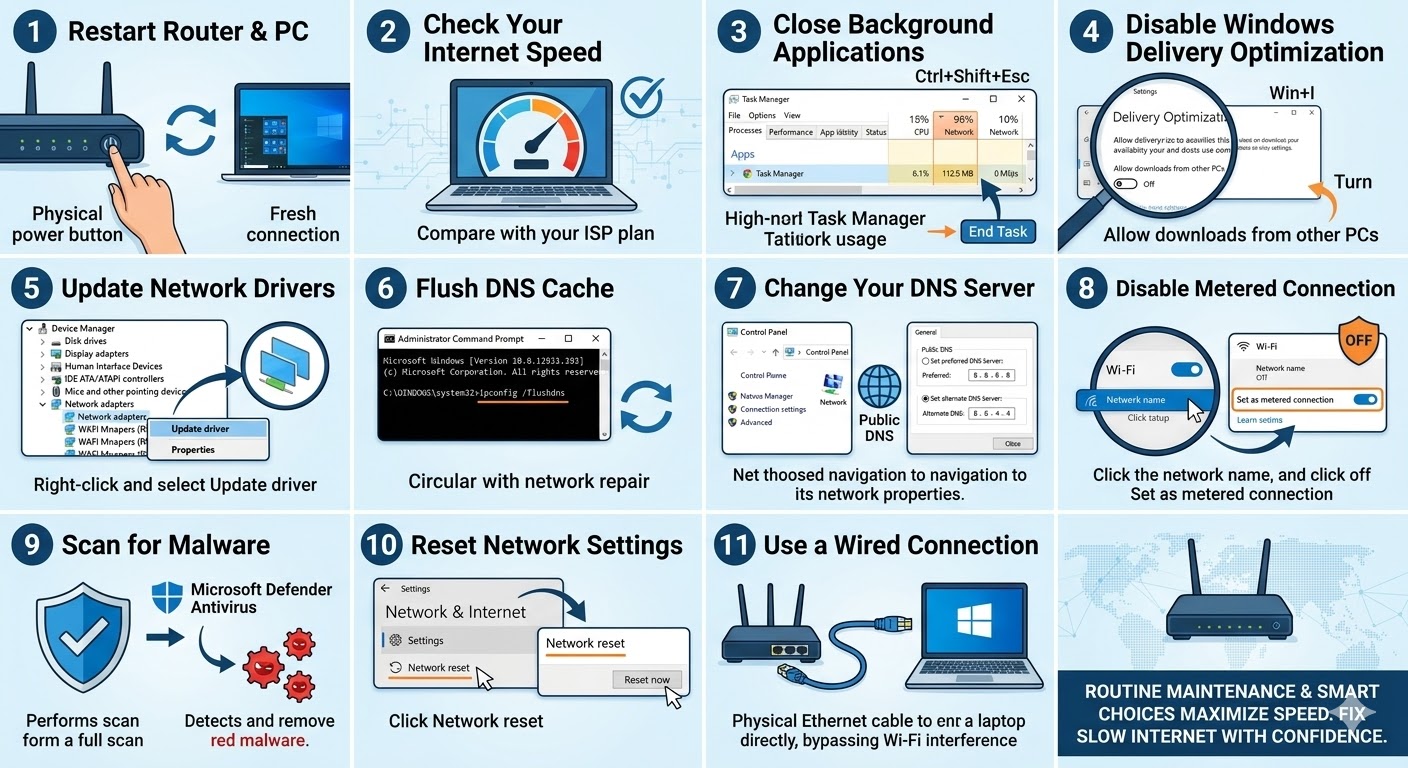
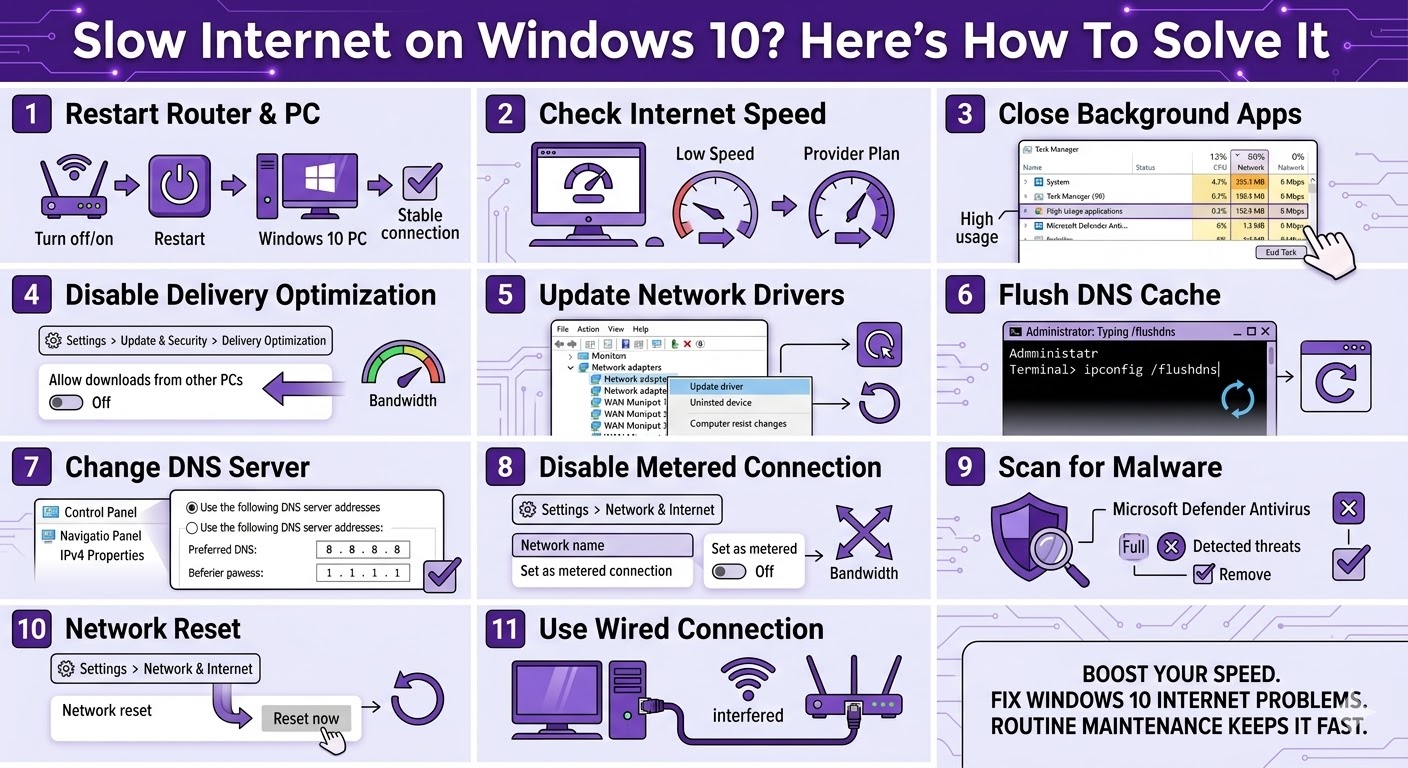
One of the simplest ways to fix slow internet is restarting both your router and your computer. Temporary network glitches or cached data may reduce connection speed.
To restart your router:
-
Turn off the router or modem.
-
Wait about 30 seconds.
-
Turn it back on.
-
Wait until the connection stabilizes.
Then restart your Windows 10 computer and check if the internet speed improves.
Check Your Internet Speed
Before changing system settings, it is helpful to check your current internet speed. This allows you to determine whether the problem is with your device or your internet provider.
You can check your speed by visiting an online speed test website.
Compare the result with the speed provided by your internet service provider. If the speed is significantly lower, there may be a configuration issue on your system.
Close Background Applications
Many programs run in the background and use internet bandwidth without you noticing. These applications can slow down your internet connection.
Common examples include:
-
Cloud storage synchronization tools
-
Software update services
-
Streaming or gaming applications
-
File download managers
To check background apps:
-
Press Ctrl + Shift + Esc to open Task Manager.
-
Click the Processes tab.
-
Look for applications using high Network usage.
-
Select the application and click End Task if it is not necessary.
Closing unnecessary background apps can instantly improve internet speed.
Disable Windows Delivery Optimization
Windows 10 includes a feature called Delivery Optimization, which allows your computer to share Windows updates with other devices on the network or internet. While useful, it can consume bandwidth and slow your internet connection.
To disable it:
-
Press Windows + I to open Settings.
-
Click Update & Security.
-
Select Delivery Optimization.
-
Turn off Allow downloads from other PCs.
This prevents your system from uploading updates to other devices and frees up bandwidth.
Update Network Drivers
Outdated or corrupted network drivers can significantly reduce internet speed and stability.
Updating your network driver can improve performance and compatibility.
Follow these steps:
-
Right-click the Start Menu.
-
Select Device Manager.
-
Expand Network adapters.
-
Right-click your network adapter.
-
Select Update driver.
-
Choose Search automatically for drivers.
Windows will search for the latest driver and install it if available.
After updating, restart your computer.
Flush DNS Cache
DNS cache stores records of previously visited websites to speed up browsing. However, if the cache becomes corrupted, it may slow down internet access.
Flushing the DNS cache can refresh network communication.
To flush DNS:
-
Type cmd in the Windows search bar.
-
Right-click Command Prompt and select Run as administrator.
-
Enter the following command:
ipconfig /flushdns
-
Press Enter.
After the process completes, restart your browser and test your internet speed again.
Change Your DNS Server
Your internet service provider’s DNS server may not always be the fastest option. Switching to a public DNS service can sometimes improve browsing speed.
Popular DNS servers include:
-
Google DNS: 8.8.8.8 and 8.8.4.4
-
Cloudflare DNS: 1.1.1.1 and 1.0.0.1
To change your DNS server:
-
Open Control Panel.
-
Click Network and Internet.
-
Select Network and Sharing Center.
-
Click Change adapter settings.
-
Right-click your network connection and select Properties.
-
Select Internet Protocol Version 4 (IPv4).
-
Click Properties.
-
Choose Use the following DNS server addresses and enter your preferred DNS values.
Click OK to apply the changes.
Disable Metered Connection
If your network is set as a metered connection, Windows may limit data usage, which can slow downloads and updates.
To disable metered connection:
-
Open Settings.
-
Go to Network & Internet.
-
Select Wi-Fi or Ethernet depending on your connection.
-
Click your network name.
-
Turn off Set as metered connection.
This allows Windows to use the full bandwidth of your internet connection.
Scan for Malware
Malware or unwanted programs can consume internet bandwidth by sending data or downloading content in the background.
Running a full system scan can help identify and remove these threats.
You can use Microsoft Defender Antivirus or other trusted security software to scan your computer.
After removing any malicious programs, check your internet speed again.
Reset Network Settings
If none of the previous solutions work, resetting your network settings may fix the issue.
A network reset removes all network adapters and restores default settings.
To reset network settings:
-
Open Settings.
-
Click Network & Internet.
-
Scroll down and select Network reset.
-
Click Reset now.
Your computer will restart and reinstall network adapters automatically.
Use a Wired Connection
Wireless connections are convenient but sometimes slower than wired connections. Interference from walls, other devices, or weak signals may reduce Wi-Fi speed.
If possible, connect your computer directly to the router using an Ethernet cable. Wired connections are usually more stable and faster.
Final Thoughts
Experiencing slow internet on Windows 10 can disrupt daily tasks such as browsing, streaming, and downloading files. Fortunately, most internet speed problems can be resolved by checking system settings, updating drivers, adjusting DNS servers, and managing background applications.
Related articles
Fixing the “Kernel Security Check Failure” Error on Windows 10
How to Fix Wi-Fi Disconnecting Issues on Windows 10
How to Fix the “Hardware Problems Were Detected” Error in Windows Memory Diagnostic