


What Is Service Host SuperFetch in Windows and How Can You Fix It?
Windows operating systems include many background services designed to improve system performance and user experience. One of these services is Service Host SuperFetch, a component responsible for optimizing application loading and improving system responsiveness. However, many users notice that Service Host SuperFetch consumes high disk, CPU, or memory usage, which can slow down their computers.
If you open Task Manager and see “Service Host: SuperFetch” (or SysMain in newer versions of Windows) using a large percentage of system resources, it can be concerning. In some cases, the computer may become sluggish, applications may take longer to open, and disk usage may remain at 100%.
This guide explains what Windows Service Host SuperFetch is, why it sometimes causes performance issues, and how you can fix or manage it safely.
What Is Service Host SuperFetch?
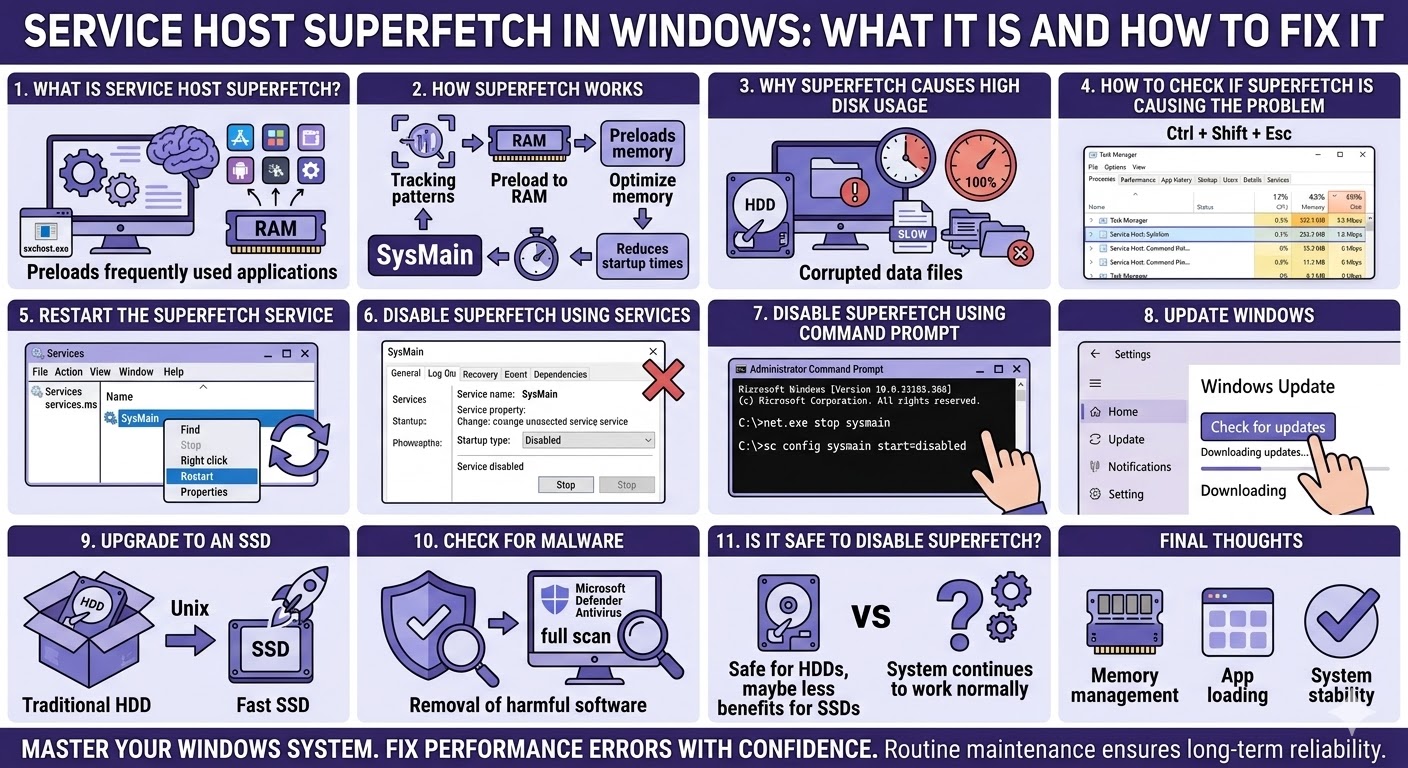
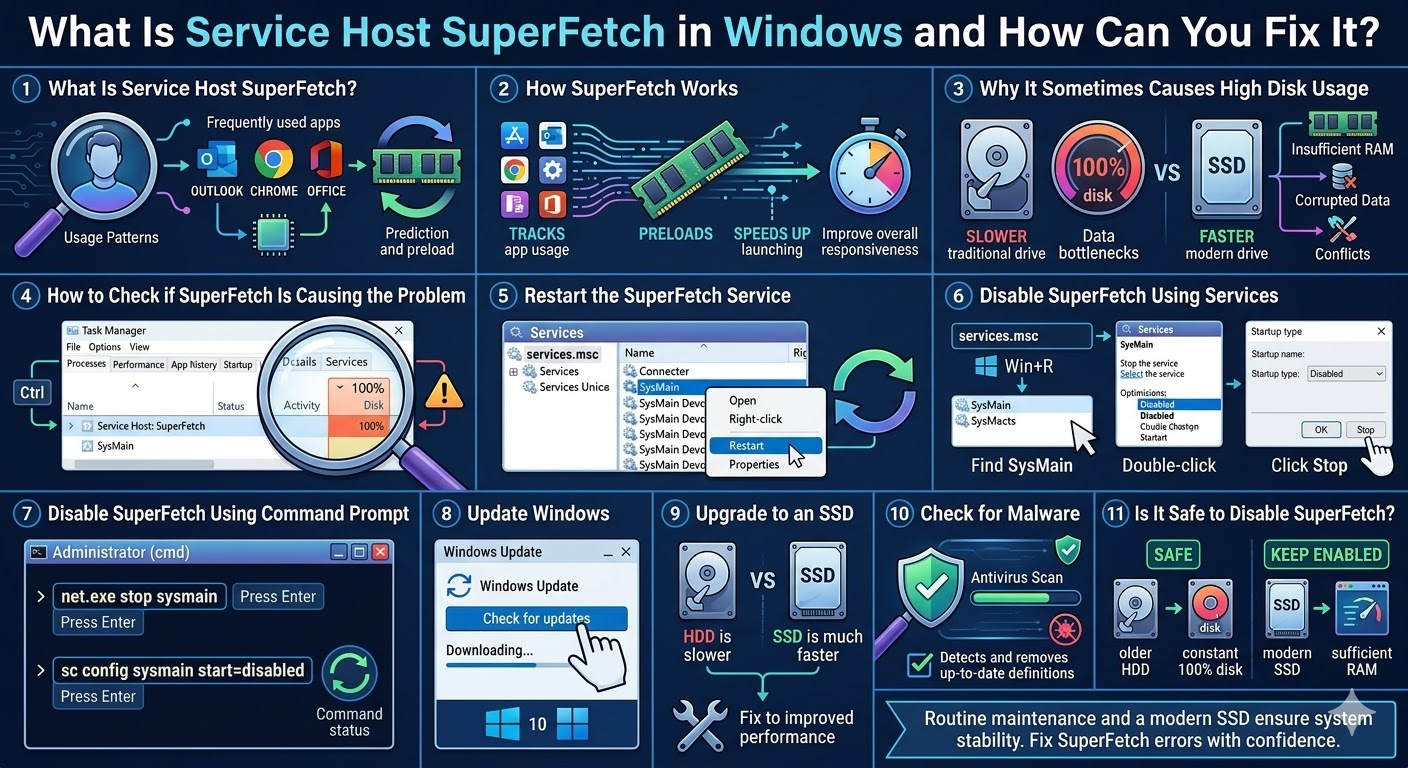
SuperFetch is a Windows service introduced in Windows Vista and later versions of Windows. Its purpose is to improve system performance by preloading frequently used applications into memory.
The service analyzes your usage patterns and predicts which programs you are likely to open. It then loads the necessary data into RAM in advance so that applications launch faster.
In Windows 10 and Windows 11, SuperFetch was renamed SysMain, but it still performs the same function.
The service runs under Service Host (svchost.exe), which is why it appears in Task Manager as Service Host: SuperFetch or Service Host: SysMain.
How SuperFetch Works
SuperFetch continuously monitors how you use your computer. Over time, it builds a usage pattern and optimizes memory usage based on that data.
Here is how it improves performance:
-
Tracks frequently used applications
-
Preloads commonly used programs into RAM
-
Optimizes memory management
-
Reduces application startup times
-
Improves overall system responsiveness
For systems with sufficient RAM and fast storage, SuperFetch can significantly speed up program launching.
However, on some computers—especially those with traditional hard drives—it may cause performance problems.
Why SuperFetch Sometimes Causes High Disk Usage
While SuperFetch is designed to improve performance, it can sometimes cause high disk or CPU usage, especially on older systems.
Some common reasons include:
-
Systems with slow hard drives (HDD) instead of SSDs
-
Insufficient system memory (RAM)
-
Corrupted SuperFetch data
-
Conflicts with other background services
-
Windows update or indexing processes running simultaneously
When this happens, the service repeatedly reads and writes data to the disk, which may cause the disk usage to spike to 100% in Task Manager.
If the issue persists, disabling or adjusting the service may improve system performance.
How to Check if SuperFetch Is Causing the Problem
Before attempting to fix the issue, you should confirm that SuperFetch is actually responsible for the high resource usage.
Follow these steps:
-
Press Ctrl + Shift + Esc to open Task Manager.
-
Click the Processes tab.
-
Look for Service Host: SuperFetch or Service Host: SysMain.
-
Check the CPU, Memory, and Disk usage columns.
If you notice extremely high disk activity associated with this service, it may be the cause of your system slowdown.
Restart the SuperFetch Service
Sometimes the service may simply be stuck or experiencing a temporary error. Restarting the service can fix the issue.
To restart SuperFetch:
-
Press Windows + R.
-
Type services.msc and press Enter.
-
Scroll down and locate SysMain (or SuperFetch).
-
Right-click the service.
-
Select Restart.
After restarting the service, monitor your system performance to see if the issue improves.
Disable SuperFetch Using Services
If restarting the service does not solve the problem, you may choose to disable it completely.
Disabling SuperFetch does not harm Windows, but application launch times may become slightly slower.
Follow these steps:
-
Press Windows + R.
-
Type services.msc and press Enter.
-
Find SysMain in the list.
-
Double-click the service.
-
Change the Startup type to Disabled.
-
Click Stop if the service is running.
-
Click Apply and OK.
After disabling the service, restart your computer and check if disk usage improves.
Disable SuperFetch Using Command Prompt
You can also disable SuperFetch using Command Prompt.
Follow these steps:
-
Type cmd in the Windows search bar.
-
Right-click Command Prompt and select Run as administrator.
-
Enter the following command:
-
Press Enter.
To permanently disable the service, run:
After running these commands, restart your computer.
Update Windows
Sometimes high disk usage related to SuperFetch may occur because of bugs in the operating system. Installing the latest Windows updates can fix these issues.
To update Windows:
-
Press Windows + I to open Settings.
-
Select Update & Security.
-
Click Windows Update.
-
Choose Check for updates.
Install any available updates and restart your computer.
Upgrade to an SSD
If your system uses a traditional HDD, SuperFetch may cause noticeable disk activity. One of the most effective long-term solutions is upgrading your storage drive to an SSD (Solid State Drive).
SSDs are significantly faster than HDDs and handle background processes more efficiently. After upgrading, many users notice improved performance even with SuperFetch enabled.
Check for Malware
Unusually high disk usage can sometimes be caused by malware or malicious programs running in the background.
To rule out this possibility, run a full system scan using trusted antivirus software or Microsoft Defender Antivirus.
Removing harmful software may restore normal system performance.
Is It Safe to Disable SuperFetch?
Yes, disabling SuperFetch (SysMain) is generally safe. Windows will continue to operate normally even if the service is turned off.
However, whether you should disable it depends on your system configuration.
You may benefit from disabling it if:
-
Your system has an older HDD
-
You experience constant 100% disk usage
-
Your computer becomes slow or unresponsive
If you use an SSD and sufficient RAM, leaving SuperFetch enabled may help maintain faster application loading.
Final Thoughts
Windows Service Host SuperFetch (SysMain) is a background service designed to improve system performance by preloading frequently used applications into memory. In many cases, it helps Windows run more smoothly and reduces application launch times.
Related articles
Fixing the “Kernel Security Check Failure” Error on Windows 10