


How to Fix Google Chrome Installation Failed on Windows 10
Google Chrome is one of the most widely used web browsers in the world thanks to its speed, reliability, and strong compatibility with modern websites. Many Windows users choose Chrome as their primary browser for work, browsing, and online communication. However, sometimes users encounter a frustrating issue where Google Chrome fails to install on Windows 10.
During installation, you may see error messages such as “Installation failed,” “Chrome setup failed,” or the installer may simply stop without completing the process. This problem can occur for several reasons, including corrupted installation files, permission issues, antivirus interference, or leftover files from previous installations.
Fortunately, this issue is usually easy to resolve once you identify the cause. In this guide, you will learn several proven methods to fix the Google Chrome installation failed in Windows 10 problem.
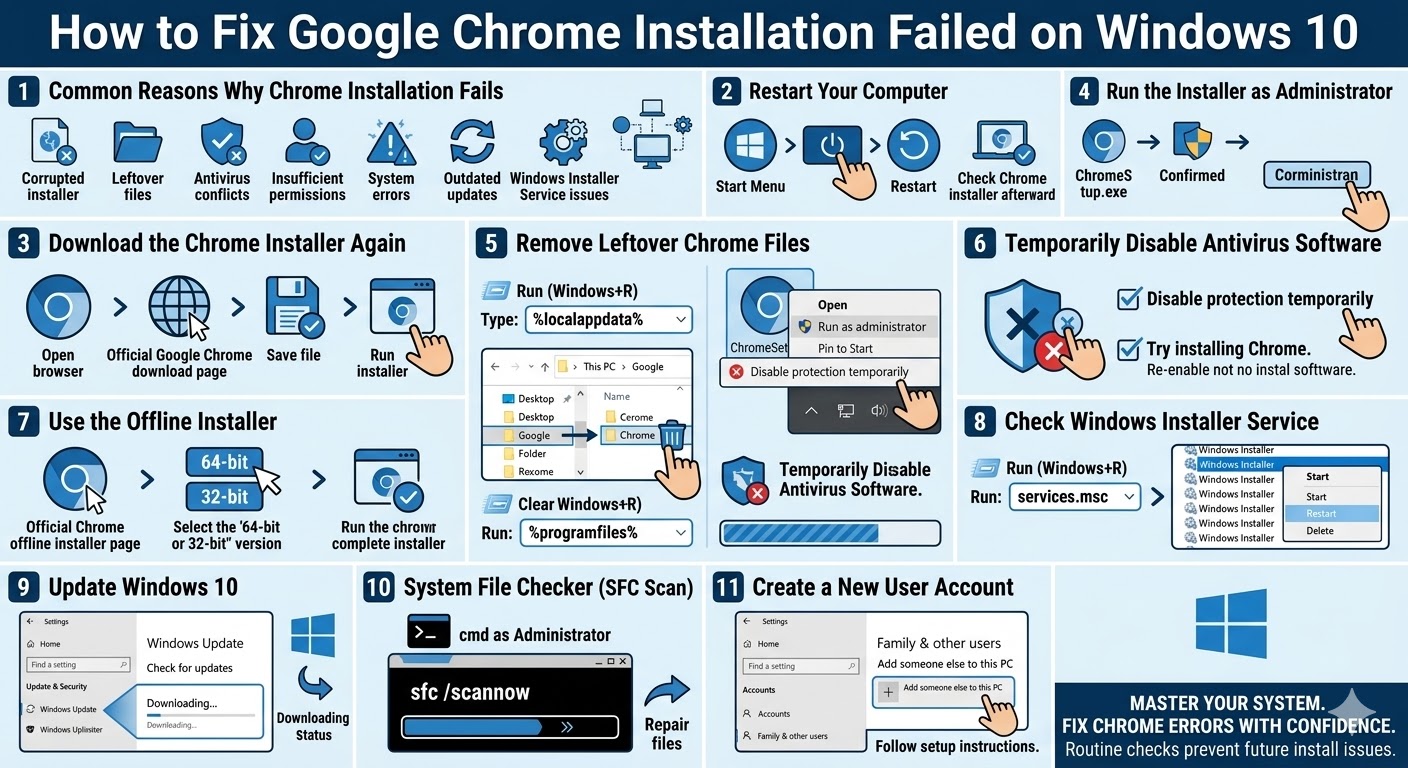
Common Reasons Why Chrome Installation Fails
Before attempting to fix the issue, it helps to understand the common causes of installation failures.
Some of the most frequent reasons include:
-
Corrupted or incomplete Chrome installer files
-
Leftover files from a previous Chrome installation
-
Conflicts with antivirus or firewall software
-
Insufficient administrator permissions
-
Windows system errors or outdated updates
-
Problems with the Windows Installer service
Knowing these causes can help you choose the right solution and avoid repeating the same installation issue.
Restart Your Computer
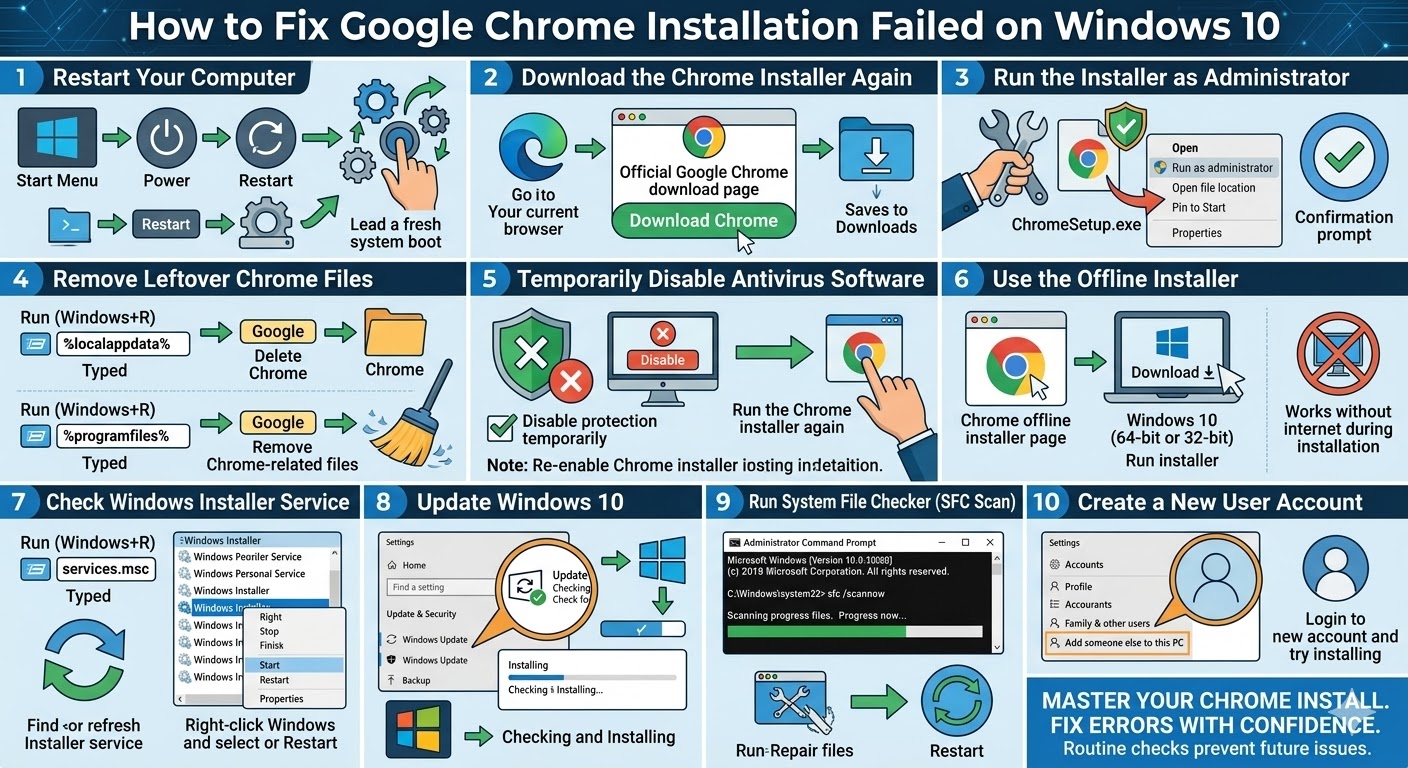
The first and simplest step to try is restarting your computer. Temporary system errors or locked files may prevent Chrome from installing correctly.
Restarting Windows clears temporary processes and resets system resources.
To restart your computer:
-
Click the Start Menu.
-
Select the Power icon.
-
Click Restart.
After the system restarts, download the Chrome installer again and attempt the installation.
Download the Chrome Installer Again
If the installer file was corrupted during download, the installation process may fail. Downloading a fresh copy of the installer often solves the problem.
Follow these steps:
-
Open your current web browser.
-
Visit the official Google Chrome download page.
-
Download the latest version of the installer.
-
Save the file to your computer.
-
Run the installer again.
Always download Chrome from the official website to avoid corrupted or modified files.
Run the Installer as Administrator
Sometimes Chrome installation fails because the installer does not have the necessary system permissions.
Running the installer with administrator privileges can fix this issue.
To run the installer as administrator:
-
Locate the ChromeSetup.exe file you downloaded.
-
Right-click the file.
-
Select Run as administrator.
-
Confirm the prompt if Windows asks for permission.
This allows the installer to access system folders and complete the installation process.
Remove Leftover Chrome Files
If Chrome was previously installed and removed incorrectly, leftover files may block a new installation.
Removing these leftover files can help resolve the issue.
Follow these steps:
-
Press Windows + R to open the Run dialog.
-
Type:
%localappdata%
-
Press Enter.
-
Look for the Google folder.
-
Delete the Chrome folder inside it if it exists.
Next, check another location:
-
Press Windows + R again.
-
Type:
%programfiles%
-
Look for a Google folder and remove Chrome-related files if present.
After deleting these folders, try installing Chrome again.
Temporarily Disable Antivirus Software
Security software may sometimes block Chrome installation because it detects changes to system files.
To test this possibility, temporarily disable your antivirus program and attempt the installation again.
Steps may vary depending on your antivirus program, but generally you can:
-
Right-click the antivirus icon in the system tray.
-
Select Disable protection temporarily.
-
Run the Chrome installer again.
If the installation succeeds, add Chrome to the antivirus exceptions or allowed programs list.
Remember to enable your antivirus protection again after installing Chrome.
Use the Offline Installer
The standard Chrome installer downloads additional files during installation. If your internet connection is unstable or blocked by network settings, the installation may fail.
Using the Chrome offline installer can solve this issue because it contains all necessary files.
To use the offline installer:
-
Visit the official Chrome offline installer page.
-
Download the installer for Windows 10 (64-bit or 32-bit).
-
Save the file to your computer.
-
Run the installer.
Since it does not rely on downloading files during installation, it often works when the standard installer fails.
Check Windows Installer Service
Chrome installation may fail if the Windows Installer service is disabled or not working correctly.
To check this service:
-
Press Windows + R.
-
Type services.msc and press Enter.
-
Locate Windows Installer in the list.
-
Right-click it and select Start or Restart.
After restarting the service, try installing Chrome again.
Update Windows 10
An outdated version of Windows can sometimes cause compatibility problems with software installation.
Updating Windows ensures that your system has the latest fixes and components required for new applications.
To update Windows:
-
Press Windows + I to open Settings.
-
Click Update & Security.
-
Select Windows Update.
-
Click Check for updates.
-
Install any available updates.
After updating, restart your computer and try installing Chrome again.
Run System File Checker
Corrupted system files may also prevent applications from installing correctly.
Windows includes a built-in tool called System File Checker (SFC) that scans and repairs damaged system files.
To run SFC:
-
Type cmd in the Windows search bar.
-
Right-click Command Prompt and select Run as administrator.
-
Enter the following command:
sfc /scannow
-
Press Enter.
The scan may take several minutes. Once it finishes, restart your computer and attempt the Chrome installation again.
Create a New User Account
Sometimes installation issues occur due to corrupted user profiles or permission problems.
Creating a new Windows user account may resolve the problem.
To create a new account:
-
Open Settings.
-
Click Accounts.
-
Select Family & other users.
-
Click Add someone else to this PC.
-
Follow the instructions to create a new account.
Log in with the new account and try installing Chrome.
Final Thoughts
The Google Chrome installation failed in Windows 10 problem can occur for several reasons, including corrupted installer files, leftover program data, antivirus interference, or system configuration issues. Fortunately, most of these problems can be fixed with simple troubleshooting steps.
Related articles
How to Fix Wi-Fi Disconnecting Issues on Windows 10
How to Fix No Internet Connection in Windows 10
What Is Service Host SuperFetch in Windows and How Can You Fix It?