


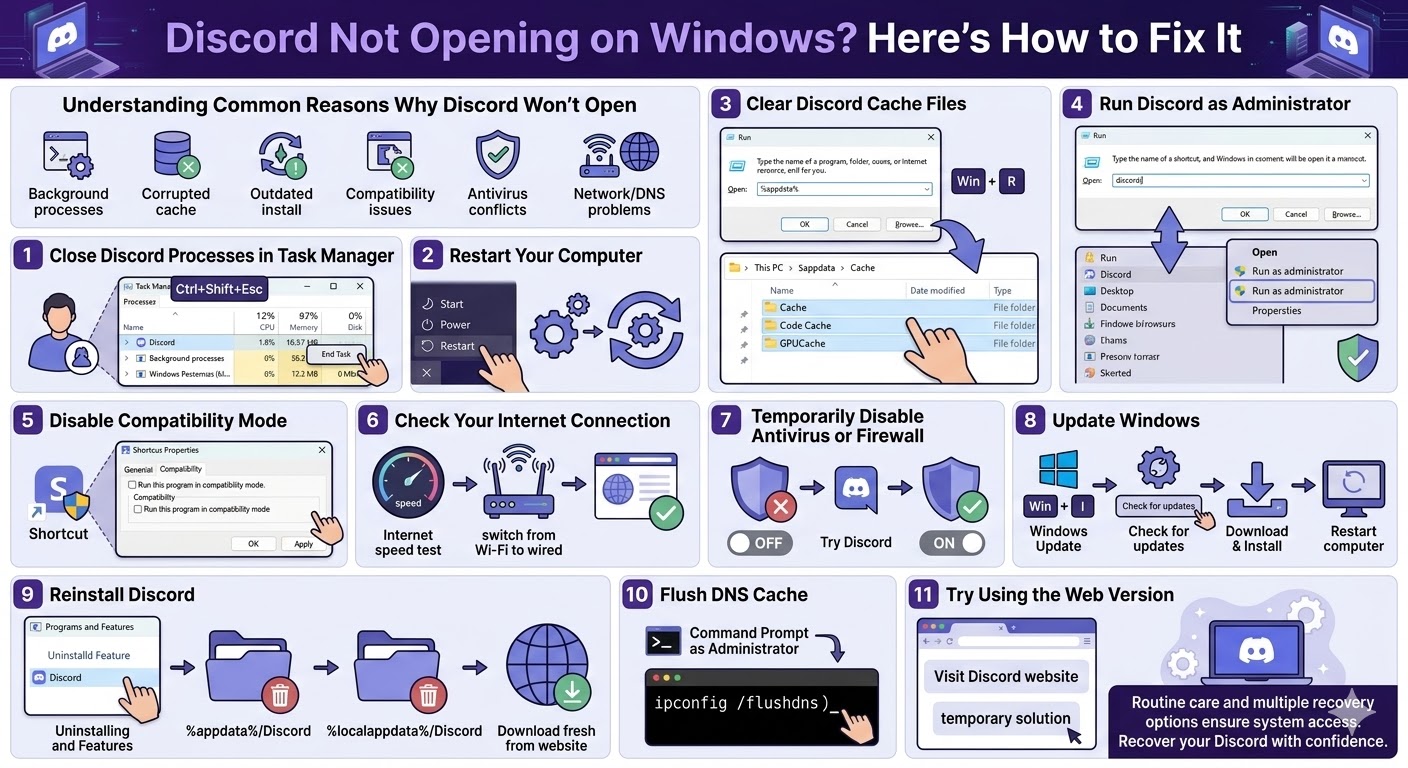
Discord Not Opening on Windows? Here’s How to Fix It
Discord is one of the most popular communication platforms for gamers, communities, and remote teams. It allows users to send messages, join voice channels, share files, and collaborate easily. However, like many applications, Discord can sometimes run into technical problems. One common issue Windows users experience is Discord not opening or getting stuck when launching.
You might click the Discord icon, but nothing happens. In some cases, the app appears in the Task Manager but never loads on the screen. This problem can be frustrating, especially if you rely on Discord for communication with friends or colleagues.
Fortunately, this issue is usually caused by minor software conflicts or corrupted files, and there are several solutions you can try to fix it. This guide will walk you through the most effective ways to resolve the Discord stuck on Windows problem.
Common Reasons Why Discord Won’t Open
Before trying to fix the issue, it helps to understand why Discord might fail to open. Several factors can prevent the app from launching properly.
Some of the most common causes include:
-
Background Discord processes that did not close properly
-
Corrupted cache or temporary files
-
Outdated Discord installation
-
Compatibility issues with Windows
-
Conflicts with antivirus or firewall software
-
Network or DNS problems
Once you identify the possible cause, you can apply the appropriate solution.
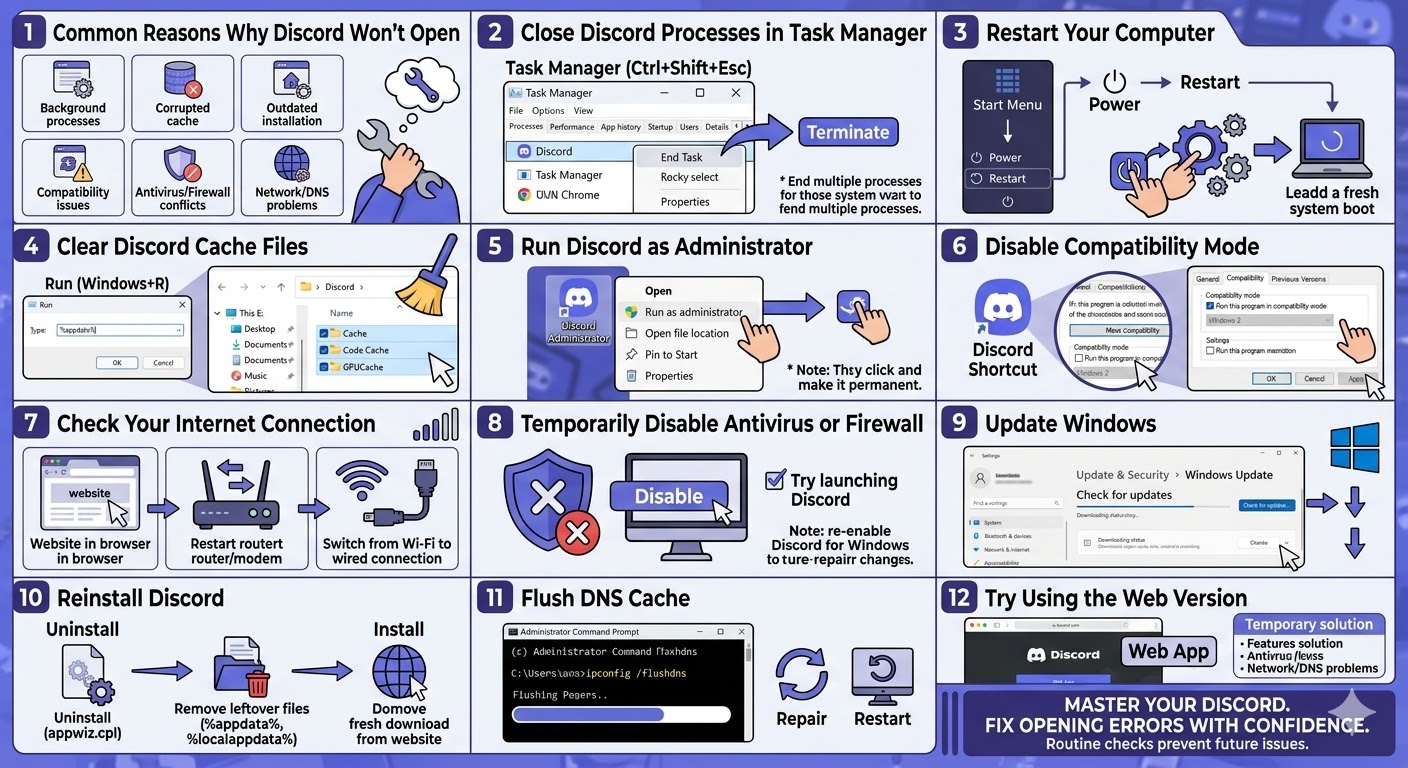
Close Discord Processes in Task Manager
One of the most common reasons Discord fails to open is that the program is already running in the background. Even though the interface is not visible, the process may still be active.
To fix this, you should completely close Discord processes using Task Manager.
Follow these steps:
-
Press Ctrl + Shift + Esc to open Task Manager.
-
Look for Discord in the list of running processes.
-
Select the Discord process.
-
Click End Task.
If there are multiple Discord processes listed, end all of them. After closing them, try launching Discord again.
Restart Your Computer
Sometimes a simple restart can resolve many software issues. Restarting your computer clears temporary files, resets background processes, and refreshes system resources.
To restart your computer:
-
Click the Start Menu.
-
Select the Power icon.
-
Click Restart.
After the system reboots, try opening Discord again to see if the issue is resolved.
Clear Discord Cache Files
Discord stores temporary files called cache to help the app run faster. However, if these files become corrupted, they may prevent Discord from launching properly.
Clearing the Discord cache often fixes this issue.
Follow these steps:
-
Press Windows + R to open the Run dialog.
-
Type the following command and press Enter:
%appdata%
-
Locate the Discord folder.
-
Open the folder and delete the following folders if they exist:
-
Cache
-
Code Cache
-
GPUCache
After deleting these folders, restart Discord and check if it opens normally.
Run Discord as Administrator
Sometimes Discord may not open because it does not have the required system permissions. Running the application as an administrator can help bypass permission issues.
To run Discord as administrator:
-
Right-click the Discord shortcut on your desktop.
-
Select Run as administrator.
-
Confirm any permission prompts.
If this resolves the problem, you can set Discord to always run with administrator privileges through the shortcut’s Properties settings.
Disable Compatibility Mode
In some cases, Discord may fail to launch if it is running in compatibility mode with older versions of Windows.
To disable compatibility mode:
-
Right-click the Discord shortcut.
-
Select Properties.
-
Go to the Compatibility tab.
-
Make sure Run this program in compatibility mode is unchecked.
-
Click Apply and then OK.
Try opening Discord again after making these changes.
Check Your Internet Connection
Discord requires an active internet connection to launch properly. If your network connection is unstable or disconnected, the app may fail to start.
You can check your connection by:
-
Opening a website in your browser
-
Restarting your router or modem
-
Switching from Wi-Fi to a wired connection
Once your internet connection is stable, try launching Discord again.
Temporarily Disable Antivirus or Firewall
Security software can sometimes mistakenly block Discord from running. Antivirus programs or firewalls may treat Discord as a suspicious application and prevent it from opening.
To test if this is the issue, temporarily disable your antivirus software and try launching Discord.
If Discord opens successfully, you may need to add it to your antivirus program’s allowed applications list.
Remember to re-enable your antivirus after testing.
Update Windows
An outdated Windows system may cause compatibility issues with modern applications like Discord.
To check for Windows updates:
-
Press Windows + I to open Settings.
-
Click Update & Security.
-
Select Windows Update.
-
Click Check for updates.
Install any available updates and restart your computer before trying Discord again.
Reinstall Discord
If none of the previous solutions work, reinstalling Discord may fix the issue. This ensures that corrupted files or incomplete installations are replaced with fresh ones.
Follow these steps to reinstall Discord:
-
Press Windows + R.
-
Type appwiz.cpl and press Enter.
-
Locate Discord in the list of installed programs.
-
Right-click it and select Uninstall.
After uninstalling, remove leftover files:
-
Press Windows + R again.
-
Type %appdata% and delete the Discord folder.
-
Type %localappdata% and delete the Discord folder if it exists.
Finally, download the latest version of Discord from the official website and install it again.
Flush DNS Cache
Network configuration issues can sometimes prevent Discord from connecting to its servers.
Flushing the DNS cache may help resolve this issue.
To flush DNS:
-
Type cmd in the Windows search bar.
-
Right-click Command Prompt and select Run as administrator.
-
Enter the following command:
ipconfig /flushdns
-
Press Enter.
After the command completes, restart your computer and launch Discord again.
Try Using the Web Version
If the desktop application still refuses to open, you can use Discord through your web browser.
Simply visit the Discord website and sign in to your account. The web version provides many of the same features as the desktop app and can be a temporary solution while troubleshooting the problem.
Final Thoughts
When Discord won’t open or gets stuck on Windows, the issue is usually caused by background processes, corrupted cache files, or system conflicts. Fortunately, most users can resolve the problem by closing background tasks, clearing the Discord cache, updating Windows, or reinstalling the application.
Related articles
How to Fix Wi-Fi Disconnecting Issues on Windows 10