


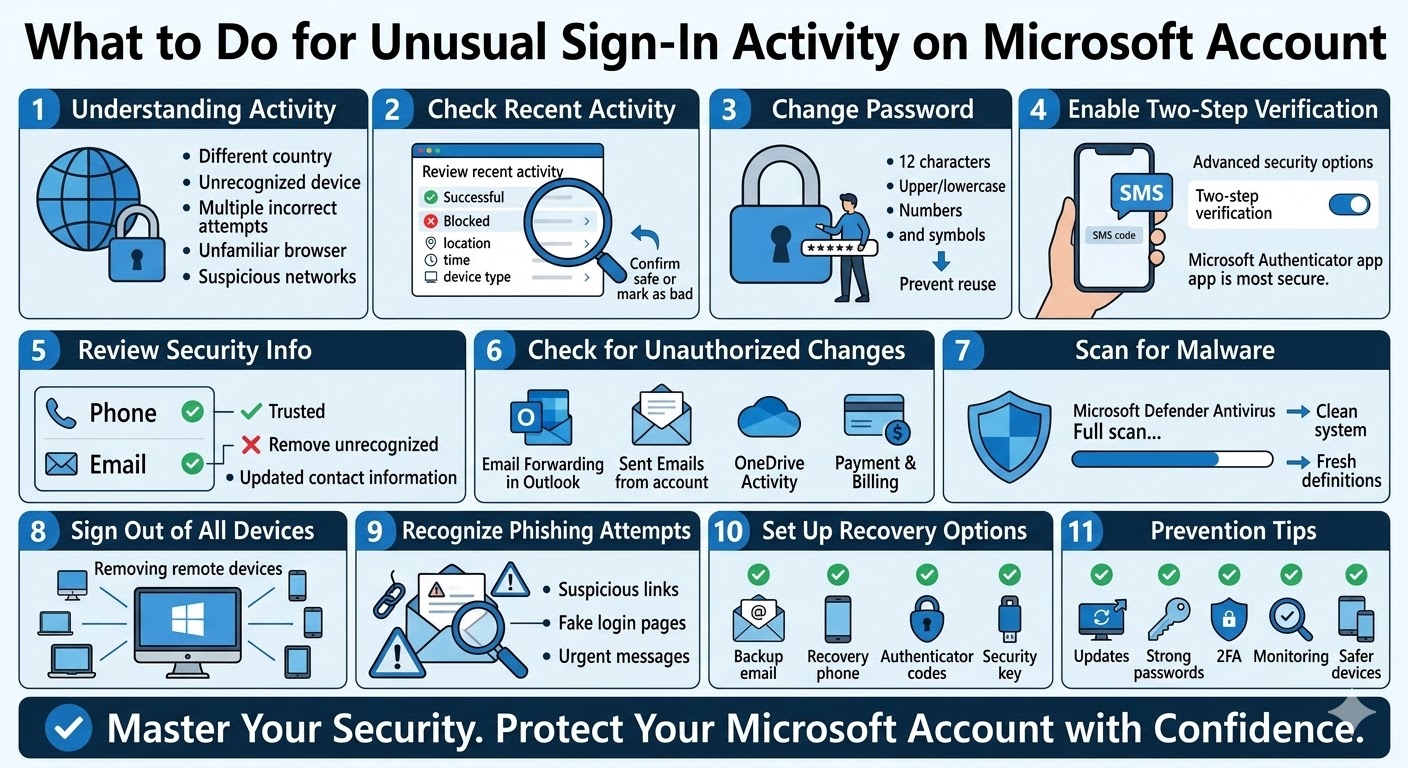
What to Do When You Notice Unusual Sign-In Activity on Your Microsoft Account
Your Microsoft account is the gateway to many essential services such as Outlook, OneDrive, Xbox, Microsoft 365, and Windows devices. Because it stores personal information, files, emails, and payment details, it can become a target for unauthorized access. If you receive a notification about unusual sign-in activity on your Microsoft account, it’s important to act quickly to secure your account and prevent potential misuse.
Microsoft automatically monitors account activity to detect suspicious login attempts. If the system notices something unusual—such as a login from a new location, device, or repeated failed attempts—it will alert you. While these alerts are meant to protect you, they can be concerning if you are unsure what caused them.
This guide explains what unusual sign-in activity means and the steps you should take to protect your Microsoft account.
Understanding Unusual Sign-In Activity
Unusual sign-in activity occurs when Microsoft detects a login attempt that differs from your normal behavior. This could include:
-
Signing in from a different country or region
-
Using a device that Microsoft does not recognize
-
Multiple incorrect password attempts
-
Logging in from an unfamiliar browser
-
Automated attempts from suspicious networks
In many cases, the alert may simply occur because you signed in from a new device or used a VPN. However, it may also indicate that someone is attempting to access your account without permission.
Because it can be difficult to determine the exact cause, it is always best to review your account activity and secure your account immediately.
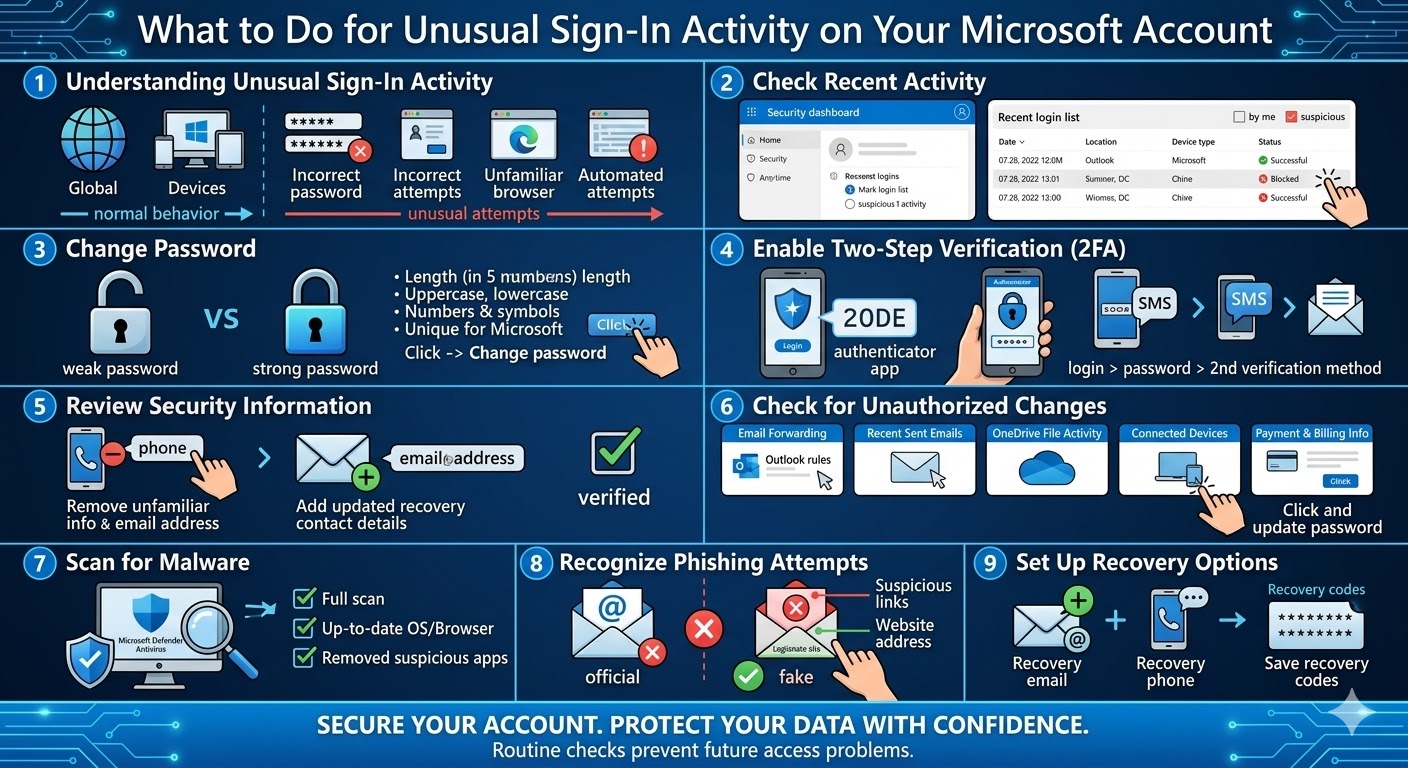
Check Your Recent Sign-In Activity
The first step is to review your Microsoft account’s recent activity. This allows you to confirm whether the sign-in attempt was made by you or by someone else.
Follow these steps to check your activity:
-
Go to the Microsoft Account Security page.
-
Sign in with your Microsoft account.
-
Click Security.
-
Select Review recent activity.
You will see a list of recent sign-in attempts, including:
-
Date and time of the login
-
Location of the device
-
Type of device or browser used
-
Whether the attempt was successful or blocked
If you recognize the activity—for example, signing in on a new device—you can mark it as safe. If the activity appears suspicious, you should secure your account immediately.
Change Your Microsoft Account Password
If you notice unfamiliar login attempts, the most important step is to change your password right away. This prevents anyone who may have discovered your password from accessing your account.
To change your password:
-
Go to the Microsoft Account Security page.
-
Select Password security.
-
Click Change my password.
-
Enter your current password.
-
Create a new, strong password.
A strong password should:
-
Be at least 12 characters long
-
Include uppercase and lowercase letters
-
Contain numbers and symbols
-
Avoid common words or personal information
Avoid reusing passwords that you have used on other websites. If another site experiences a data breach, reused passwords can put your Microsoft account at risk.
Enable Two-Step Verification
One of the most effective ways to protect your Microsoft account is by enabling two-step verification (2FA). This adds an additional layer of security beyond your password.
With two-step verification enabled, signing in requires:
-
Your password
-
A second verification method, such as a code sent to your phone or generated by an authentication app
To enable two-step verification:
-
Sign in to your Microsoft Account Security page.
-
Click Advanced security options.
-
Find Two-step verification.
-
Follow the instructions to enable it.
You can use several verification methods, including:
-
Microsoft Authenticator app
-
SMS verification code
-
Email verification
-
Security key
Using an authenticator app is usually the most secure option.
Review Your Security Information
Security information includes the phone numbers and email addresses used to verify your identity. If someone gains access to your account, they may try to change these details.
To review your security information:
-
Go to Advanced security options.
-
Check your recovery phone numbers and email addresses.
-
Remove any information that you do not recognize.
-
Add updated contact information if necessary.
Keeping this information current ensures you can recover your account if you ever lose access.
Check for Unauthorized Changes
If someone accessed your account, they might have changed settings or accessed personal data. Take a moment to review important areas of your account.
Things you should check include:
-
Email forwarding rules in Outlook
-
Recent emails sent from your account
-
OneDrive file activity
-
Connected devices
-
Payment and billing information
If you notice anything unusual, update your password again and remove any unfamiliar devices or connections.
Scan Your Devices for Malware
Sometimes unusual sign-in activity happens because a device has been infected with malware or spyware. These malicious programs can capture passwords or monitor your online activity.
To protect your account, scan your devices with trusted security software. On Windows devices, you can use Microsoft Defender Antivirus to run a full system scan.
Additionally, make sure that:
-
Your operating system is up to date
-
Your browser is updated
-
Suspicious applications are removed
Regular security scans help prevent future unauthorized access.
Sign Out of All Devices
If you suspect someone may have accessed your account, signing out of all devices can help protect it.
Microsoft allows you to remotely log out of sessions across devices.
After changing your password, previously active sessions may automatically expire, but reviewing your devices and removing unfamiliar ones is still recommended.
Recognize Phishing Attempts
Sometimes unusual sign-in alerts are triggered after users accidentally enter their credentials on a phishing website.
Phishing emails may look like official messages from Microsoft and ask you to click a link and sign in. These fake pages capture your login details.
To avoid phishing attacks:
-
Never click suspicious links in emails
-
Check the website address before signing in
-
Only sign in through official Microsoft websites
-
Be cautious of urgent security messages asking for immediate action
If you suspect phishing, change your password immediately.
Set Up Account Recovery Options
Even with strong security, it is wise to prepare for account recovery in case you lose access.
You can add recovery options such as:
-
Backup email address
-
Recovery phone number
-
Microsoft Authenticator backup codes
These options allow you to regain access if you forget your password or lose your verification device.
Final Thoughts
Receiving a notification about unusual sign-in activity on your Microsoft account can be alarming, but it is also a helpful security feature designed to protect you. By reviewing your sign-in activity, changing your password, enabling two-step verification, and checking your account settings, you can quickly secure your account and prevent unauthorized access.
Related articles
How to Fix Wi-Fi Disconnecting Issues on Windows 10