


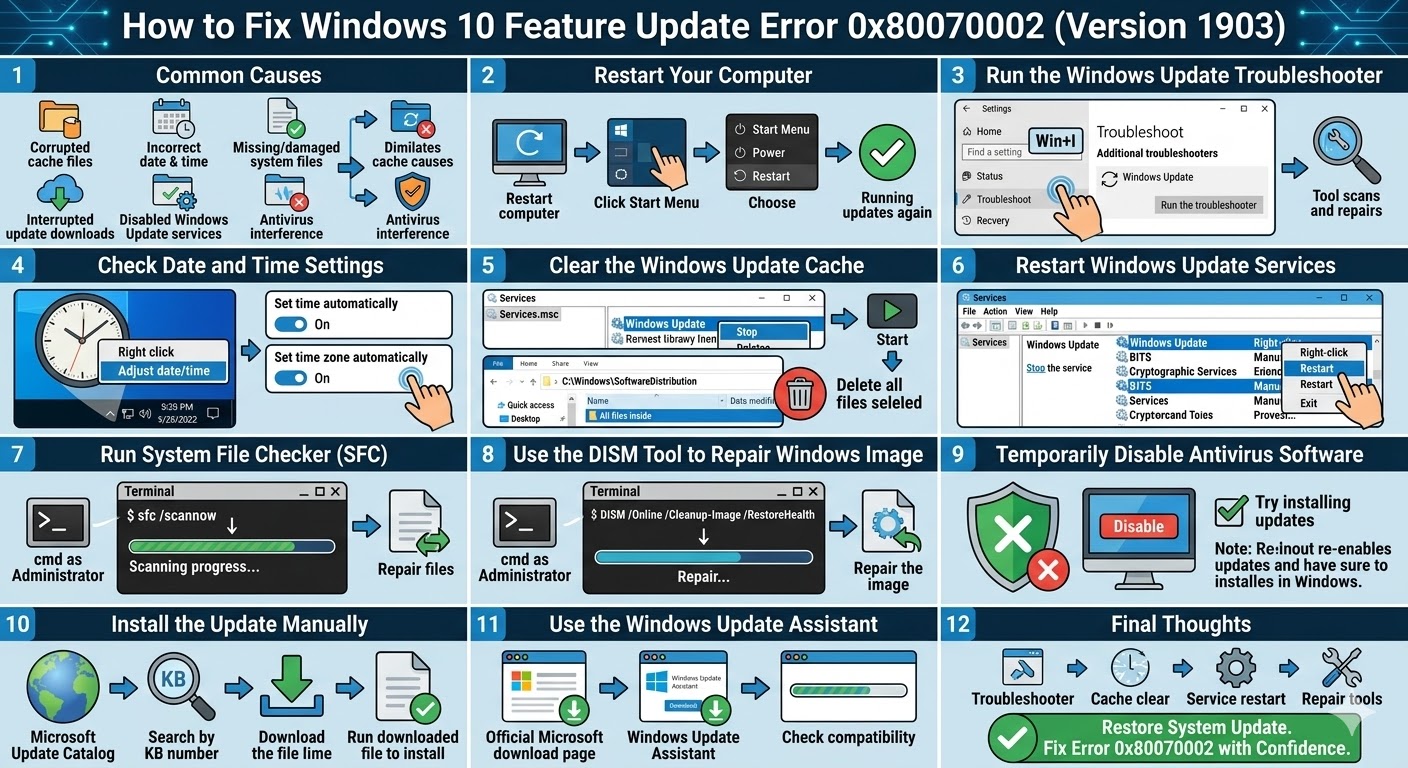
How to Fix Windows 10 Feature Update Error 0x80070002 (Version 1903)
Windows updates are essential for keeping your system secure, stable, and up to date with the latest features. However, sometimes the update process does not go as smoothly as expected. One common issue many users encounter is the Feature Update to Windows 10 Error 0x80070002, especially when trying to install Windows 10 Version 1903.
This error usually appears when Windows Update cannot locate required files or when certain system components become corrupted. As a result, the update process stops before it can complete successfully. Fortunately, there are several effective methods to fix this problem and install the update without issues.
In this guide, you will learn what causes Error 0x80070002 and how to fix it using simple troubleshooting steps.
What Is Error 0x80070002 in Windows Update?
Error 0x80070002 typically appears when Windows Update fails to locate files needed for the installation process. When this happens, the update may stop at a certain percentage or fail entirely with an error message.
Users often encounter this problem while installing major feature updates such as Windows 10 Version 1903.
Common symptoms include:
-
Update installation fails repeatedly
-
Windows Update shows error code 0x80070002
-
Updates download but fail during installation
-
System displays update failure notifications
This error is usually related to missing files, incorrect update settings, or corrupted Windows Update components.
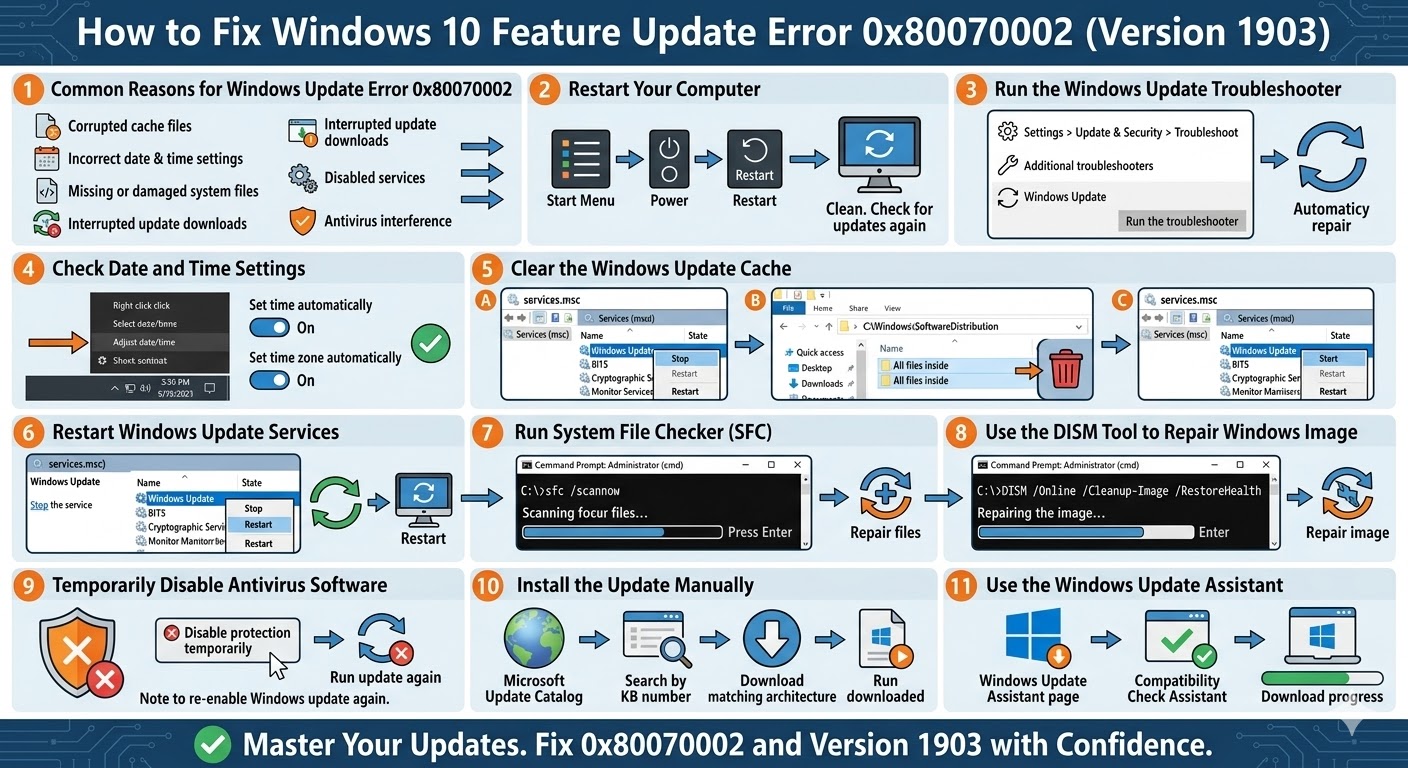
Common Causes of Windows Update Error 0x80070002
Understanding the cause of the problem can help you choose the right solution. Several factors may trigger this error.
The most common causes include:
-
Corrupted Windows Update cache files
-
Incorrect system date and time settings
-
Missing or damaged system files
-
Interrupted update downloads
-
Disabled Windows Update services
-
Antivirus software interfering with updates
Once the root cause is identified, fixing the issue becomes much easier.
Restart Your Computer
Before attempting more advanced solutions, start with a simple system restart. Temporary system errors or background processes can interfere with Windows Update.
To restart your computer:
-
Click the Start Menu.
-
Select the Power icon.
-
Choose Restart.
After restarting your system, open Settings > Update & Security > Windows Update and check for updates again.
Run the Windows Update Troubleshooter
Windows 10 includes a built-in troubleshooting tool that can automatically detect and repair update-related problems.
To run the Windows Update Troubleshooter:
-
Press Windows + I to open Settings.
-
Click Update & Security.
-
Select Troubleshoot.
-
Click Additional troubleshooters.
-
Choose Windows Update.
-
Click Run the troubleshooter.
The tool will scan your system for problems and attempt to fix them automatically. After it completes, restart your computer and try installing the update again.
Check Date and Time Settings
Incorrect system date and time settings can sometimes cause update errors because Windows cannot properly verify update files.
To check your date and time settings:
-
Right-click the clock on the taskbar.
-
Select Adjust date/time.
-
Enable Set time automatically.
-
Enable Set time zone automatically.
After correcting the settings, restart your computer and check for updates again.
Clear the Windows Update Cache
Corrupted update cache files are one of the most common causes of update errors.
Clearing the Windows Update cache forces Windows to download fresh update files.
Follow these steps:
-
Press Windows + R.
-
Type services.msc and press Enter.
-
Find Windows Update in the list.
-
Right-click it and select Stop.
Next, delete the update cache files:
-
Open File Explorer.
-
Navigate to:
C:\Windows\SoftwareDistribution
-
Delete all files inside the folder.
Then restart the Windows Update service:
-
Go back to the Services window.
-
Right-click Windows Update.
-
Select Start.
Now try running Windows Update again.
Restart Windows Update Services
If Windows Update services are not functioning correctly, updates may fail with error codes.
Restarting these services can often resolve the issue.
Follow these steps:
-
Press Windows + R.
-
Type services.msc and press Enter.
-
Locate the following services:
-
Windows Update
-
Background Intelligent Transfer Service (BITS)
-
Cryptographic Services
-
Right-click each service and select Restart.
Restart your computer after completing this process.
Run System File Checker (SFC)
Corrupted system files may also prevent updates from installing correctly.
The System File Checker (SFC) tool scans and repairs damaged Windows system files.
To run SFC:
-
Type cmd in the Windows search bar.
-
Right-click Command Prompt and select Run as administrator.
-
Enter the following command:
sfc /scannow
-
Press Enter.
The scan may take several minutes. Once it finishes, restart your computer and try installing the update again.
Use the DISM Tool to Repair Windows Image
If the SFC scan cannot fix the problem, you can use the DISM (Deployment Image Servicing and Management) tool to repair the Windows system image.
Follow these steps:
-
Open Command Prompt as administrator.
-
Run the following command:
DISM /Online /Cleanup-Image /RestoreHealth
-
Press Enter.
After the repair process finishes, restart your computer and check Windows Update again.
Temporarily Disable Antivirus Software
Third-party antivirus programs can sometimes interfere with Windows Update processes.
Try temporarily disabling your antivirus software and then attempt the update again.
If the update installs successfully, consider adding Windows Update to your antivirus program’s exceptions list.
Remember to re-enable your antivirus afterward.
Install the Update Manually
If Windows Update continues to fail, installing the update manually may solve the problem.
You can download updates directly from the Microsoft Update Catalog.
Follow these steps:
-
Visit the Microsoft Update Catalog website.
-
Search for the update using the KB number related to Windows 10 Version 1903.
-
Download the update that matches your system architecture.
-
Run the downloaded file to install the update manually.
This method bypasses the automatic update system and often resolves persistent errors.
Use the Windows Update Assistant
Another reliable method is using the Windows Update Assistant, which helps install major feature updates.
To use this tool:
-
Visit the official Microsoft Windows 10 download page.
-
Download the Windows Update Assistant.
-
Run the tool and follow the instructions to install the update.
The assistant automatically checks compatibility and downloads the required files.
Final Thoughts
The Feature Update to Windows 10 Error 0x80070002 can prevent users from installing important updates such as Version 1903. This issue typically occurs due to corrupted update files, incorrect system settings, or problems with Windows Update services.
Fortunately, most users can resolve the error by running the Windows Update Troubleshooter, clearing the update cache, restarting update services, or repairing system files using SFC and DISM.
Related articles
How to Fix Wi-Fi Disconnecting Issues on Windows 10