


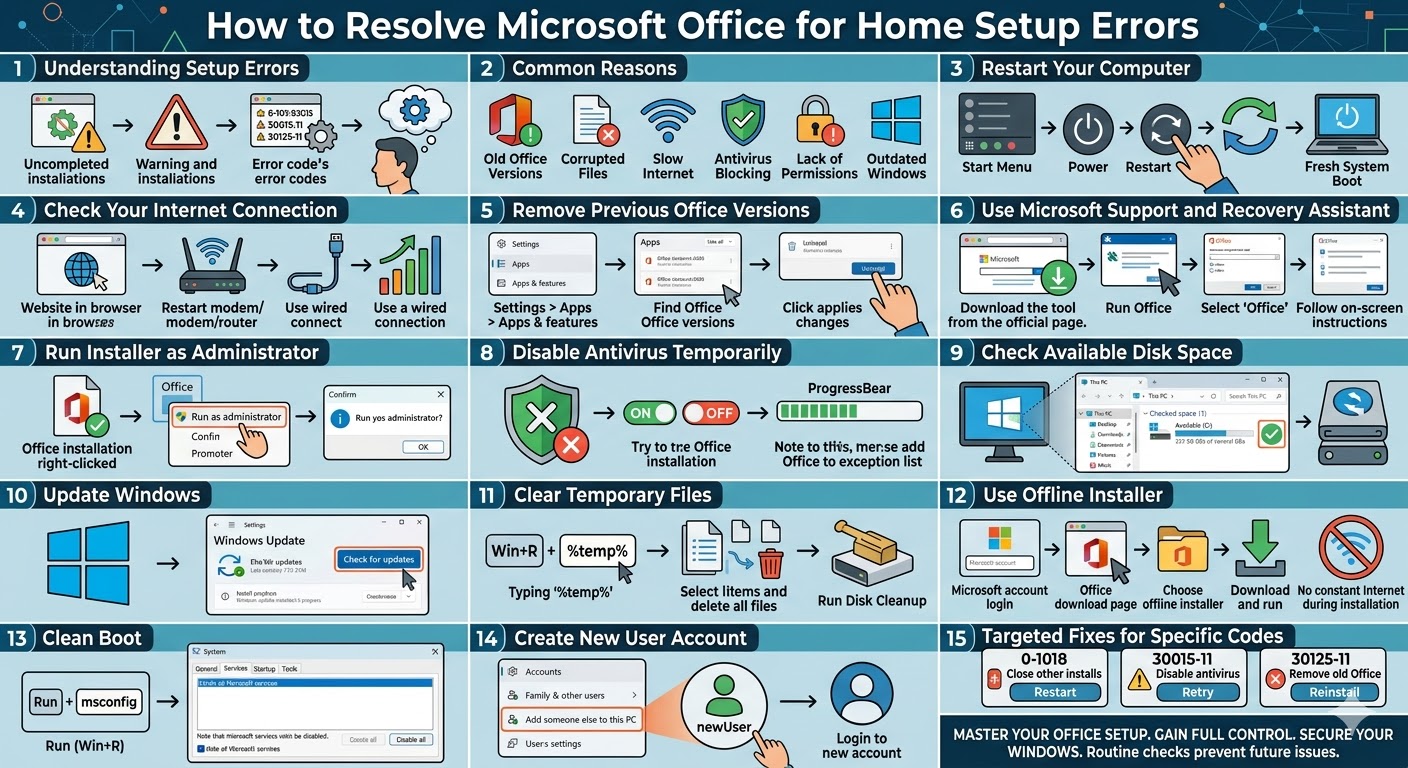
Resolve Microsoft Office for Home Setup Errors
Microsoft Office for Home is a popular productivity suite used by millions of users worldwide for tasks such as document creation, spreadsheets, presentations, and email management. Despite its reliability, users may sometimes encounter issues during installation. These problems can prevent Office from installing correctly or cause the setup process to fail entirely.
Common error messages such as “Something went wrong,” “Office installation failed,” or specific error codes can be frustrating, especially when you need Office urgently. Fortunately, most of these installation errors can be resolved with a few practical troubleshooting steps.
In this guide, you will learn about the common Microsoft Office installation errors and how to fix them effectively on Windows systems.
Why Microsoft Office Installation Fails
Before diving into solutions, it is important to understand why Office installation errors occur. Identifying the cause can help you apply the correct fix.
Some common reasons include:
-
Previous Office installations not fully removed
-
Corrupted installation files
-
Slow or unstable internet connection
-
Antivirus or firewall interference
-
Insufficient system permissions
-
Outdated Windows version
-
Conflicts with background applications
Once you understand the cause, resolving the issue becomes much easier.
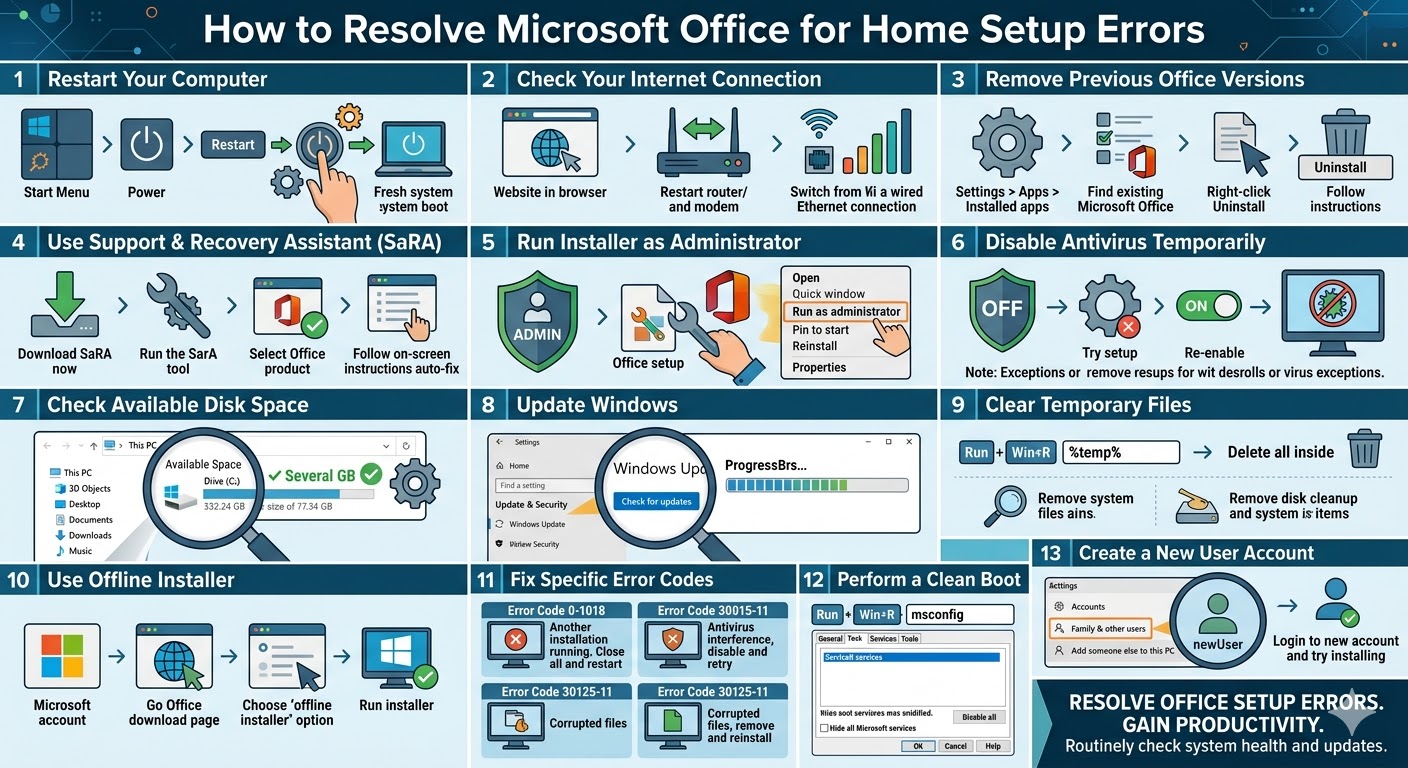
Restart Your Computer
A simple restart can fix many installation problems. Temporary system glitches or background processes may interfere with the Office setup.
To restart your computer:
-
Click the Start Menu.
-
Select the Power icon.
-
Choose Restart.
After restarting, try installing Microsoft Office again.
Check Your Internet Connection
Microsoft Office for Home typically requires an internet connection to download and install files. A weak or unstable connection may cause the installation to fail.
To ensure a stable connection:
-
Restart your modem or router
-
Use a wired Ethernet connection if possible
-
Avoid downloading large files during installation
Once your connection is stable, retry the installation.
Remove Previous Office Versions
Old or incomplete Office installations can conflict with new ones.
To remove previous versions:
-
Open Settings.
-
Click Apps.
-
Select Installed apps or Apps & features.
-
Find any existing Microsoft Office versions.
-
Click Uninstall.
After uninstalling, restart your computer before installing Office again.
Use Microsoft Support and Recovery Assistant
Microsoft provides a tool called the Support and Recovery Assistant (SaRA) that can automatically detect and fix Office installation issues.
To use the tool:
-
Download the Microsoft Support and Recovery Assistant from the official Microsoft website.
-
Run the tool.
-
Select Office from the list of products.
-
Follow the on-screen instructions.
This tool can fix many common problems automatically.
Run the Installer as Administrator
Installation errors may occur if the setup does not have sufficient permissions.
To run the installer as administrator:
-
Locate the Office installation file.
-
Right-click the file.
-
Select Run as administrator.
-
Confirm any prompts.
This ensures the installer has full access to system resources.
Disable Antivirus Temporarily
Antivirus software may block Office installation files, especially if it detects them as suspicious.
To test this:
-
Temporarily disable your antivirus software.
-
Run the Office installer again.
If the installation succeeds, add Office to your antivirus exceptions list.
Remember to re-enable your antivirus after installation.
Check Available Disk Space
Insufficient disk space can cause installation failures.
To check your storage:
-
Open File Explorer.
-
Click This PC.
-
Check available space on your system drive (usually C:).
Make sure you have enough free space (at least several gigabytes) before installing Office.
Update Windows
An outdated Windows system may cause compatibility issues with Office installation.
To update Windows:
-
Press Windows + I to open Settings.
-
Click Windows Update.
-
Select Check for updates.
-
Install any available updates.
Restart your computer after updating.
Clear Temporary Files
Temporary files may interfere with installation.
To clear them:
-
Press Windows + R.
-
Type %temp% and press Enter.
-
Delete all files in the folder.
You can also run Disk Cleanup to remove unnecessary system files.
Use Offline Installer
If the online installer fails, using the Office offline installer can help.
Steps:
-
Sign in to your Microsoft account.
-
Go to your Office download page.
-
Choose the offline installer option.
-
Download and run the installer.
The offline installer does not rely on a constant internet connection.
Fix Specific Error Codes
Some Office installation errors come with specific codes. Here are a few common ones:
Error Code 0-1018:
Occurs when another installation is running. Close all installations and restart your computer.
Error Code 30015-11:
Usually caused by antivirus interference. Disable antivirus and retry installation.
Error Code 30125-11:
Related to corrupted files. Remove previous Office installations and reinstall.
Understanding these codes can help you apply targeted fixes.
Perform a Clean Boot
A clean boot starts Windows with minimal services and prevents conflicts during installation.
To perform a clean boot:
-
Press Windows + R.
-
Type msconfig and press Enter.
-
Go to the Services tab.
-
Check Hide all Microsoft services.
-
Click Disable all.
-
Restart your computer.
After restarting, try installing Office again.
Create a New User Account
If your user profile is corrupted, it may prevent Office from installing.
To create a new account:
-
Open Settings.
-
Click Accounts.
-
Select Family & other users.
-
Click Add someone else to this PC.
-
Follow the instructions.
Log in with the new account and try installing Office.
Final Thoughts
Installing Microsoft Office for Home should normally be a straightforward process, but errors can occur due to system conflicts, corrupted files, or network issues. These problems can be frustrating, especially when you need Office for important tasks.
Fortunately, most installation errors can be resolved by restarting your computer, removing previous Office versions, updating Windows, or using tools like the Microsoft Support and Recovery Assistant.
Related articles
How to Fix Wi-Fi Disconnecting Issues on Windows 10