


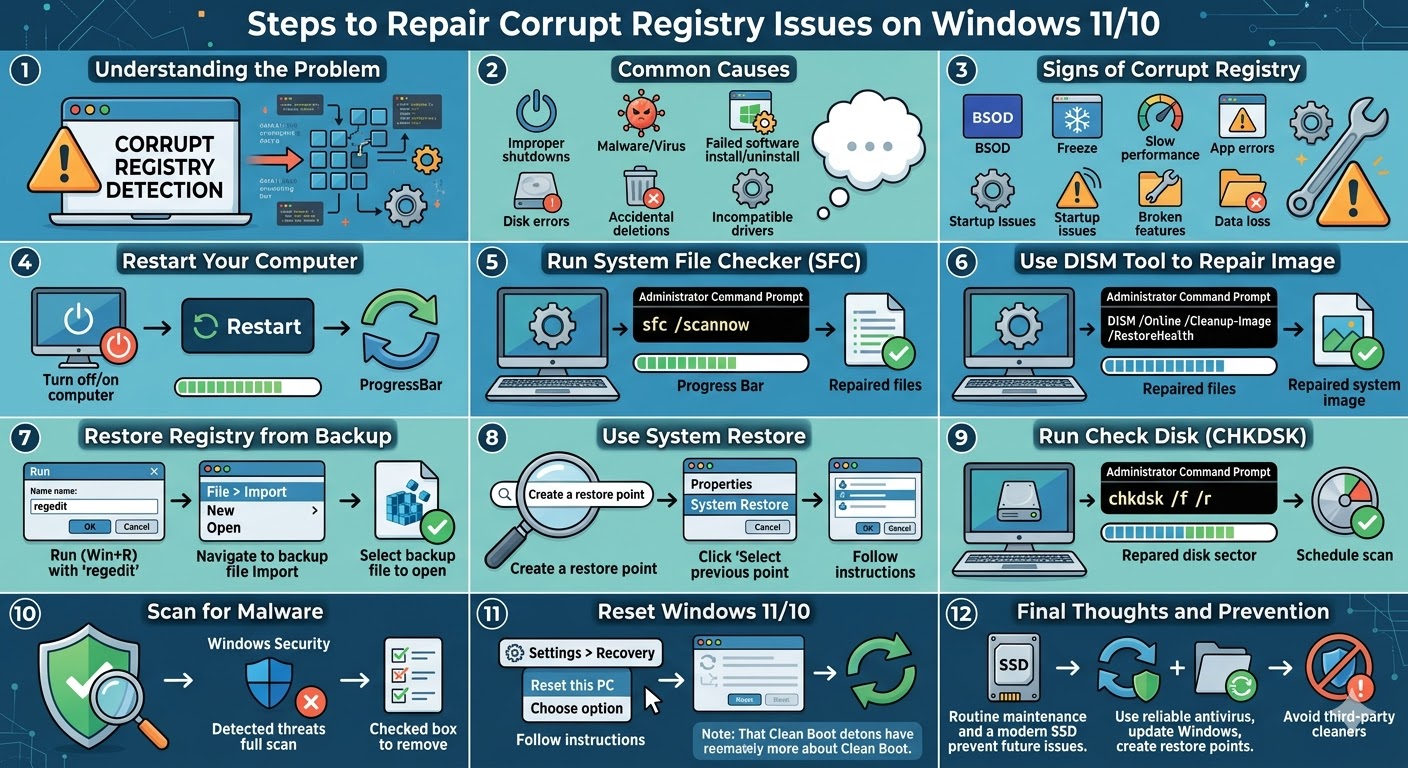
Steps to Repair Corrupt Registry Issues on Windows 11/10
The Windows Registry is one of the most important components of the operating system. It stores configuration settings, system preferences, and application data that Windows relies on to function properly. When the registry becomes corrupted, it can lead to serious issues such as system crashes, application errors, slow performance, and boot problems.
If you are experiencing unusual behavior on your PC, there is a possibility that the issue is caused by a corrupt Windows registry. Fortunately, there are several methods you can use to repair and fix registry problems in Windows 11 and Windows 10.
In this guide, you will learn what causes registry corruption and how to safely repair it step by step.
What Is the Windows Registry?
The Windows Registry is a hierarchical database that stores low-level settings for the operating system and installed applications. It contains information such as:
-
Hardware configurations
-
User preferences
-
Installed programs
-
System settings
-
Device drivers
Whenever you install software or change system settings, the registry is updated. Because of its critical role, even small errors in the registry can cause system instability.
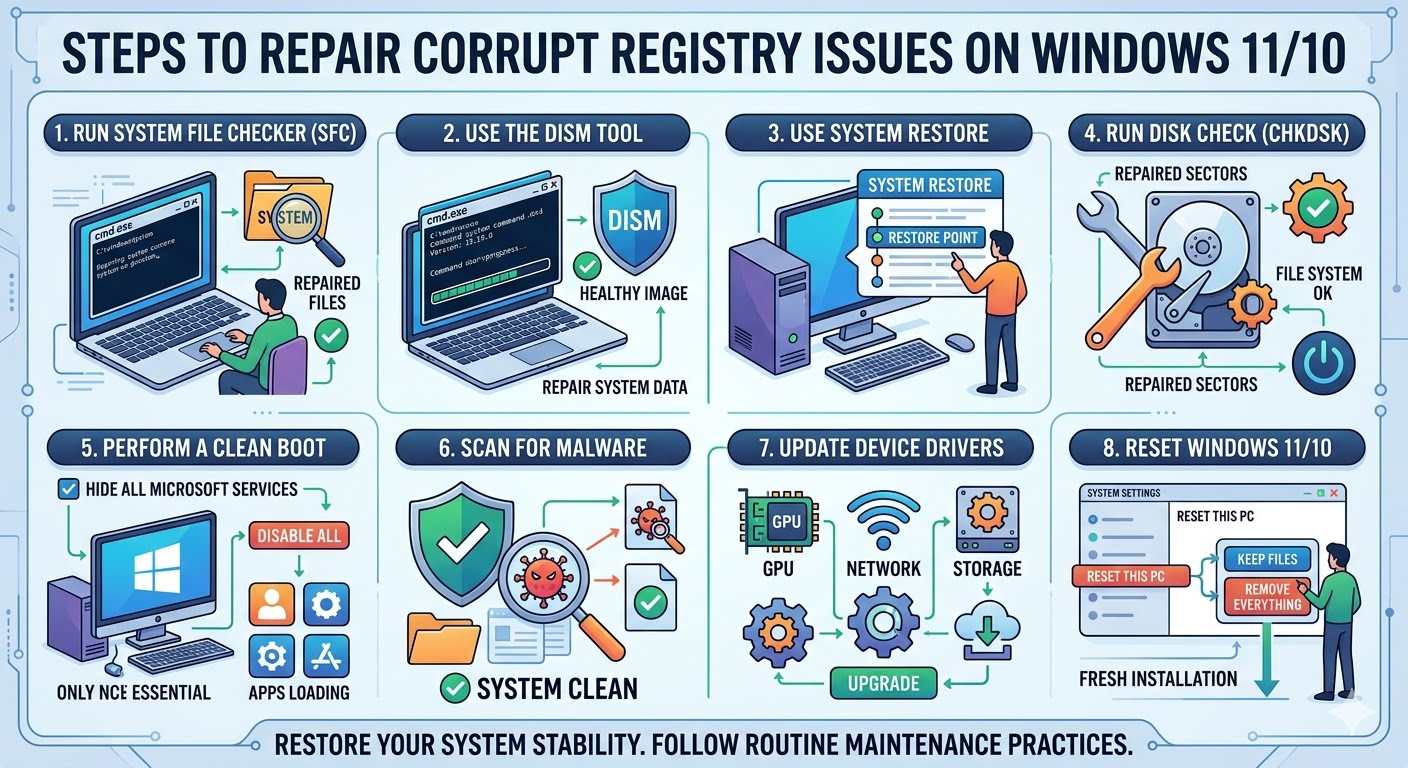
What Causes Registry Corruption?
Registry corruption can occur for several reasons. Understanding these causes can help prevent future issues.
Common causes include:
-
Improper system shutdowns
-
Malware or virus infections
-
Failed software installations or uninstallations
-
Disk errors or bad sectors
-
Accidental deletion of registry entries
-
Outdated or incompatible drivers
Since the registry is constantly being modified, it is vulnerable to corruption over time.
Signs of a Corrupt Registry
A corrupted registry can cause a wide range of problems. Some of the most common symptoms include:
-
Slow system performance
-
Frequent crashes or freezes
-
Blue Screen of Death (BSOD) errors
-
Applications failing to open
-
Error messages during startup
-
Missing or broken system features
If you notice these issues, repairing the registry may help restore system stability.
Restart Your Computer
Before trying advanced methods, start with a simple restart. Temporary system glitches may cause registry-related errors.
To restart your computer:
-
Click the Start Menu.
-
Select the Power icon.
-
Click Restart.
After restarting, check if the issue persists.
Run System File Checker (SFC)
The System File Checker (SFC) tool is one of the most effective ways to repair corrupted system files, including registry-related issues.
To run SFC:
-
Type cmd in the Windows search bar.
-
Right-click Command Prompt and select Run as administrator.
-
Enter the following command:
sfc /scannow
-
Press Enter.
The tool will scan your system and automatically repair corrupted files. Once completed, restart your computer.
Use the DISM Tool
If SFC cannot fix the problem, you can use the DISM (Deployment Image Servicing and Management) tool to repair the Windows system image.
To run DISM:
-
Open Command Prompt as administrator.
-
Enter the following command:
DISM /Online /Cleanup-Image /RestoreHealth
-
Press Enter.
After the process completes, restart your system and run SFC again for best results.
Restore the Registry from Backup
Windows automatically creates registry backups during system updates. You can restore a previous version if the registry becomes corrupted.
To restore the registry:
-
Press Windows + R.
-
Type regedit and press Enter.
-
Click File > Import.
-
Select a previously saved registry backup file.
-
Click Open.
If you do not have a manual backup, you can use System Restore instead.
Use System Restore
System Restore allows you to revert your system to a previous state when it was working properly.
To use System Restore:
-
Type Create a restore point in the search bar.
-
Open the System Properties window.
-
Click System Restore.
-
Choose a restore point from the list.
-
Follow the instructions to restore your system.
This process will revert registry settings without affecting personal files.
Run Check Disk (CHKDSK)
Disk errors can lead to registry corruption. Running the CHKDSK tool can fix file system errors and bad sectors.
To run CHKDSK:
-
Open Command Prompt as administrator.
-
Enter:
chkdsk /f /r
-
Press Enter.
You may need to restart your computer to complete the scan.
Scan for Malware
Malware can modify or damage registry entries, causing system instability.
Running a full system scan can help remove threats and restore registry integrity.
Use Windows Security or another trusted antivirus program to perform a full scan.
Reset Windows
If the registry is severely corrupted and other methods do not work, resetting Windows may be necessary.
To reset Windows:
-
Open Settings.
-
Go to System > Recovery.
-
Click Reset this PC.
-
Choose whether to keep your files or remove everything.
-
Follow the instructions.
Resetting Windows reinstalls the operating system and rebuilds the registry from scratch.
Avoid Using Registry Cleaners
Many third-party tools claim to clean or repair the registry. However, these tools can sometimes remove important entries and cause more harm than good.
It is generally safer to use built-in Windows tools like SFC, DISM, and System Restore.
Prevent Registry Corruption in the Future
To avoid registry problems, follow these best practices:
-
Keep Windows updated
-
Install software from trusted sources
-
Avoid unnecessary registry edits
-
Create regular system restore points
-
Use reliable antivirus protection
-
Shut down your computer properly
Taking these precautions can help maintain a stable system.
Final Thoughts
A corrupt registry in Windows 11/10 can lead to serious system issues, including crashes, slow performance, and application errors. While the problem may seem complex, there are several effective ways to repair it.
Using tools like System File Checker, DISM, System Restore, and CHKDSK can resolve most registry-related issues. In more severe cases, resetting Windows may be necessary.
Related articles
Fixing the “Kernel Security Check Failure” Error on Windows 10