


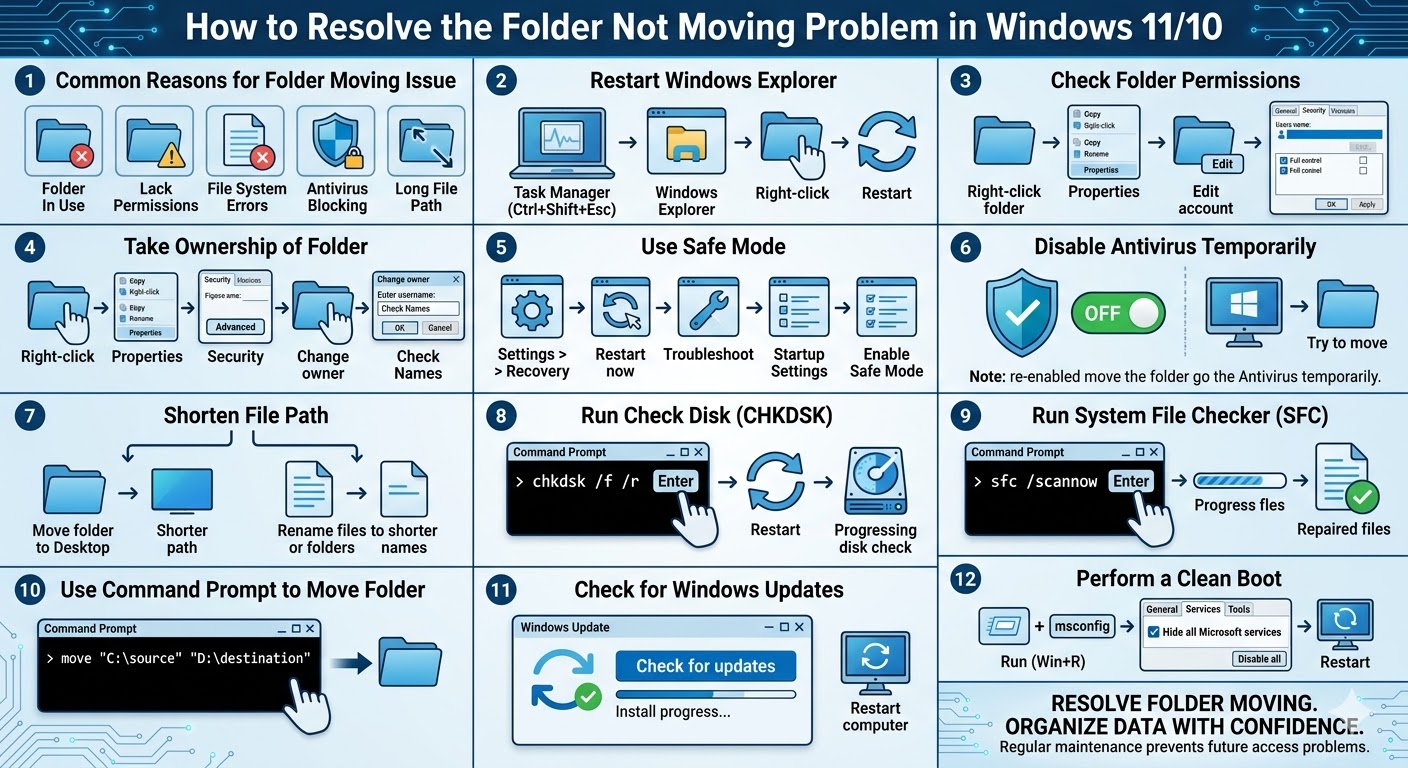
Fix Folder Not Moving Problem in Windows 11/10
Moving folders is a basic task in Windows that allows users to organize files, free up space, or transfer data between drives. However, many users encounter a frustrating issue where they can’t move a folder on Windows 11 or Windows 10. When this happens, you may see error messages like “Access Denied,” “The action can’t be completed because the folder is in use,” or simply nothing happens when you try to move the folder.
This problem can be caused by permission issues, background processes, system errors, or file corruption. The good news is that it is usually fixable with a few troubleshooting steps.
In this guide, you will learn the most effective methods to fix the can’t move folder issue on Windows 11/10.
Common Reasons Why You Can’t Move a Folder
Before applying solutions, it is helpful to understand why Windows prevents you from moving a folder.
Some common causes include:
-
The folder is currently being used by another program
-
Lack of proper permissions or ownership
-
File system errors or corrupted files
-
Antivirus or security software blocking the action
-
Long file path limitations
-
Disk errors or bad sectors
Identifying the cause can help you apply the correct fix.
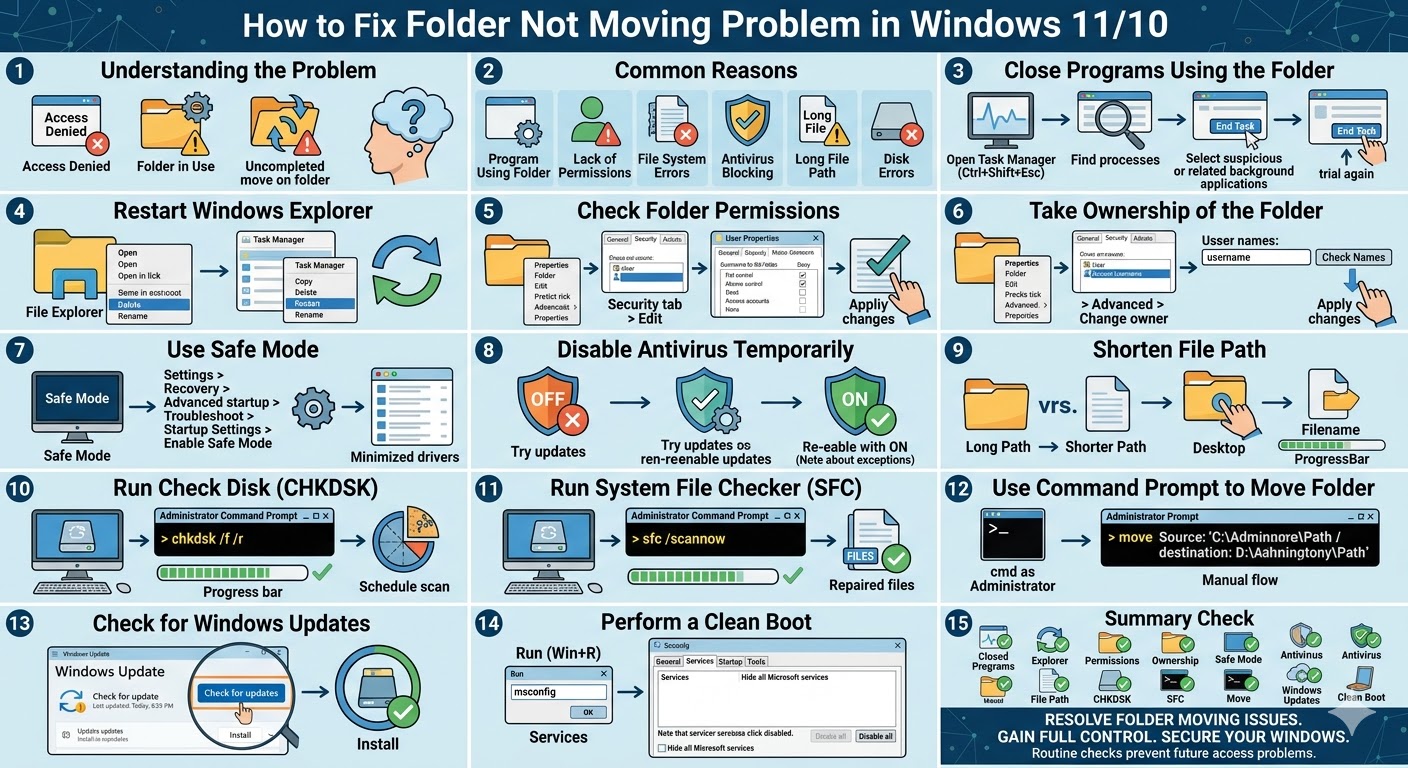
Close Programs Using the Folder
One of the most common reasons you cannot move a folder is that it is currently in use by a running application.
To resolve this:
-
Close any programs that may be using files inside the folder.
-
Check background apps in Task Manager.
-
End tasks that might be accessing the folder.
To open Task Manager:
-
Press Ctrl + Shift + Esc
-
Look for suspicious or related processes
-
Select the process and click End Task
After closing all related programs, try moving the folder again.
Restart Windows Explorer
Sometimes Windows Explorer (File Explorer) may become unresponsive or glitchy, preventing file operations.
Restarting it can fix the issue.
Follow these steps:
-
Press Ctrl + Shift + Esc to open Task Manager.
-
Find Windows Explorer in the list.
-
Right-click it and select Restart.
Once Explorer restarts, try moving the folder again.
Check Folder Permissions
If you do not have the correct permissions, Windows may block you from moving a folder.
To check and modify permissions:
-
Right-click the folder.
-
Select Properties.
-
Go to the Security tab.
-
Click Edit.
-
Select your user account.
-
Enable Full control.
-
Click Apply and OK.
After adjusting permissions, try moving the folder again.
Take Ownership of the Folder
In some cases, the folder may be owned by another user or system account, which prevents modifications.
To take ownership:
-
Right-click the folder and select Properties.
-
Go to the Security tab.
-
Click Advanced.
-
Click Change next to the owner.
-
Enter your username and click Check Names.
-
Click OK and apply changes.
After taking ownership, you should be able to move the folder.
Use Safe Mode
If background services or third-party software are interfering, you can try moving the folder in Safe Mode.
Safe Mode starts Windows with minimal drivers and services.
To enter Safe Mode:
-
Press Windows + I to open Settings.
-
Go to System > Recovery.
-
Click Restart now under Advanced startup.
-
Choose Troubleshoot > Advanced options > Startup Settings.
-
Select Enable Safe Mode.
Once in Safe Mode, try moving the folder again.
Disable Antivirus Temporarily
Antivirus or security software may block file operations if it detects potential risks.
To test this:
-
Temporarily disable your antivirus software.
-
Try moving the folder again.
If the issue is resolved, consider adding the folder to your antivirus exceptions list.
Remember to re-enable your antivirus afterward.
Shorten File Path
Windows has a file path length limitation, which can prevent folder operations if the path is too long.
To fix this:
-
Move the folder to a location with a shorter path (e.g., Desktop)
-
Rename files or folders to shorter names
After shortening the path, try moving the folder again.
Run Check Disk (CHKDSK)
Disk errors can prevent file operations, including moving folders.
Running the CHKDSK tool can fix file system errors.
To run CHKDSK:
-
Type cmd in the search bar.
-
Right-click Command Prompt and select Run as administrator.
-
Enter the following command:
chkdsk /f /r
-
Press Enter.
You may be asked to schedule the scan on the next restart. Restart your computer to begin the scan.
Run System File Checker
Corrupted system files can also cause issues with file operations.
To run SFC:
-
Open Command Prompt as administrator.
-
Enter:
sfc /scannow
-
Press Enter.
After the scan completes, restart your computer and try again.
Use Command Prompt to Move the Folder
If File Explorer fails, you can try moving the folder using Command Prompt.
Steps:
-
Open Command Prompt as administrator.
-
Use the move command:
move “C:\source-folder” “D:\destination-folder”
-
Press Enter.
This method can bypass certain graphical interface issues.
Check for Windows Updates
System bugs may prevent normal file operations. Installing updates can fix these problems.
To update Windows:
-
Open Settings.
-
Go to Windows Update.
-
Click Check for updates.
-
Install available updates.
Restart your computer afterward.
Perform a Clean Boot
A clean boot helps identify whether background programs are causing the issue.
To perform a clean boot:
-
Press Windows + R.
-
Type msconfig and press Enter.
-
Go to the Services tab.
-
Check Hide all Microsoft services.
-
Click Disable all.
-
Restart your computer.
If the problem is resolved, a third-party application may be responsible.
Final Thoughts
Being unable to move a folder on Windows 11 or Windows 10 can be frustrating, especially when organizing files or managing storage. This issue is usually caused by permission problems, files in use, system errors, or interference from background applications.
Fortunately, most cases can be resolved by closing active programs, adjusting permissions, restarting Windows Explorer, or repairing system files. Advanced solutions like Safe Mode, Command Prompt, or disk checks can help when simpler methods fail.
Related articles
Fixing the “Kernel Security Check Failure” Error on Windows 10