


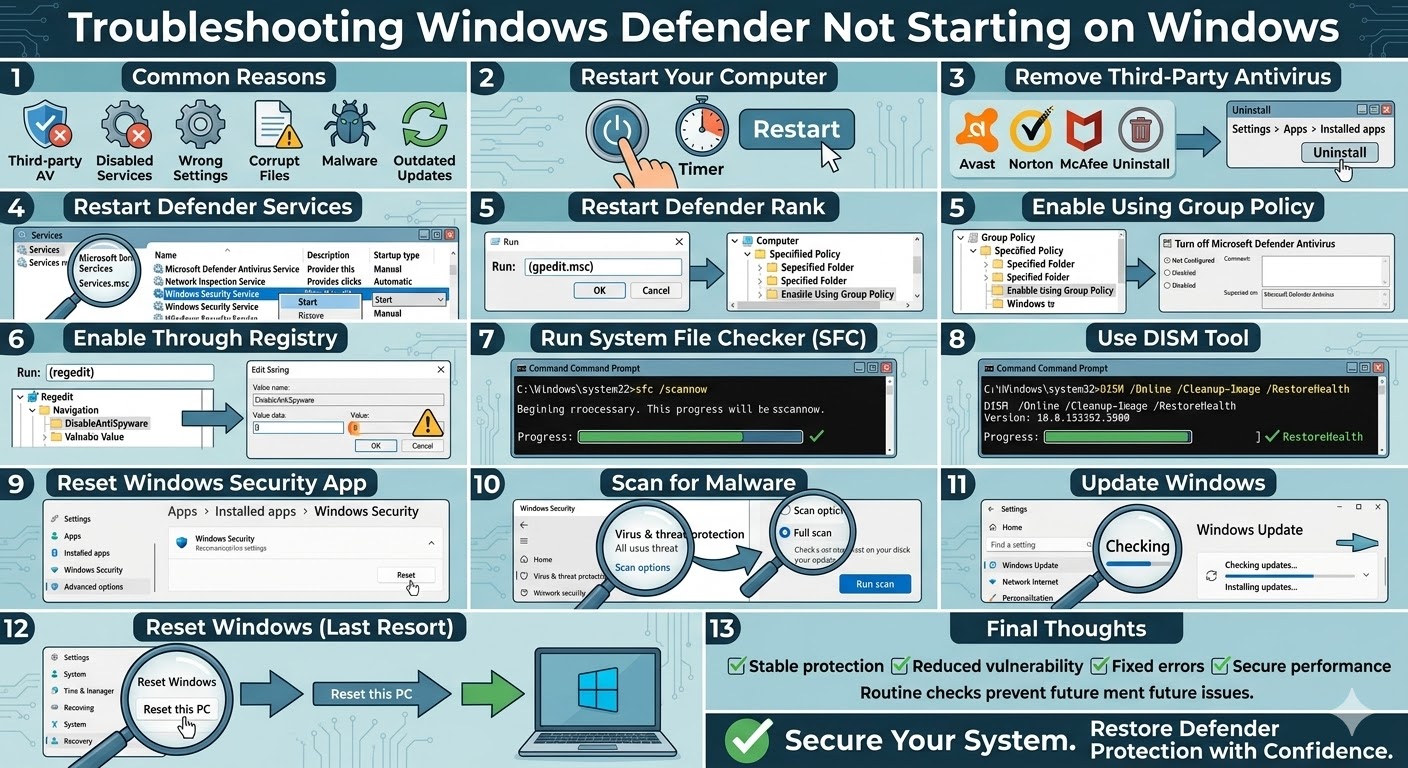
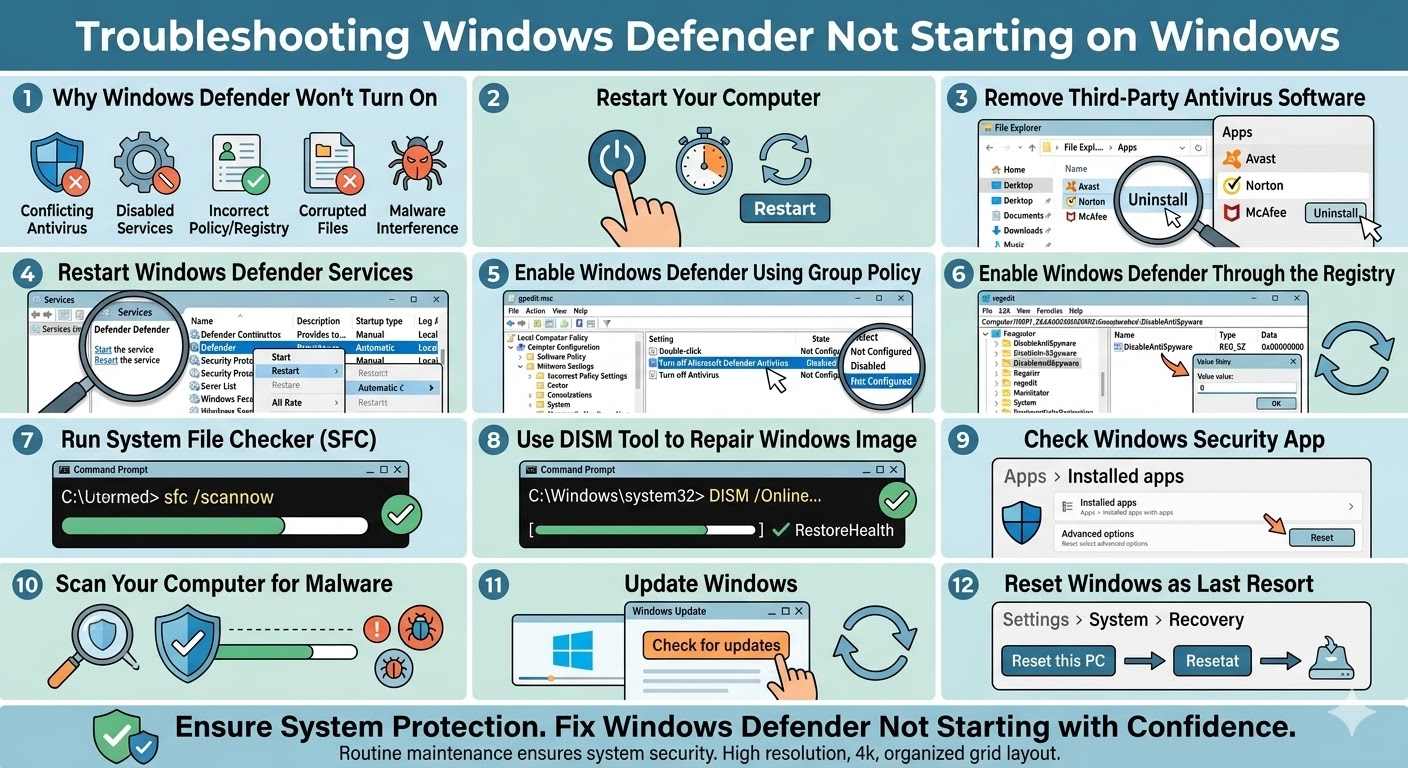
Troubleshooting Windows Defender Not Starting on Windows
Windows Defender, now known as Microsoft Defender Antivirus, is a built-in security tool that protects your computer from viruses, malware, spyware, and other online threats. It comes pre-installed with Windows and runs automatically to keep your system safe. However, some users encounter a problem where Windows Defender refuses to turn on, leaving the system without active protection.
When this issue occurs, you may see messages such as “Windows Defender is turned off,” “This app is turned off by group policy,” or “Your virus and threat protection is managed by your organization.” In some cases, the toggle button for real-time protection may also be disabled.
This problem can be caused by several factors, including conflicting antivirus programs, corrupted system files, incorrect group policy settings, or disabled Windows services. Fortunately, there are several effective methods to fix the issue and restore Windows Defender functionality.
In this guide, you will learn how to fix the Windows Defender won’t turn on problem on Windows systems.
Why Windows Defender Won’t Turn On
Before applying solutions, it is helpful to understand why the problem occurs. Windows Defender may fail to start for several reasons.
Some of the most common causes include:
-
A third-party antivirus program installed on the system
-
Disabled Windows Defender services
-
Incorrect group policy or registry settings
-
Corrupted system files
-
Malware interference
-
Outdated Windows updates
Identifying the cause can make troubleshooting easier.
Restart Your Computer
Sometimes the issue may occur due to temporary system glitches or background service conflicts. Restarting your computer can refresh system processes and restore normal functionality.
To restart your system:
-
Click the Start Menu.
-
Select the Power icon.
-
Choose Restart.
After restarting, open Windows Security and check whether Windows Defender is enabled.
Remove Third-Party Antivirus Software
One of the most common reasons Windows Defender cannot turn on is the presence of another antivirus program. Windows automatically disables Defender when a third-party security application is installed.
If you recently installed antivirus software such as Avast, Norton, or McAfee, Windows Defender may remain disabled.
To remove the third-party antivirus:
-
Press Windows + I to open Settings.
-
Click Apps.
-
Select Installed apps or Apps & features.
-
Locate the antivirus program.
-
Click Uninstall.
After removing the software, restart your computer and check if Windows Defender turns on automatically.
Restart Windows Defender Services
Windows Defender relies on several background services to function correctly. If these services are disabled or stopped, the antivirus will not work.
To restart Defender services:
-
Press Windows + R.
-
Type services.msc and press Enter.
-
Locate the following services:
-
Microsoft Defender Antivirus Service
-
Microsoft Defender Antivirus Network Inspection Service
-
Windows Security Service
-
Right-click each service and select Start or Restart.
Make sure the Startup type is set to Automatic.
Enable Windows Defender Using Group Policy
Sometimes Windows Defender is disabled through Group Policy settings, especially on work or school computers.
To check this setting:
-
Press Windows + R.
-
Type gpedit.msc and press Enter.
-
Navigate to:
Computer Configuration → Administrative Templates → Windows Components → Microsoft Defender Antivirus
-
Double-click Turn off Microsoft Defender Antivirus.
-
Set the option to Disabled or Not Configured.
-
Click Apply and OK.
Restart your computer after changing the setting.
Enable Windows Defender Through the Registry
If the issue is caused by incorrect registry values, adjusting the registry may restore Defender functionality.
Follow these steps carefully:
-
Press Windows + R.
-
Type regedit and press Enter.
-
Navigate to the following path:
HKEY_LOCAL_MACHINE\SOFTWARE\Policies\Microsoft\Windows Defender
-
Look for a value named DisableAntiSpyware.
-
Double-click it and change the value to 0.
-
Restart your computer.
Editing the registry should always be done carefully because incorrect changes can affect system stability.
Run System File Checker
Corrupted system files can prevent Windows Defender from starting.
Running the System File Checker (SFC) tool can repair damaged system files.
To run SFC:
-
Type cmd in the Windows search bar.
-
Right-click Command Prompt and select Run as administrator.
-
Enter the following command:
sfc /scannow
-
Press Enter.
Wait for the scan to finish and restart your computer.
Use the DISM Tool
If SFC cannot repair the issue, the DISM (Deployment Image Servicing and Management) tool can repair the Windows system image.
To run DISM:
-
Open Command Prompt as administrator.
-
Enter the following command:
DISM /Online /Cleanup-Image /RestoreHealth
-
Press Enter.
After the repair process is complete, restart your computer.
Check Windows Security App
Sometimes the Windows Security application may malfunction, which prevents Defender from enabling properly.
To reset the Windows Security app:
-
Open Settings.
-
Click Apps.
-
Select Installed apps.
-
Find Windows Security.
-
Click Advanced options.
-
Select Reset.
Restart your computer afterward.
Scan Your Computer for Malware
Certain types of malware attempt to disable Windows Defender to avoid detection.
If you suspect malware infection, run a scan using trusted security tools or boot into Safe Mode and perform a malware scan.
Removing malicious software can restore Defender functionality.
Update Windows
Keeping Windows updated is important for system stability and security. Some Windows Defender issues are fixed through system updates.
To check for updates:
-
Press Windows + I.
-
Select Windows Update.
-
Click Check for updates.
-
Install any available updates.
Restart your computer after updating.
Reset Windows as a Last Resort
If none of the previous methods work, resetting Windows may be necessary. Resetting reinstalls the operating system and removes configuration problems.
To reset Windows:
-
Open Settings.
-
Click System.
-
Select Recovery.
-
Choose Reset this PC.
-
Follow the on-screen instructions.
You can choose to keep your personal files while resetting the system.
Final Thoughts
When Windows Defender won’t turn on, your computer may be left vulnerable to security threats. This issue is commonly caused by third-party antivirus programs, disabled services, corrupted system files, or incorrect group policy settings.
Fortunately, most users can fix the problem by removing conflicting antivirus software, restarting Defender services, repairing system files, or updating Windows.
Related articles
How to Fix Wi-Fi Disconnecting Issues on Windows 10