


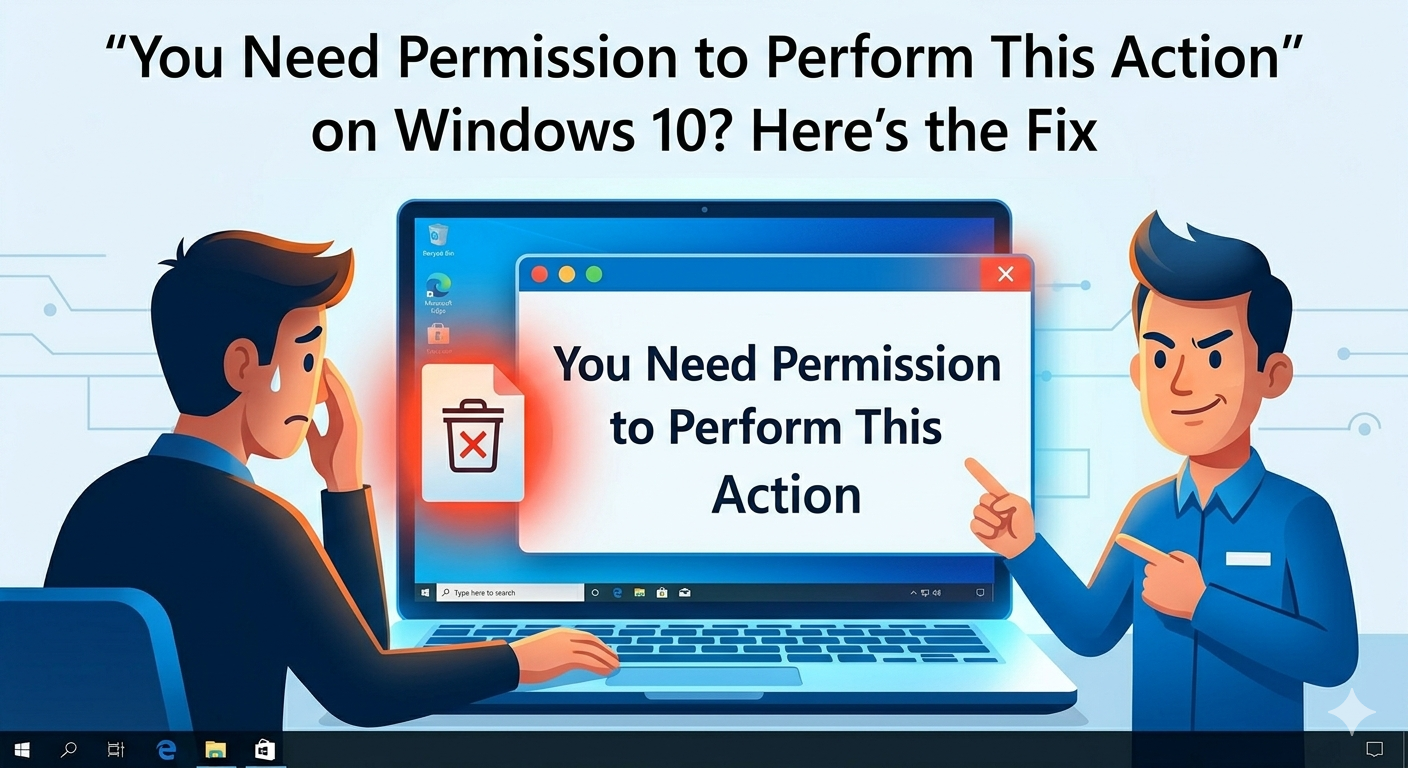
“You Need Permission to Perform This Action” on Windows 10? Here’s the Fix
The error message “You need permission to perform this action” is one of the most common issues Windows 10 users encounter when trying to open, modify, delete, or move files and folders. It can be frustrating, especially when you’re sure you’re the administrator of your own computer.
This error typically indicates a problem with file permissions, ownership, or system restrictions. The good news is that it’s usually easy to fix once you understand what’s causing it.
In this guide, you’ll learn why this error appears and how to resolve it step by step.
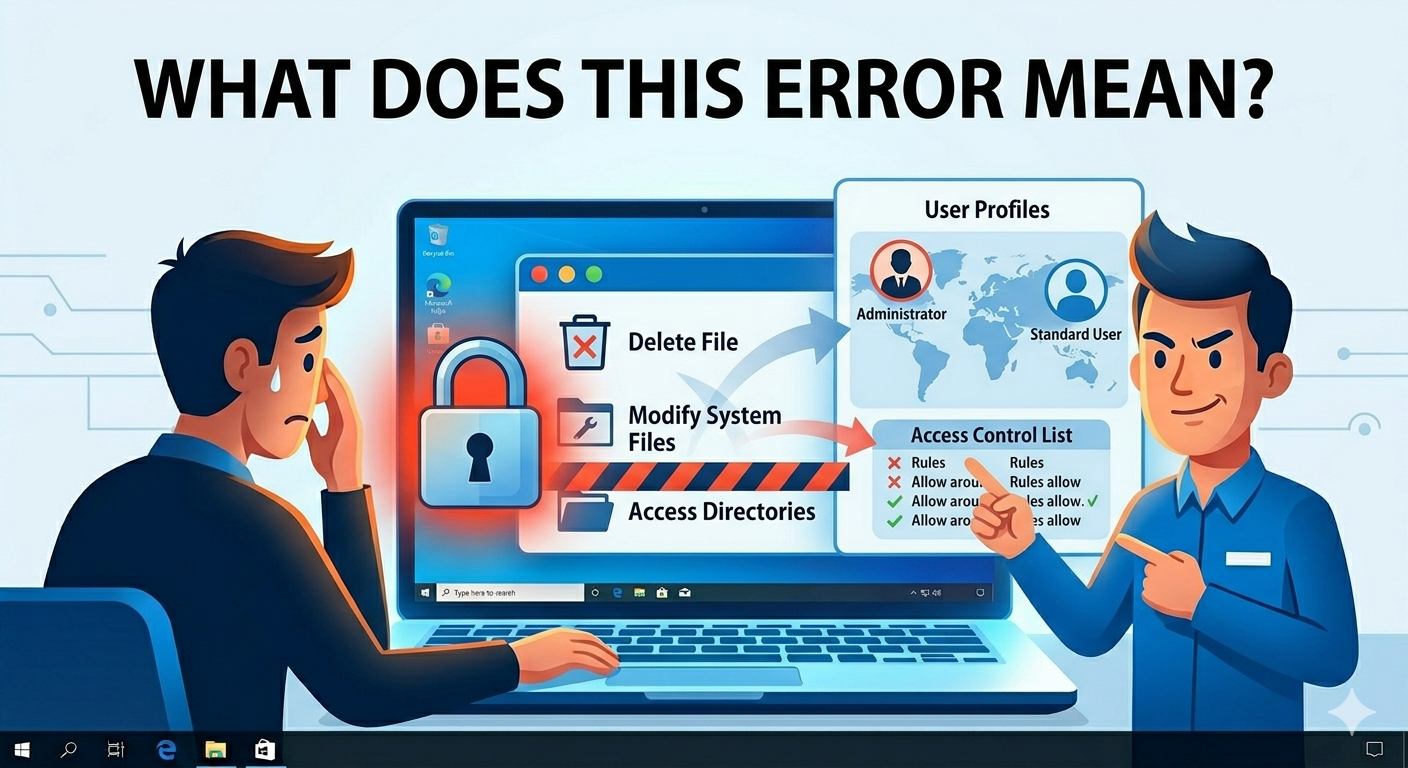
What Does This Error Mean?
When Windows displays this message, it means your user account does not currently have the required permissions to perform a specific action on a file or folder.
You might see this error when trying to:
- Delete a file or folder
- Modify system files
- Copy or move protected items
- Access restricted directories
Even administrator accounts can face this issue due to how Windows manages security and access control.
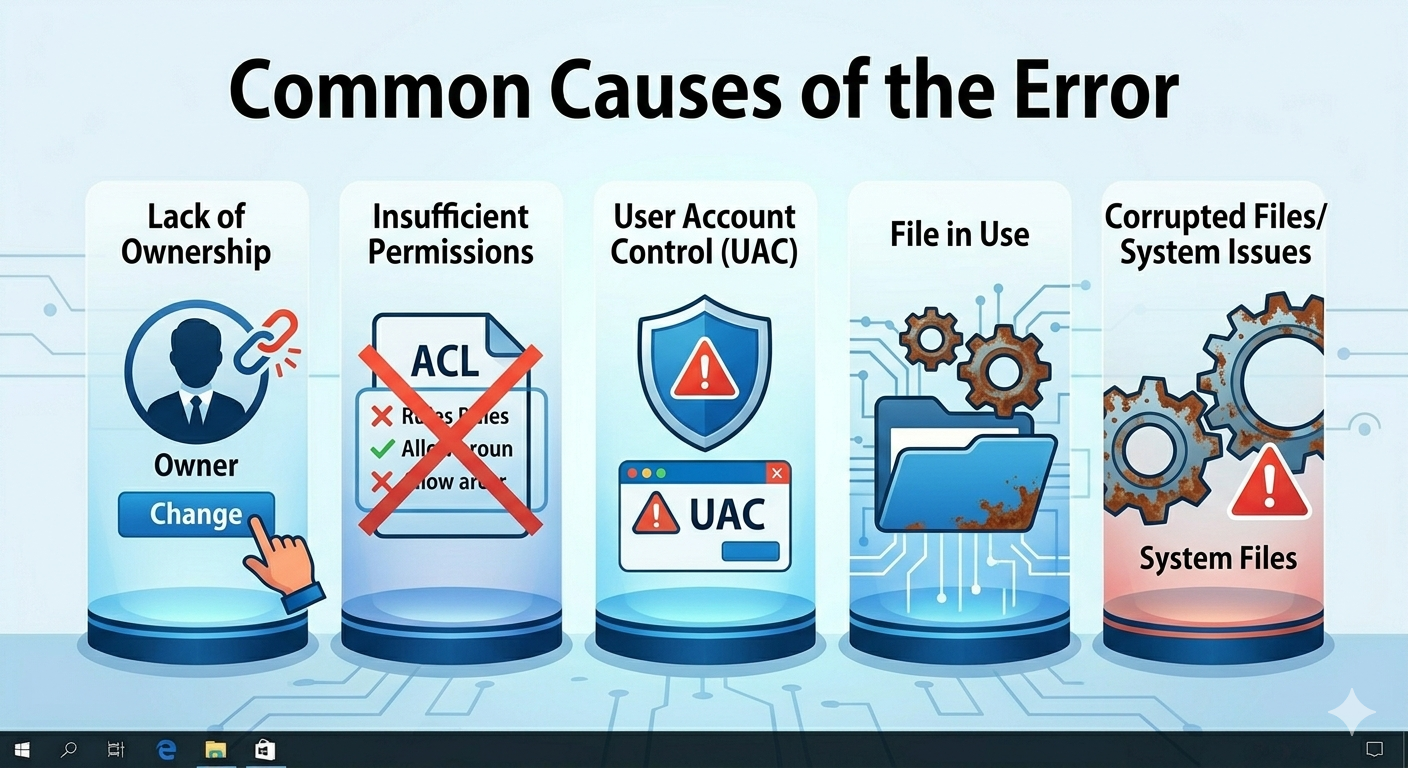
Common Causes of the Error
Understanding the cause helps you apply the right fix.
Lack of Ownership
If you don’t own a file or folder, Windows may block your actions.
Insufficient Permissions
Your account may not have the necessary rights (read, write, modify, or full control).
User Account Control (UAC)
UAC restricts certain actions to protect your system from unauthorized changes.
File in Use
The file may be open or used by another program.
Corrupted Files or System Issues
Damaged files or system errors can trigger permission-related problems.
How to Fix “You Need Permission to Perform This Action”
Below are the most effective methods to resolve this issue.
Run as Administrator
Some actions require elevated privileges.
Steps
- Right-click the file, folder, or application
- Select Run as administrator
Try performing the action again.
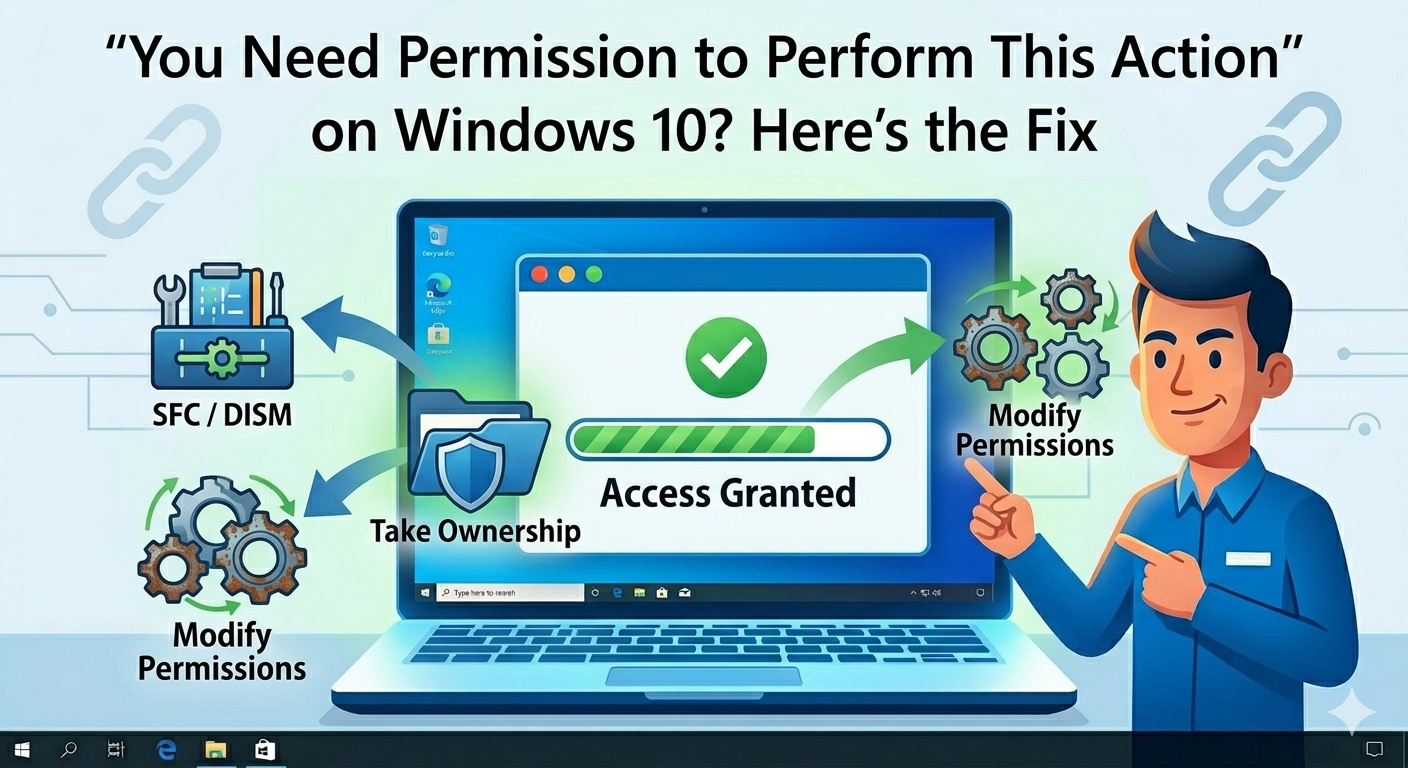
Take Ownership of the File or Folder
Taking ownership gives you control over the file.
Steps
- Right-click the file or folder and select Properties
- Go to the Security tab
- Click Advanced
- Next to Owner, click Change
- Enter your username and click Check Names
- Click OK
- Check Replace owner on subcontainers and objects
- Click Apply and OK
You should now have ownership.
Modify Permissions
After taking ownership, adjust permissions.
Steps
- Right-click the file or folder → Properties
- Go to the Security tab
- Click Edit
- Select your user account
- Check Full Control
- Click Apply and OK
Try accessing the file again.
Disable Read-Only Attribute
Some files are marked as read-only.
Steps
- Right-click the file or folder
- Select Properties
- Uncheck Read-only
- Click Apply and OK
This may allow modifications.
Close Programs Using the File
If the file is in use, Windows will block access.
What to Do
- Close any applications using the file
- Check background processes in Task Manager
- Restart your computer if necessary
Use Safe Mode
Safe Mode loads minimal drivers and services.
Steps
- Restart your computer
- Boot into Safe Mode
- Try performing the action again
This helps bypass software conflicts.
Run System File Checker (SFC)
Corrupted system files can cause permission issues.
Steps
- Open Command Prompt as administrator
-
Run:
sfc /scannow - Wait for the scan to complete
Restart your system afterward.
Use DISM Tool
DISM can repair deeper system problems.
Steps
- Open Command Prompt as administrator
-
Run:
DISM /Online /Cleanup-Image /RestoreHealth - Wait for the process to finish
Restart your PC.
Check User Account Type
Make sure your account has administrative privileges.
Steps
- Open Settings
- Go to Accounts → Your info
- Check if your account is listed as Administrator
If not, switch to an admin account.
Disable User Account Control (Temporarily)
UAC may block certain actions.
Steps
- Search for UAC in the Start menu
- Click Change User Account Control settings
- Lower the slider temporarily
- Click OK
Perform the action, then re-enable UAC for security.
Scan for Malware
Malware can alter file permissions.
Steps
- Run Windows Security or antivirus software
- Perform a full system scan
- Remove any threats found
Restart your computer afterward.
Use Command Prompt to Force Access
You can use commands to take ownership and grant permissions.
Steps
- Open Command Prompt as administrator
-
Run:
takeown /f “file_path” /r /d y
icacls “file_path” /grant administrators:F /t
Replace file_path with the actual path.
When to Consider Advanced Solutions
If the problem persists, consider:
- Performing a System Restore
- Resetting Windows while keeping your files
- Reinstalling Windows as a last resort
These options can fix deeper issues.
Tips to Avoid Permission Errors
To prevent this issue in the future:
- Avoid modifying system files unnecessarily
- Keep your system updated
- Use administrator accounts responsibly
- Regularly scan for malware
- Back up important data
These practices help maintain system stability.
Final Thoughts
The “You need permission to perform this action” error in Windows 10 can be frustrating, but it is usually caused by manageable issues like ownership conflicts, insufficient permissions, or system restrictions.
By taking ownership, adjusting permissions, and using tools like SFC and DISM, you can quickly regain access to your files and folders. Start with simple fixes and move to advanced solutions if needed.
Related articles
How to Fix Wi-Fi Disconnecting Issues on Windows 10