


How to Fix Windows Updates Turning Off by Themselves
Windows Update is a critical feature that keeps your system secure, stable, and up to date with the latest improvements. However, some users encounter a frustrating issue where Windows Updates keep turning off automatically, preventing their system from receiving important patches.
If you’re facing this problem on Windows 10 or Windows 11, you’re not alone. This issue can be caused by misconfigured settings, disabled services, or even third-party software. The good news is that it can usually be fixed with the right approach.
In this guide, you’ll learn why Windows Updates keep turning off and how to solve the problem step by step.
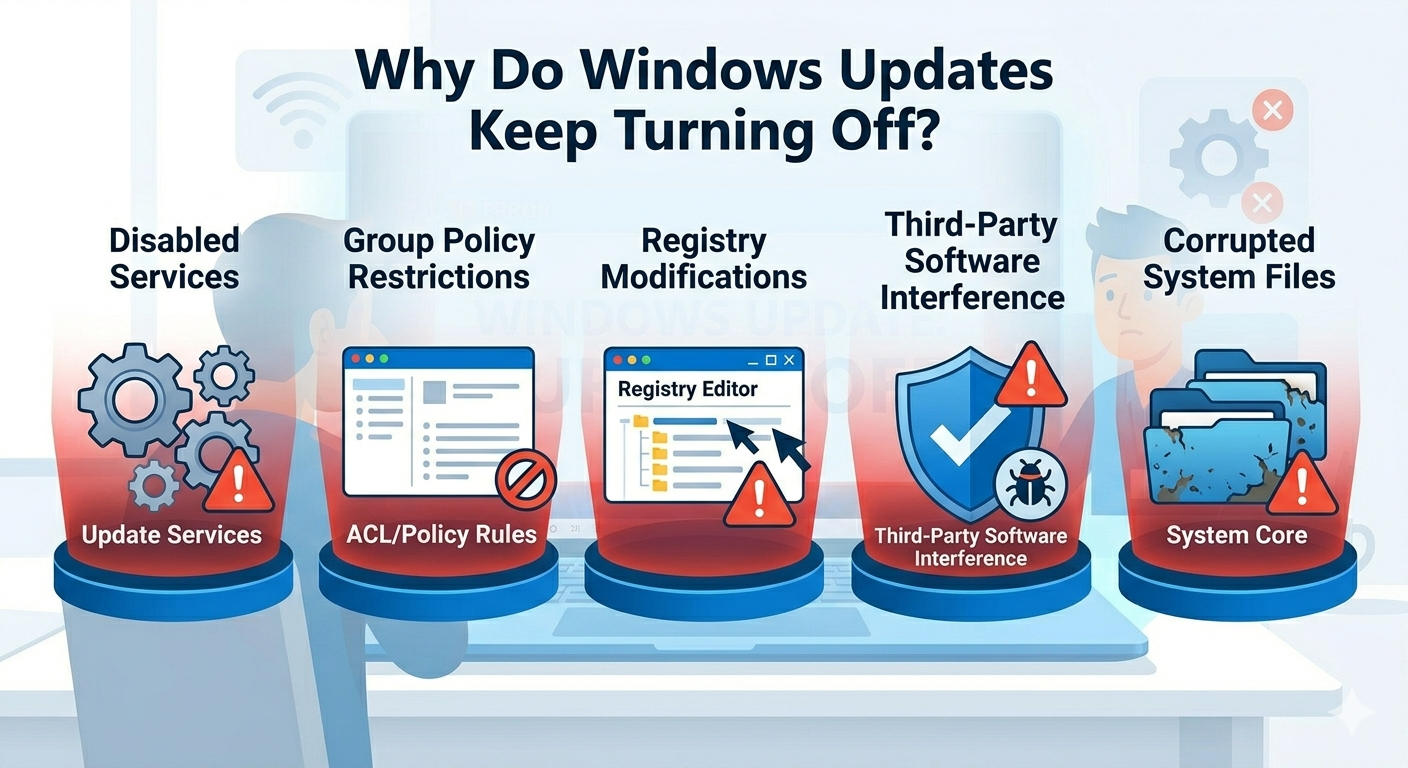
Why Do Windows Updates Keep Turning Off?
Before jumping into solutions, it’s important to understand what may be causing the issue.
Disabled Windows Update Service
If the Windows Update service is stopped or disabled, updates won’t run automatically.
Group Policy Restrictions
Certain settings in Group Policy can disable updates, especially on work or school devices.
Registry Modifications
Changes in the Windows Registry may override update settings.
Third-Party Software Interference
Antivirus programs or system optimization tools may block updates.
Corrupted System Files
Damaged system components can prevent Windows Update from functioning properly.
Malware or Unauthorized Changes
Malicious software may disable updates to avoid detection.
How to Fix Windows Updates Turning Off Automatically
Below are the most effective methods to fix this issue and restore normal update behavior.
Check Windows Update Service
The first step is to ensure the service is running.
Steps
- Press
Windows + R, type services.msc, and press Enter - Find Windows Update
- Double-click it
- Set Startup type to Automatic
- Click Start if the service is stopped
- Click Apply and OK
Restart your computer and check if updates stay enabled.
Restart Essential Update Services
Other services also support Windows Update.
Steps
- Open services.msc
- Restart the following services:
- Windows Update
- Background Intelligent Transfer Service (BITS)
- Cryptographic Services
These services must be running for updates to work properly.
Run Windows Update Troubleshooter
Windows includes a built-in tool to fix update problems.
Steps
- Open Settings
- Go to Update & Security → Troubleshoot
- Click Additional troubleshooters
- Select Windows Update
- Run the troubleshooter
Follow the on-screen instructions.
Check Group Policy Settings
Incorrect policies may disable updates.
Steps
- Press
Windows + R, type gpedit.msc, and press Enter - Navigate to:
Computer Configuration → Administrative Templates → Windows Components → Windows Update - Double-click Configure Automatic Updates
- Set it to Enabled or Not Configured
- Click Apply and OK
Restart your PC.
Modify Registry Settings
If Group Policy isn’t available, use the Registry Editor.
Steps
- Press
Windows + R, type regedit, and press Enter -
Navigate to:
HKEY_LOCAL_MACHINE\SOFTWARE\Policies\Microsoft\Windows\WindowsUpdate - Delete or modify entries that disable updates
- Restart your computer
Be cautious when editing the registry.
Scan for Malware
Malware can disable updates to avoid detection.
Steps
- Open Windows Security
- Run a Full Scan
- Remove any threats found
Restart your system after scanning.
Disable Third-Party Antivirus Temporarily
Some antivirus tools may interfere with updates.
What to Do
- Disable your antivirus temporarily
- Try enabling Windows Update again
- Re-enable antivirus afterward
Reset Windows Update Components
Resetting components can fix persistent issues.
Steps
- Open Command Prompt as administrator
-
Stop services:
net stop wuauserv
net stop bits
net stop cryptsvc -
Rename folders:
ren C:\Windows\SoftwareDistribution SoftwareDistribution.old
ren C:\Windows\System32\catroot2 catroot2.old -
Restart services:
net start wuauserv
net start bits
net start cryptsvc
Restart your PC.
Run System File Checker (SFC)
Corrupted system files can affect updates.
Steps
- Open Command Prompt as administrator
-
Run:
sfc /scannow - Wait for the scan to complete
Restart your system.
Use DISM Tool
DISM repairs deeper system issues.
Steps
- Open Command Prompt as administrator
-
Run:
DISM /Online /Cleanup-Image /RestoreHealth - Wait for the process to finish
Restart your PC.
Perform a Clean Boot
A clean boot can identify software conflicts.
Steps
- Press
Windows + R, type msconfig, and press Enter - Go to the Services tab
- Check Hide all Microsoft services
- Click Disable all
- Disable startup programs
- Restart your computer
Test if updates remain enabled.
Check Windows Update Settings
Make sure updates are not paused.
Steps
- Open Settings
- Go to Windows Update
- Ensure updates are not paused
- Resume updates if necessary
When to Use Advanced Solutions
If the issue persists, consider:
- Performing a System Restore
- Resetting Windows while keeping your files
- Reinstalling Windows
These options can fix deeper system problems.
Tips to Prevent Windows Update Issues
To avoid this problem in the future:
- Keep your system regularly updated
- Avoid using untrusted optimization tools
- Maintain proper system security
- Regularly scan for malware
- Do not disable essential services
These practices help ensure updates run smoothly.
Final Thoughts
When Windows Updates keep turning off automatically, it can leave your system vulnerable and outdated. This issue is usually caused by disabled services, incorrect settings, or software interference.
By checking services, adjusting Group Policy or registry settings, and repairing system files, you can restore Windows Update functionality. Start with simple fixes and move to advanced solutions if needed.
manageable issues like ownership conflicts, insufficient permissions, or system restrictions.
By taking ownership, adjusting permissions, and using tools like SFC and DISM, you can quickly regain access to your files and folders. Start with simple fixes and move to advanced solutions if needed.
Related articles
Fixing the “Kernel Security Check Failure” Error on Windows 10