


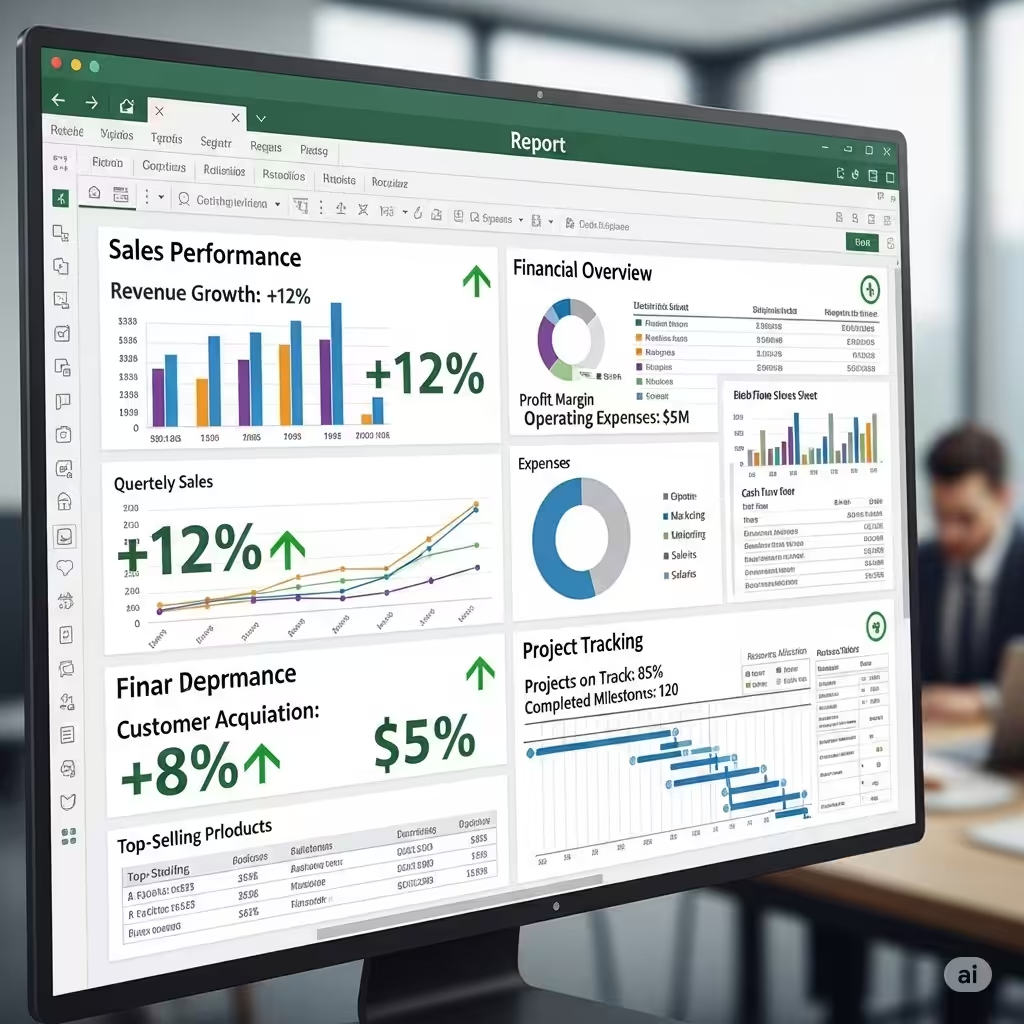
Using Excel to Generate Reports for Effective Data Analysis
Microsoft Excel has long been one of the most powerful tools for data management and analysis. From simple tables to complex financial models, Excel offers a wide range of features that allow users to organize, interpret, and present data effectively. One of the most valuable uses of Excel is creating reports. Well-designed reports help businesses, students, and professionals transform raw data into clear, actionable insights.
This guide will walk you through the process of creating reports in Excel, explain essential tools, and provide tips for making your reports both professional and effective.
Understanding the Purpose of Excel Reports
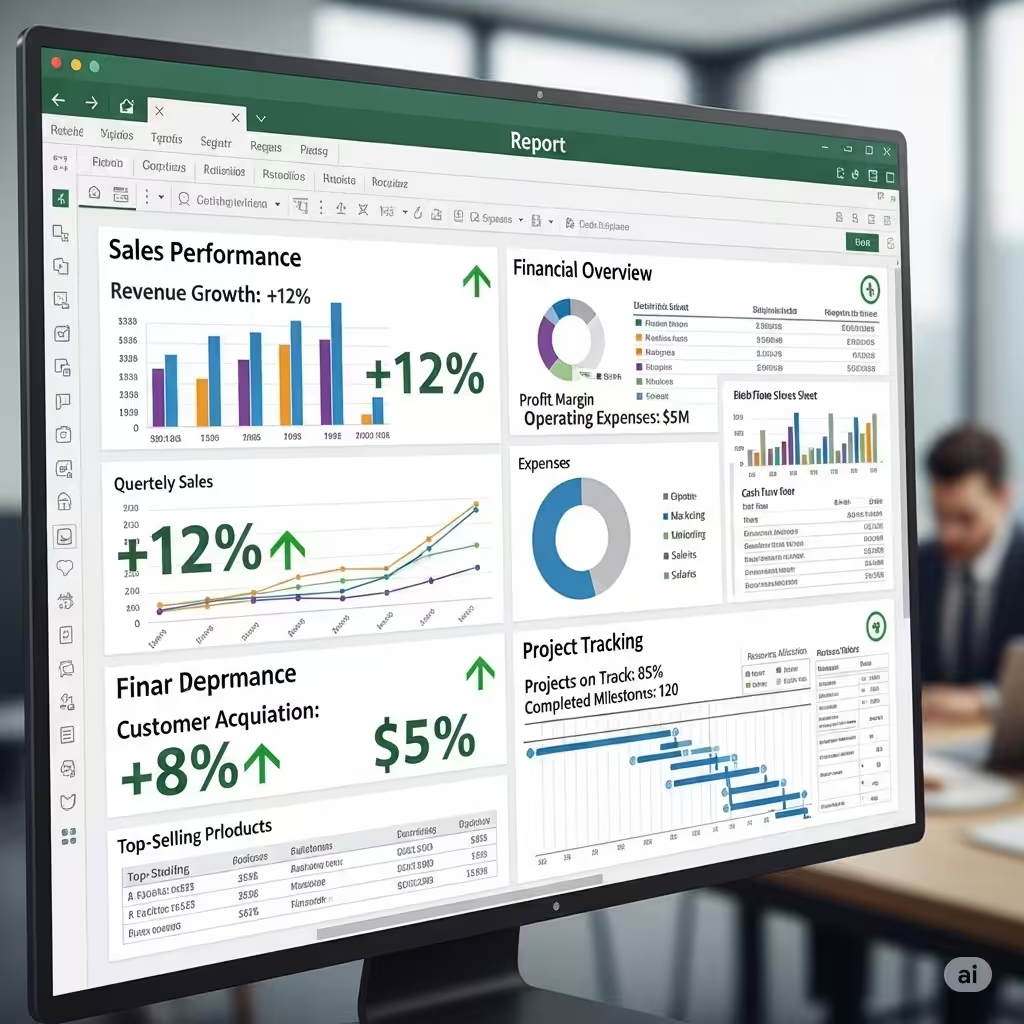
Before creating a report, it’s important to define its purpose. An Excel report is a structured presentation of data designed to answer specific questions, highlight trends, and support decision-making. For example:
-
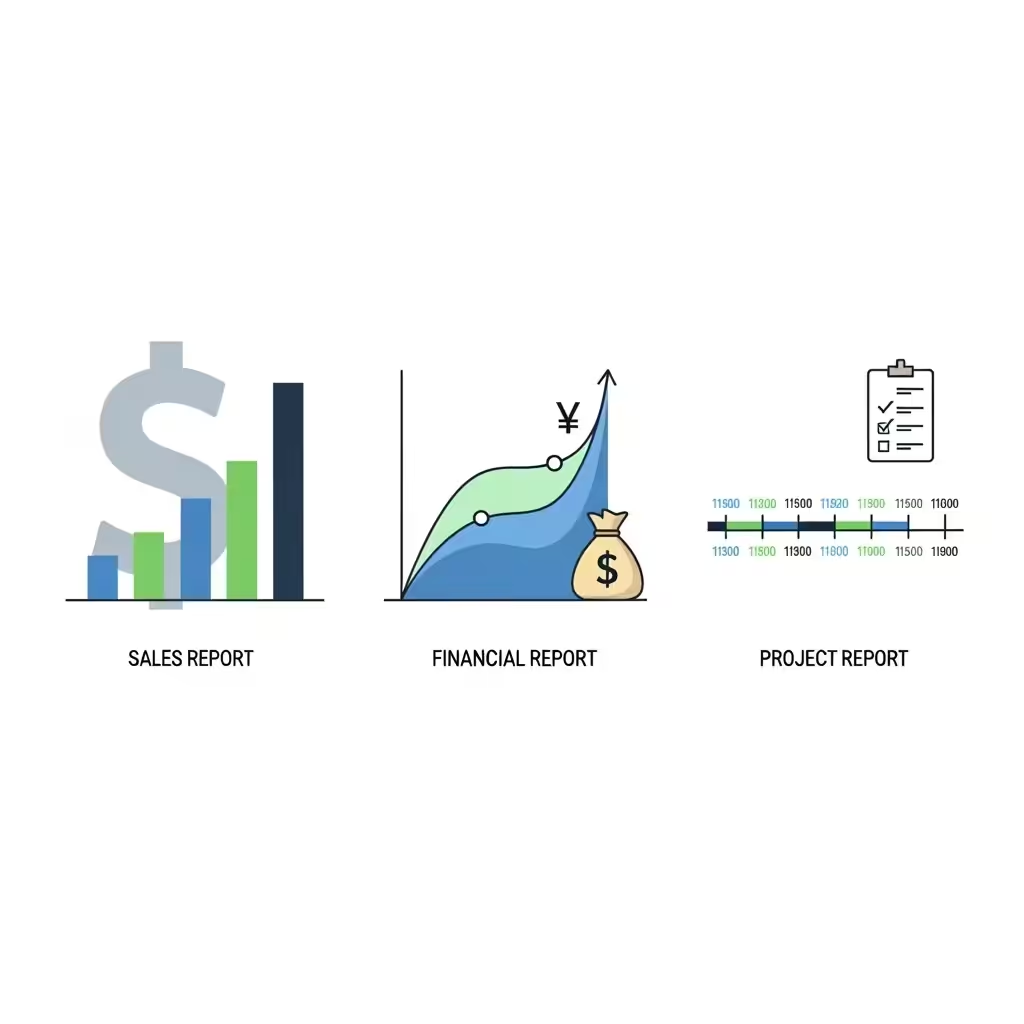
A sales report can show monthly revenue and product performance.
-
A financial report can summarize expenses, profits, and cash flow.
-
A project report can track progress, resources, and deadlines.
When you know what the report should accomplish, it becomes easier to choose the right structure and tools in Excel.
Preparing Data for Reporting
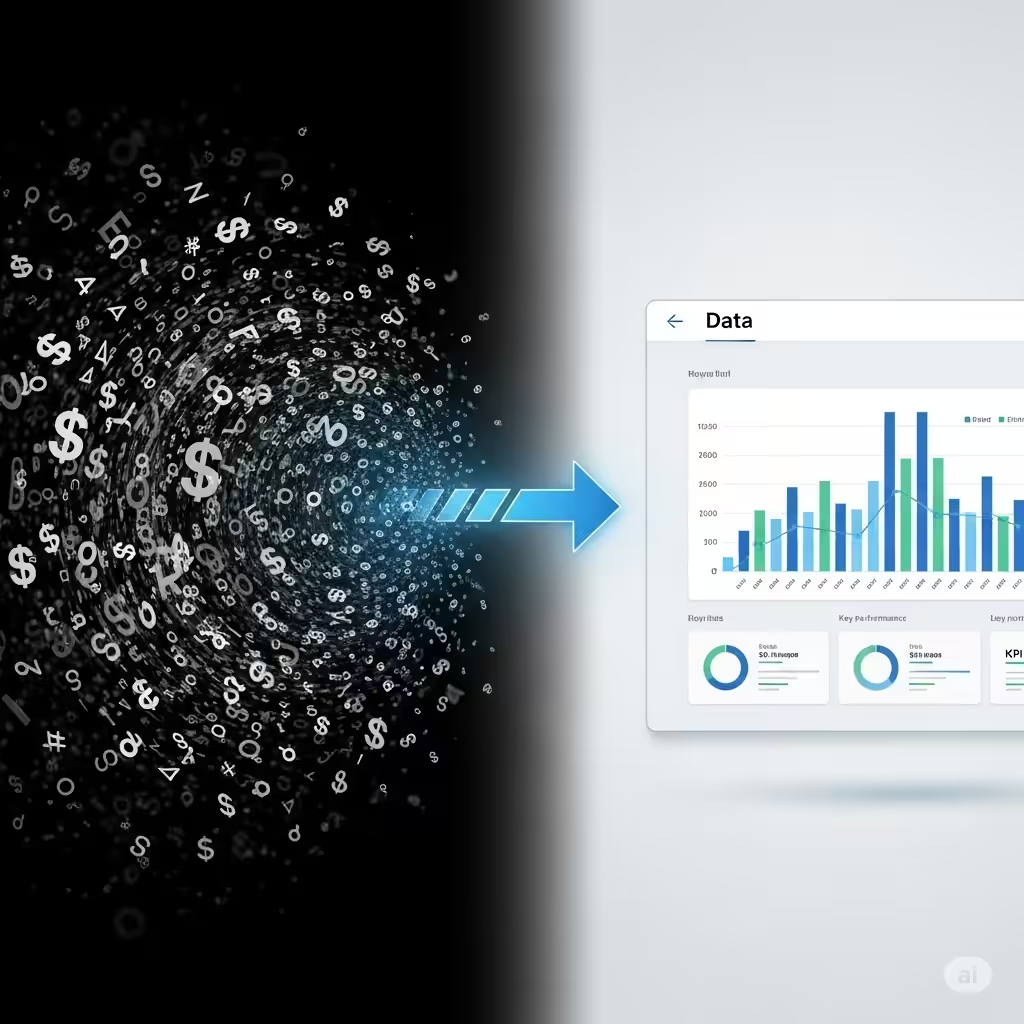
Good reports begin with clean, organized data. If your dataset is messy or inconsistent, the report will be difficult to interpret.
Steps to Prepare Your Data:
-
Import Data Correctly: Use Excel’s import tools to bring data from sources like CSV files, databases, or online platforms.
-
Clean the Data: Remove duplicates, fix errors, and ensure consistency in formatting (e.g., dates or numbers).
-
Organize into Tables: Convert data ranges into Excel Tables for easier sorting, filtering, and referencing.
Spending time on data preparation ensures that your report is reliable and accurate.
Using PivotTables for Data Analysis
One of Excel’s most powerful tools for reporting is the PivotTable. PivotTables allow you to quickly summarize large amounts of data and analyze it from different perspectives.
How to Create a PivotTable:
-
Select your dataset or table.
-
Go to the Insert tab and click PivotTable.
-
Choose where you want the PivotTable to appear (new sheet or existing sheet).
-
Drag and drop fields into the Rows, Columns, Values, and Filters areas.
For example, in a sales dataset, you can drag Product into Rows and Sales Amount into Values to see total sales per product. You can then add Region to Columns to compare sales across regions.
Adding PivotCharts for Visualization
While PivotTables provide summarized data, PivotCharts allow you to visualize it. Charts make patterns and trends easier to understand.
Steps to Insert a PivotChart:
-
Create a PivotTable.
-
Click inside the PivotTable.
-
Go to the Insert tab and select a chart type such as column, line, or pie chart.
Charts not only make your report more visually appealing but also help stakeholders grasp insights at a glance.
Formatting Your Report for Clarity
A report should not only contain accurate data but also be easy to read. Proper formatting improves clarity and professionalism.
Formatting Tips:
-
Use consistent fonts and sizes for headings and content.
-
Apply conditional formatting to highlight key figures, such as top sales or overdue tasks.
-
Freeze panes to keep headers visible when scrolling through large datasets.
-
Add borders and shading to separate sections clearly.
Well-formatted reports are easier to navigate and more impactful.
Using Formulas to Enhance Reports
Excel formulas are essential for calculations and automation within your reports. Some useful functions include:
-
SUM() – Adds up values in a range.
-
AVERAGE() – Calculates the mean of a dataset.
-
IF() – Applies conditional logic to display specific outcomes.
-
VLOOKUP() or XLOOKUP() – Retrieves information from another table.
-
TEXT() – Formats numbers or dates for better presentation.
Combining formulas with tables and charts allows you to create dynamic, interactive reports.
Automating Reports with Power Query
For more advanced reporting, Power Query is a tool in Excel that helps automate data preparation. With Power Query, you can:
-
Import data from multiple sources.
-
Clean and transform data with step-by-step instructions.
-
Refresh reports automatically when new data is available.
This is especially useful if you need to generate recurring reports, such as monthly sales or weekly project updates.
Designing Dashboards in Excel
If you want to take your reporting to the next level, consider building a dashboard in Excel. A dashboard is a visual summary that combines charts, tables, and key metrics in one view.
Steps for Building a Dashboard:
-
Identify the most important metrics (KPIs) for your audience.
-
Use PivotTables and PivotCharts to generate visual elements.
-
Arrange them neatly on a single sheet for quick access.
-
Use slicers and filters to make the dashboard interactive.
Dashboards are powerful because they allow decision-makers to see the big picture instantly without analyzing raw data.
Tips for Creating Effective Reports in Excel
-
Know Your Audience: Design reports with your readers in mind. Executives may want summaries, while analysts may need detailed data.
-
Keep It Simple: Avoid unnecessary complexity. Highlight only the most important insights.
-
Use Visuals Wisely: Too many charts can clutter a report. Choose the best type of chart for the data.
-
Check for Accuracy: Double-check formulas, data sources, and references before sharing the report.
-
Update Regularly: If your report is recurring, set up automated refreshes to save time.
These practices ensure that your Excel reports are not only accurate but also practical and user-friendly.
Conclusion
Creating reports in Excel is a powerful way to transform raw data into meaningful insights. By preparing clean data, using PivotTables and PivotCharts, applying formulas, and even building dashboards, you can design reports that support effective decision-making.
Whether you are analyzing sales performance, tracking budgets, or managing projects, Excel provides the tools to make reporting both efficient and professional. With practice, you can master Excel’s features and create reports that deliver clear, valuable information every time.